Start the computer and connect the mouse's USB connector to an available USB port. The driver installs automatically, after which the trackball can be used. Check connector orientation before insertion and never force the plug.
Is this answer helpful?
A
The selector switches between 500, 1000, and 1500 dpi. The nearby indicator blinks once for 500 dpi, twice for 1000 dpi, and three times for 1500 dpi.
Is this answer helpful?
A
Yes. The additional function buttons can receive custom assignments through ELECOM Mouse Assistant. They have no assigned function at purchase. The software also enables high-speed scrolling.
Is this answer helpful?
A
Yes. The tilt wheel enables horizontal scrolling on Windows. On Macintosh systems, the dedicated browser buttons provide Forward and Back operations.
Is this answer helpful?
A
Push the ball out from the underside using a finger or pen. Use a cotton swab to remove dust from the three red support-ball contact areas. Avoid touching or damaging the optical sensor under the ball.
Is this answer helpful?
A
The listed systems are Windows 10, Windows 8.1, Windows RT 8.1, Windows 7, Windows XP, and macOS Sierra 10.12. System updates or service packs may be required, and compatibility with newer systems is not stated.
Is this answer helpful?
M: gpt-5.6-terra
Advantagesand
Disadvantages
Advantages
Stationary trackball design can reduce the desk space needed for pointer movement.
Three selectable pointer speeds offer 500, 1000, and 1500 dpi control.
Tilt wheel supports horizontal scrolling in Windows environments.
Dedicated Back and Forward buttons simplify browser navigation.
ELECOM Mouse Assistant adds button assignment and high-speed scrolling options.
VS
Disadvantages
Large 115 x 182 x 58 mm body may not suit compact desks or travel use.
Function buttons require ELECOM Mouse Assistant to be customized.
ELECOM Mouse Assistant does not support Windows RT.
Wired USB connection may be less convenient than a wireless setup.
Regular trackball cleaning is needed to remove dust from the support points.
Elecom HUGE M-HT1 Manual: A Wired Trackball Built for Control
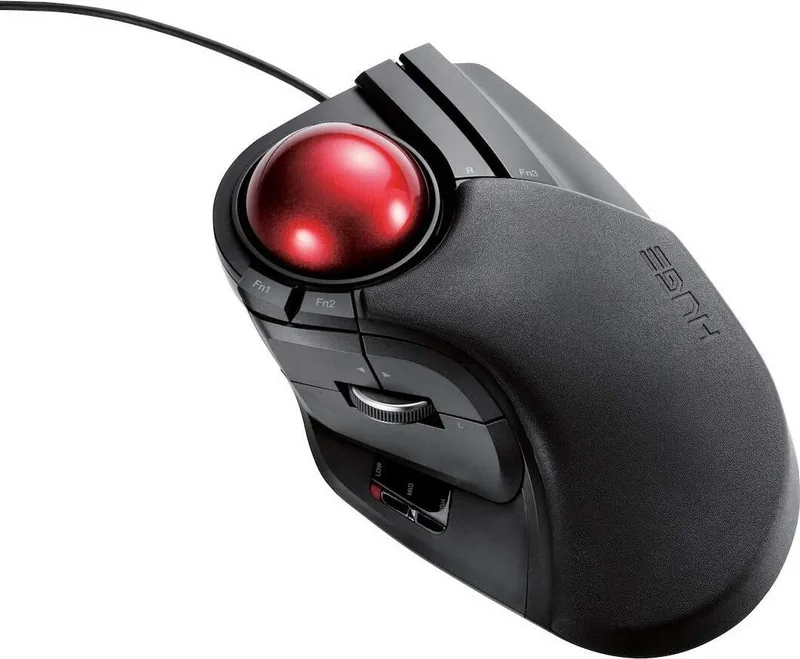
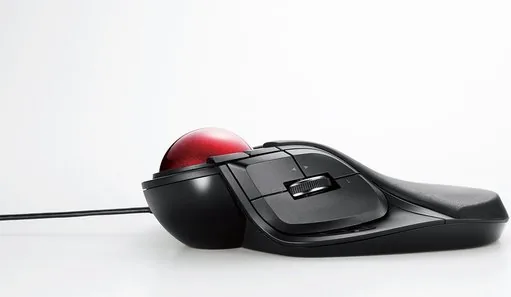
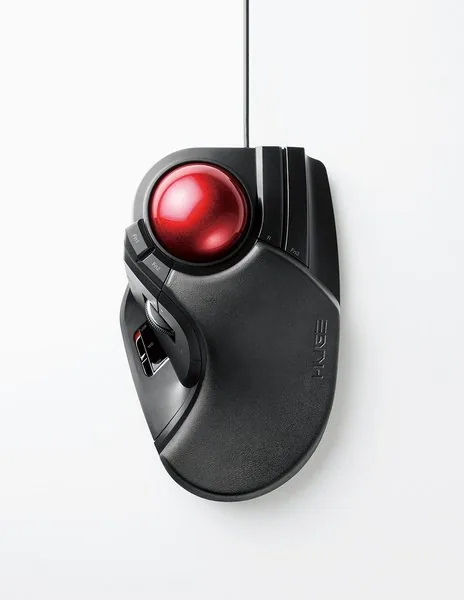
The Elecom HUGE M-HT1 is a wired USB trackball mouse designed for users who prefer cursor control without repeatedly moving a conventional mouse across the desk. Its large trackball sits beneath the thumb area, allowing the pointer to travel across the screen while the device itself remains in place. This approach can be especially useful for spacious workstations, detailed browsing, and tasks that benefit from steady, precise movement.
Everyday Navigation Features
The M-HT1 includes standard left and right buttons, dedicated Back and Forward buttons for browser navigation, a tilt wheel, and additional function buttons. The tilt wheel supports horizontal scrolling in Windows, while the Back and Forward controls can be used on Macintosh systems. The three function buttons are unassigned by default, giving users the option to tailor the mouse to their workflow.
For expanded customization, install ELECOM Mouse Assistant. The software enables button assignment and high-speed scrolling functions. It does not support Windows RT, so users of that operating system can use the hardware but cannot use its function-allocation features. The mouse connects through USB, and its driver installs automatically after it is connected to a ready computer.
Adjustable Pointer Speed
A dedicated selector lets you choose among three pointer-speed settings: 500, 1000, and 1500 dpi. This gives the Elecom HUGE M-HT1 flexibility for different screen sizes and personal preferences. An indicator near the tilt wheel confirms the selected setting: one blink represents 500 dpi, two blinks represent 1000 dpi, and three blinks represent 1500 dpi. Lower settings can suit deliberate cursor work, while higher settings reduce the amount of trackball movement needed to cross a display.
The mouse measures approximately 115 x 182 x 58 mm and has a 1.5 m cable. Its sizeable body and stationary design make it a distinctive choice compared with compact travel mice. It is intended for PCs and video game systems using a USB connection.
Care and Practical Notes
Keeping the trackball clean is important for smooth operation. Push the ball out through the removal hole from the underside, then use a cotton swab to remove dust from the three red support-ball contact areas. Take care around the optical sensor beneath the ball and avoid damaging it. Wipe the outer body with a soft, dry cloth only.
Note: Use the mouse in a dry, stable environment. Do not expose it to liquids, direct heat, heavy dust, strong impacts, or excessive connector force. If it produces heat, smoke, or an unusual odor, disconnect it immediately and contact the retailer.
For users seeking a large wired trackball with adjustable sensitivity, browser controls, tilt-wheel scrolling, and optional button customization, the Elecom HUGE M-HT1 offers a practical desktop-focused alternative to a standard mouse.