Typ emittiertes LichtBereich nicht sichtbarer Wellenlängen
Anzahl der Tasten8 * darunter Radtaste
AußenmaßeTrackball Hauptgerät:
Ungefähr B 108 mm × T135 mm × H 48 mm
Empfängereinheit:
Ungefähr B 14 mm × T 19 mm× H5 mm
Gewicht
Trackball Hauptgerät:Ca. 260 g (ohne Batterien)
Empfängereinheit: Ca. 2 g
Betriebstemperatur/
Betriebsfeuchtigkeit
5° bis 40° C/bis zu 90 % relative
Luftfeuchtigkeit (doch ohne Kondensation)
Lagertemperatur/
Lagerfeuchtigkeit
-10° bis 60° C/biss zu 90 % relative
Luftfeuchtigkeit (doch ohne Kondensation)
Unterstützten
Batterien
Jede 1 AA Alkali-Batterie, AA Mangan-
Batterie, AA Nickel-Metallhydrid-Batterie
Betriebszeit
Schätzung bei der Verwendung einer Alkali-Batterie
<Niedrigenergie-Modus>
Dauerbetriebszeit:
(2,4 GHz)Ungefähr 134 Stunden
(Bluetooth)Ungefähr 167 Stunden
Dauer der Standby-Zeit:
(2,4 GHz)Ungefähr 925 Tage
(Bluetooth)Ungefähr 925 Tage
Geschätzte Nutzungsdauer:
(2,4 GHz)Ungefähr 301 Tage
(Bluetooth)Ungefähr 366 Tage
<High-Speed-Modus>
Dauerbetriebszeit:
(2,4 GHz)Ungefähr 91 Stunden
(Bluetooth)Ungefähr 104 Stunden
Dauer der Standby-Zeit:
(2,4 GHz)Ungefähr 925 Tage
(Bluetooth)Ungefähr 925 Tage
Geschätzte Nutzungsdauer:
(2,4 GHz)Ungefähr 211 Tage
(Bluetooth)Ungefähr 240 Tage
(Obige Berechnung geht davon aus, dass
der Computer achtStunden am Tag
benutzt wird, wobei 5 % der Zeit mit dem
Betrieb des Trackballs verbracht werden.)
Nombre decompte500/1000/1500 ppp (commutables)
InterfaceUSB
* Pour le mode de connexion filaire/sans
fil de 2,4 GHz
Forme du
connecteur
USB (A) mâle
* Pour le mode de connexion filaire/sans
fil de 2,4 GHz
Systèmes
d’exploitation
compatibles
Windows
®
10, Windows
®
8.1,
Windows
®
RT 8.1, Windows
®
7,
macOS High Sierra(10.13) *,
*
Prise en charge uniquement pour les
modèles avec Bluetooth4.0 ou une
version ultérieure installée en standard
(vous devrez peut-être le mettre à jour vers
latoute dernière version dechaquesystème
d’exploitationou installerdes packs de service.)
Méthodede
communication
Méthode GFSK
Fréquence radioBande 2,4 GHz
Méthodepar onde
radio
Matériaux non magnétiques (tels que des
pupitres en bois): environ 10 m
Matériaux magnétiques (tels que des
pupitres en fer): environ 3 m
*
Cesont desvaleurs d’essai en environnement
de l’entreprise et elles ne sont pas garanties.
Lire la méthodeMéthode de capteur optique
Typede lumière émisGamme de longueurs d’onde non visibles
Nombre de boutons8 * y compris le bouton de la boule
Dimensions
externes
Module principal du Trackball:
Environ L108 mm × P135 mm × H48 mm
Appareil récepteur:
Environ L14 mm × P19 mm × H5 mm
PoidsModule principal du Trackball:
Environ 260g (batteries non incluses)
Appareil récepteur: Environ 2g
Température de fonc-
tionnement/humidité
5°C à 40°C / jusqu’à 90% de RH
(cependant sans condensation)
Température de
stockage/humidité
-10°C à 60°C / jusqu’à 90% de RH
(cependant sans condensation)
Batteries prises en
charge
N’importe quelle batterie alcaline AA,
batterie au manganèse AA, batterie de
nickel-métal hydrure de type AA
Temps
d’exploitation
Estimez quand vousutiliserez des
batteries ou piles alcalines
<Mode Veille ou mode faible énergie>
Temps de fonctionnement continu:
(2,4 GHz)Environ 134 heures
(Bluetooth)Environ 167 heures
Temps de veille continu:
(2,4 GHz)Environ 925 jours
(Bluetooth)Environ 925 jours
Temps d’usage estimé:
(2,4 GHz)Environ 301 jours
(Bluetoo
th)Environ 366 jours
<Mode Haute Vitesse>
Temps de fonctionnement continu:
(2,4 GHz)Environ 91 heures
(Bluetooth)Environ 104 heures
Temps de veille continu:
(2,4 GHz)Environ 925 jours
(Bluetooth)Environ 925 jours
Temps d’usage estimé:
(2,4 GHz)Environ 211 jours
(Bluetooth)Environ 240 jours
(Les points sus citéspartent de l’hypothèseque
l’ordinateurest utilisépendant 8 heures par jour,
avec 5% de temps passé àutiliser le trackball.)
Número de recuento500/1000/1500 dpi (conmutable)
InterfazUSB
*
Para el modo de conexión por cable e
inalámbrico de 2,4 GHz
Forma de conectorUSB (A) male
*
Para el modo de conexión por cable e
inalámbrico de 2,4 GHz
Sistema operativo
compatible
Windows
®
10, Windows
®
8.1,
Windows
®
RT 8.1, Windows
®
7,
macOS High Sierra(10.13) *
*
Soporte sólo para los modelos conBluetooth4.0
o una versión posteriorinstalada de serie
(puede que necesite actualizar a la última versión de
cada sistema operativo o instalar el service pack.)
Métodode
comunicación
Método GFSK
Frecuenciade radioBanda de 2,4 GHz
Alcancedelas
ondas de radio
Materiales no-magnéticos (tales como
escritorios de madera): aproximadamente 10 m
Materiales magnéticos (tales como
escritorios de hierro): aproximadamente 3 m
*
Estosson valores de prueba en el entorno
de la empresa y noestán garantizados.
MétododelecturaMétodo de sensor óptico
Tipode luz emitidaAlcance de longitud de onda no visible
Número debotones8 * incluido el botón derueda
Dimensiones
exteriores
Unidad principal de trackball:
Aprox. An 108 mm × Pr 135 mm× Al 48 mm
Receptor:
Aprox. An 14 mm × Pr 19 mm × Al5 mm
PesoUnidad principal detrackball:
Aprox. 260 g (pilas no incluidas)
Receptor: Aproximadamente 2 g
Humedad/temperatura
de funcionamiento
5°C a 40°C/ hasta 90%RH
(sin condensación)
Humedad/temperatura
dealmacenamiento
-10°Ca 60°C/ hasta 90%RH
(sin condensación)
Pilas compatiblesCualquier pila alcalina AA, pila de
manganeso AA, batería recargable de
níquel hidruro metálico de tipo AA
Tiempode
funcionamiento
Estimación al usar pilas alcalinas
<Modo de ahorro de energía>
Tiempo de funcionamiento continuo:
(2,4 GHz)Aproximadamente 134 horas
(Bluetooth)Aproximadamente 167 horas
Tiempo en espera continuo:
(2,4 GHz)Aproximadamente 925 días
(Bluetooth)Aproximadamente 925 días
Tiempo de uso estimado:
(2,4 GHz)Aproximadamente 301 días
(Bluetooth)Ap
roximadamente 366 días
<Modo de alta velocidad>
Tiempo de funcionamiento continuo:
(2,4 GHz)Aproximadamente 91 horas
(Bluetooth)Aproximadamente 104 horas
Tiempo en espera continuo:
(2,4 GHz)Aproximadamente 925 días
(Bluetooth)Aproximadamente 925 días
Tiempo de uso estimado:
(2,4 GHz)Aproximadamente 211 días
(Bluetooth)Aproximadamente 240 días
(Loanterior es suponiendo que seutiliza el
ordenador durante ocho horas al día con
un 5% del tiempo usando el trackball.)
Download "ELECOM Mouse Assistant" from the
ELECOM website to use its button assignment
and high-speed scrolling functions.
https://www.elecom.co.jp/r/132.html
https://www.elecom.co.jp/r/133.html
Mac
Win
Laden Sie „ELECOM Mouse Assistant“ von der
ELECOM-Webseite herunter, um die Funktionen für
Tastenzuordnung und Hochgeschwindigkeits-Scrolling zu nutzen.
https://www.elecom.co.jp/r/132.html
https://www.elecom.co.jp/r/133.html
Mac
Win
Téléchargez ‘’ELECOM Mouse Assistant’’ depuis le
site web de ELECOM afin d’utiliser ses fonctions
d’attribution et de défilement à haute vitesse.
https://www.elecom.co.jp/r/132.html
https://www.elecom.co.jp/r/133.html
Mac
Win
Descargue ‘’ELECOM Mouse Assistant’’ desde la
página web para usar las funciones de desplazamiento
de alta velocidad y la asignación de botón.
https://www.elecom.co.jp/r/132.html
https://www.elecom.co.jp/r/133.html
Mac
Win
Bluetooth2.4 GHz wireless
Blue indicator
Red indicator
Red indicator
Contact surface
Blue indicator
The pairing method may differ depending on the PC you are using.
In that case, please read the instruction manual for your PC.
Blue indicator
Blue indicator
Bluetooth2,4 GHz kabellos
Blaue Anzeige
Rote Anzeige
Rote Anzeige
Kontaktfläche
Blaue Anzeige
Die Kopplungsmethode kann je nach eingesetztem PC unterschiedlich sein.
Bitte lesen Sie in diesem Fall die Bedienungsanleitung Ihres PCs.
Blaue Anzeige
Blaue Anzeige
Bluetooth
2,4 GHz sans fil
Voyant bleu
Voyant rouge
Voyant rouge
Surface de contact
Voyant bleu
La méthode d’appariement peut différer selon le PC que vous utilisez.
Dans ce cas, veuillez lire le manuel d’instructions pour votre PC.
Voyant bleu
Voyant bleu
Bluetooth2.4 GHz wireless
Indicador azul
Indicador rojo
Indicador rojo
Zona de contacto
Indicador azul
El método de sincronización puede variar en función del PC que se está utilizando.
En ese caso, lea el manual de instrucciones para su PC.
Indicador azul
Indicador azul
Model: M-XPT1MRModell: M-XPT1MR
Modèle: M-XPT1MRModelo: M-XPT1MR
4“Back” button
3Tilt wheel
Operates the “Back” button on the
Web browser.
5“Forward” button
Operates the “Forward” button on the
Web browser.
6,
7,
8
Function buttons 1 to 3
Functions can be assigned to this
button.At the time of purchase, no
functions have been assigned. In
order to assign functions, acquire and
install the Elecom Mouse Assistant.
18
Receiver unit storage
section
15
Pairing button
19
Battery cover
20
Battery storage section
21USB connector (male)
17Ball removal hole
16Optical sensor
(reverse side of ball)
Remove ball during maintenance
13Power mode selection
switch
14
Pointer speed change switch
9Trackball
10LED lamp
11USB [A] connector
12Connection mode selection switch
Each time the button is pressed, the count
number (movement speed of the pointer)
switches between three stages of
500/1000/1500.
When the count number is changed, the
current count number is shown by the
number of times the LED lamp blinks.
one blink 500 counts
two blinks 1000 counts
three blinks 1500 counts
Switches between 2.4 GHz wireless
connection and Bluetooth
connection.
* Cannot connect to two units at the
same time, such as to a PC and
tablet.
During pairing standby state, the
LED blinks red.
When power is ON, the LED is lit
red for a fixed time.
When remaining battery becomes
low during use, the LED blinks red.
1Left button
2Right button
Use a cotton bud or similar to remove the dust accumulated on the
three contact surfaces of the red ball.
How to clean the trackball
Specifications
Use a finger (or a pen) to push the ball out from the reverse side.
4Schaltfläche „Zurück“
3Tilt-Wheel
Betätigt die Schaltfläche „Zurück“ im
Web-Browser.
5Schaltfläche „Vorwärts“
Betätigt die Schaltfläche „Weiter“ im
Web-Browser.
6,
7,
8
Funktionstasten 1 bis 3
Dieser Schaltfläche können
Funktionen zugewiesen werden. Zum
Zeitpunkt des Kaufs wurden keine
Funktionen zugewiesen. Um
Funktionen zuzuweisen, erwerben
und installieren Sie den Elecom
Maus-Assistenten.
18
Speicherbereich für
Empfängereinheit
15
Paarungstaste
19
Batterieabdeckung
20
Batteriespeicherbereich
21USB-Verbindung (Stecker)
17Loch zur Entfernung des Balls
16Optischer Sensor
(Rückseite der Kugel)
Kugel während der Wartung
entfernen
13
Power-Modus-Wahlschalter
14
Schalter zum Ändern der Zeigergeschwindigkeit
9Trackball
10LED-Leuchte
11[A] USB-Anschluss
12Wahlschalter Verbindungsmodus
Immer wenn die Taste gedrückt wird,
wechselt die Zählnummer (Bewegungsge-
schwindigkeit des Zeigers) zwischen drei
Stufen 500/1000/1500.
Wird die Zählnummer geändert, so wird die
aktuelle Zählnummer durch die Anzahl der
Male angezeigt, wenn die LED-Lampe blinkt.
einmal blinken 500 Zählungen
zweimal blinken 1000 Zählungen
dreimal blinken 1500 Zählungen
Wechselt zwischen 2,4 GHz WLAN-
und Bluetooth-Verbindung.
* Es kann nicht gleichzeitig mit zwei
Geräten verbunden werden, z. B.
mit einem PC und einem Tablet.
Während der Paarung im
Ruhezustand blinkt die LED rot.
Wenn das Gerät EIN-geschaltet ist,
leuchtet die LED eine bestimmte
Zeit lang rot.
Wenn die verbleibende Batterie
während des Gebrauchs schwach
wird, blinkt die LED rot.
1Linke Taste
2Rechte Taste
Entfernen Sie den Staub auf den drei Orten, wo die roten
Supportballs den Trackball berühren, mit einem Wattetampon.
Reinigung des Trackballs
Technische Daten
Drücken Sie den Ball hinten mit Ihrem Finger oder einem Kulli heraus.
4Bouton ‘’Retour’’
3Boule directionnelle
Actionne le bouton «Retour» du
navigateur Web.
5Bouton ‘’Avancer’’
Actionne le bouton «Avancer» du
navigateur Web.
6,
7,
8
Boutons de fonction 1 - 3
Les fonctions peuvent être attribuées
à ce bouton. Au moment de l’achat,
aucune fonction n’a été attribuée.
Pour attribuer des fonctions, veuillez
acquérir et installer l’Aide pour la
souris Elecom.
18
Section de stockage de
l’appareil récepteur
15
Bouton d’appariement
19
Couvercle de la batterie
20
Section de la batterie
de stockage
21Connecteur USB (mâle)
17Trou de retrait de la boule
16Capteur optique
(verso de la boule)
Retirez la boule pendant
l’entretien
13Commutateur de sélection
de mode d’alimentation
14
Commutateur de changement de
vitesse du pointeur
9Trackball
10Lampe à LED
11Connecteur USB [A]
12Commutateur de sélection de
mode de connexion
Chaque fois que le bouton est appuyé,
le nombre de compte (vitesse de
déplacement du pointeur) bascule
entre trois étapes de 500/1000/1500.
Lorsque le nombre de compte est
modifié, le nombre de compte courant
est indiqué par le nombre de fois que le
voyant LED clignote.
un clignotement 500 comptes
deux clignotements 1000 comptes
trois clignotements 1500 comptes
Permet de basculer entre la
connexion sans fil 2,4 GHz et la
connexion Bluetooth.
* Impossible de se connecter à deux
unités en même temps, comme à
un PC et une tablette.
Au cours de l’état de veille de
l’appariement, le voyant LED
clignote rouge.
Lorsque l’appareil est sous tension,
le voyant LED est rouge pendant
un temps fixe.
Lorsque la batterie restante baisse
pendant l’utilisation, le voyant LED
clignote rouge.
1Bouton gauche
2Bouton droit
Ôtez la poussière des surfaces où les trois roulements rouges
entrent en contact avec le trackball en utilisant un tampon de coton.
Nettoyage du trackball
Spécifications
Poussez la boule vers l’extérieur depuis l’arrière avec votre doigt ou
un stylo.
4Botón “Retroceso”
3Rueda de inclinación
Funciona el botón "Retroceso" en el
navegador Web.
5Botón “Avance”
Funciona el botón "Avance" en el
navegador Web.
6,
7,
8
Botones de función 1 a 3
Se pueden asignar funciones a este
botón. No hay asignada ninguna
función en el momento de la compra.
Para poder asignar funciones, adquirir e
instalar el Asistente de Elecom Mouse.
18
Sección de almacenamiento
del receptor
15
Botón de sincronización
19
Tapa de la pila
20
Sección de almacenamiento
de la pila
21Conector USB (macho)
17Orifico de extracción de la bola
16Sensor óptico
(parte de atrás de la bola)
Extraiga la bola durante el
mantenimiento
13Interruptor de selección
de modo de alimentación
14
Interruptor de cambio de velocidad
de puntero
9Trackball
10Lámpara LED
11Conector USB [A]
12Interruptor de selección de modo
de conexión
Cada vez que se presiona el botón, el
cuenta números (velocidad de
movimiento del puntero) cambia entre
tres etapas de 500/1000/1500.
Cuando se cambia el cuenta números, el
cuenta números actual aparece a través
del número de veces que parpadea la
lámpara LED.
un parpadeo 500 recuentos
dos parpadeos 1000 recuentos
tres parpadeos 1500 recuentos
Cambia entre la conexión inalámbrica
de 2,4 GHz y la conexión Bluetooth.
* No se puede conectar a dos
unidades al mismo tiempo, como a
un PC y un tablet.
Durante la sincronización del estado de
suspensión, el LED parpadea en rojo.
Cuando está encendido, el LED se
ilumina en color rojo por un tiempo fijo.
Cuando queda poca batería durante el
uso, el LED parpadea en rojo.
1Botón izquierdo
2Botón derecho
Limpie el polvo de las zonas donde las tres bolas de soporte rojo
hacen contacto con el trackball con un bastoncillo de algodón.
Limpieza del trackball
Especificaciones
Saque la bola de la parte posterior con la ayuda de su dedo o un
bolígrafo.
/4
%
Quick check
I'm not a robot
Incorrect answer, please try again.
Chat with your Elecom EX-G Pro M-XPT1MR manual using AI
Get instant AI answers from your Elecom EX-G Pro M-XPT1MR manual
Ask anything about the Elecom EX-G Pro M-XPT1MR. Answers come from this manual, with the pages they are based on.
EX-G Pro M-XPT1MR
Maintenance Schedule
Interval
Maintenance task
In the manual
As needed
Clean dust from trackball contact surfaces
Use a cotton bud to remove dust accumulated on the three contact surfaces of the red ball. Push the ball out from the reverse side using a finger or pen.
Press the pointer speed change switch button to cycle through 500, 1000, or 1500 DPI. The current setting is confirmed by LED blinks, one for 500, two for 1000, and three for 1500.
Is this answer helpful?
A
Yes, when connected via the USB cable, the device operates without AA batteries. However, wireless functionality requires power from the batteries to function properly.
Is this answer helpful?
A
It supports Windows 10, 8.1, and 7. For Bluetooth connections on older systems, you may need a Bluetooth 4.0 adapter if your computer does not have it built-in.
Is this answer helpful?
A
Remove the ball using the pin hole to access the interior. Use a cotton bud to gently remove accumulated dust from the three red contact surfaces of the ball bearings.
Is this answer helpful?
A
The signal range is approximately 10 meters on non-magnetic surfaces like wood desks. It drops to about 3 meters near magnetic materials such as iron desks.
Is this answer helpful?
A
Yes, buttons 6, 7, and 8 are function buttons. You must download the Elecom Mouse Assistant software to assign specific functions to these buttons from scratch.
Is this answer helpful?
A
Battery life varies by mode. In Low energy Bluetooth mode, continuous operation lasts approximately 167 hours before recharging is necessary for the next cycle.
Is this answer helpful?
M: QW-35-FL
Advantagesand
Disadvantages
Advantages
Dual connectivity options allow wired and wireless usage for maximum flexibility and stability.
Eight programmable buttons enable extensive customization for productivity and web navigation tasks.
Switchable DPI settings provide precise cursor control from 500 to 1500 counts per movement.
Long battery life ensures continuous operation with automatic energy saving modes during inactivity.
Ergonomic trackball design reduces wrist strain and supports natural hand positioning during use.
VS
Disadvantages
Requires separate AA batteries for wireless operation unless used in wired mode only.
Pairing process can be complex on older operating systems lacking native Bluetooth support.
Physical size might not fit all desk setups or cramped ergonomic workspaces comfortably.
Not waterproof so liquid spills can damage the internal optical sensor and electronics.
Functionality for button customization requires installing the specific Elecom Mouse Assistant software.
Discover the Elecom EX-G Pro M-XPT1MRXBK Trackball
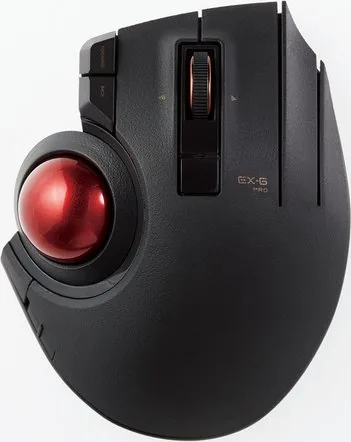
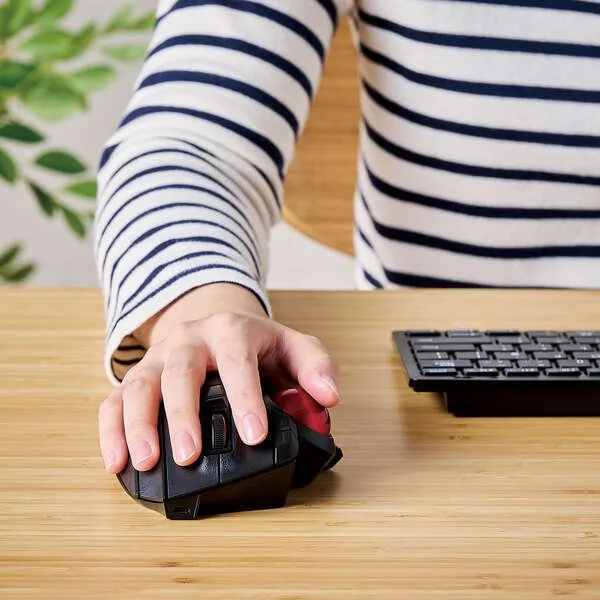
The Elecom EX-G Pro M-XPT1MRXBK Trackball black/red ball, right-handed, USB/Bluetooth Manual signifies a high-performance peripheral designed for comfort and precision. This device caters specifically to users who require reduced wrist strain during prolonged computer sessions. The ergonomic design supports a natural hand position, which helps prevent repetitive strain injuries over time. It stands out as a reliable tool for office work and creative tasks alike.
Versatile Connectivity Options
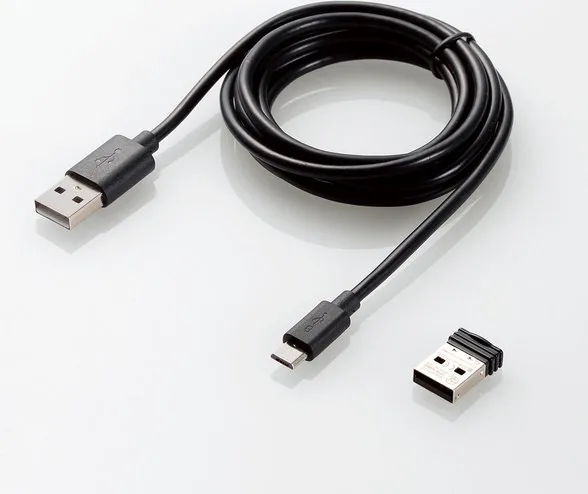
Operating this unit is intuitive for all skill levels. You can switch between High speed mode and Low energy mode using the dedicated switch on the side. This allows you to balance responsiveness with battery life depending on current needs. For those needing a stable connection, the USB cable port works without batteries inside the device. Wireless users enjoy 2.4 GHz or Bluetooth compatibility for flexibility. Pairing involves holding the button on the bottom for a few seconds to synchronize with your system. The receiver unit stores directly within the main housing for safety. Wireless range works well up to 10 meters on non-magnetic surfaces.
Customization and Controls
The hardware includes eight buttons, including a functional tilt wheel. This allows for extensive control customization through specific software utilities like the Elecom Mouse Assistant. You can assign macros for productivity or web navigation tasks. Macros can include media controls for easier entertainment management. The pointer speed is adjustable via a switch that toggles between 500, 1000, and 1500 DPI settings. An LED lamp confirms the current sensitivity level by blinking distinct patterns constantly. This ensures you always know your cursor speed at a glance. Back and forward buttons streamline your web surfing experience significantly. The trackball surface is smooth and easy to grip.
Battery and Care
Power is supplied by standard AA batteries to ensure long usage times. The unit features an automatic energy saving mode to conserve power during inactivity. A red LED light indicates low battery levels before the device stops working. Cleaning involves removing the ball to clear dust from the contact surfaces carefully. Safety warnings advise against moisture exposure and dropping the unit on hard floors. Storage recommendations suggest keeping it out of direct sunlight to protect materials.
System Requirements and Stability
Compatibility spans Windows 10, 8.1, and 7 as well as macOS High Sierra. Bluetooth 4.0 or later is required for wireless connections on older systems to ensure stability. Drivers install automatically for most wired functions without extra software. The device supports standard AA alkaline or rechargeable batteries for power. This flexibility ensures the trackball remains functional for years of daily use. The optical sensor provides accurate tracking on various desk surfaces without lag issues.
Dimensions and Physical Specs
The physical size measures approximately 108 by 135 by 48 millimeters. It weighs around 260 grams without batteries included in the total unit mass. The compact receiver is very light at approximately two grams. It operates within a temperature range from 5 degrees to 40 degrees Celsius. Humidity levels must remain below ninety percent without condensation. This ensures productivity remains high while you work comfortably all day. The device offers stability and reliability for professional environments.