
Eizo FlexScan S1934 Manual
PDF manual · 43 Pages
English



Quick check
Incorrect answer, please try again.
Chat with your Eizo FlexScan S1934 manual using AI
Get instant AI answers from your Eizo FlexScan S1934 manual
Ask anything about the Eizo FlexScan S1934. Answers come from this manual, with the pages they are based on.
FlexScan S1934 Maintenance Schedule
Use a soft cloth moistened with water or EIZO ScreenCleaner. Do not use alcohol, thinner, benzene, wax, or abrasive cleaners.
Contact your local EIZO representative when the screen becomes dark or begins to flicker due to backlight lifetime expiration.
Free maintenance reminders
Timed to your purchase date. Always free, unsubscribe anytime.
Ask a Question
Do you recommend FlexScan S1934?
Yes No
Luca Weber
8 months ago
Is backlight bleeding and a light buzzing/whining (coil whine) normal on this 22-inch 5:4 monitor? Mine also has a visible bezel gap. Should I return or exchange it?

Manual.ly
8 months ago
Backlight bleeding and coil whine can have minor, model-dependent variation, but visible bleeding in a dark screen and a physical bezel/panel gap are not what you should accept, especially for a premium monitor. First, test with a dark background and adjust brightness back to factory settings to confirm it is constant. Also try a different power outlet and, if possible, a different cable to rule out an electrical issue. If the bleeding and the gap remain clearly visible, do not keep pressing the bezel. Start an exchange/return through the seller (RMA/warranty) and include photos and a short video showing the issue so the next unit can be checked properly.
Frequently Asked Questions
The product comes with a five-year limited warranty from the date of purchase or up to thirty thousand hours of operation time, whichever comes first.
Is this answer helpful?
It is recommended to use accessories manufactured or recommended by EIZO Corporation to ensure proper operation and warranty coverage.
Is this answer helpful?
Use a cloth dampened with water. Do not use alcohol, thinners, benzene, wax, or polishing agents as they may damage the display surface.
Is this answer helpful?
This function uses an ambient light sensor to detect room brightness and automatically adjusts the screen brightness to reduce eye strain and power consumption.
Is this answer helpful?
No, defects where the effective pixel rate is at least 99.9994 percent are considered normal characteristics of LCD displays and are not malfunctions.
Is this answer helpful?
Yes, the height adjustable foot variant allows for vertical positioning change to suit user comfort. The standard tilt version allows angle adjustment only.
Is this answer helpful?
Please wait at least thirty minutes after turning on the monitor for the electrical components to stabilize before making brightness or color adjustments.
Is this answer helpful?
Advantages and Disadvantages
Advantages

- Five-year limited warranty provides long-term reliability and peace of mind for the buyer.
- IPS panel technology ensures accurate colors and wide viewing angles for diverse users.
- Auto EcoView function automatically adjusts brightness to save energy and reduce eye strain.
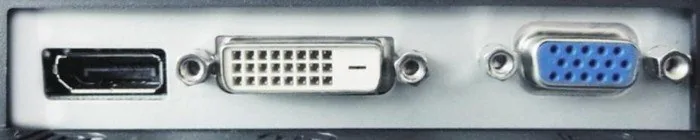
- Versatile connectivity includes DisplayPort, DVI-D, and D-Sub for various computer setups.
- Ergonomic stand allows height adjustment and tilt for better workspace posture.
Disadvantages

- Native resolution may appear small compared to modern high-definition standards.
- Backlight has a limited lifespan that may degrade over extended usage periods.
- No built-in USB hub available for peripheral connectivity or data transfer expansion.
- Some pixel defects are considered normal and not covered as malfunctions by warranty.
- Cleaning requires specific solutions to prevent damage to the screen coating.
Product Specification
Function
Monitor (Fixed)
Diagonal
19" (19.02")
Resolution
1280x1024 (SXGA), 5:4, 86 ppi
Panel
IPS
Backlight
LED, Blue Light Filter, Flicker-Free
Brightness
250 cd/m^2 (Typical)
Contrast
1,000:1 (Static)
Response Time
14ms (GtG)
Refresh Rate
60Hz (1280x1024)
Signal Frequency
31-64kHz (H) 59-61Hz (V)
Connections
1x VGA (60Hz@1280x1024), 1x DisplayPort, 1x DVI, 1x 3.5mm Jack (Line-Out), 1x 3.5mm Jack (Line-In), 1x AC-In C13 (Power)
Form
Rectangular (Flat)
Viewing Angle
178 deg/178 deg
Coating
Non-Glare (Matte)
Color Depth
8-bit (16.7 Million Colors)
Frame Rate Control
Unknown
Certifications/Standards
EPEAT Gold, DICOM
Speakers
Speakers (2x 0.5W)
Ergonomics
With Base, Height Adjustable (3.94"), Pivot (+90 deg), Rotatable (+/-35 deg), Tilt (+35 deg/-0 deg)
VESA
100x100 (Supported)
Power Consumption
21W (Max), 9W (Typical), 0.5W (Standby)
Energy Efficiency SDR (A to G)
9 kWh/1000h (C)
Features
Light Sensor
Screen-to-Body Ratio
83.99% (Calculated)
Dimensions
15.94" x 15.98" x 8.07" (WxHxD) with base compacted, 15.94" x 13.15" x 2.44" (WxHxD) without base
Color
Black (Bezel) / Black (Lower Bezel) / Black (Base)
Weight
12.35 lbs (With Base), 8.38 lbs (Without Base)
Power Supply
Internal
Warranty
5 Years (On-Site Exchange Service)
USB Naming
Link
Product Description
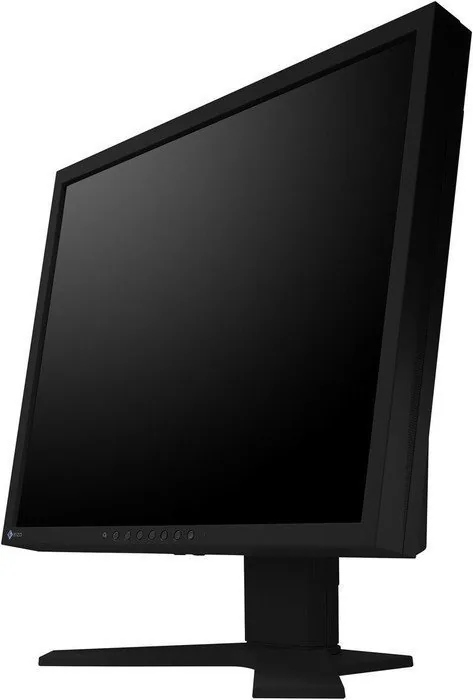
EIZO FlexScan S1934 Black 19 Inch Overview
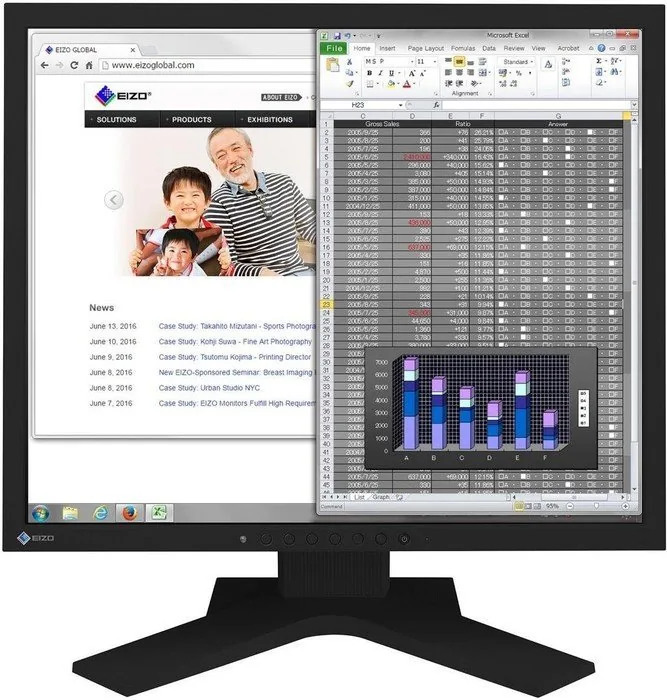
When selecting a professional display, reliability and comfort are paramount for daily productivity. The EIZO FlexScan S1934 black, 19" model stands out as a dedicated tool for office environments requiring stable performance. It features a 48 centimeter IPS panel that ensures accurate colors and stable image quality from almost any angle. This native resolution of 1280 by 1024 pixels provides sufficient clarity for document creation, multimedia content, and detailed drawings. The design prioritizes user health with features that reduce strain during extended work sessions and supports various color modes for specific tasks.
Ergonomic Design and Connectivity
Users can adjust the screen to suit their specific workspace preferences comfortably. The stand offers vertical height adjustment on specific models, allowing users to maintain a healthy posture aligned with their desk height. Tilt and rotation capabilities ensure the display remains accessible regardless of seating position. Connectivity is versatile with inputs for DisplayPort, DVI-D, and D-Sub mini 15-pin connectors. This allows seamless integration with various computer systems ranging from modern workstations to legacy hardware. Optional accessory arms can also be mounted for additional flexibility in cable management and positioning. The built-in audio speakers and headphone jack provide convenient sound output for multimedia or conference calls without extra equipment.
Color Modes and Calibration
The monitor includes preset color modes such as sRGB, Paper, and DICOM to suit different workflows. For instance, the Paper mode creates an effect similar to printed media, ideal for document editing. The sRGB mode ensures compatibility with standard peripherals like cameras and printers. These settings allow users to switch modes based on the content being displayed. Accurate color fidelity is maintained to ensure professional results in visual tasks.
Energy Efficiency and Reliability
Energy consumption is intelligently managed through the Auto EcoView function. An ambient light sensor adjusts screen brightness to match surroundings, reducing eye strain and significant power usage over time. The LED backlight extends the lifespan of the unit compared to older technologies. A notable feature is the five-year limited warranty covering the product for normal usage or up to thirty thousand operating hours. Regular maintenance involves cleaning with water or a specific cleaner solution to preserve the casing. The TCO certification indicates compliance with environmental and social responsibility standards throughout the manufacturing process.
Notes on Usage
Stabilization of electrical components takes approximately thirty minutes after power-on to ensure optimal performance. Pixel defects are considered normal characteristics and not malfunctions as long as coverage meets standards. The backlight brightness diminishes over time based on usage patterns so settings should be managed carefully. Adhering to recommended settings maximizes the longevity of the electronic parts inside the unit. Environmental conditions during operation must remain within specified temperature and humidity ranges to prevent condensation issues. Using the EcoView settings helps monitor the energy saving and CO2 reduction status effectively for the user. Avoid pressing the screen directly to prevent damage to the display panel which could cause pattern disturbances.
Search for 67,706 Manuals online


Type-in Brand or Model
Hans K
8 months ago
I read reviews claiming this model might make noise. Is this unit quiet enough for a silent office environment?
Manual.ly
8 months ago
Thank you for asking. Our quality control tests for operational noise to ensure suitability for quiet environments. While most units are silent, if you experience whistling or unusual sounds, please contact our support. We offer a standard warranty that covers replacements for defective units to ensure your satisfaction.