
Eizo FlexScan EV2781 Manual
PDF manual · 43 Pages
English



Quick check
Incorrect answer, please try again.
Chat with your Eizo FlexScan EV2781 manual using AI
Get instant AI answers from your Eizo FlexScan EV2781 manual
Ask anything about the Eizo FlexScan EV2781. Answers come from this manual, with the pages they are based on.
FlexScan EV2781 Maintenance Schedule
Wipe stains on the housing and LCD surface with a soft cloth moistened with water or ScreenCleaner. Do not use alcohol, solvents, or abrasive cleaners.
Check that screws attaching the monitor to a VESA mount or swivel arm are tightened sufficiently to prevent the unit from loosening.
Free maintenance reminders
Timed to your purchase date. Always free, unsubscribe anytime.
Ask a Question
Do you recommend FlexScan EV2781?
Yes NoFrequently Asked Questions
The monitor provides up to 70 watts of power delivery through its USB-C port, suitable for charging most modern laptops while transmitting video and data.
Is this answer helpful?
No, while it includes a DICOM preset for accurate grayscale display, this product is not certified or intended for diagnostic medical purposes.
Is this answer helpful?
Yes, the monitor works with Mac computers via DisplayPort or HDMI. However, the Screen InStyle control software is only available for Windows systems.
Is this answer helpful?
You can enable Picture-by-Picture (PbyP) through the front panel buttons or the On-Screen Display menu to view two different input signals simultaneously.
Is this answer helpful?
Static images can cause temporary ghosting or permanent burn-in. It is recommended to use a screensaver or turn off the monitor when not in use.
Is this answer helpful?
Yes, you can remove the original stand and attach a VESA-compatible arm or mount using the standard 100mm x 100mm hole pattern.
Is this answer helpful?
Advantages and Disadvantages
Advantages

- Supports 70W USB-C Power Delivery for single-cable laptop connections
- Includes specialized modes like Paper and DICOM for specific professional tasks
- Features EcoView technology with ambient light sensing for eye comfort
- Highly ergonomic stand with height, tilt, swivel, and pivot adjustments
- Frameless design enables seamless multi-monitor configurations
Disadvantages

- Built-in speakers are low power at 1W each and lack bass depth
- Screen InStyle software is currently limited to Windows operating systems only
- No Thunderbolt support despite having a USB-C port
- Overdrive settings may introduce slight artifacts depending on resolution
- Requires specific cables for full 70W power delivery functionality
Product Specification
Function
Monitor (stationary)
Diagonal
27" (27")
Resolution
2560x1440 (QHD), 16:9, 109 ppi
Panel
IPS
Backlight
LED, blue light filter, flicker-free
Brightness
350 cd/m^2 (typical)
Contrast
1000:1 (static)
Response Time
5ms (GtG)
Refresh Rate
60Hz (2560x1440)
Signal Frequency
31-89kHz (H) / 59-61Hz (V)
Connectors
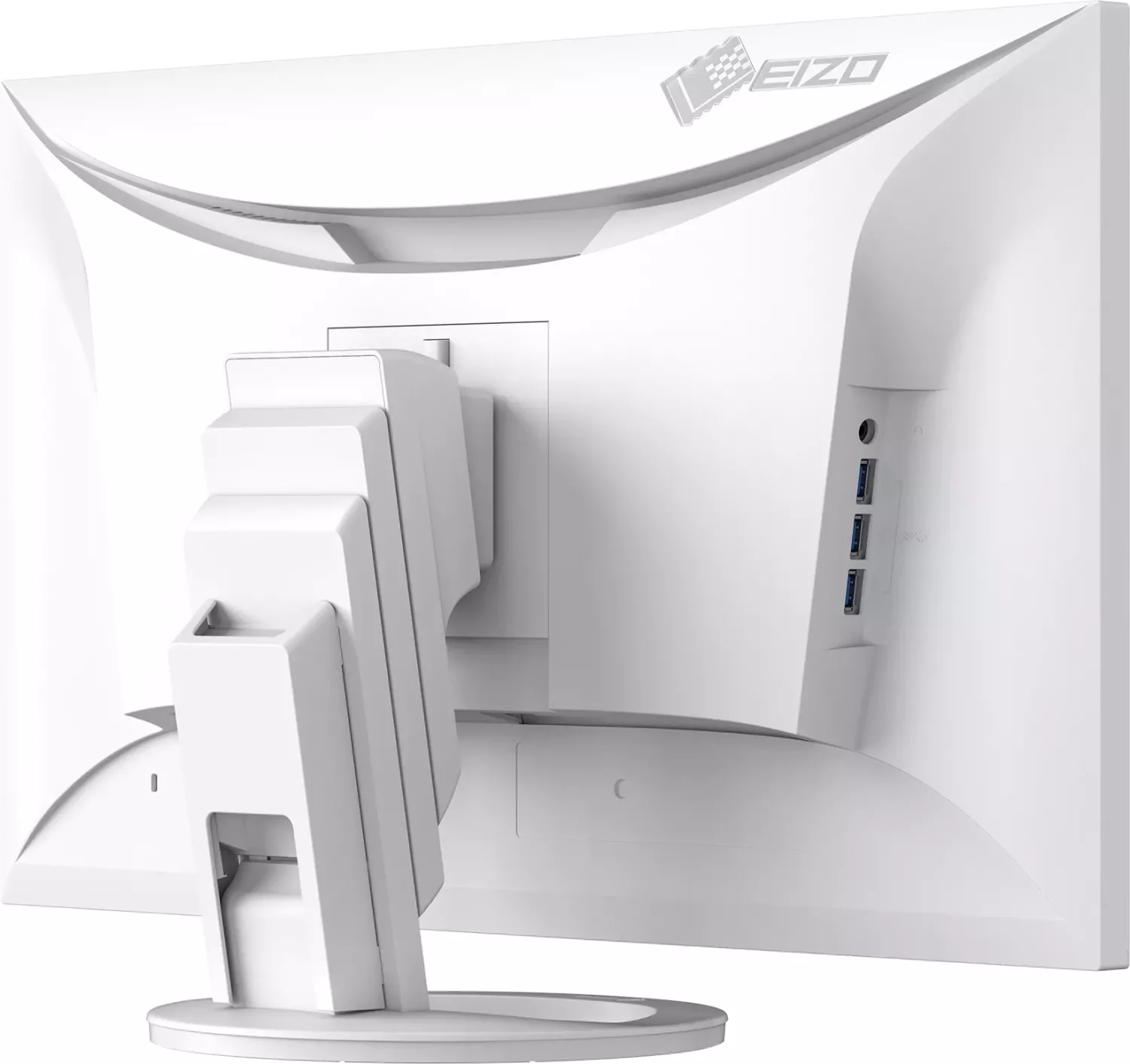
1x HDMI 1.4 (60Hz@2560x1440), 1x DisplayPort 1.2 (60Hz@2560x1440), 1x USB-C 3.0 with DisplayPort 1.2 (Upstream, 5Gb/s, PD 70W, 60Hz@2560x1440), 4x USB-A 3.0 (Downstream, 5Gb/s), 1x 3.5mm jack (Line-Out), 1x AC-In C13 (Power input)
Shape
straight (flat)
Viewing Angle
178°/178°
Coating
non-glare (matte)
Color Depth
8bit (16.7 million colors)
FRC
unknown
sRGB
100%
LUT (Lookup Table)
10bit, factory calibration
Certifications/Standards
DICOM
Speakers
Speakers (2x 1W)
Ergonomics
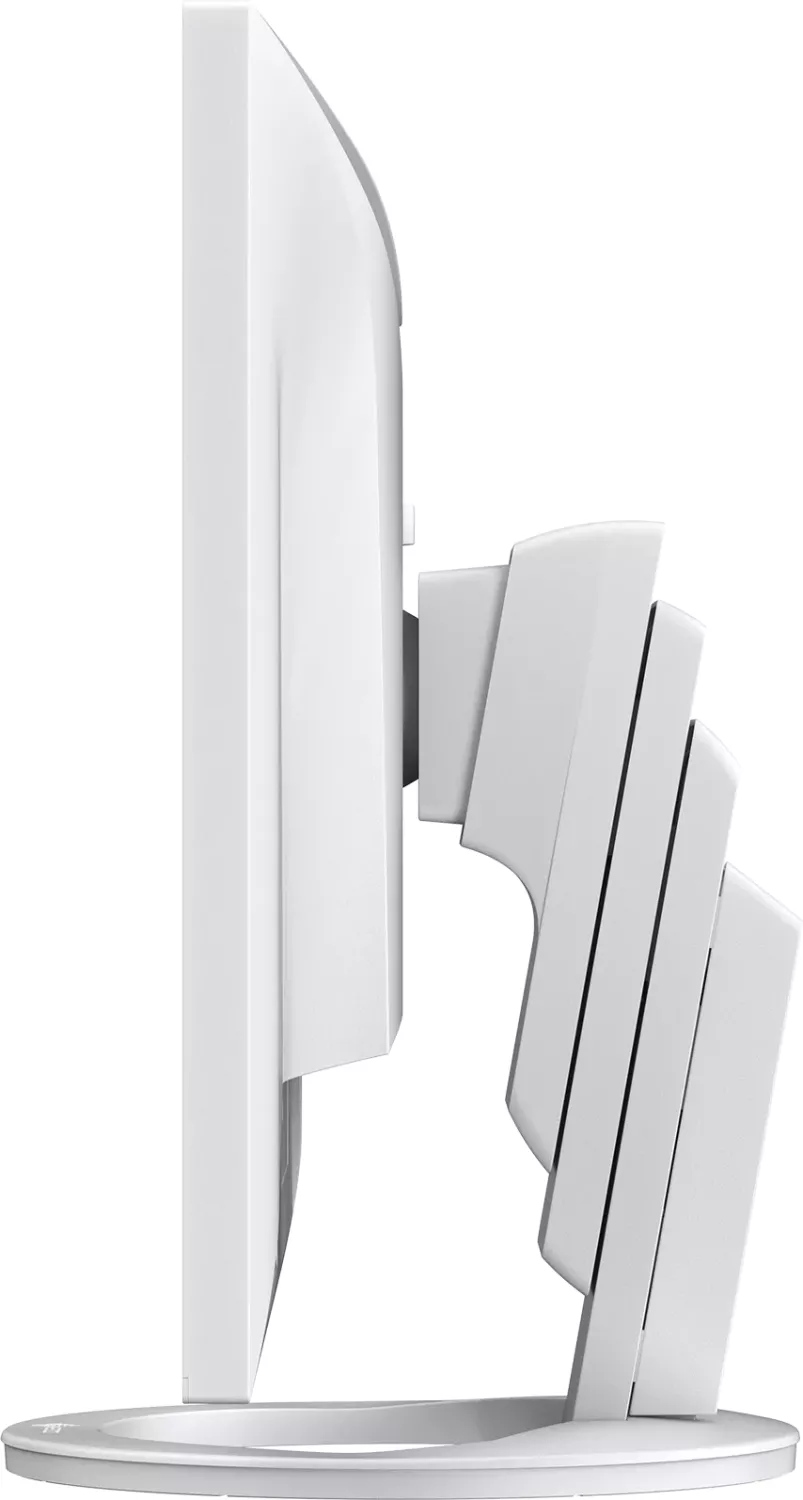
with stand, height adjustable (6.95 inches), Pivot (+/-90°), rotatable (+/-172°), tiltable (+35°/-5°)
VESA
100x100 (occupied)
Power Consumption
153W (max), 18W (typical), 0.5W (standby)
Energy Efficiency SDR (A to G)
17kWh/1000h (D)
Features
Security lock (Kensington Security Slot), light sensor, Picture-in-Picture, Slim Bezel
Screen-to-Body Ratio
92.18% (calculated)
Dimensions
24.07x14.51x9.06 in (WxHxD) with stand compressed, 24.07x14.04x2.20 in (WxHxD) without stand
Weight
18.74 lbs (with stand), 12.57 lbs (without stand)
Power Supply
internal
Warranty
five years (on-site exchange service)
USB Spelling
Link
Product Description
Eizo FlexScan EV2781 - Read, Download & Print Free
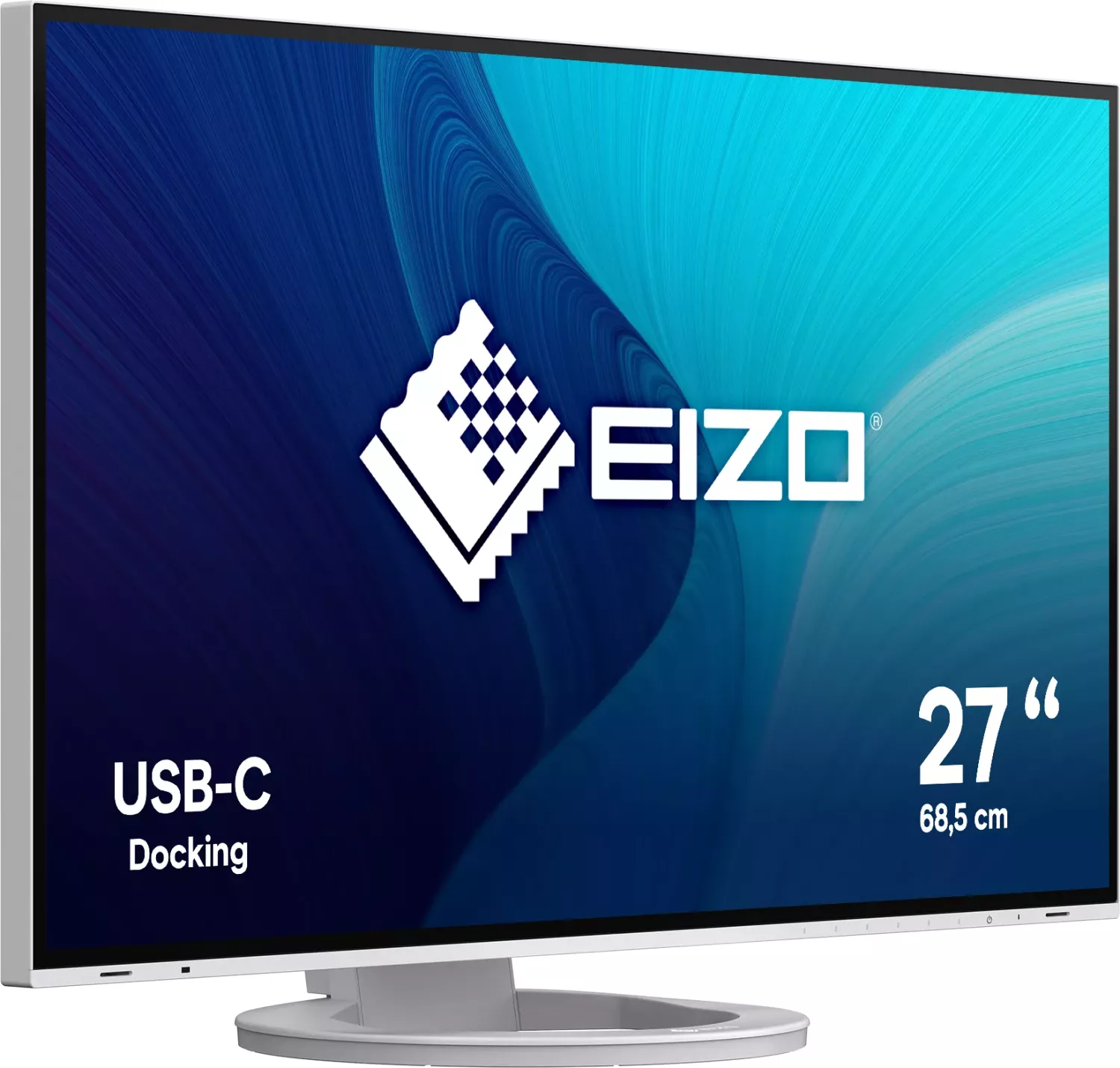
The Eizo FlexScan EV2781 is a premium 27-inch IPS monitor designed for professionals who demand exceptional color accuracy and ergonomic flexibility. This display features a native resolution of 2560 by 1440 pixels, delivering sharp visuals ideal for graphic design, photo editing, and general office productivity. Its frameless bezel design allows for seamless multi-monitor setups, enhancing workspace efficiency.
One of the standout features of this monitor is its versatile connectivity. Equipped with DisplayPort, HDMI, and USB-C ports, it supports DisplayPort Alt Mode and offers up to 70 watts of Power Delivery over USB-C. This means you can connect a single cable to your laptop for video transmission, data transfer, and charging simultaneously. The built-in USB hub further simplifies your desk setup by allowing easy access to peripherals without cluttering your computer.
Eizo has integrated advanced EcoView technologies to ensure eye comfort and energy efficiency. The Auto EcoView function uses an ambient light sensor to adjust screen brightness automatically based on your surroundings, reducing eye strain during long work sessions. Additionally, the Paper mode mimics the look of printed paper, making it perfect for reading documents and proofing content. For medical imaging professionals, the DICOM preset ensures accurate grayscale representation, although the unit is not intended for diagnostic purposes.
The physical design prioritizes user comfort with a fully adjustable stand that supports height adjustment, tilt, swivel, and pivot capabilities. This allows users to find the perfect viewing angle, whether in portrait or landscape orientation. The monitor also includes a headphone jack and built-in speakers for audio output. With a response time of just 5 milliseconds using the Overdrive feature, it handles dynamic content smoothly. Whether you are managing complex workflows or simply need a reliable daily driver, the Eizo FlexScan EV2781 stands out as a robust and adaptable solution.
Key Notes
- Allow 30 minutes for the display to stabilize after powering on.
- Avoid displaying static images for extended periods to prevent burn-in.
- Use only soft cloths and water for cleaning; never use harsh chemicals.
- Ensure the ambient light sensor is not covered when using Auto EcoView.
Search for 67,706 Manuals online


Type-in Brand or Model