
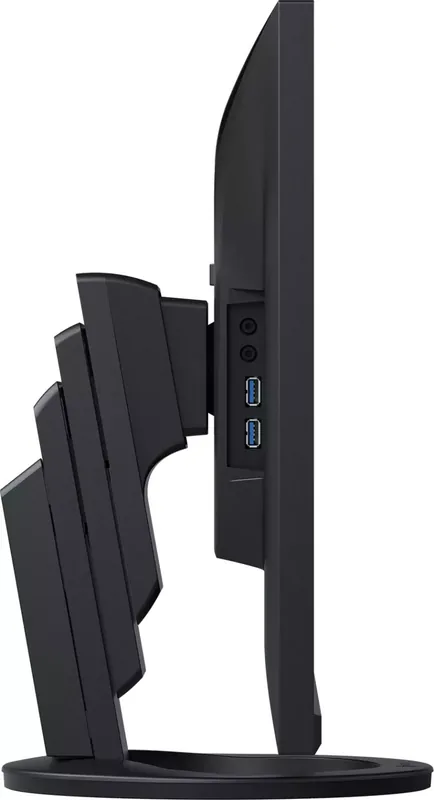
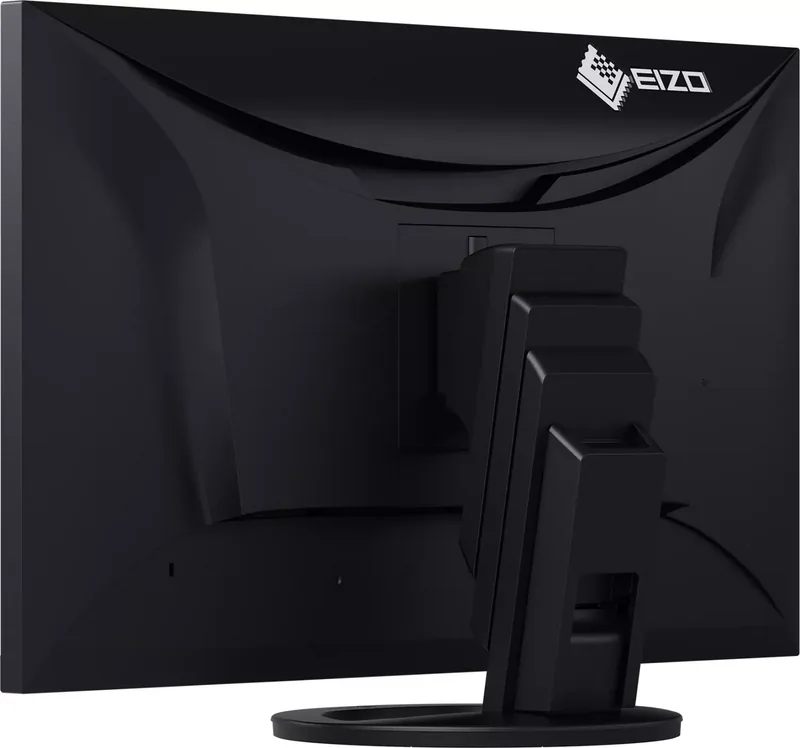
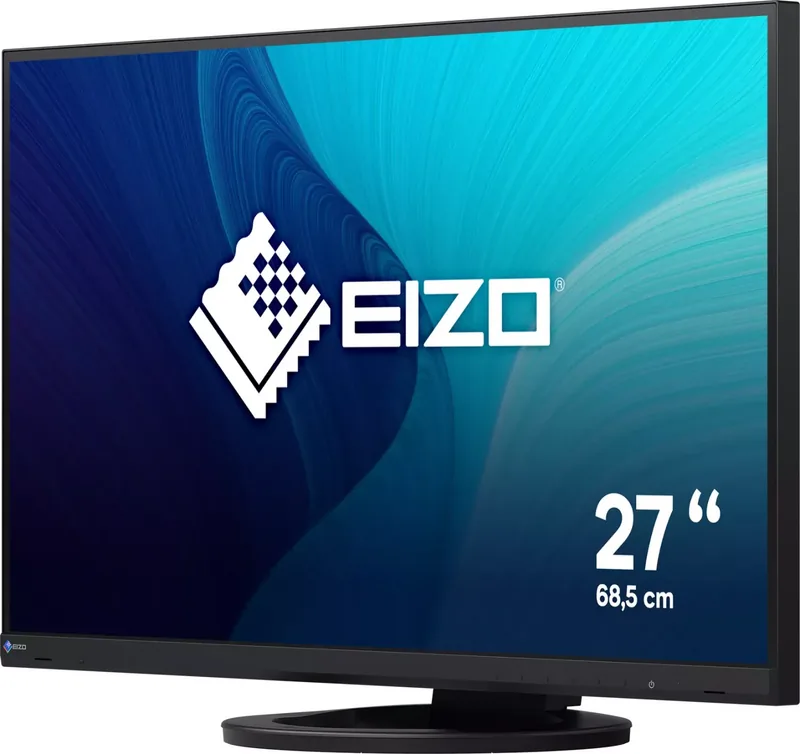
Eizo FlexScan EV2760 Manual
PDF manual · 39 Pages
English



Quick check
Incorrect answer, please try again.
Chat with your Eizo FlexScan EV2760 manual using AI
Get instant AI answers from your Eizo FlexScan EV2760 manual
Ask anything about the Eizo FlexScan EV2760. Answers come from this manual, with the pages they are based on.
FlexScan EV2760 Maintenance Schedule
Use a soft cloth dampened with water or ScreenCleaner. Do not use alcohol, thinners, benzine, wax, or abrasive cleaners.
To prevent eye fatigue during long work sessions at the monitor.
Verify that screws are sufficiently tightened when using an optional arm or stand to prevent the monitor from falling.
If the monitor is mounted in portrait orientation, regularly clean the power socket and surrounding area to remove dust and prevent fire risk.
Ask a Question
Do you recommend FlexScan EV2760?
Yes NoFrequently Asked Questions
It includes Auto EcoView which adjusts brightness based on ambient light and EcoView Optimizer 2 which adjusts based on input signal white levels to reduce power consumption and CO2 emissions.
Is this answer helpful?
You can use the multiple input terminals like HDMI, DisplayPort, and DVI-D. You can also enable PbyP display to view two inputs side-by-side on the single screen.
Is this answer helpful?
Adjust the Brightness, Contrast, or Gain settings in the Setting menu. Also check if Auto EcoView is enabled and adjust the ambient light sensor visibility.
Is this answer helpful?
Yes, the monitor supports vertical rotation up to 180 degrees. You must configure computer display settings and rotate the monitor menu options for proper viewing.
Is this answer helpful?
The LCD panel has a fixed lifetime and backlight life varies based on usage. Contact EIZO representative if flickering occurs or brightness decreases significantly over time.
Is this answer helpful?
The monitor supports resolutions up to 2560 x 1440 pixels. It handles various refresh rates and frequencies across DisplayPort, HDMI, and DVI-D connections.
Is this answer helpful?
Advantages and Disadvantages
Advantages

- Advanced power management with Auto EcoView and EcoView Optimizer 2.
- Multiple display modes including sRGB, Paper, and DICOM for specialized tasks.
- High flexibility for installation with VESA arm support and ergonomic stand.
- USB hub function enables convenient peripheral connectivity and management.
- Comprehensive troubleshooting guide ensures reliable operation and maintenance.
Disadvantages

- Display may require stabilization period before accurate color adjustment.
- Screen saver recommended to prevent afterimages from static content usage.
- Compatibility Mode must be enabled for some power saving USB functions.
Product Specification
Function
Monitor (stationary)
Diagonal
27" (27.0 in)
Resolution
2560x1440 (QHD), 16:9, 109ppi
Panel
IPS
Backlight
LED, Blue Light Filter, Flicker-Free
Brightness
350 nits (Typical)
Contrast Ratio
1,000:1 (Static)
Response Time
5ms (GtG)
Refresh Rate
60Hz (2560x1440)
Frequency Range
31-89kHz (H) / 59-61Hz (V)
Ports
1x HDMI 1.4, 2x DisplayPort, 1x DVI, 1x USB-B 3.0 (Upstream, 5Gb/s), 4x USB-A 3.0 (Downstream, 5Gb/s), 1x 3.5mm Jack (Line-Out), 1x 3.5mm Jack (Line-In), 1x AC-In C13 (Power Input)
Shape
Straight (Flat)
Viewing Angle
178 deg / 178 deg
Coating
non-glare (Matte)
Color Depth
8-bit (16.7 Million Colors)
FRC
Unknown
sRGB
97%
LUT (Lookup Table)
10-bit, Factory Calibration
Certifications/Standards
EPEAT, TCO 9, DICOM
Speakers
Speakers (2 x 1W)
Ergonomics
with stand, height-adjustable (6.65 in), Pivot (+90 deg), rotate (+/- 172 deg), tilt (+35 deg/-5 deg)
VESA
3.94 in x 3.94 in (Supported)
Power Consumption
67W (Max), 16W (Typ), 0.5W (Standby), 17W (Old Energy Label A+++ to G)
SDR Energy Efficiency Class (A to G)
18kWh/1000h (E)
Old Energy Efficiency (A+++ to G)
24.8kWh (A+)
Features
Security Lock (Kensington Security Slot), Light Sensor, Picture-in-Picture, Slim Bezel
Screen-to-Body Ratio
91.47% (Calculated)
Dimensions
24.09x14.80x9.06 in (WxHxD) with stand compressed, 24.09x14.13x1.93 in (WxHxD) without stand
Weight
18.74 lbs (with stand), 12.57 lbs (without stand)
Power Supply
Internal
Warranty
five years (On-Site Exchange Service)
USB Nomenclature
Link
Product Description
Elevate Your Workspace with Eizo FlexScan EV2760
The Eizo FlexScan EV2760 stands out as a premier choice for professionals seeking precision and reliability in their daily tasks. Designed with versatility in mind, this monitor offers a high degree of flexibility for installation, making it suitable for both standalone setups and integration into complex multi-monitor configurations. Whether you are handling creative projects, managing documents, or viewing multimedia content, the EV2760 ensures stable performance over long hours of use.
One of the standout features is the integration of advanced power management technologies. The monitor includes Auto EcoView, which utilizes an ambient light sensor to adjust brightness automatically, reducing power consumption while maintaining comfort. Additionally, the EcoView Optimizer 2 adjusts brightness based on the white level of the input signal, further enhancing energy efficiency without compromising visual quality. This commitment to sustainability is evident in its ability to reduce CO2 emissions during operation, making it a responsible choice for eco-conscious users.
For those who value accurate color reproduction, the EV2760 provides multiple display modes tailored to specific needs. From the standard User and sRGB modes to specialized settings like Paper for printed media and DICOM for medical imaging, customization is extensive. The built-in Screen InStyle utility adds convenience by allowing automatic color mode switching based on the software in use, streamlining workflow for Windows users. Connectivity is equally robust, offering DisplayPort, HDMI, and DVI-D inputs alongside a versatile USB hub function for peripheral management.
Adjusting the screen is intuitive with operation switches located on the front panel. Users can navigate menus to fine-tune brightness, contrast, and gamma settings to match their environment. The stand allows for height adjustment, tilt, swivel, and even vertical rotation, accommodating various ergonomic preferences. For those requiring additional mounting options, the monitor supports VESA standard arm attachments after removing the original stand. Maintaining the display is simple with recommended cleaning procedures using soft cloths, avoiding harsh chemicals that could damage the finish.
Proper configuration of your computer display settings is essential for optimal image quality. The device supports various resolutions up to 2560 by 1440 pixels, ensuring sharp visuals across Windows and macOS platforms. Troubleshooting common issues like no picture or flickering is straightforward using the built-in guides for signal input adjustment and power saving modes. Regular maintenance, such as allowing the monitor to warm up for thirty minutes, guarantees stable performance. This monitor represents a blend of technology and usability designed to enhance productivity and reduce eye strain during extended viewing sessions.
Notes:
- Wait 30 minutes after power on for stabilization.
- Avoid displaying same images for extended periods.
- Use recommended signal cables for best results.
Search for 67,706 Manuals online


Type-in Brand or Model