
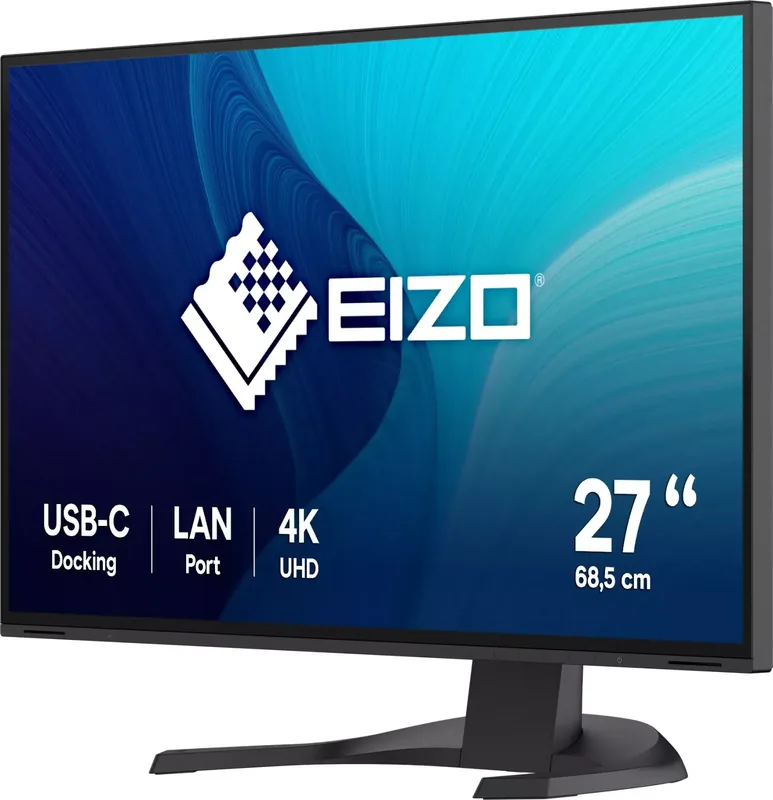
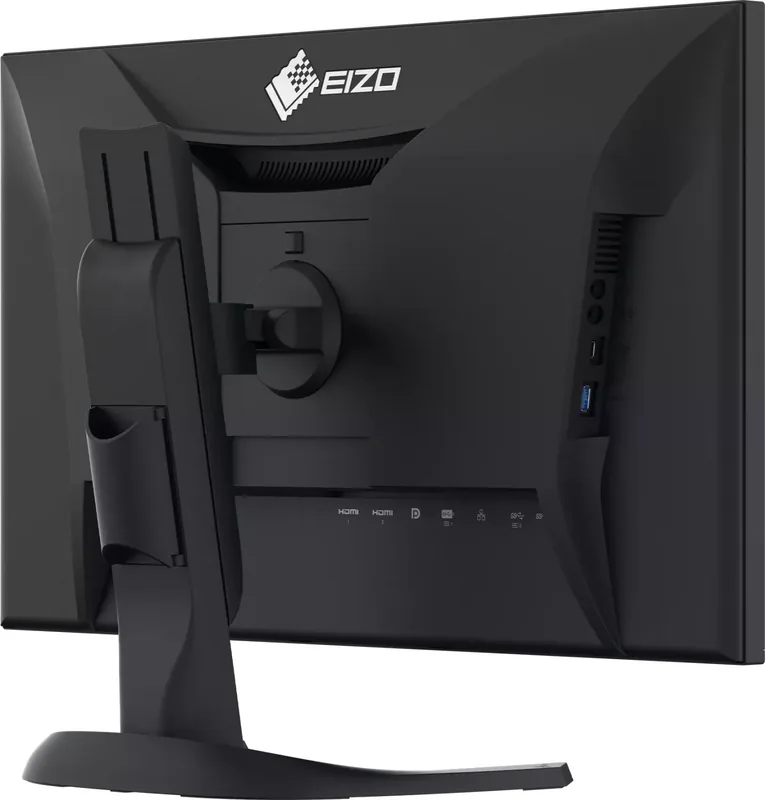
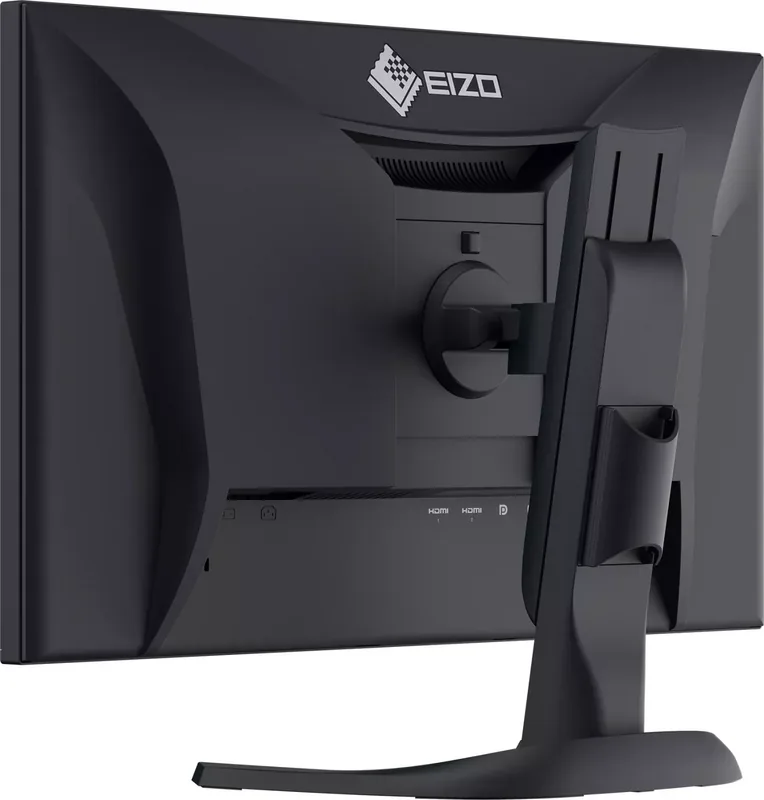
Eizo FlexScan EV2740X Manual
PDF manual · 51 Pages
English



Quick check
Incorrect answer, please try again.
Chat with your Eizo FlexScan EV2740X manual using AI
Get instant AI answers from your Eizo FlexScan EV2740X manual
Ask anything about the Eizo FlexScan EV2740X. Answers come from this manual, with the pages they are based on.
FlexScan EV2740X Maintenance Schedule
Moisten a soft cloth with water or use ScreenCleaner to gently wipe stains. Do not use alcohol, thinner, benzene, wax, or abrasive cleaners.
To prevent eye strain, take a 10-minute break every hour of continuous use.
Ask a Question
Do you recommend FlexScan EV2740X?
Yes NoFrequently Asked Questions
The EV2740X has a native 4K UHD resolution of 3840 x 2160 on a 27-inch IPS panel. This provides high pixel density for detailed text, large spreadsheets, design work, documents, and multimedia content.
Is this answer helpful?
Yes. Its USB-C upstream port supports USB Power Delivery up to 94 W when used with compatible equipment and an appropriate USB-C cable. The connected computer must support USB-C charging and DisplayPort Alt Mode for one-cable video and power.
Is this answer helpful?
The monitor includes one USB-C input, one DisplayPort input, and two HDMI inputs for computers and media devices. It also offers USB-A and USB-C downstream ports, Gigabit Ethernet, a headphone jack, and an external speaker output.
Is this answer helpful?
Yes. Picture-by-Picture mode can display two input signals simultaneously in side-by-side layouts. This is useful for comparing content, monitoring two systems, or working with separate computers without frequent input switching.
Is this answer helpful?
Auto EcoView uses the front ambient light sensor to adjust screen brightness according to surrounding light. It can improve viewing comfort and reduce backlight power consumption in changing workspace conditions.
Is this answer helpful?
Yes. The supplied stand supports 90-degree portrait rotation, along with height, tilt, and swivel adjustment. The stand can also be removed for a compatible 100 x 100 mm VESA mounting solution.
Is this answer helpful?
Advantages and Disadvantages
Advantages

- 27-inch 4K IPS panel delivers detailed images, wide viewing angles, and an anti-glare working surface.
- USB-C provides video, data, network access, and up to 94 W laptop charging through one compatible cable.
- Built-in docking includes Gigabit Ethernet, three USB-A ports, and a USB-C downstream port.
- Picture-by-Picture displays two input sources at once for easier multi-PC workflows.
- Ergonomic stand supports height, tilt, swivel, and portrait rotation; VESA mounting is also supported.
Disadvantages

- USB-C video and 94 W charging require a compatible computer, cable, and DisplayPort Alt Mode support.
- DICOM mode is intended for image viewing only and is not approved for diagnostic use.
- LCD image retention can occur when static images remain onscreen for extended periods.
- Ethernet docking is unavailable through the USB-B upstream connection.
- Some color and energy-saving settings are unavailable in specific color modes or Picture-by-Picture mode.
Product Specification
Function
Monitor (stationary)
Diagonal
27 in
Resolution
3840x2160 (4K UHD), 16:9, 163 ppi
Panel
IPS (IPS Black), manufacturer: LG Display
Backlight
LED, blue light filter, flicker-free
Brightness
350 cd/m2 (typical)
Contrast
2,000:1 (static)
Response Time
5 ms (GtG)
Refresh Rate
60 Hz (3840x2160)
Signal Frequency
31-134 kHz (H) / 29-61 Hz (V)
Ports
2x HDMI 2.0 (60 Hz@3840x2160), 1x DisplayPort 1.2 (60 Hz@3840x2160), 1x USB-C 3.0 with DisplayPort 1.2 (upstream, 5 Gb/s, PD 94 W, 60 Hz@3840x2160), 1x USB-C 3.0 (downstream, 5 Gb/s, PD 15 W), 1x USB-B 3.0 (upstream, 5 Gb/s), 3x USB-A 3.0 (downstream, 5 Gb/s), 2x 3.5 mm jack (line-out), 1x RJ-45 1 Gb LAN, 1x AC-In C13 (power connection)
Shape
straight (flat)
Viewing Angle
178 degrees / 178 degrees
Coating
non-glare (matte)
Color Depth
8-bit (16.7 million colors)
FRC
N/A (native 8-bit)
sRGB
100%
LUT (Lookup Table)
10-bit, factory calibration
Certifications/Standards
EPEAT, DICOM
Speakers
Speakers (2x 2 W)
Ergonomics
with stand, height-adjustable (7.68 in), pivot (+90 degrees), swivel (+/-45 degrees), tilt (+35 degrees/-5 degrees)
VESA
100x100 mm (occupied)
Power Consumption
186 W (maximum), 18 W (typical), 0.3 W (standby)
SDR Energy Efficiency (A to G)
18 kWh/1,000 h (D)
Special Features
security lock (Kensington Security Slot), light sensor, KVM switch, picture-in-picture, slim bezel
Screen-to-Body Ratio
91.58% (calculated)
Dimensions
24.08x14.6x9.85 in (WxHxD) with stand compressed, 24.08x14.13x2.38 in (WxHxD) without stand
Weight
18.08 lb (with stand), 12.13 lb (without stand)
Power Supply
internal
Warranty
five years
USB Naming
Link
Product Description
Eizo FlexScan EV2740X Manual: A Versatile 4K Monitor for Modern Workspaces
The Eizo FlexScan EV2740X is a 27-inch 4K IPS monitor designed for demanding office, creative, and multi-device environments. With its 3840 x 2160 resolution, anti-glare surface, wide 178-degree viewing angles, and 8-bit color display, it provides a sharp, spacious workspace for detailed documents, spreadsheets, CAD drawings, multimedia, and everyday professional tasks. The Eizo FlexScan EV2740X Manual highlights a monitor built to simplify desk setups while supporting comfortable, efficient long-term use.
A major advantage is USB-C connectivity with DisplayPort Alt Mode and up to 94 W Power Delivery. A compatible laptop can receive video, data, network access, and charging through one USB-C cable, reducing cable clutter. The built-in docking capability also includes Gigabit Ethernet, three USB-A ports, and one USB-C downstream port for peripherals such as keyboards, mice, storage devices, and smartphones.
The monitor supports DisplayPort, two HDMI inputs, and USB-C, making it practical for connecting several computers. Its Picture-by-Picture function can show two sources side by side in selectable layouts, helping users compare content or work across systems without constantly switching inputs. USB upstream assignment can also link connected peripherals to the active computer, improving flexibility in shared or multi-PC workstations.
Comfort features are central to the design. Auto EcoView uses an ambient light sensor to adjust brightness to room conditions, while EcoView Optimizer 2 can lower power use based on image content. Users can select color modes including User, sRGB, Paper, Movie, and DICOM. Paper mode reduces blue light and creates a paper-like appearance for reading, while the DICOM mode is intended for viewing medical images but not for diagnostic use.
The adjustable stand supports height adjustment, tilt, swivel, and 90-degree portrait rotation. It can also be removed for VESA-compatible mounting. Built-in speakers, headphone output, external speaker output, cable management, and a Kensington security slot add useful everyday convenience.
Notes
For stable color and brightness adjustments, allow the display to warm up for at least 30 minutes after powering on. To protect the LCD panel over time, avoid leaving static images displayed for long periods, use power-saving settings, and clean the screen gently with a soft cloth. The EV2740X is a strong option for users who value 4K clarity, laptop docking, multi-device connectivity, and energy-conscious operation.
Search for 67,706 Manuals online


Type-in Brand or Model