
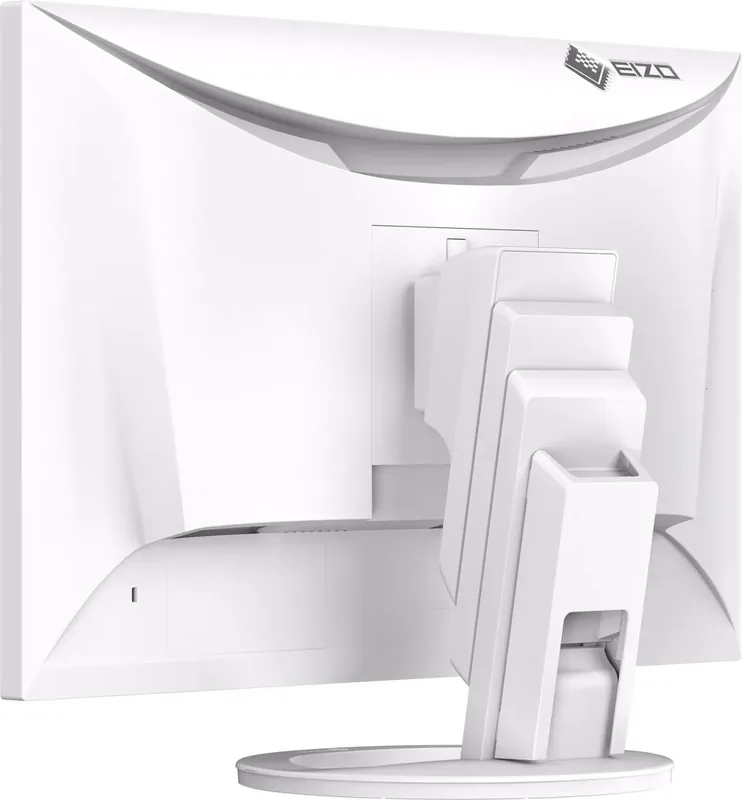
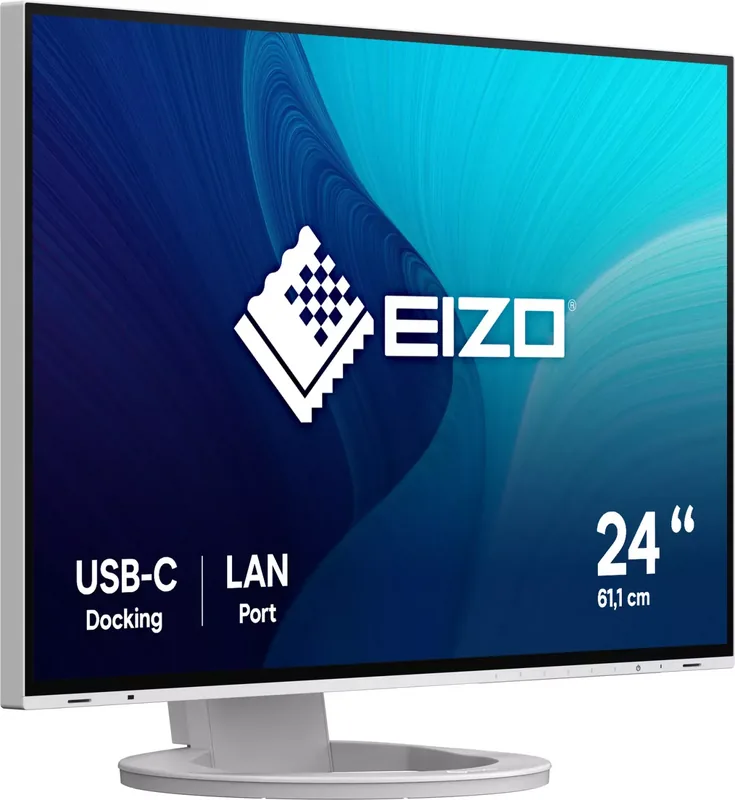
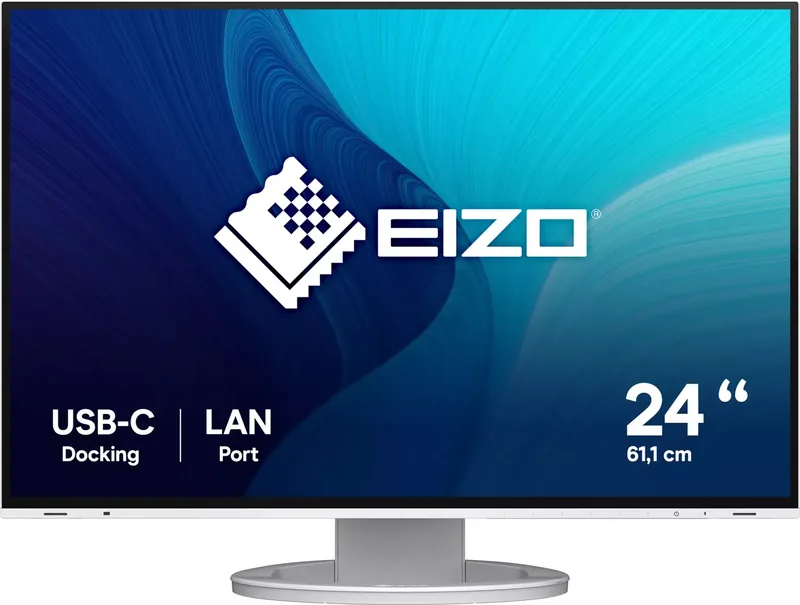
Eizo FlexScan EV2495 Manual
PDF manual · 42 Pages
English



Quick check
Incorrect answer, please try again.
Chat with your Eizo FlexScan EV2495 manual using AI
Get instant AI answers from your Eizo FlexScan EV2495 manual
Ask anything about the Eizo FlexScan EV2495. Answers come from this manual, with the pages they are based on.
FlexScan EV2495 Maintenance Schedule
When an optional arm is attached, check periodically that screws are tight enough to prevent the monitor from detaching and causing injury.
If the monitor is cold or room temperature changes quickly causing condensation, do not turn it on. Wait until the condensation disappears to prevent damage.
Free maintenance reminders
Timed to your purchase date. Always free, unsubscribe anytime.
Ask a Question
Do you recommend FlexScan EV2495?
Yes NoFrequently Asked Questions
It supplies up to 70W if the cable and device support USB Power Delivery standards and DisplayPort Alt Mode.
Is this answer helpful?
Yes via daisy chain using USB Type-C output terminal provided the graphics board supports Multi-Stream Transport.
Is this answer helpful?
It adjusts brightness for power saving and eye comfort using Auto EcoView and Optimizer 2 features.
Is this answer helpful?
Use the KVM function in admin settings to switch USB devices and input signals between two PCs.
Is this answer helpful?
Yes, height and tilt adjustment is provided to ensure ergonomic comfort during extended sessions.
Is this answer helpful?
Check backlight status or cables. If flicker persists, contact your local EIZO representative for service.
Is this answer helpful?
Yes, with a VESA standard arm kit after removing the original stand following the provided safety instructions.
Is this answer helpful?
Advantages and Disadvantages
Advantages

- USB Type-C port supports 70W power delivery charging for notebooks simultaneously with video transfer
- Integrated LAN port and USB hub allow the monitor to function as a docking station for stable networking
- EcoView functions including Auto EcoView and Optimizer 2 significantly reduce power consumption
- High degree of flexibility allows daisy chain connection of up to four monitors for multitasking
Disadvantages

- USB communication speed is restricted to USB 2.0 when daisy chain connection mode is active
- Menu rotation cannot be set to 180 degrees making vertical orientation adjustments complex
- Afterimages may appear if displaying static images for extended periods without screen savers
- Stand removal requires removing the unit from power and careful handling to avoid injury
Product Specification
Function
Monitor (stationary)
Diagonal
24.1 inches (24.09 inches)
Resolution
1920x1200 (WUXGA), 16:10, 94ppi
Panel
IPS
Backlight
LED, Blue Light Filter, flicker-free
Brightness
350 cd/m^2 (typical)
Contrast
1,000:1 (static)
Response Time
5ms (GtG)
Refresh Rate
60Hz (1920x1200)
Signal Frequency
31-76kHz (H) / 59-61Hz (V)
Connections
1x HDMI 1.4, 1x DisplayPort 1.2, 1x USB-C 3.0 with DisplayPort 1.2 (Upstream, 5Gbps, PD 70W), 1x USB-C 3.0 with DisplayPort 1.2 (Downstream, 5Gbps, PD 15W), 1x USB-B 3.0 (Upstream, 5Gbps), 3x USB-A 3.0 (Downstream, 5Gbps), 1x 3.5mm Jack (Line-Out), 1x RJ-45 1Gb LAN, 1x AC-In C13 (AC Input)
Shape
Straight (flat)
Viewing Angle
178 deg / 178 deg
Finish
non-glare (matte)
Color Depth
8-bit (16.7 million colors)
FRC
Unknown
LUT (Lookup Table)
10-bit, Factory Calibrated
Certifications/Standards
TCO 9
Speakers
Speakers (2x 1W)
Ergonomics
with base, height-adjustable (7.17 in), Pivot (+/- 90 deg), Swivel (+/- 172 deg), Tilt (+35 deg/-5 deg)
VESA
100x100 (included)
Power Consumption
156W (max), 11W (typical), 0.5W (standby), 12W (Energy Label old A+++ to G)
SDR Energy Efficiency (A to G)
12kWh/1000h (C)
Energy Efficiency old (A+++ to G)
17.5kWh (A++)
Features
Security Lock (Kensington Security Slot), Presence Sensor, Light Sensor, KVM Switch, Slim Bezel
Screen-to-Body Ratio
92.19% (calculated)
Dimensions
20.91x21.18x9.06 in (WxHxD) with stand (compact), 20.91x13.54x2.13 in (WxHxD) without stand
Weight
16.76 lbs (with stand), 10.80 lbs (without stand)
Power Supply
internal
Warranty
five years (On-Site Exchange Service)
USB Notation
Link
Product Description
Discover the Eizo FlexScan EV2495
A Powerhouse for Productivity
The Eizo FlexScan EV2495 stands out in the modern workspace as a premium monitor designed for efficiency and visual accuracy. This high-performance color LCD monitor delivers a twenty-four-inch IPS display capable of showing sixteen point seven million colors. Users benefit from the full HD plus resolution of 1920 by 1200 pixels which offers ample desktop real estate for multitasking. The screen maintains consistency across a wide viewing angle of one hundred and seventy-eight degrees. You will appreciate the high degree of flexibility regarding installation and connection options provided by this versatile device. One standout feature is the USB Type-C connectivity which supports DisplayPort Alt Mode and USB Power Delivery standards. This allows you to charge your compatible notebook PC with up to seventy watts while viewing content simultaneously. The power reduction capabilities ensure energy savings while maintaining brightness specifications.
Connectivity is seamless thanks to the built-in docking station function included in this model. The integrated LAN port creates a stable network environment even on notebook PC devices that are not equipped with internal LAN ports. Power consumption is reduced significantly with EcoView functions designed to conserve energy and protect the environment. Auto EcoView adjusts screen brightness automatically based on ambient light levels to minimize eye strain during long working hours. Moreover, EcoView Optimizer 2 adjusts brightness according to white levels of the input signal without losing quality. You can further streamline operations using Screen InStyle software to switch input signals or color modes efficiently with keyboard shortcuts. This makes it suitable for general purposes like creating documents or viewing multimedia content effectively.
Color professionals can rely on the precise adjustments available through the detailed setting menu interface. Available options include temperature, gamma, hue, and saturation tuning for specific tasks like printing photos or medical imaging. The frameless design supports multi-monitor configurations for expanded workspace usage. Users can connect multiple monitors in a daisy chain configuration using the USB Type-C output terminal on the back of the unit. It supports standard resolutions for Windows and macOS systems. The Eizo FlexScan EV2495 Manual provides essential safety precautions and setup guides for optimal performance and longevity. It notes that the monitor is adjusted for the region it was originally shipped to for compliance. Long-term use requires periodic cleaning with soft cloths to maintain the cabinet surface. Avoiding direct pressure on the panel prevents damage to liquid crystal elements. The adjustable stand allows for height and tilt modifications to ensure ergonomic comfort during extended sessions. Taking regular breaks and using power save functions helps prevent afterimages and maintains panel health over time. This monitor delivers reliability for general purposes and multimedia consumption. If you see issues please check the troubleshooting section for advice on imaging problems or display settings. Connectivity also includes KVM capability to switch USB devices between two PCs.
Search for 67,706 Manuals online


Type-in Brand or Model