
Eizo FlexScan EV2485 Manual
PDF manual · 40 Pages
English



Quick check
Incorrect answer, please try again.
Chat with your Eizo FlexScan EV2485 manual using AI
Get instant AI answers from your Eizo FlexScan EV2485 manual
Ask anything about the Eizo FlexScan EV2485. Answers come from this manual, with the pages they are based on.
FlexScan EV2485 Maintenance Schedule
Check that screws attaching the monitor to a swivel arm or stand are tightened sufficiently to prevent the monitor from loosening.
Wipe stains on the housing and LCD surface with a soft cloth moistened with water or ScreenCleaner. Do not use alcohol or solvents.
Free maintenance reminders
Timed to your purchase date. Always free, unsubscribe anytime.
Ask a Question
Do you recommend FlexScan EV2485?
Yes NoFrequently Asked Questions
It takes approximately 30 minutes for the monitor display to stabilize after turning on the power. You should wait this duration before making any fine adjustments to ensure accurate color and brightness settings.
Is this answer helpful?
Yes, the monitor supports USB Power Delivery and can supply up to 70 watts of power to compatible notebooks. However, you must use the included CC200SS-5A or CC200SSW-5A cables to achieve the maximum power output.
Is this answer helpful?
The monitor supports various resolutions including 1920x1080, 1920x1200 (recommended), 1600x900, and 1280x1024. Full compatibility is available across DisplayPort, HDMI, and USB-C inputs for most standard resolutions.
Is this answer helpful?
You can adjust the Brightness and Contrast settings using the front operation switches or the Setting menu. If the screen is too bright, enabling Auto EcoView will automatically adjust brightness based on ambient light to improve comfort.
Is this answer helpful?
While the monitor includes a DICOM mode for displaying medical digital images, it is explicitly stated that this mode is not intended for diagnostic purposes. It is suitable for viewing but not for clinical diagnosis.
Is this answer helpful?
Yes, you can remove the original stand to attach an optional VESA-compatible arm. The monitor requires a VESA mount with 100mm x 100mm screw clearance and must support the weight of the unit excluding the stand.
Is this answer helpful?
Afterimages are common in LCD monitors. To remove them, change the displayed image or turn off the monitor for several hours. Using a screen saver or power save function helps prevent this issue from occurring.
Is this answer helpful?
Advantages and Disadvantages
Advantages

- Supports USB-C with 70W Power Delivery for single-cable laptop charging and video
- IPS panel offers wide 178-degree viewing angles and accurate color reproduction
- Built-in Auto EcoView adjusts brightness automatically to save energy and reduce eye strain
- Flexible stand design allows height, tilt, swivel, and pivot adjustments for ergonomics
- Multiple color modes including sRGB, Paper, and DICOM for specific professional tasks
Disadvantages

- No built-in webcam or speakers with high fidelity output
- USB-C charging requires specific compatible cables for maximum 70W speed
- Ambient light sensor must not be blocked for Auto EcoView to function correctly
- Menu navigation requires learning the touch switch operation method
- Backlight has a fixed lifetime and may dim over extended heavy use
Product Specification
Function
Monitor (stationary)
Diagonal
24.1" (61.2cm)
Resolution
1920x1200 (WUXGA), 16:10, 94ppi
Panel
IPS
Backlight
LED, blue light filter, flicker-free
Brightness
350 cd/m^2 (typical)
Contrast
1,000:1 (static)
Response Time
5ms (GtG)
Refresh Rate
60Hz (1920x1200)
Signal Frequency
31-76kHz (H) / 59-61Hz (V)
Connections
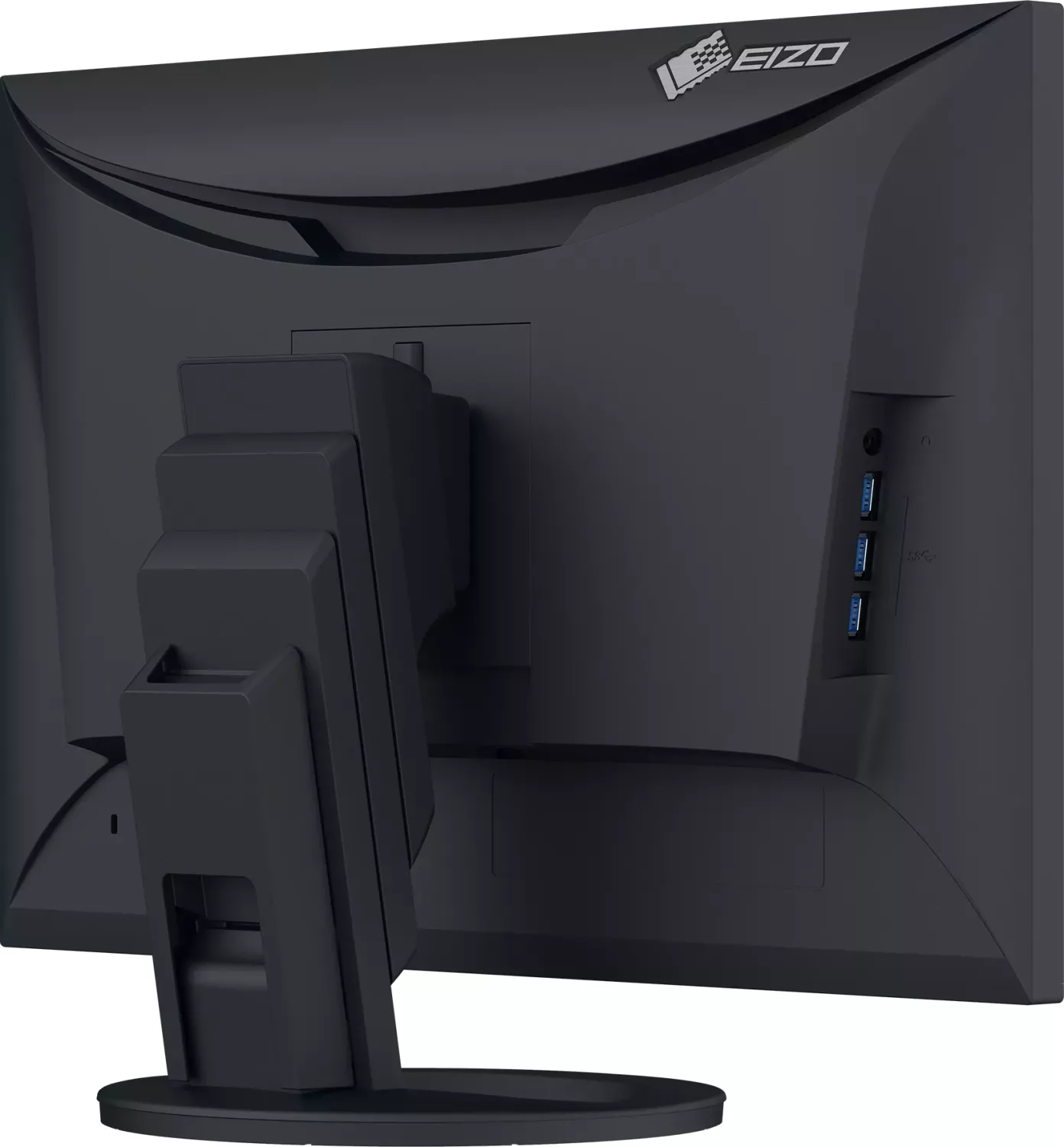
1x HDMI 1.4, 1x DisplayPort, 1x USB-C 3.0 with DisplayPort (Upstream, 5Gb/s, PD 70W), 4x USB-A 3.0 (Downstream, 5Gb/s), 1x 3.5mm jack (Line-Out), 1x AC-In C13 (Power connection)
Shape
straight (flat)
Viewing Angle
178°/178°
Coating
non-glare (matte)
Color Depth
8bit (16.7 million colors)
FRC
N/A (8bit native)
LUT (Lookup Table)
10bit, factory calibration
Certifications/Standards
TCO 9, DICOM
Speakers
Speakers (2x 1W)
Ergonomics
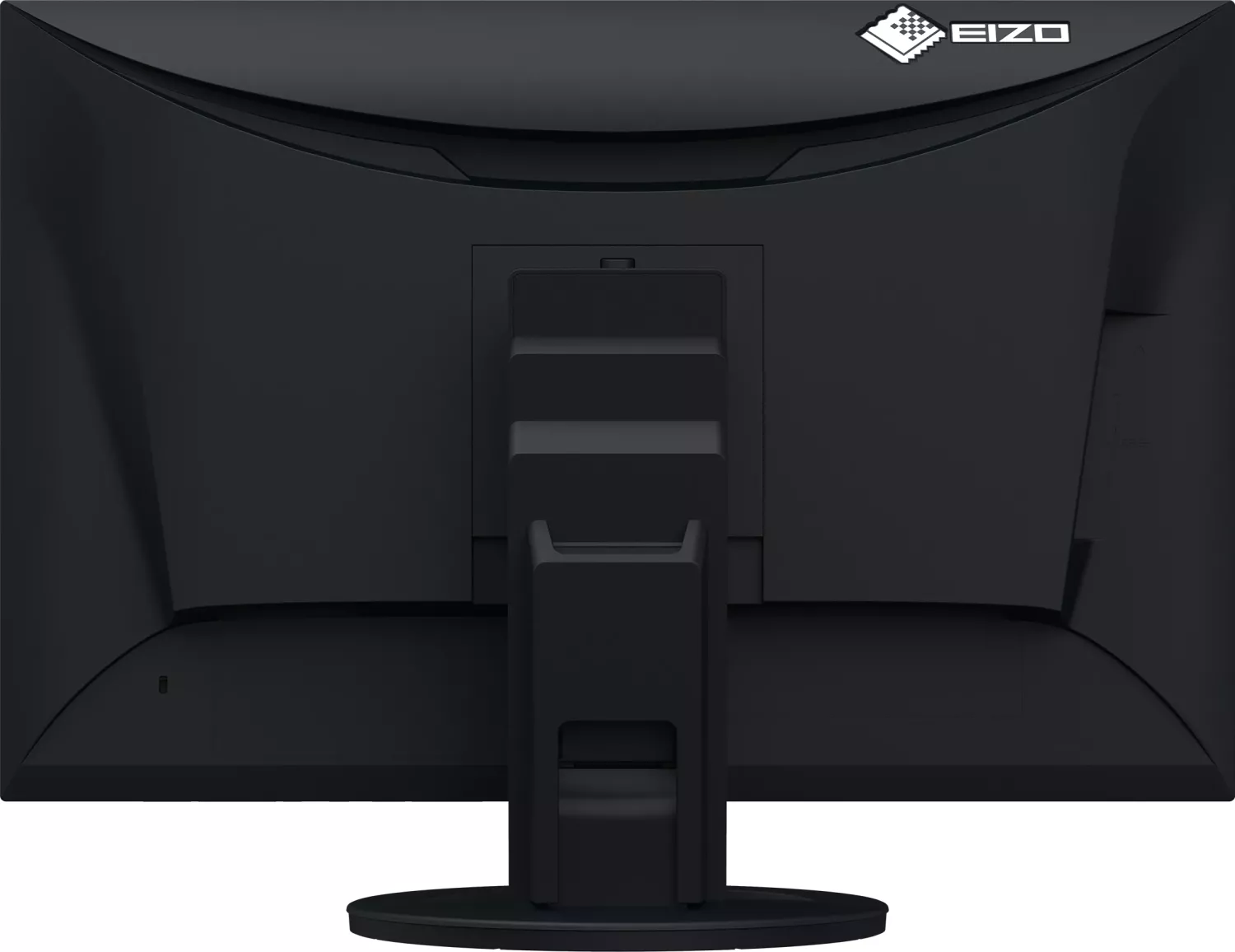
with stand, height adjustable (182.2mm), Pivot (+/-90°), rotatable (+/-172°), tiltable (+35°/-5°)
VESA
100x100 (occupied)
Power Consumption
146W (max), 11W (typical), 0.5W (standby)
Energy Efficiency SDR (A to G)
12kWh/1000h (C)
Features
Security lock (Kensington Security Slot), light sensor, Slim Bezel
Screen-to-Body Ratio
92.13% (calculated)
Dimensions
531x356.2x230mm (WxDxH) with stand compressed, 531x344.2x53.7mm (WxDxH) without stand
Weight
7.60kg (with stand), 4.90kg (without stand)
Power Supply
internal
Warranty
five years (on-site exchange service)
USB Spelling
Link
Product Description
Eizo FlexScan EV2485 - Read, Download & Print Free
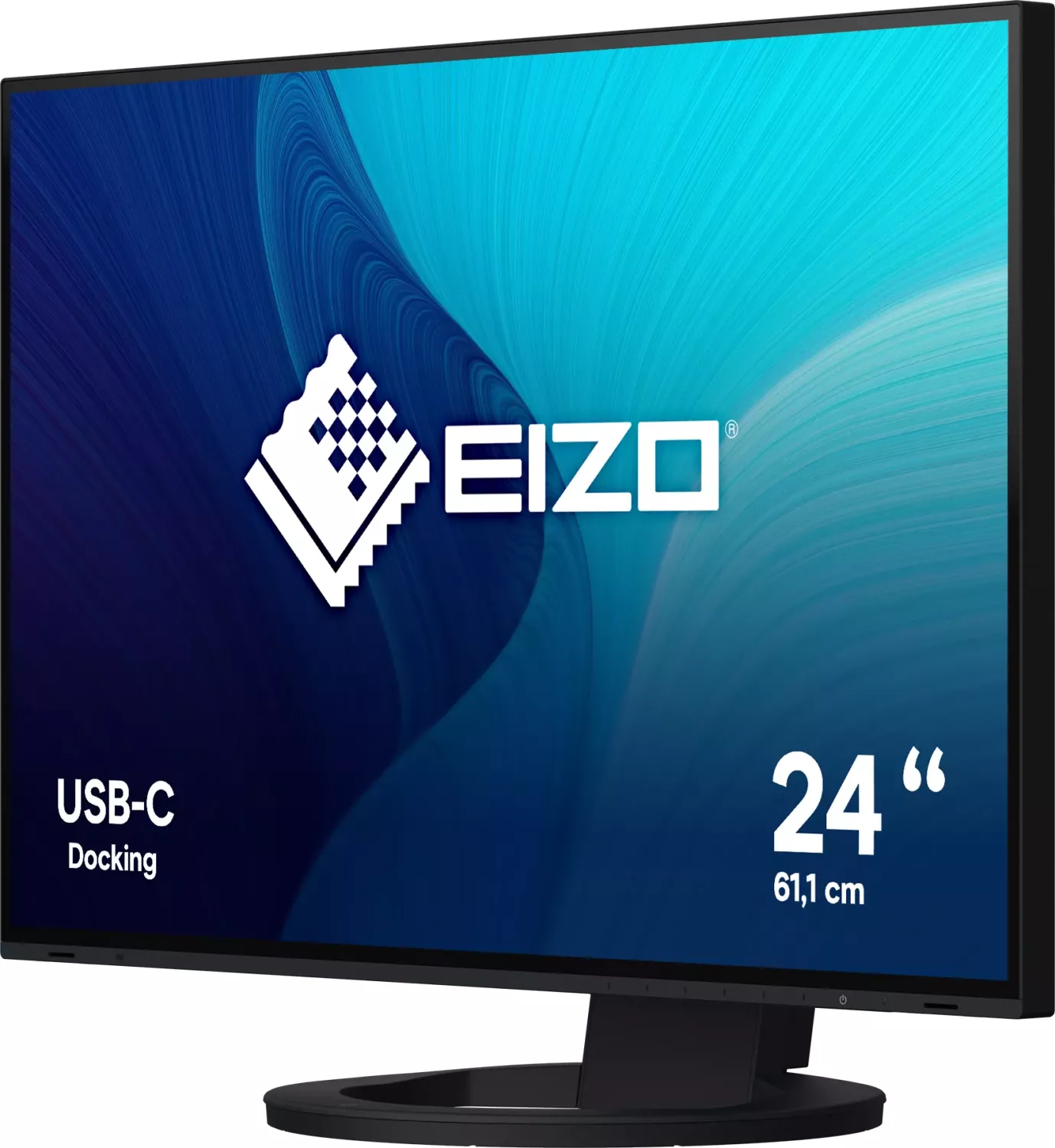
The Eizo FlexScan EV2485 stands as a premier choice for professionals and home office users seeking high-performance display capabilities. This 24-inch IPS monitor delivers exceptional visual clarity with a native resolution of 1920 by 1200 pixels, ensuring sharp text and vibrant images perfect for document creation, multimedia consumption, and creative work. The unit is designed with flexibility in mind, featuring a fully adjustable stand that allows for height, tilt, swivel, and pivot adjustments to suit any ergonomic need.
One of the standout features of this model is its robust connectivity suite. It supports DisplayPort Alt Mode and USB Power Delivery through a single USB-C connection, allowing users to transmit video signals and charge compatible notebook PCs with up to 70 watts of power simultaneously. This streamlined setup reduces cable clutter while providing essential functionality. Additionally, the built-in USB hub facilitates easy connections for peripherals like keyboards and mice directly through the monitor.
Eizo has integrated advanced eco-friendly technologies such as Auto EcoView and EcoView Optimizer 2. These features automatically adjust screen brightness based on ambient lighting conditions or input signal levels, significantly reducing power consumption without compromising viewing comfort. The monitor also includes specialized color modes like sRGB, Paper, Movie, and DICOM, catering to diverse usage scenarios from photo printing to medical imaging analysis. For those concerned about eye strain, the Paper mode specifically reduces blue light emission during extended reading sessions.
Installation is straightforward, yet versatile. Users can easily remove the original stand to attach optional VESA-compatible arms, enabling multi-monitor setups with frameless designs. The inclusion of Screen InStyle software further enhances productivity by allowing automatic switching of input signals and color modes via keyboard shortcuts. With comprehensive troubleshooting guides and detailed settings menus available in multiple languages, maintaining optimal performance is simple and efficient.
Notes:
- Allow 30 minutes for the display to stabilize after turning on the power.
- Do not press hard on the LCD panel to prevent damage.
- Use only recommended cables for full USB-C power delivery support.
Search for 67,706 Manuals online


Type-in Brand or Model