
Eizo FlexScan EV2457 Manual
PDF manual · 43 Pages
English



Quick check
Incorrect answer, please try again.
Chat with your Eizo FlexScan EV2457 manual using AI
Get instant AI answers from your Eizo FlexScan EV2457 manual
Ask anything about the Eizo FlexScan EV2457. Answers come from this manual, with the pages they are based on.
FlexScan EV2457 Maintenance Schedule
Moisten a soft cloth with water to remove stains. Do not use alcohol or abrasive cleaners.
If positioned facing up, clean the power connector regularly to prevent fire caused by dust or oil.
Free maintenance reminders
Timed to your purchase date. Always free, unsubscribe anytime.
Ask a Question
Do you recommend FlexScan EV2457?
Yes NoFrequently Asked Questions
It is a strong match for office users, remote workers, and anyone who values a comfortable, flexible monitor for daily tasks like writing, browsing, spreadsheets, and media viewing.
Is this answer helpful?
Yes. It supports DisplayPort daisy chain connections, which can help link multiple monitors with fewer cables. The source PC must support MST, and the monitor output must be set correctly.
Is this answer helpful?
The monitor includes DisplayPort, HDMI, and DVI-D inputs, plus a DisplayPort output, USB upstream and downstream ports, a stereo mini jack, and a headphone jack.
Is this answer helpful?
It uses Auto EcoView to adjust brightness based on ambient light. The manual also recommends keeping brightness comfortable, taking breaks, and avoiding long periods on the same image.
Is this answer helpful?
Yes. The stand supports vertical rotation, and the monitor can be used in portrait orientation. The computer display settings may need to be adjusted first for proper behavior.
Is this answer helpful?
No. The monitor includes a DICOM mode for displaying medical-purpose digital images, but the text clearly states that it is not intended for diagnostic purposes.
Is this answer helpful?
Advantages and Disadvantages
Advantages

- 24.1-inch IPS panel with 1920 x 1200 resolution offers extra vertical workspace for documents and multitasking.
- Auto EcoView and EcoView Optimizer 2 help balance comfort, brightness, and energy efficiency.
- DisplayPort, HDMI, DVI-D, USB hub, audio, and daisy chain support give it strong connectivity.
- Ergonomic stand supports height, tilt, swivel, and portrait rotation for flexible setup options.
Disadvantages

- Daisy chain use depends on a compatible graphics board with MST support and the correct DisplayPort version.
- Some settings are limited or disabled in specific color modes, which reduces manual control in certain cases.
- Built-in speakers are basic and may not satisfy users who want richer audio.
- DICOM mode is for display purposes only and is not intended for diagnostic medical use.
Product Specification
Function
Monitor (stationary)
Diagonal
24.1" (24.09in)
Resolution
1920x1200 (WUXGA), 16:10, 94ppi
Panel
IPS
Backlight
LED, Blue light filter, flicker-free
Brightness
350cd/m^2 (typical)
Contrast
1,000:1 (static)
Response time
5ms (GtG)
Refresh rate
60Hz (1920x1200)
Signal frequency
31-76kHz (H) / 59-61Hz (V)
Connections
1x HDMI 1.4, 1x DisplayPort-Out, 1x DisplayPort, 1x DVI, 1x USB-B 3.0 (Upstream, 5Gb/s), 4x USB-A 3.0 (Downstream, 5Gb/s), 1x 3.5mm jack (Line-Out), 1x 3.5mm jack (Line-In), 1x AC-In C13 (Power connection)
Form
straight (flat)
Viewing angle
178 degrees/178 degrees
Coating
non-glare (matte)
Color depth
8bit (16.7 million colors)
FRC
unknown
LUT (Lookup Table)
10bit, Factory calibration
Certifications/Standards
EPEAT Gold, DICOM
Speakers
Speakers (2x 1W)
Ergonomics
with stand, height adjustable (6.18in), Pivot (+90 degrees), swivel (+/-172 degrees), tilt (+35 degrees/-5 degrees)
VESA
100x100 (occupied)
Power consumption
59W (maximum), 11W (typical), 0.5W (Standby), 14W (Energy label old A+++ to G)
Energy efficiency SDR (A to G)
14kWh/1000h (D)
Energy efficiency old (A+++ to G)
20.4kWh (A++)
Special features
Security lock (Kensington Security Slot), Light sensor, Slim Bezel
Screen-to-Body-Ratio
92.19% (calculated)
Dimensions
20.91x13.90x7.48in (WxHxD) with stand compressed, 20.91x13.54x1.77in (WxHxD) without stand
Weight
12.78 lb (with stand), 8.38 lb (without stand)
Power supply
internal
Warranty
five years (On-site replacement service)
USB notation
Link
Product Description
Eizo FlexScan EV2457: A Refined Monitor for Productive Everyday Work
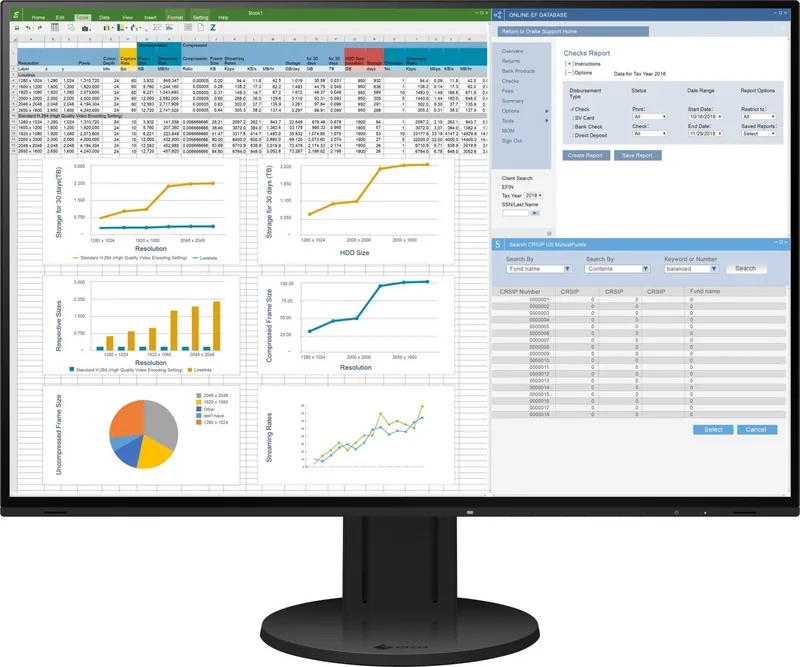
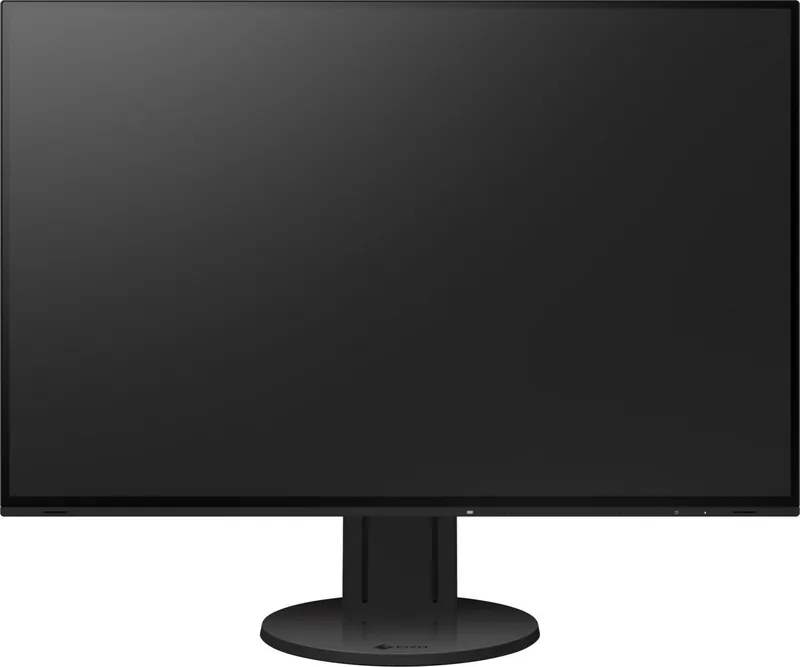
The Eizo FlexScan EV2457 is built for people who want a monitor that feels dependable, comfortable, and easy to live with every day. With a 24.1-inch IPS panel and a 1920 × 1200 resolution, it offers a little extra vertical space that is especially useful for documents, spreadsheets, web work, and multitasking. Its anti-glare screen and wide viewing angles make it a practical fit for long hours at a desk, whether the goal is office productivity or a clean home workspace.
One of the most appealing parts of the Eizo FlexScan EV2457 Manual is how clearly it focuses on comfort and control. The monitor includes Auto EcoView, which adjusts brightness based on room lighting, and EcoView Optimizer 2, which helps reduce power use without sacrificing visibility. Together, these tools support a more relaxed viewing experience while also keeping energy use in check. The text also notes that brightness should be adjusted to match the environment, which is a simple but important way to reduce eye fatigue over time.
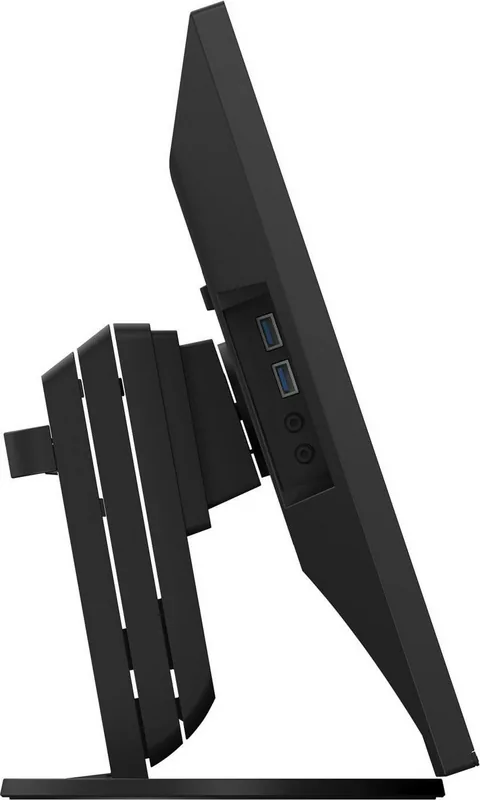
Connectivity is another strong point. The EV2457 supports DisplayPort, HDMI, and DVI-D, plus a DisplayPort output for daisy chain setups. That makes it easier to build a tidy multi-monitor workspace with fewer cables. It also includes a USB hub, audio support, and built-in speakers, so it can act as a compact desk center rather than just a display.
The design is equally thoughtful. The stand allows height adjustment, tilt, swivel, and even portrait rotation, which gives users plenty of flexibility when arranging a workspace. For users who need more customization, the monitor can also be paired with an arm or optional stand using VESA mounting support. This makes it a strong choice for people who value ergonomic positioning and a clean setup.
Color modes add another layer of usefulness. User, sRGB, Paper, Movie, and DICOM modes help tailor the display to different tasks, from reading and media viewing to image-based work. While DICOM mode is not meant for diagnostic use, it shows how versatile the monitor is across professional and general-purpose environments.
Notes
- Let the screen warm up before making precise adjustments.
- Use moderate brightness for longer viewing sessions.
- Clean the panel with a soft, damp cloth only.
- For daisy chain connections, confirm DisplayPort 1.2 and MST support.
Search for 67,706 Manuals online


Type-in Brand or Model