
Eizo FlexScan EV2451 Manual
PDF manual · 49 Pages
English



Quick check
Incorrect answer, please try again.
Chat with your Eizo FlexScan EV2451 manual using AI
Get instant AI answers from your Eizo FlexScan EV2451 manual
Ask anything about the Eizo FlexScan EV2451. Answers come from this manual, with the pages they are based on.
FlexScan EV2451 Maintenance Schedule
Moisten a soft cloth with water or use ScreenCleaner to remove stains. Do not use alcohol, thinner, benzine, wax, or abrasive cleaners.
To maximize the life of the monitor and prevent burn-in or dark smudges from continuous long-term display.
If mounted on an arm in specific orientation, periodically clean dust, water, or oil from this area to prevent fire risk.
Ask a Question
Do you recommend FlexScan EV2451?
Yes NoFrequently Asked Questions
Yes, it has a DICOM mode suitable for medical purpose digital images based on DICOM Part 14 standards. The display mode allows simply displaying medical purpose digital images to ensure accuracy for professional use cases.
Is this answer helpful?
Use water with a soft cloth. Do not use alcohol or thinner as they may damage the cabinet or LCD panel surface causing gloss variation. Stains can be removed by moistening part of a soft cloth with water.
Is this answer helpful?
The warranty period is limited to five years from the date of purchase or 30,000 hours of use, whichever comes first. EIZO and Distributors shall bear no liability other than provided under this Warranty.
Is this answer helpful?
Yes, the stand section can be removed to attach an optional arm or standard VESA mount conforming to 100mm x 100mm hole clearance. Use VESA mounting screws supplied with this product when attaching the arm or stand.
Is this answer helpful?
Select Monitor Reset in the Setting menu to restore settings to default values excluding Administrator Settings menu items. This function restores all settings back to the default values for standard operations.
Is this answer helpful?
It is not a malfunction as percentages are 99.9994% or higher. Missing or lit pixels are common in LCD panel technology due to high precision manufacturing processes.
Is this answer helpful?
Yes, you can connect multiple PCs and switch between connections using operation switches or Auto Input Detection function. This allows images to be displayed on the screen corresponding to each PC.
Is this answer helpful?
Advantages and Disadvantages
Advantages

- High Degree of Flexibility for Installation with multi-monitor support and arm mounting
- EcoView technology reduces power consumption with ambient light sensor adjustments
- IPS Panel provides wide viewing angles and excellent color reproduction
- USB Hub function enables connection of peripheral devices easily
- Comprehensive Administrator Settings for IT department control
Disadvantages

- Speakers are low power at 1 Watt each only
- Backlight has a fixed lifetime requiring eventual replacement
- No HDR support listed in the specifications list
- Limited range for brightness adjustment in Power Save mode
- Cleaning chemicals like alcohol may cause gloss variation issues
Product Specification
Function
Monitor (Stationary)
Diagonal
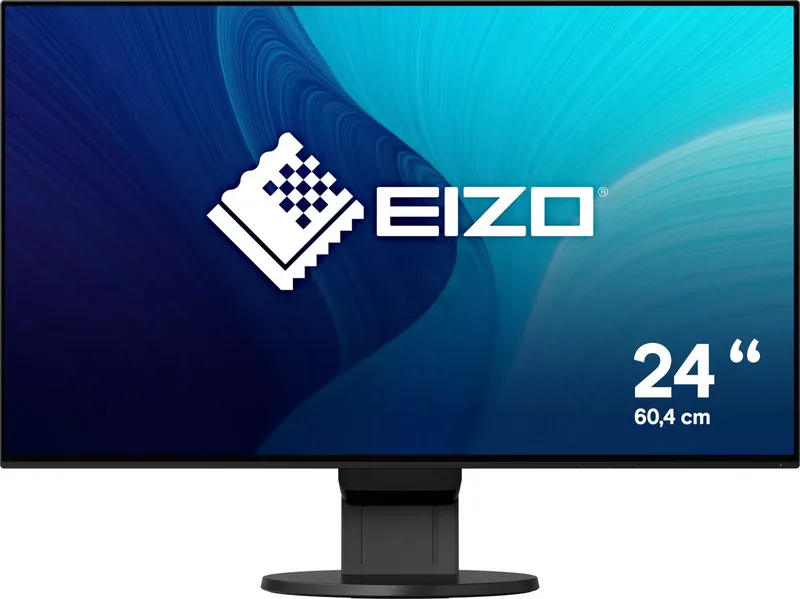
23.8 inch
Resolution
1920x1080 (FHD), 16:9, 93 ppi
Panel
IPS
Backlight
LED, Blue Light Filter, flicker-free
Brightness
250 cd/m^2 (typical)
Contrast
1,000:1 (static)
Response Time
5ms (GtG)
Refresh Rate
60Hz (1920x1080)
Signal Frequency
15-68 kHz (H) / 49-61 Hz (V)
Ports
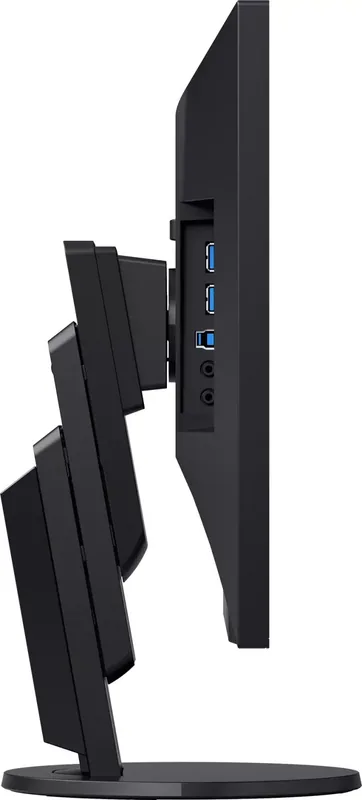
1x VGA (60Hz@1920x1080), 1x HDMI 1.4, 1x DisplayPort, 1x DVI, 1x USB-B 3.0 (Upstream, 5Gb/s), 2x USB-A 3.0 (Downstream, 5Gb/s), 1x 3.5mm jack (Line-Out), 1x 3.5mm jack (Line-In), 1x AC-In C13 (Power Input)
Form
Straight (flat)
Viewing Angle
178 deg/178 deg
Coating
non-glare (matte)
Color Depth
8-bit (16.7 Million Colors)
FRC
Unknown
LUT (Look-Up Table)
10-bit, Factory Calibration
Certifications/Standards
EPEAT Gold, DICOM
Speakers
Speakers (2x 1W)
Ergonomics
With stand, Height adjustable (6.77 inch), Pivot (+90 deg), Swivel (+/- 172 deg), Tilt (+35 deg/-5 deg)
VESA
100x100 (Mountable)
Power Consumption
42W (max), 13W (typical), 0.5W (Standby), 13W (Energy Label Old A+++ to G)
SDR Energy Efficiency
13kWh/1000h
Energy Efficiency (Old)
19.0kWh (A++)
Features
Security Slot (Kensington Security Slot), Light Sensor, Slim Bezel
Screen-to-Body-Ratio
92.73% (Calculated)
Dimensions
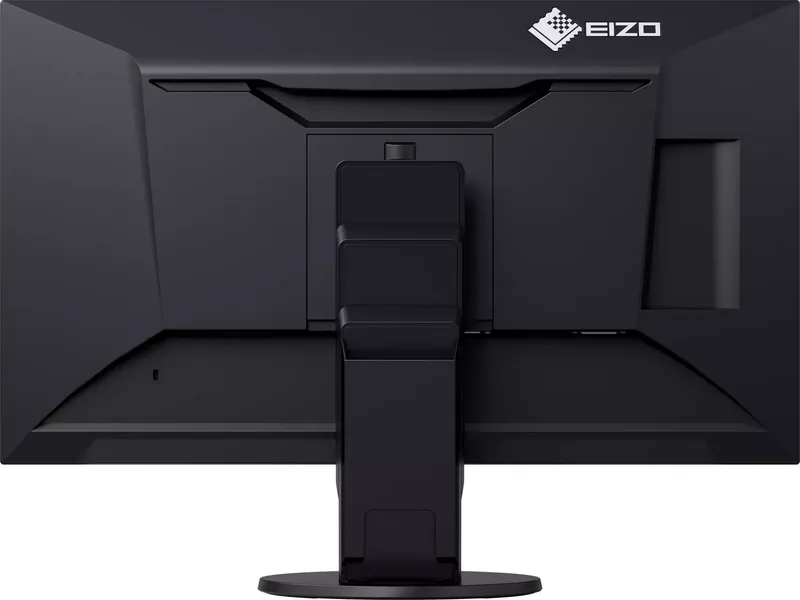
21.18x19.49x7.48 inch (WxHxD) with stand folded, 21.18x12.32x1.81 inch (WxHxD) without stand
Weight
12.13 lbs (with stand), 7.72 lbs (without stand)
Power Supply
Internal
Warranty
Five Years (On-Site Exchange Service)
USB Notation
Left
Product Description
Eizo FlexScan EV2451 Product Overview
In the modern workspace high-quality visual output is essential for productivity. The Eizo FlexScan EV2451 delivers exactly that with a robust 23.8 inch IPS display. It features Full HD resolution for sharp details. Users appreciate the IPS technology which ensures wide viewing angles without color shifting. Color accuracy is another major highlight for creative professionals.
The monitor supports multiple color modes including sRGB and DICOM which are vital for specific tasks. EcoView technology adjusts brightness based on ambient light automatically. This feature is clearly mentioned in the Eizo FlexScan EV2451 Manual for reference. It reduces power consumption significantly during long working days. The included stand is highly adjustable with tilt swivel and pivot options. USB connectivity is included with a built-in hub to simplify cable management.
Available ports include DisplayPort HDMI and DVI for versatile connection capabilities. Audio output is available with built-in speakers though volume is basic. TCO certification ensures environmental safety and sustainability throughout the lifecycle. The response time is decent for office work and general multimedia. Brightness stabilizes after 30 minutes as advised. Overall performance is reliable for daily business tasks.
The design is sleek and fits well in multi-monitor setups. A security lock slot adds protection for high value items. Cleaning requires a soft cloth and water. Avoid chemicals to prevent panel damage. Long-term use might affect backlight but this is normal. Warranty covers five years to give peace of mind. This makes it a solid investment for professionals requiring durability. Installation requires following standard procedures. Cables provided support various connections types easily. Users should check the Eizo FlexScan EV2451 Manual for specific pinouts later.
The USB upstream port connects to the PC for full hub functionality. Downstream ports allow peripheral devices like keyboards directly on the monitor. Power consumption is low in power saving mode. The ambient light sensor detects darkness automatically for comfort. Color modes include sRGB Paper Movie and DICOM. Paper mode reduces blue light for reading long documents. Movie mode enhances moving images with clearer cuts. DICOM is specifically for medical imaging applications.
Advanced settings allow gamma and contrast tweaks for precision. Input signals switch easily using front switches. Language options are available for international use. Administrator settings protect configurations. Key lock prevents accidental changes. Compatibility mode fixes window shifts on DisplayPort. Afterimages can be removed with power off cycles. The monitor is heavy so handle with care.
Weight is around 5.5 kg with stand attached. Energy Star compliant for green computing. Recycling info is available on the website. This monitor supports VESA mounting for extra arms. Optional arms allow further flexibility. Stand base holds cables neatly. Detach stand for VESA mount compatibility. This versatility makes it popular. Users report stability and clarity.
The bezel design frames the content well. Gain settings refine RGB balance. Reset options restore factory defaults. Info menu shows serial number details. Administrator menu secures settings for teams. Energy saving reduces overall bills. Carbon footprint drops with EcoView usage. TCO standards verify sustainability claims. Compliance ensures safety. Warranty terms are clear. Support channels are available. Continuous improvement via firmware occurs.
This monitor represents solid engineering. It balances cost and performance well. Daily tasks run smoothly without issues. Images remain consistent over time. Viewing angles stay true. Brightness uniformity is key. Power management saves energy efficiently. Stand adjustment reduces neck strain. Ergonomics are prioritized in design. Health benefits from reduced eye strain. Auto EcoView helps vision comfort. Power light indicates status. This clarity helps status checks. Overall the package is complete. Features meet expectations for the class. Reliability is the main selling point.
Search for 67,706 Manuals online


Type-in Brand or Model