
Eizo FlexScan EV2360 Manual
PDF manual · 42 Pages
English



Quick check
Incorrect answer, please try again.
Chat with your Eizo FlexScan EV2360 manual using AI
Get instant AI answers from your Eizo FlexScan EV2360 manual
Ask anything about the Eizo FlexScan EV2360. Answers come from this manual, with the pages they are based on.
FlexScan EV2360 Maintenance Schedule
Remove stains using a soft cloth dampened with water or ScreenCleaner. Avoid alcohol, solvents, or abrasive cleaners.
To reduce eye strain, take a 10-minute break every hour during long work sessions.
If an optional swing arm is used, periodically check that the VESA mounting screws are sufficiently tight to prevent detachment.
Ask a Question
Do you recommend FlexScan EV2360?
Yes NoFrequently Asked Questions
Yes, the product comes with a VESA 100mm mount interface. You can attach an optional arm by removing the original stand section using the lock button. It supports rotation for vertical use in specific configurations.
Is this answer helpful?
The monitor supports a maximum native resolution of 1920 dots by 1200 lines. This is a WUXGA format suitable for productivity and detailed visual work.
Is this answer helpful?
Connect the USB upstream cable from the computer to the monitor. Then connect your peripheral devices to the downstream ports on the monitor or hub. The upstream connection enables data transfer and power supply to devices.
Is this answer helpful?
Yes, do not press on the panel. Pressure marks can cause display malfunctions or interference patterns. If pressure marks remain, leave the monitor with a black or white screen to try to clear them.
Is this answer helpful?
Yes, you can connect via D-Sub, HDMI, or DisplayPort ports. You can switch input signals using the switches on the front or enable Auto Input Detection in the Administrator Settings menu.
Is this answer helpful?
It takes about 30 minutes for the display to stabilize. You should wait 30 minutes or more after turning the monitor on before adjusting settings for accuracy.
Is this answer helpful?
Advantages and Disadvantages
Advantages

- IPS panel ensures 178 degree viewing angles for consistent color.
- Auto EcoView adjusts brightness for power and eye saving.
- Built-in USB hub reduces cable clutter on the desk.
- Robust stand allows height tilt and swivel adjustments.
- Supports multiple input types including DisplayPort and HDMI.
Disadvantages

- No built-in webcam for video conferencing.
- Audio speakers are basic 1 Watt output.
- Stand base size may not fit small desks easily.
- Manual language change not supported in Admin menu.
- No HDMI CEC mutual control support available.
Product Specification
Function
Monitor (Desktop)
Diagonal
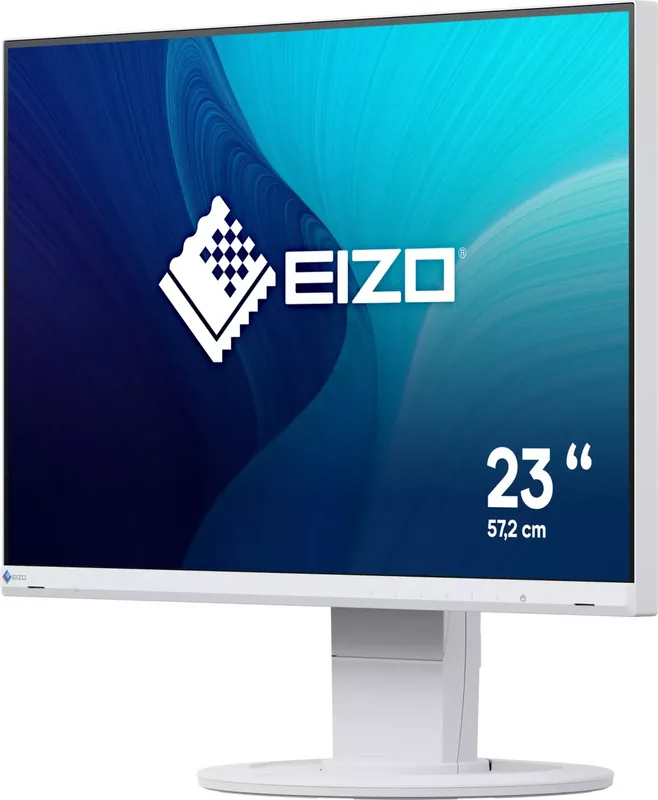
22.5" (57.2 cm)
Resolution
1920x1200 (WUXGA), 16:10, 101ppi
Panel
IPS
Backlight
LED, Blue Light Filter, flicker-free
Brightness
250 cd/m2 (Typical)
Contrast Ratio
1,000:1 (Static)
Response Time
5ms (GtG)
Refresh Rate
60Hz (1920x1200)
Signal Frequency
31-75.50kHz (H) / 59-61Hz (V)
Ports
1x VGA (60Hz@1920x1200), 1x HDMI 1.4, 1x DisplayPort, 1x USB-B 3.0 (Upstream, 5Gb/s), 2x USB-A 3.0 (Downstream, 5Gb/s), 1x 3.5mm Jack (Line-Out), 1x 3.5mm Jack (Line-In), 1x AC-In C13 (Power Input)
Shape
Straight (Flat)
Viewing Angle
178 deg/178 deg
Coating
non-glare (Matte)
Color Depth
8bit (16.7 Million Colors)
FRC
Unknown
LUT (Look-Up Table)
10bit, Factory Calibration
Certifications/Standards
TCO 9, DICOM
Speakers
Speakers (2x 1W)
Ergonomics
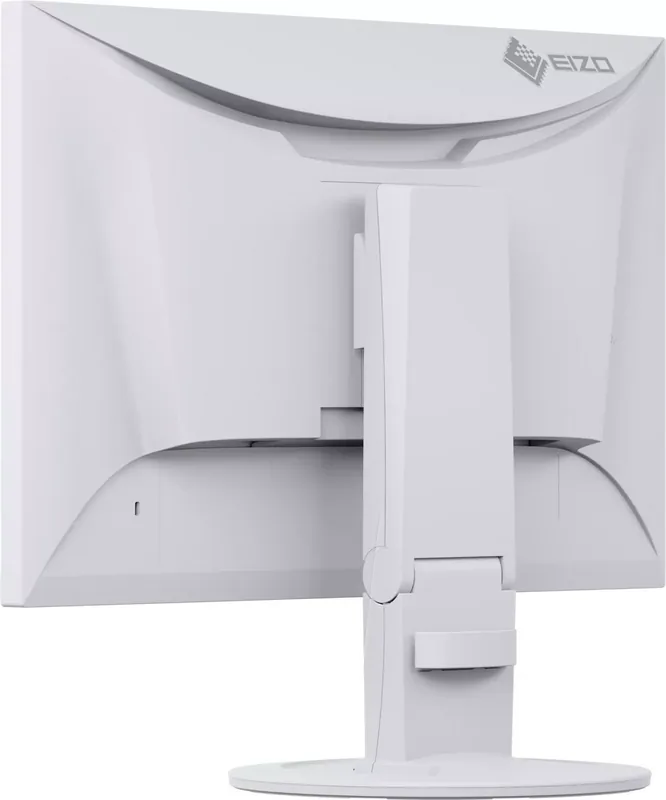
With Stand (Height Adjustable (5.51"), Pivot (+90 deg), Swivel (±172 deg), Tilt (+35 deg/-5 deg))
VESA Mount
100x100 (Mount Included)
Power Consumption
37W (Max), 11W (Typical), 0.5W (Standby), 12W (Old EU Energy Label A to G)
Energy Efficiency SDR (A to G)
11kWh/1000h (C)
Energy Efficiency Legacy (A+++ to G)
17.5kWh (A++)
Features
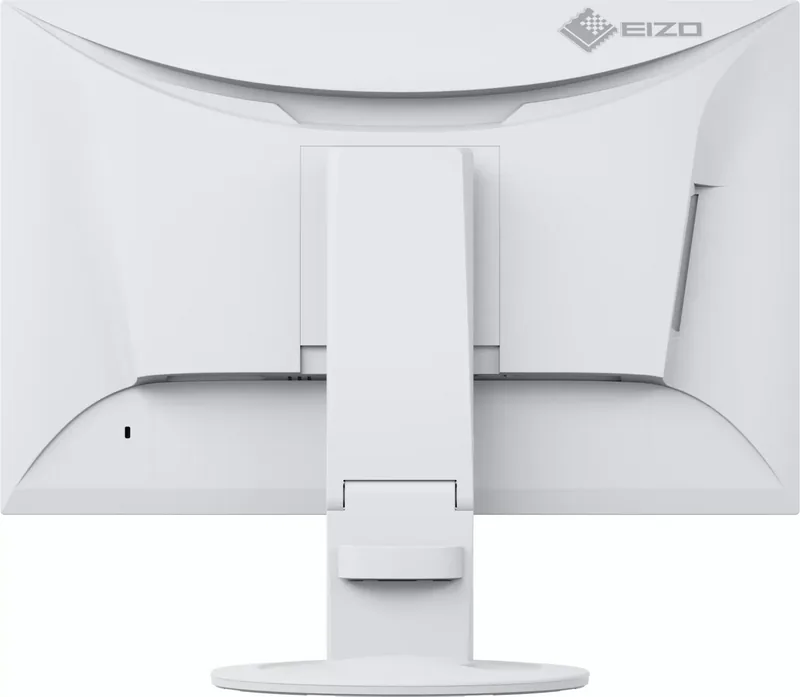
Security Lock (Kensington), Ambient Light Sensor, Slim Bezel
Screen-to-Body Ratio
91.64% (Calculated)
Dimensions
19.65" x 13.15" x 9.17" (WxHxD) with Stand, 19.65" x 12.64" x 2.13" (WxHxD) without Stand
Weight
12.13 lbs (With Stand), 7.50 lbs (Without Stand)
Power Supply
Internal
Warranty
5 Years (On-site Exchange Service)
USB Name
Link
Product Description
Eizo FlexScan EV2360 Review
Overview
Welcome to our comprehensive guide on the FlexScan EV2360. This monitor represents a significant step forward for business and creative professionals seeking reliability. Referencing the Eizo FlexScan EV2360 Manual provides clarity on its extensive capabilities. The IPS panel ensures sharp visuals with a resolution of 1920 by 1200 pixels. Color accuracy is paramount, making it ideal for design work.
Key Features
One standout feature is the EcoView technology. It automatically adjusts brightness based on ambient light. This reduces power consumption and protects your eyes during long sessions. The manual highlights Auto EcoView and EcoView Optimizer 2. Power usage drops significantly compared to standard monitors. You can check CO2 reduction stats easily within the menu.
Connectivity
Connectivity handles multiple PCs seamlessly. You can switch signals with front switches. Audio passes through HDMI and DisplayPort. The USB upstream port connects to the host. Downstream ports expand connectivity for keyboards. This reduces cable clutter on your desk significantly. DisplayPort and HDMI support HDCP for content protection.
Usability
Settings are intuitive via the front switches. Color modes include sRGB, Movie, and DICOM. The Screen InStyle utility simplifies management across multiple screens. Cleaning requires a soft cloth and water. Avoid chemicals to prevent damage. The manual warns about pixel retention and recommends rotating images. Settings menu rotation aids vertical mounting.
Considerations
Users should note the recommended 30-minute warm-up time. Stabilizing the display improves accuracy. Do not press on the panel. Condensation risks exist in cold conditions. Always dry the unit before power is restored. These precautions ensure longevity. Regular updates from the website keep drivers fresh. The manual is essential for advanced configuration. The stand base is heavy so lift carefully. Avoid moving it sideways once detached. This prevents damage to the mechanism. Check all cables are secure before operation begins.
Conclusion
In conclusion, this monitor excels in comfort and efficiency. The Eizo FlexScan EV2360 Manual remains a vital resource for owners. It unlocks hidden features like administrator settings and signal adjustments. Value is high for the price point. It fits well in multi-monitor setups. Power saving is excellent for office environments. We recommend it for professionals wanting quality displays without compromise. Enjoy your upgraded workflow today.
Search for 67,706 Manuals online


Type-in Brand or Model