
Eizo DuraVision FDF2382WT-A Manual
PDF manual · 43 Pages
English



Quick check
Incorrect answer, please try again.
Chat with your Eizo DuraVision FDF2382WT-A manual using AI
Get instant AI answers from your Eizo DuraVision FDF2382WT-A manual
Ask anything about the Eizo DuraVision FDF2382WT-A. Answers come from this manual, with the pages they are based on.
DuraVision FDF2382WT-A Maintenance Schedule
Moisten a soft cloth with water or EIZO ScreenCleaner to gently wipe stains. Do not use alcohol, thinner, benzene, wax, or abrasive cleaners frequently.
If using an optional arm or stand, periodically check that the screws are tight enough to prevent the monitor from becoming unattached.
Ask a Question
Do you recommend DuraVision FDF2382WT-A?
Yes NoFrequently Asked Questions
Open the Windows control panel, then select Hardware and Sound followed by Tablet PC Settings. Click Setup under the display tab and follow on-screen instructions to touch markers. This aligns the touched position with the displayed cursor for accurate touch operations.
Is this answer helpful?
The monitor supports HDMI, DisplayPort, and D-Sub 15-pin connectors. Each supports different scanning frequencies and resolutions, with HDMI and DisplayPort also carrying audio signals for connected multimedia playback.
Is this answer helpful?
You should avoid operating the monitor if it was moved from a cold environment to a warm room immediately. Allow time for dew condensation to disappear before turning it on, as moisture can damage internal components if not addressed.
Is this answer helpful?
Use the control buttons on the front panel to open the Setting menu. Navigate to the Color section and adjust the brightness slider. The settings range from 0 to 100 and affect the backlight intensity.
Is this answer helpful?
The LCD panel has a native resolution of 1920 by 1080 pixels. It supports various other resolutions depending on the input signal type, with specific vertical scan frequencies required for stable display.
Is this answer helpful?
Use a soft cloth moistened with water to gently wipe the surface. Specialized screen cleaners can be used. Avoid thinner, benzene, wax, or abrasive cleaners which may cause damage or gloss variation.
Is this answer helpful?
Yes, you can adjust touch sensitivity by holding specific buttons on the monitor or within the settings menu. Running TPOffset software for calibration is also recommended if touch operations feel inaccurate.
Is this answer helpful?
Advantages and Disadvantages
Advantages

- Supports 10-point multi-touch interaction for natural gestures like zooming and rotating.
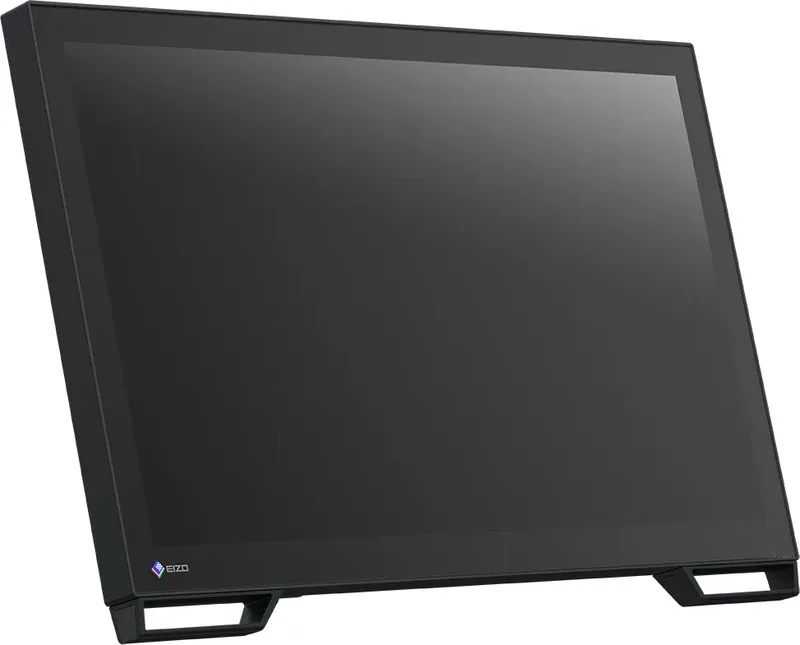
- Full-flat bezel design allows users to touch right up to the edge of the screen without obstruction.
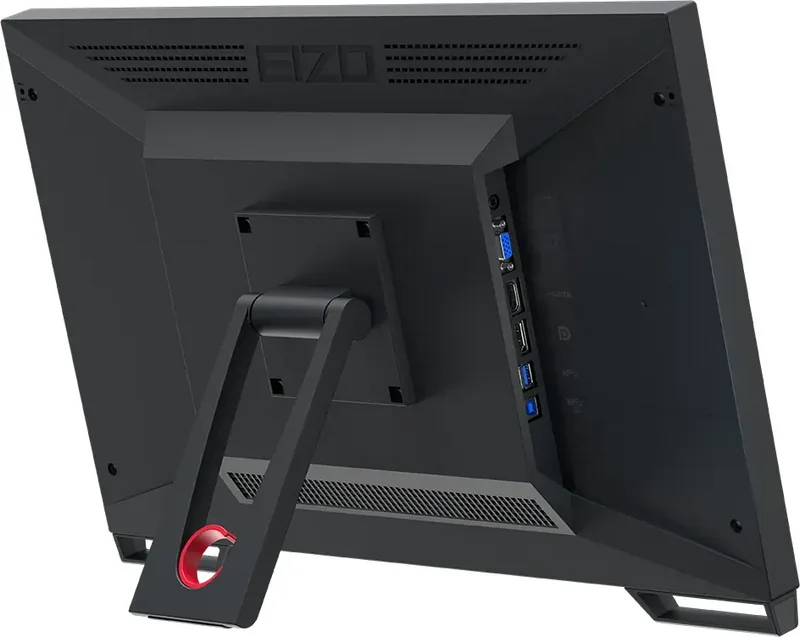
- Multiple input options including HDMI, DisplayPort, and D-Sub connectors for versatile connectivity.
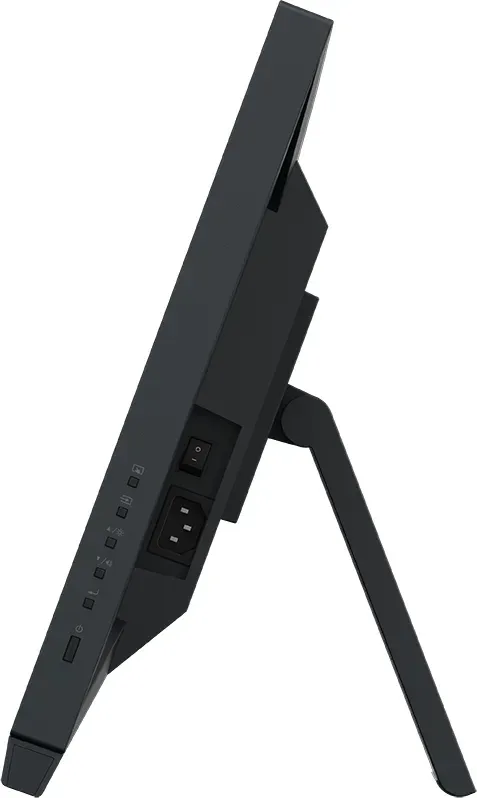
- Stepless tilt adjustment stand offers ergonomic flexibility from 15 to 70 degrees.
- Integrated USB hub allows users to connect peripherals directly to the monitor.
Disadvantages

- Requires approximately 30 minutes warm-up time after power-up for accurate display.
- Backlight has a fixed lifetime which may run out sooner with long continuous use.
- Region specific adjustment may affect performance if used outside the originally shipped area.
- Screen stabilization can take time, delaying immediate adjustments upon startup.
- Must avoid harsh chemicals during cleaning to prevent gloss variation and damage.
Product Specification
Touchscreen
Capacitive, Multi-Touch
Diagonal
23 inch
Resolution
1920x1080, 16:9
Brightness
260 cd/m2
Contrast
1,000:1 (static), not specified (dynamic)
Response Time
11 ms
Viewing Angle
178 deg/178 deg
Panel
IPS
Backlight
White LED, flicker-free
HDR
N/A
Color Depth
8bit (16.7 Million colors)
Color Space
100% (sRGB)
Refresh Rate
60 Hz
Signal Frequency
31-81 kHz (horizontal), 55-76 Hz (vertical)
Ports
1x VGA, 1x HDMI, 1x DisplayPort, 1x 3.5mm jack (Line-In)
Additional Ports
2x USB-A 3.0 (5 Gb/s), 1x USB-B 3.0 (5 Gb/s) (Touch function)
Ergonomics
+70 deg/-15 deg (tiltable)
VESA
100x100 (mounted)
Power Consumption
47W (max), 12W (typ), not specified (energy label old A+++ to G), 0.5W (standby)
SDR Energy Efficiency Class (A to G)
E
SDR Energy Consumption
17 kWh/1000h
Dimensions (WxHxD)
21.92x13.93x8.52 inch
Weight
14.55 lbs
Features
Speakers
Warranty
3 years (on-site exchange service)
Product Description
Eizo DuraVision FDF2382WT-A Review
The Eizo DuraVision FDF2382WT-A is a robust 23-inch monitor designed for professional multimedia and general office tasks. It features an IPS panel that delivers excellent color reproduction and wide viewing angles, making it suitable for environments requiring visual accuracy. The touch functionality stands out as a key feature, supporting up to ten points of simultaneous touch interaction. This capability allows for natural gestures like zooming and rotating, which enhances the user experience for digital signage or interactive presentations and ensures responsiveness.
Connectivity is another strong point for this unit. It comes equipped with HDMI, DisplayPort, and D-Sub inputs, ensuring compatibility with a wide range of computers and devices. The built-in USB hub adds convenience by allowing users to connect peripherals directly to the monitor. Audio output is handled through integrated speakers and a stereo mini jack. For those needing detailed setup information, verifying the Eizo DuraVision FDF2382WT-A, 23 Manual is recommended to understand power and signal requirements fully. This ensures optimal performance when connecting different signal sources. This connectivity ensures you can easily switch between sources.
The design emphasizes usability and ergonomic flexibility. The stand allows for stepless tilt adjustment, ranging from 15 to 70 degrees, enabling a comfortable viewing position regardless of the user posture. The full-flat bezel design ensures that users can touch right up to the edge of the screen without obstruction. This design choice simplifies interaction significantly for touch-based applications and modern workflows. Cleaning is straightforward using a soft cloth with water or a specialized cleaner, although harsh chemicals must be avoided to prevent damage to the display surface.
Operationally, the monitor requires about 30 minutes to stabilize after power-up for accurate display adjustments regarding color and gamma. Users should ensure the screen is used in environments compatible with specific temperature and humidity levels to prevent issues like condensation. The panel technology handles multi-touch well, though users must be cautious to avoid scratching the surface or applying undue pressure with hard objects. Sensitivity can be adjusted in the settings menu if touch operations feel unresponsive during use and provides flexibility for different user preferences.
Note: Allow at least 30 minutes for the monitor to warm up for best color accuracy. Always clean the screen gently with a soft cloth to prevent scratches. Avoid using harsh chemicals on the display surface to maintain quality. Regular updates to driver settings are recommended for best performance.
Search for 67,706 Manuals online


Type-in Brand or Model