
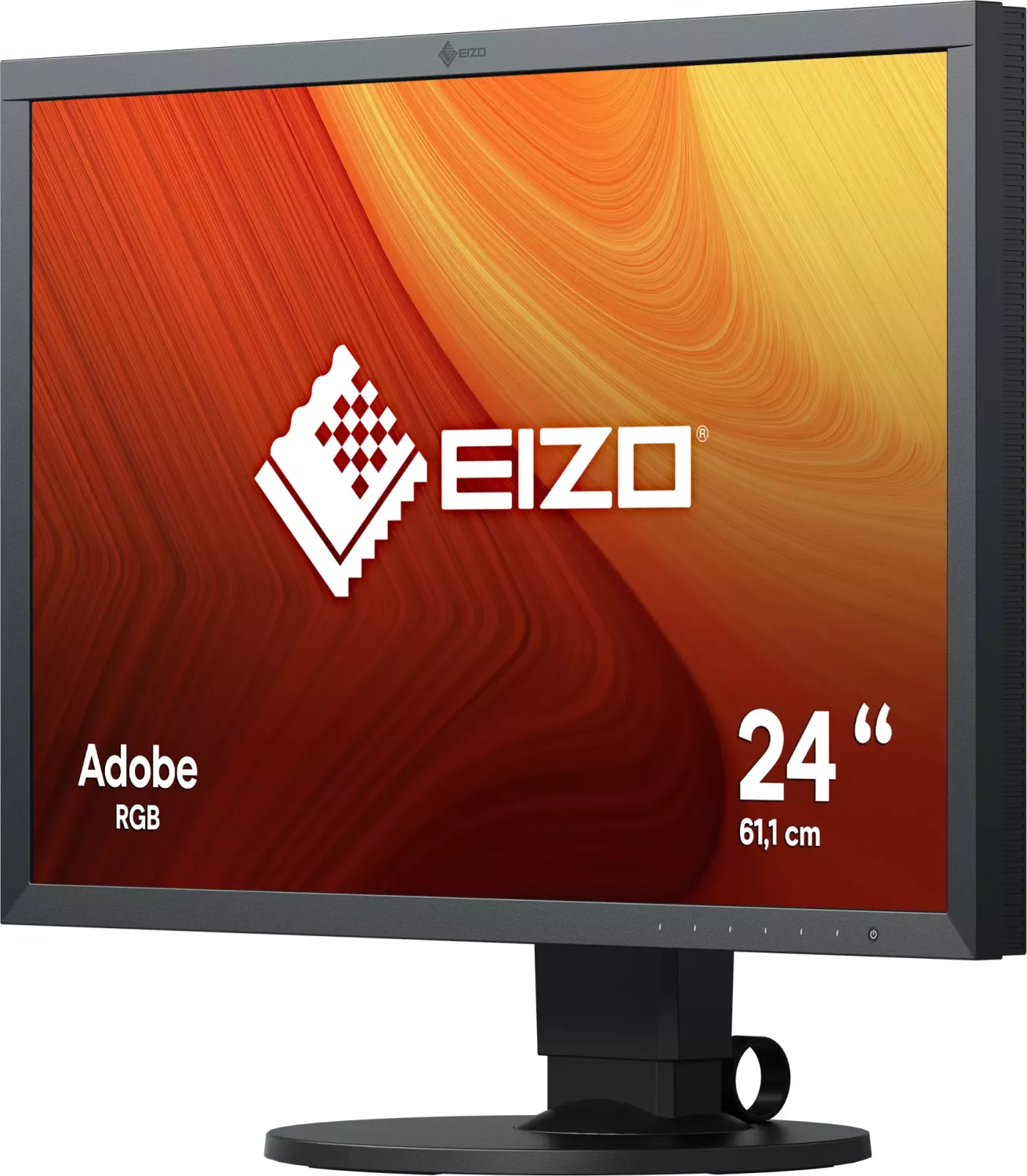
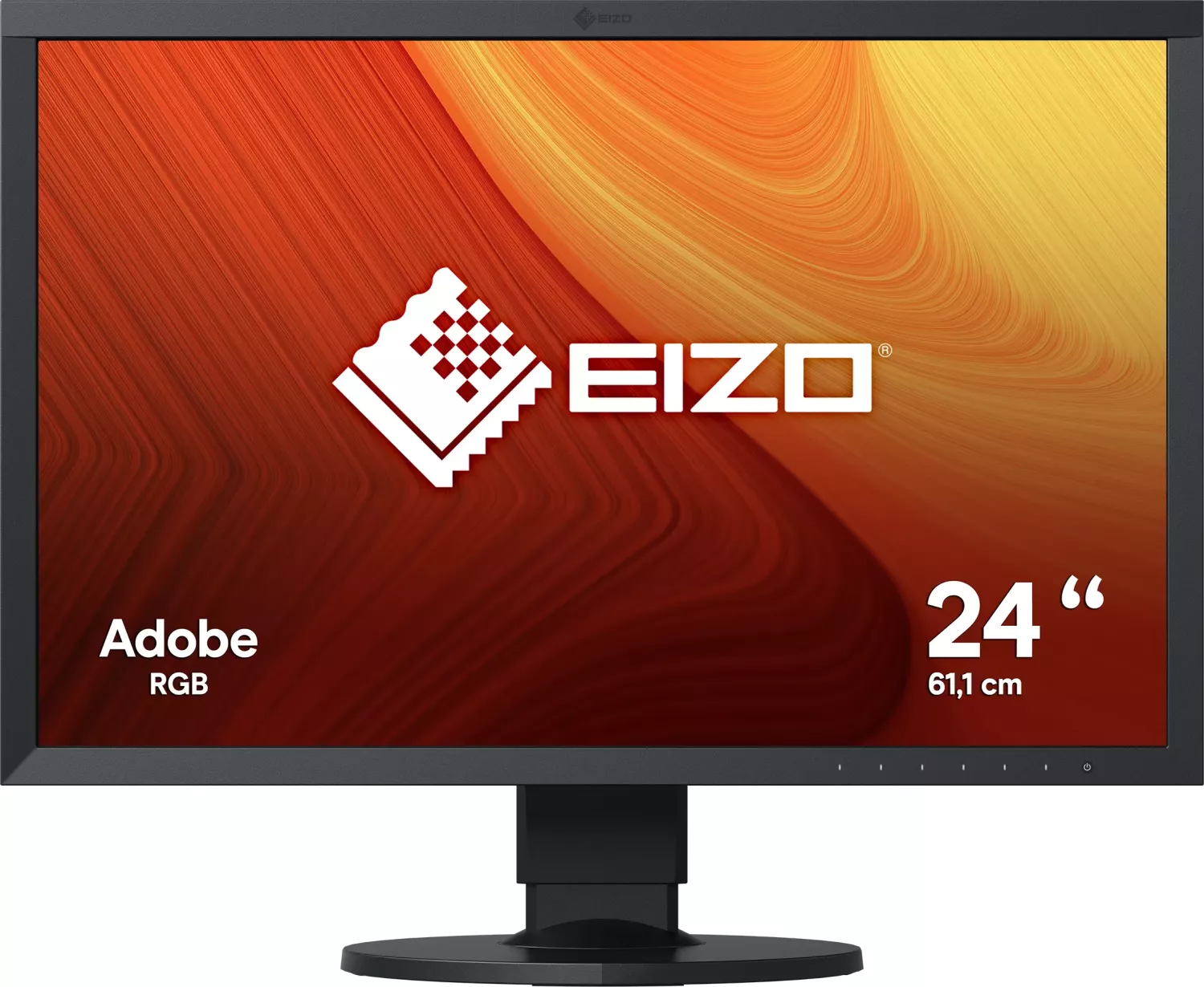
Eizo ColorEdge CS2420 Manual
PDF manual · 68 Pages
English



Quick check
Incorrect answer, please try again.
Chat with your Eizo ColorEdge CS2420 manual using AI
Get instant AI answers from your Eizo ColorEdge CS2420 manual
Ask anything about the Eizo ColorEdge CS2420. Answers come from this manual, with the pages they are based on.
Ask a Question
Do you recommend ColorEdge CS2420?
Yes NoFrequently Asked Questions
It is best for photographers, designers, and anyone who needs dependable color accuracy. The wide gamut and calibration tools make it especially useful for color-critical work.
Is this answer helpful?
Yes. It works with ColorNavigator 6, which helps calibrate monitor characteristics and create color profiles. This is one of its main strengths for creative workflows.
Is this answer helpful?
It includes DVI-D, HDMI, and DisplayPort inputs, plus USB upstream and downstream ports. That makes it easy to connect multiple devices and peripherals.
Is this answer helpful?
Yes. The monitor supports portrait rotation. You may need to rotate the screen in the settings and adjust the graphics board configuration as well.
Is this answer helpful?
Avoid strong pressure, sharp objects, and harsh cleaners. Use a soft cloth slightly dampened with water or a recommended screen cleaner for safe maintenance.
Is this answer helpful?
The monitor’s electrical performance stabilizes after about 30 minutes. Waiting before making final adjustments helps achieve more consistent color and brightness results.
Is this answer helpful?
Advantages and Disadvantages
Advantages

- Wide color gamut with 99% Adobe RGB coverage for accurate creative work.
- IPS panel and 1920 × 1200 resolution provide clear detail and stable viewing angles.
- Multiple inputs, including DVI-D, HDMI, and DisplayPort, improve compatibility.
- Ergonomic stand supports height, tilt, swivel, and portrait rotation.
Disadvantages

- Audio output is not supported through HDMI or DisplayPort.
- Color calibration and advanced features may require extra setup time.
- The monitor should be adjusted after warm-up for best accuracy.
- Some settings are region-specific and may vary outside the original market.
Product Specification
Function
Monitor (stationary)
Diagonal
24" (24.02in)
Resolution
1920x1200 (WUXGA), 16:10, 94ppi
Panel
IPS
Backlight
LED, flicker-free
Brightness
350cd/m² (typical)
Contrast
1.000:1 (static)
Response time
15ms (GtG)
Refresh rate
60Hz (1920x1200)
Signal frequency
26-78kHz (H) / 48-86Hz (V)
Connections
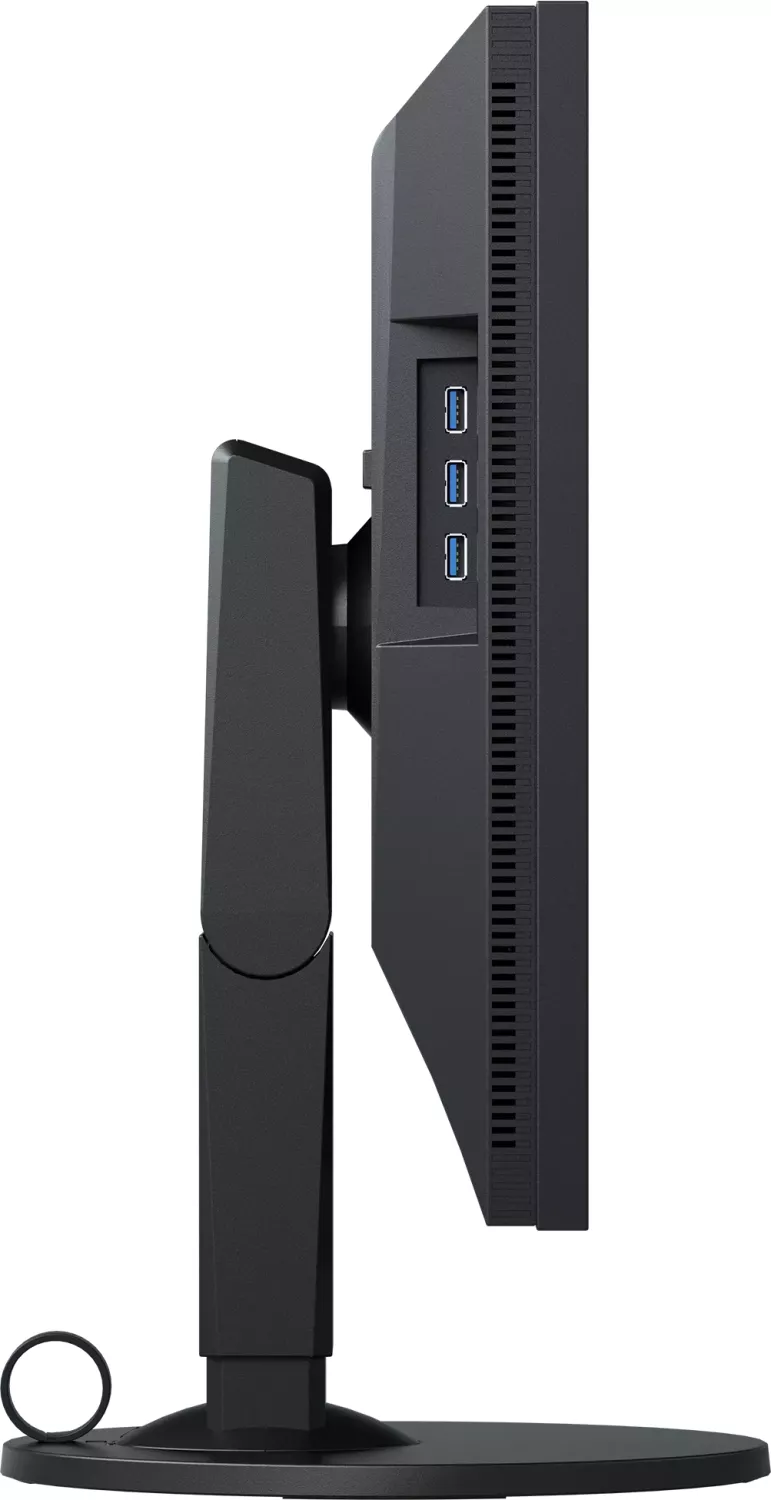
1x HDMI 1.4, 1x DisplayPort 1.1, 1x DVI, 1x USB-B 3.0 (Upstream, 5Gb/s), 3x USB-A 3.0 (Downstream, 5Gb/s), 1x AC-In C13 (power connection)
Shape
straight (flat)
Viewing angle
178°/178°
Coating
non-glare (matte)
Color depth
10bit (1.07 billion colors)
FRC
yes (8bit+2bit)
sRGB
100%
Adobe RGB
99%
DCI-P3
95%
LUT (Lookup Table)
16bit, hardware calibration
Operation
mechanical buttons
Ergonomics
with stand, height adjustable (6.10in), Pivot (+90°), rotatable (+172°), tiltable (+35°/-5°)
VESA
100x100 (occupied)
Power consumption
92W (maximum), 26W (typical), 0.6W (Standby), 29W (old energy label A+++ to G)
Energy efficiency SDR (A to G)
28kWh/1000h (G)
Energy efficiency old (A+++ to G)
42.3kWh (B)
Screen-to-Body-Ratio
83.89% (calculated)
Dimensions
21.65x21.65x9.84in (WxHxD) with stand compressed, 21.65x14.25x2.52in (WxHxD) without stand
Color
black (display frame) / black (lower bezel) / black (stand)
Weight
17.20lb (with stand), 11.02lb (without stand)
Power supply
internal
Warranty
five years (on-site exchange service)
USB notation
Link
Product Description
Eizo ColorEdge CS2420 24-inch: Built for Color-Driven Work
The Eizo ColorEdge CS2420 24-inch Manual highlights a monitor designed with creators in mind. This 24-inch widescreen display is aimed at users who need reliable color reproduction for photography, graphic design, and everyday visual work. With its IPS panel, 1920 × 1200 resolution, and wide viewing angles, it offers a balanced mix of sharp detail and comfortable on-screen reading space.
One of the strongest points of the CS2420 is its color performance. It supports a wide color gamut with Adobe RGB coverage at 99%, making it a strong fit for workflows where accurate color matters. The built-in color mode options, including Adobe RGB, sRGB, and calibration modes, help users switch between different tasks without constantly reconfiguring settings. For deeper control, ColorNavigator 6 adds calibration support and profile creation, which is especially useful for studios and serious hobbyists.
The monitor is also practical in daily use. It includes DVI-D, HDMI, and DisplayPort inputs, plus a USB 3.0 hub for connecting peripherals and charging devices. The ergonomic stand adds flexibility with height, tilt, swivel, and portrait rotation support, so it can adapt to long work sessions and different desk setups. These features make it easy to build a tidy and efficient workspace around the display.
The manual also emphasizes careful use and maintenance. It recommends waiting about 30 minutes after power-on before making critical adjustments, since the panel stabilizes over time. It also advises moderate brightness settings, screen savers for static images, and gentle cleaning with soft cloths to preserve image quality. Small details like these help maintain both performance and longevity.
Overall, the CS2420 stands out as a dependable color management monitor for users who value precision over flashy extras. It combines professional-grade display features with sensible ergonomics and everyday convenience, making it a smart choice for creative workstations.
Notes
- Best suited for photo editing, design, and color-sensitive tasks.
- Use the recommended cables and calibration tools for the most consistent results.
- For portrait use, rotate the display and update the graphics settings accordingly.
Search for 67,706 Manuals online


Type-in Brand or Model
Sofia Keller
9 months ago
Does the EIZO CS2420 have built-in hardware calibration, or do I need an external colorimeter (like a Spyder) to get accurate colors?
Manual.ly
9 months ago
The CS2420 does not include an internal (hardware) calibration device like the higher-end models. However, it ships with EIZO ColorNavigator software, and many users report the factory calibration is already very good. For the most accurate, repeatable results over time, you should use an external colorimeter to run the calibration through ColorNavigator. Compatible options commonly mentioned include Datacolor Spyder models (and EIZO Colorimeter devices). If you only need a solid starting point, you can begin with the provided calibration profiles and adjust later as needed.