
Eizo ColorEdge CS2400S Manual
PDF manual · 47 Pages
English



Quick check
Incorrect answer, please try again.
Chat with your Eizo ColorEdge CS2400S manual using AI
Get instant AI answers from your Eizo ColorEdge CS2400S manual
Ask anything about the Eizo ColorEdge CS2400S. Answers come from this manual, with the pages they are based on.
ColorEdge CS2400S Maintenance Schedule
Periodically check the tightness of screws when an optional arm is attached to prevent the monitor from becoming unattached.
Wipe stains with a soft cloth moistened with water or use ScreenCleaner. Do not use alcohol, benzene, wax, or abrasive cleaners.
Free maintenance reminders
Timed to your purchase date. Always free, unsubscribe anytime.
Ask a Question
Do you recommend ColorEdge CS2400S?
Yes NoFrequently Asked Questions
Yes, the USB-C port provides up to 70 Watts of power delivery to compatible devices. Ensure you use the included CC200SS-5A cable for full power.
Is this answer helpful?
Eizo recommends ColorNavigator 7 software. It allows deep color profiling and custom preset management for accurate output.
Is this answer helpful?
No, this model does not include built-in audio speakers. Focus remains on visual fidelity rather than multimedia consumption.
Is this answer helpful?
Yes, the stand can be removed. It supports standard VESA mount arms provided they meet weight and screw dimensions.
Is this answer helpful?
The monitor covers 99 percent of the Adobe RGB color space. This is critical for printing and professional image editing tasks.
Is this answer helpful?
Use a soft cloth dampened with water or Eizo ScreenCleaner. Do not use harsh chemicals like alcohol directly on the screen.
Is this answer helpful?
Maximum power consumption is 149 Watts. Standby mode uses 0.3 Watts. Check local regulations for energy efficiency class.
Is this answer helpful?
Advantages and Disadvantages
Advantages

- 99% Adobe RGB color coverage ensures professional print matching for photographers and designers.
- USB-C connectivity supports video transmission and provides up to 70W power delivery to connected devices.
- Wide viewing angles of 178 degrees maintain color consistency even when looking at the screen from the side.
- Ergonomic stand offers height, tilt, and swivel adjustments plus vertical rotation for portrait orientation work.
- Compatible ColorNavigator software allows deep calibration with custom color profiles for specific workflow needs.
Disadvantages

- Built-in speakers are not included. Users must rely on external audio sources for sound reproduction.
- Specific USB power cable required for maximum wattage to avoid compatibility issues with power delivery.
- LCD response time of twenty-two milliseconds is slower than typical panels designed for high-speed gaming.
- Back light lifespan is limited over time. Extended usage can lead to visible dimming requiring maintenance.
- Manual mentions condensation risks. Moving unit between temperature zones requires careful handling to protect internals.
Product Specification
Function
Monitor (Fixed)
Diagonal
24.1 in (61.2 cm)
Resolution
1920x1200 (WUXGA), 16:10, 94ppi
Panel
IPS
Backlight
LED, flicker-free
Brightness
410 cd/m2 (typical)
Contrast
1,350:1 (Static)
Response Time
19ms (GtG)
Refresh Rate
60Hz (1920x1200)
Signal Frequency
26-76 kHz (H) / 23-61 Hz (V)
Connections
1x HDMI 1.4, 1x DisplayPort 1.2, 1x USB-C 3.0 with DisplayPort 1.2 (Upstream, 5Gb/s, PD 70W), 1x USB-B 3.0 (Upstream, 5Gb/s), 2x USB-A 3.0 (Downstream, 5Gb/s), 2x USB-A 2.0 (Downstream, 480Mb/s), 1x AC-In C13 (Power)
Design
Straight (Flat)
Viewing Angle
178 deg / 178 deg
Coating
Non-glare (Matte)
Color Depth
10-bit (1.07 billion colors)
FRC
Unknown
sRGB
100%
Adobe RGB
99%
DCI-P3
95%
LUT (Look-Up Table)
16-bit, Hardware Calibration, Factory Calibration
Controls
Mechanical Buttons
Ergonomics
With stand, height-adjustable (6.10 in), Pivot (+90 deg), Swivel (+/-172 deg), Tilt (+35 deg/-5 deg)
VESA
100x100 (Mounted)
Power Consumption
149W (Max), 18W (Typical), 0.3W (Standby)
Energy Efficiency SDR (A-G)
16kWh/1000h (E)
Features
Security Lock (Kensington Security Slot), KVM Switch, HDCP 2.3
Screen-to-Body Ratio
83.90% (Calculated)
Dimensions
21.83x15.59x9.65 in (WxDxH) with stand compressed, 21.83x14.25x2.52 in (WxDxH) without stand
Color
Black (Display Frame), Black (Lower Bezel), Black (Stand), Black (Back)
Weight
18.08 lbs (with stand), 11.46 lbs (without stand)
Power Supply
Internal
Warranty
Five years (On-site Exchange Service)
USB Naming
Link
Product Description
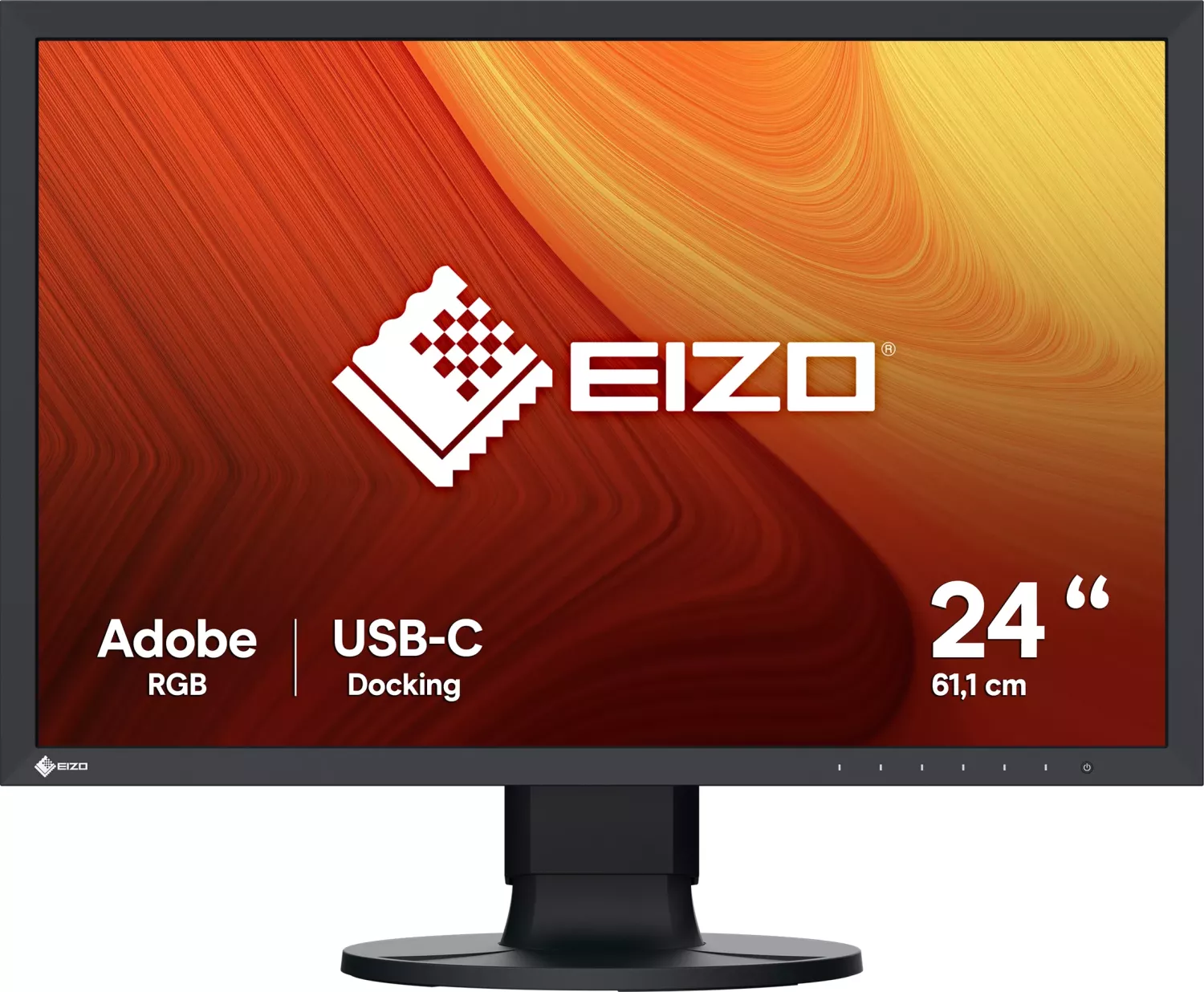
The Eizo ColorEdge CS2400S is a specialized display solution tailored for professional imaging and design work. Its core feature is a 24.1-inch LCD panel capable of displaying over one billion colors. This depth comes from 10-bit color capability and 99 percent Adobe RGB coverage. Such precision is essential for matching digital screens to physical print media. The IPS technology ensures consistent colors even when viewed from sharp angles. Viewing angles reach 178 degrees horizontally and vertically.
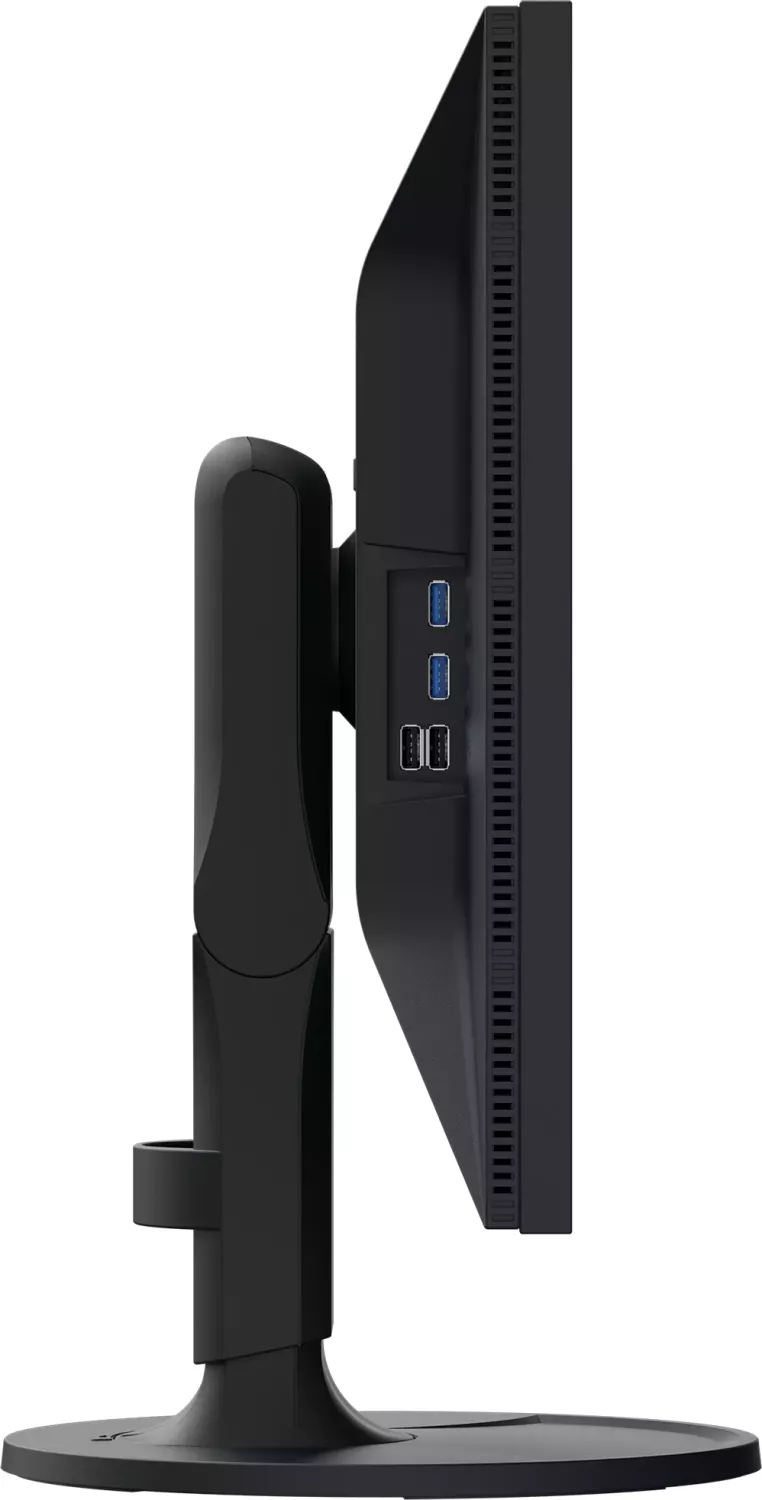
Connectivity is streamlined for the modern workstation. The rear port cluster includes HDMI, DisplayPort, and a versatile USB Type-C connector. The USB-C port supports video input and power delivery over the single cable protocol. This reduces the need for multiple adapters and chargers for laptops. Up to 70 Watts can be delivered to compatible notebooks. A secondary USB hub downstream on the front of the unit aids peripheral connection. Users can connect storage drives and input devices without reaching for the PC.
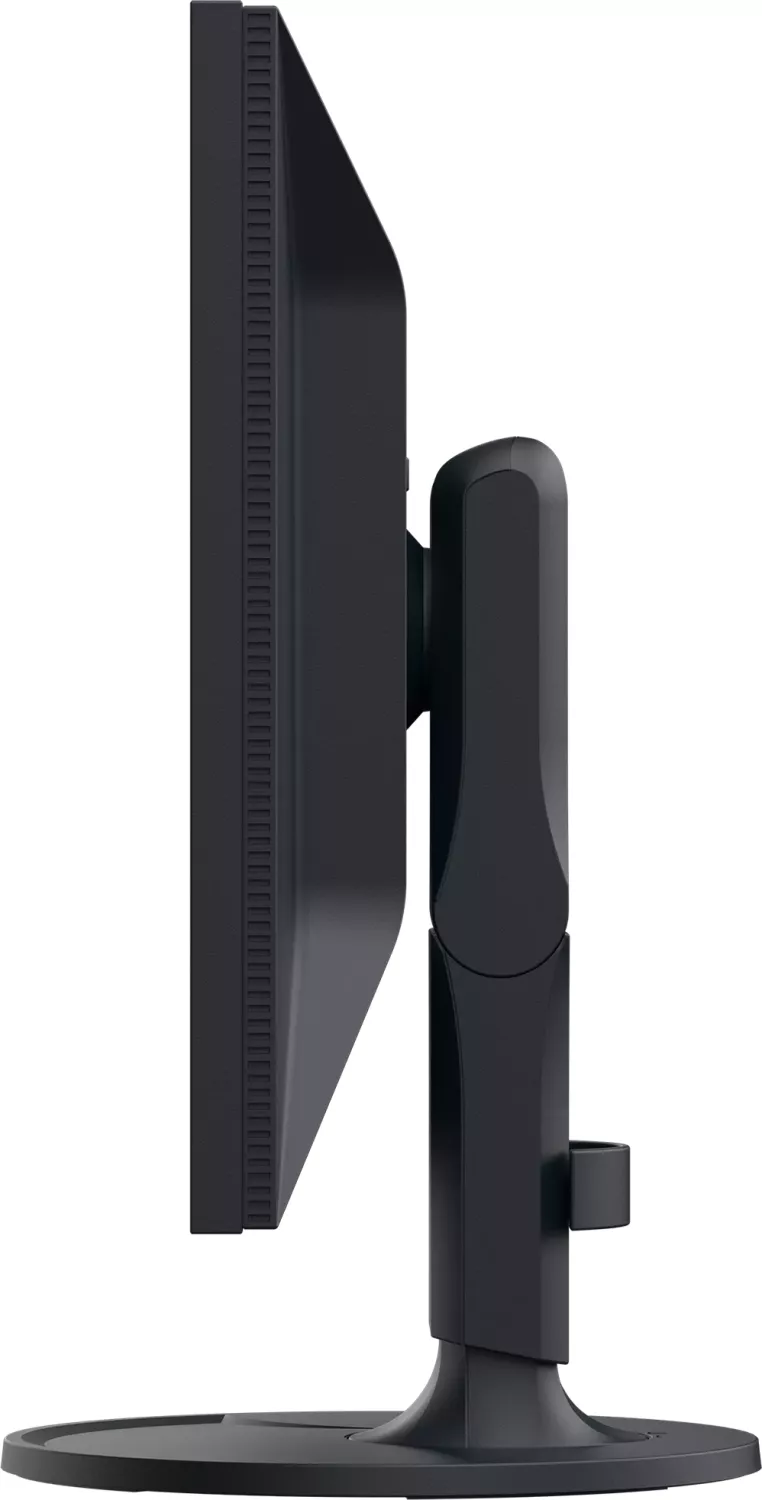
The stand design prioritizes user comfort and flexibility. Height adjustment allows a comfortable line of sight. Tilt and swivel functions enable optimal viewing angles. The monitor allows vertical rotation for portrait work. It also features a Kensington lock slot for security. Users who prefer different mounting can remove the stand for VESA arm compatibility. Control elements are located on the front bezel. Touch switches manage the menu navigation. Custom function keys allow quick access to brightness or color modes.
Calibration is central to this device's utility. The ColorNavigator 7 software is recommended for optimal setup. It allows creation of specific color profiles for different workflows. Pre-set modes include sRGB and Adobe RGB. Users can define custom gamma curves between 1.6 and 2.7. Gain settings allow fine-tuning of red, green, and blue components. Admin mode restricts settings to prevent accidental changes. This layer of protection is useful in shared environments.
Maintenance ensures long-term reliability. The LCD module requires gentle care. Do not press on the screen. Clean only with a soft cloth dampened with water or approved cleaner. Chemicals like benzene or thinner will damage the coating. Condensation can form if moved from cold to hot environments. Wait for evaporation before powering on. The back light has a lifespan and may dim over significant use. If flickering occurs, seek service. Response time is twenty-two milliseconds. This balance of stability and speed suits detailed work. Environmental limits dictate usage from zero to thirty-five degrees. Understanding these specifications helps maximize the investment and performance of this premium display unit.
Warranty covers the described applications. Pixel retention is high with over 99 percent effectiveness. Region specifications may vary, so check local power compatibility. Specific accessory cables are needed for full functionality. The included cable CC200SS-5A supports maximum power transfer. The separate CC100 is also compatible. Signal formats must be checked in the menu if images look washed out. The input source range settings adjust black and white levels. HDMI and DisplayPort support HDCP 2.3 for protected content. This comprehensive approach to display management makes it a top choice for professionals.
Search for 67,706 Manuals online


Type-in Brand or Model