
Eizo ColorEdge CS2400R Manual
PDF manual · 47 Pages
English



Quick check
Incorrect answer, please try again.
Chat with your Eizo ColorEdge CS2400R manual using AI
Get instant AI answers from your Eizo ColorEdge CS2400R manual
Ask anything about the Eizo ColorEdge CS2400R. Answers come from this manual, with the pages they are based on.
ColorEdge CS2400R Maintenance Schedule
Periodically check the tightness of screws when using an optional arm to prevent the monitor from coming unattached.
Wipe stains with a soft cloth moistened with water or ScreenCleaner. Do not use alcohol, benzene, wax, or abrasive cleaners.
Free maintenance reminders
Timed to your purchase date. Always free, unsubscribe anytime.
Ask a Question
Do you recommend ColorEdge CS2400R?
Yes NoFrequently Asked Questions
It takes about 30 minutes under the manufacturers measurement conditions for the monitor display to stabilize. Please wait 30 minutes or more after the monitor power has been turned on before adjusting the monitor settings for accurate performance.
Is this answer helpful?
Yes, it supports video display and power supply with a single USB Type-C cable. It supplies a maximum of 70 W of power to a connected notebook PC. Connected devices can be charged even when the monitor is in power saving mode.
Is this answer helpful?
This product does not contain speakers. Users need to use external audio solutions if they require audio output for their multimedia consumption or productivity tasks while connected to this display unit.
Is this answer helpful?
Place the LCD monitor on a soft cloth on a stable surface with the panel side down. Raise the height to maximum. Press the lock button while holding the stand brace, slide the stand in the direction of the pedestal, and pull upwards to remove it carefully.
Is this answer helpful?
Check if the power cord is connected properly and turn on the main power switch. Ensure the correct input signal is selected. Try toggling the main power switch off and then back on. Check if the external device is turned on and connected correctly.
Is this answer helpful?
Yes, the included stand adjusts the height and angle including tilt and swivel. The monitor can also be rotated vertically. The height adjustment range is 145.0 mm to 155.0 mm depending on the tilt angle.
Is this answer helpful?
The backlight of the LCD panel has a fixed lifetime. If the screen becomes dark or begins to flicker due to usage patterns, the lifespan may have run out. You should contact your local EIZO representative for possible replacement.
Is this answer helpful?
Advantages and Disadvantages
Advantages

- Supports video display and power supply through a single USB Type-C cable for cleaner desk setup.
- Wide range of adjustable display modes tailored for professional color workflows like sRGB.
- Includes height, tilt, swivel, and vertical rotation for ergonomic workstation setup.
- Compatible with ColorNavigator 7 software for precision calibration and color matching.
Disadvantages

- Backlight has a fixed lifetime which may require replacement if brightness decreases over time.
- No built-in speakers included, requiring external audio solutions for multimedia needs.
- Static images displayed for extended periods may cause afterimages or screen retention.
- Sensitivity to pressure on the LCD panel surface can cause display malfunctions.
Product Specification
Function
Monitor (stationary)
Diagonal
24.1" (24.10")
Resolution
1920x1200 (WUXGA), 16:10, 94ppi
Panel
IPS
Backlight
LED, flicker-free
Brightness
300 cd/m^2 (typical)
Contrast
1,000:1 (static)
Response Time
14ms (GtG)
Refresh Rate
60Hz (1920x1200)
Signal Frequency
26-76kHz (H) / 23-61Hz (V)
Connectors
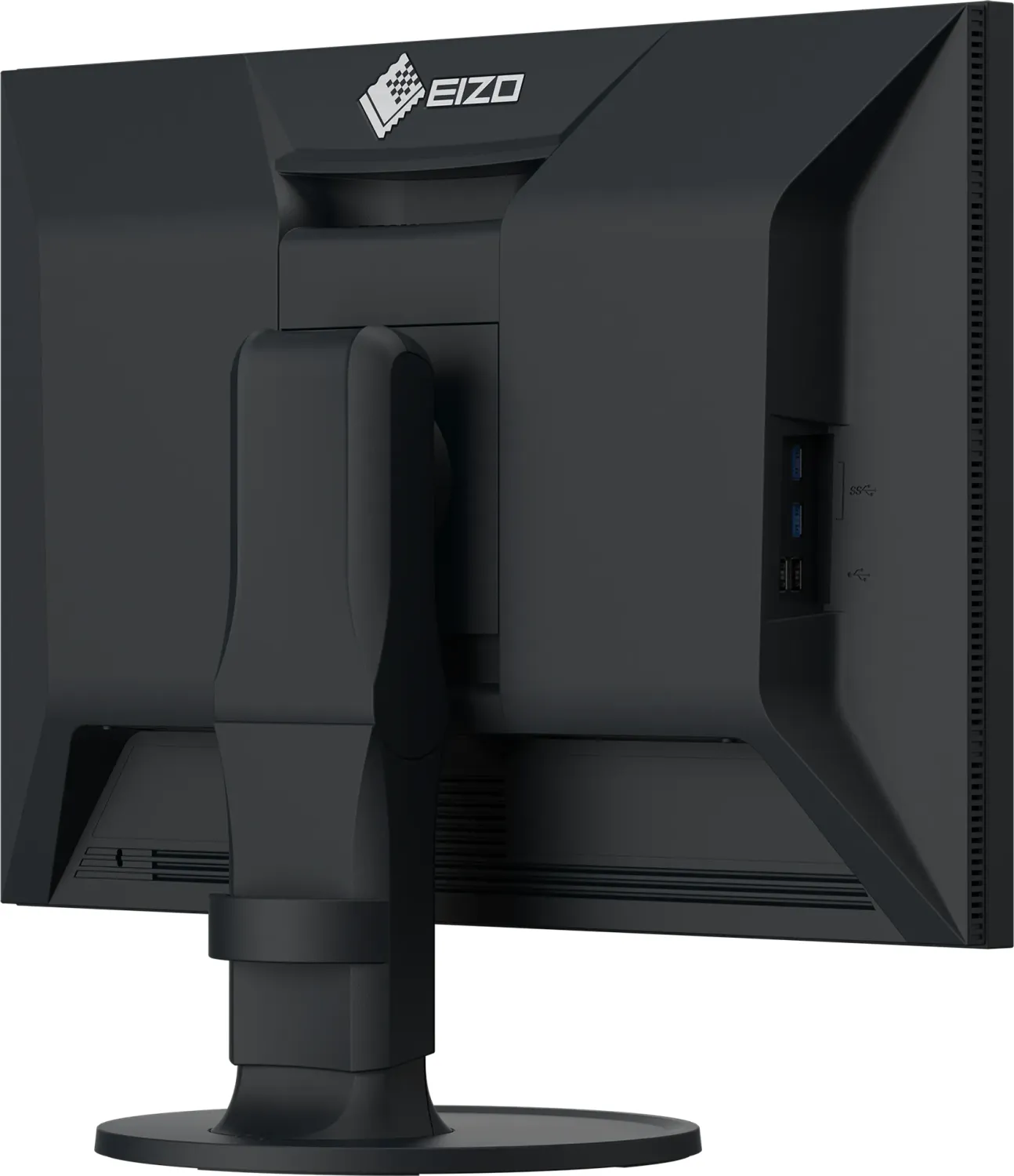
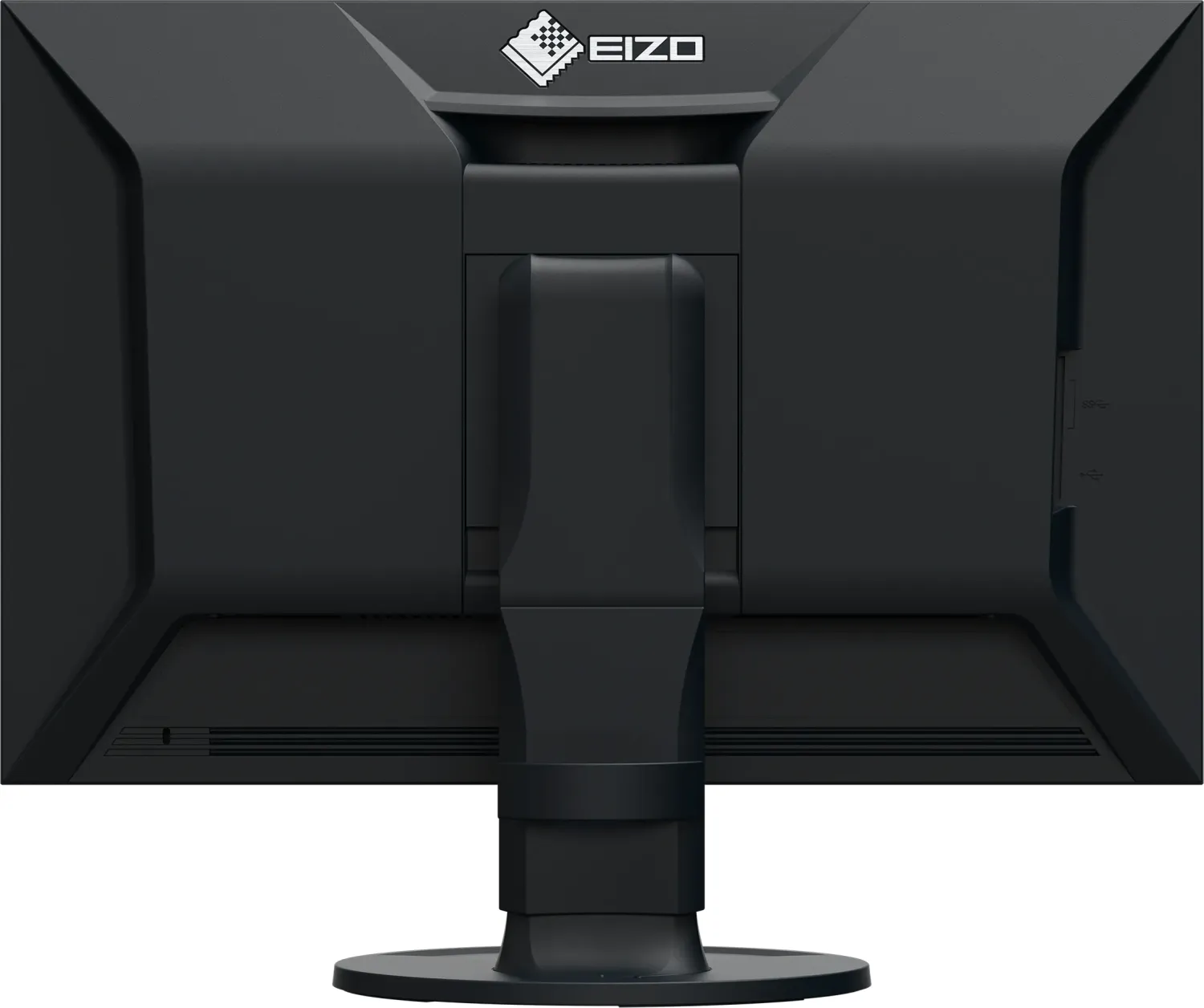
1x HDMI 1.4, 1x DisplayPort 1.2, 1x USB-C 3.0 with DisplayPort 1.2 (Upstream, 5Gb/s, PD 70W), 1x USB-B 3.0 (Upstream, 5Gb/s), 2x USB-A 3.0 (Downstream, 5Gb/s), 2x USB-A 2.0 (Downstream, 480Mb/s), 1x AC-In C13 (Power)
Shape
Straight (flat)
Viewing Angle
178 deg/178 deg
Coating
non-glare (matte)
Color Depth
10bit (1.07 Billion colors)
FRC
unknown
sRGB
100%
REC 709
100%
LUT (Lookup Table)
16bit, Hardware Calibration, Factory Calibration
Controls
Mechanical Buttons
Ergonomics
With stand, height adjustable (6.10 inches), Pivot (+90 deg), swivel (+/- 172 deg), tilt (+35 deg/-5 deg)
VESA
100x100mm (included)
Power Consumption
134W (max), 15W (typical), 0.3W (Standby)
SDR Energy Efficiency (A to G)
19kWh/1000h (F)
Features
Security Lock (Kensington Security Slot), KVM-Switch, HDCP 2.3
Screen-to-Body Ratio
83.90% (calculated)
Dimensions
21.83x15.59x9.65in (WxHxD) with stand folded, 21.83x14.25x2.52in (WxHxD) without stand
Color
black (Display Frame) / black (Lower Bezel) / black (Stand) / black (Back)
Weight
17.86 lbs (with stand), 11.24 lbs (without stand)
Power Supply
Internal
Warranty
five years (On-Site Exchange Service)
USB Spelling
Link
Product Description
Eizo ColorEdge CS2400R Professional Display Review
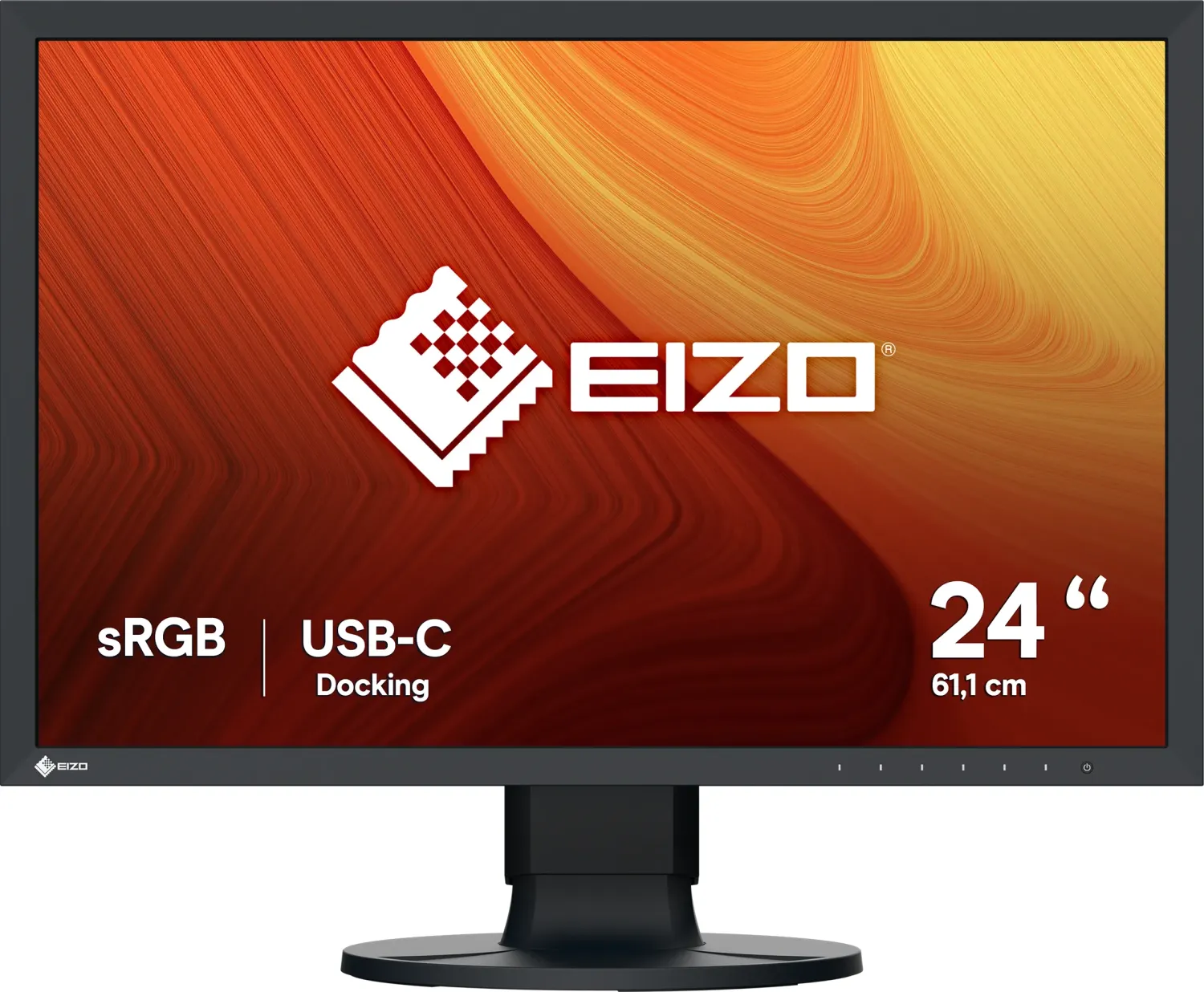
When working with digital photography or graphic design, color accuracy is paramount. The Eizo ColorEdge CS2400R, 24.1 Monitor stands out as a robust tool for creative professionals who demand precision. This display features an IPS panel that delivers wide viewing angles and consistent color reproduction across the screen. With a resolution of 1920 by 1200, it provides ample workspace. The matte anti-glare finish helps reduce reflections in various lighting conditions.
One of the key advantages is the versatile connectivity suite. It supports video display and power supply through a single USB Type-C cable. This allows for a cleaner desk setup while charging compatible laptops up to 70 watts. Additionally, HDMI and DisplayPort inputs ensure compatibility with various external devices. The built-in USB hub further enhances productivity by allowing peripheral devices to connect directly to the screen. This simplifies cable management and workflow efficiency.
Color management is simplified with specialized software integration. The unit works seamlessly with ColorNavigator 7 for advanced calibration. Users can select from multiple display modes including sRGB and custom settings tailored for specific workflows. The menu system offers detailed controls for brightness, temperature, and gamma settings. Adjustments can be made directly via the front switches or assigned to custom keys for quick access.
Physical adjustability is another highlight. The included stand offers height adjustment, tilt, and swivel capabilities. You can also rotate the monitor vertically to suit portrait-oriented tasks. Careful attention to the setup ensures optimal ergonomics and reduces eye strain during long sessions. It is recommended to let the display warm up for thirty minutes after powering on to ensure stability. Periodic cleaning is advised to maintain operation lifetime and appearance.
Security features include a Kensington micro saver lock slot for theft protection. Power consumption is managed efficiently with power-saving modes. However, the LCD panel has a fixed backlight lifetime. If the screen becomes dark or flickers, contact a representative. Compatibility mode settings help manage window positioning changes. Users often refer to the Eizo ColorEdge CS2400R, 24.1 Manual for details.
Notes Ensure the monitor is turned off periodically to prevent screen image retention issues. Do not press hard on the LCD panel surface to avoid display malfunctions. Use only specified power cords and signal cables for warranty compliance.
Search for 67,706 Manuals online


Type-in Brand or Model