
Eizo ColorEdge CG2420 Manual
PDF manual · 73 Pages
English



Quick check
Incorrect answer, please try again.
Chat with your Eizo ColorEdge CG2420 manual using AI
Get instant AI answers from your Eizo ColorEdge CG2420 manual
Ask anything about the Eizo ColorEdge CG2420. Answers come from this manual, with the pages they are based on.
ColorEdge CG2420 Maintenance Schedule
To maximize the life of the monitor, turn it off periodically to avoid burn-in from continuous display.
Use the provided ScreenCleaner to remove stains; do not use alcohol or abrasive cleaners. Refer to Cleaning section on page 4.
Ask a Question
Do you recommend ColorEdge CG2420?
Yes NoFrequently Asked Questions
It is designed for color accuracy, with 99% Adobe RGB coverage, an IPS panel, and calibration tools that help keep color, brightness, and gamma consistent. That makes it a strong choice for editing photos, graphics, and other visual content.
Is this answer helpful?
SelfCalibration uses the monitor’s built-in sensor to calibrate on a schedule without requiring constant manual intervention. This helps maintain stable color performance over time, which is useful in workflows where consistent output is important.
Is this answer helpful?
It supports DVI-D, HDMI, and DisplayPort inputs. It also includes USB upstream and downstream ports, so you can connect accessories and use the built-in USB hub for compatible devices.
Is this answer helpful?
The recommended resolution is 1920 × 1200. Using the native resolution helps the monitor show the sharpest image and the most accurate representation of your content.
Is this answer helpful?
Yes. The included monitor hood helps block outside light and reduce glare from reflections. This is especially helpful in controlled editing spaces where consistent viewing conditions matter.
Is this answer helpful?
Check the selected color mode, input color format, and signal settings first. If needed, recalibrate the monitor, confirm the source device is configured correctly, and make sure the monitor has warmed up before judging color.
Is this answer helpful?
Advantages and Disadvantages
Advantages

- Wide Adobe RGB coverage makes it well suited for color-critical photo and design work.
- Built-in calibration sensor and SelfCalibration help maintain stable output over time.
- IPS panel with 1920 × 1200 resolution offers sharp detail and wide viewing angles.
- USB 3.0 hub, multiple inputs, and included hood add convenience and studio-friendly flexibility.
Disadvantages

- Best color accuracy depends on proper warm-up, setup, and regular calibration.
- The monitor is optimized for professional use, so its feature set may feel advanced for casual users.
- Built-in sensor needs careful handling and can be affected by strong light or poor conditions.
- Audio over HDMI or DisplayPort is not supported, which limits multimedia convenience.
Product Specification
Function
Monitor (stationary)
Diagonal
24" (24.02in)
Resolution
1920x1200 (WUXGA), 16:10, 94ppi
Panel
IPS, Manufacturer: Panasonic (VVX24F152H00)
Backlight
LED
Brightness
400cd/m² (typical)
Contrast
1,500:1 (static)
Response time
10ms (GtG)
Refresh rate
60Hz (1920x1200)
Signal frequency
15-78kHz (H) / 24-61Hz (V)
Connections
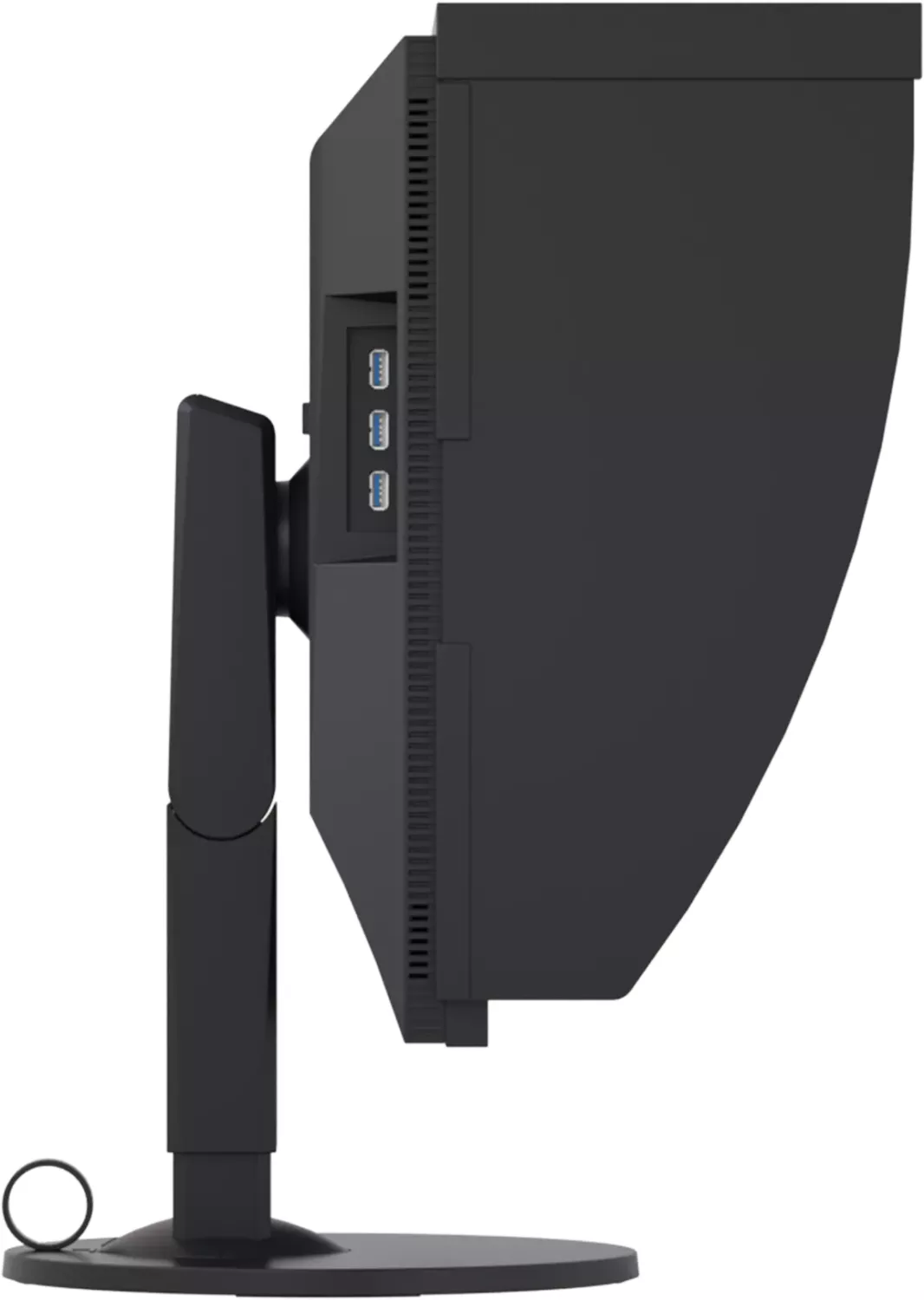
1x HDMI 1.4, 1x DisplayPort 1.1, 1x DVI, 1x USB-B 3.0 (Upstream, 5Gb/s), 3x USB-A 3.0 (Downstream, 5Gb/s), 1x AC-In C13 (Power connection)
Shape
straight (flat)
Viewing angle
178°/178°
Coating
non-glare (matte)
Color depth
10bit (1.07 billion colors)
FRC
yes (8bit+2bit)
sRGB
100%
Adobe RGB
99%
DCI-P3
98%
LUT (Lookup Table)
16bit, Hardware calibration (Eizo SelfCalibration)
Operation
mechanical buttons
Ergonomics
with stand, height adjustable (6.10in), Pivot (+90°), rotatable (+/-172°), tiltable (+35°/-5°)
VESA
100x100 (occupied)
Power consumption
79W (maximum), 20W (typical), 0.6W (Standby), 23W (Energy label old A+++ to G)
Energy efficiency SDR (A to G)
21kWh/1000h (F)
Energy efficiency old (A+++ to G)
33.6kWh (A)
Special features
Glare shield
Screen-to-Body-Ratio
Inf% (calculated)
Dimensions
21.81x21.69x9.65in (WxHxD) with stand compressed
Color
black (display frame) / black (lower bezel) / black (stand)
Weight
17.21lb (with stand)
Power supply
internal
Warranty
five years (On-site replacement service)
USB notation
Link
Product Description
Eizo ColorEdge CG2420, 24 Manual: A Color-Accurate Monitor Built for Serious Visual Work
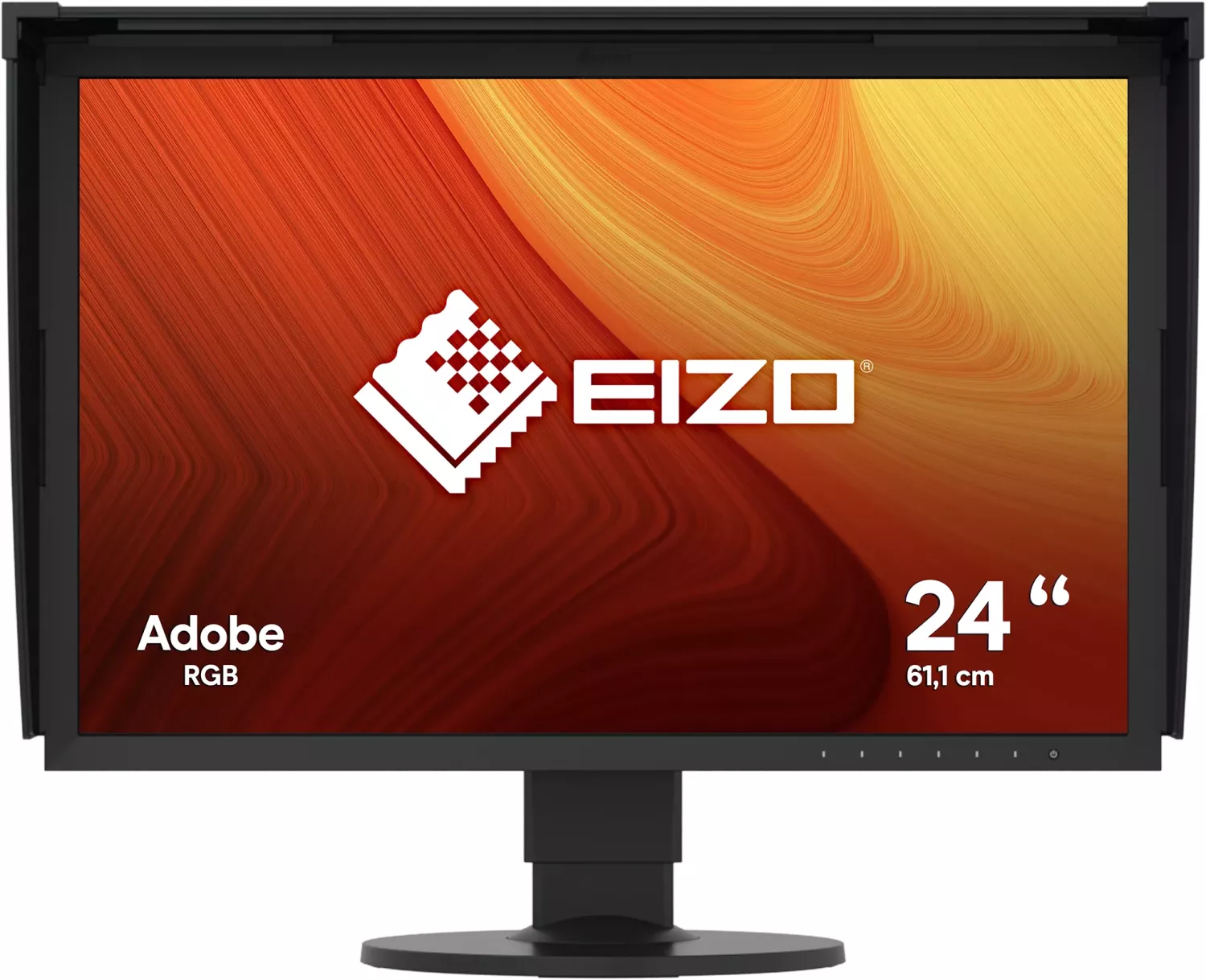
The Eizo ColorEdge CG2420 is a 24-inch color management LCD monitor designed for people who need dependable, repeatable color. It is built for photography, graphics, image editing, and other tasks where what you see on screen must closely match the final result. With a 1920 × 1200 IPS panel, wide viewing angles, and a wide color gamut that reaches 99% Adobe RGB coverage, it offers the kind of visual consistency that creative work demands.
One of its strongest qualities is the built-in calibration sensor with SelfCalibration support. Instead of relying only on occasional manual adjustments, the monitor can calibrate itself on a schedule, helping maintain stable brightness, color temperature, gamma, and gamut over time. This is especially useful in professional workflows where accuracy matters day after day. The included ColorNavigator 6 software adds even more control, making it possible to generate profiles and fine-tune the display with greater precision.
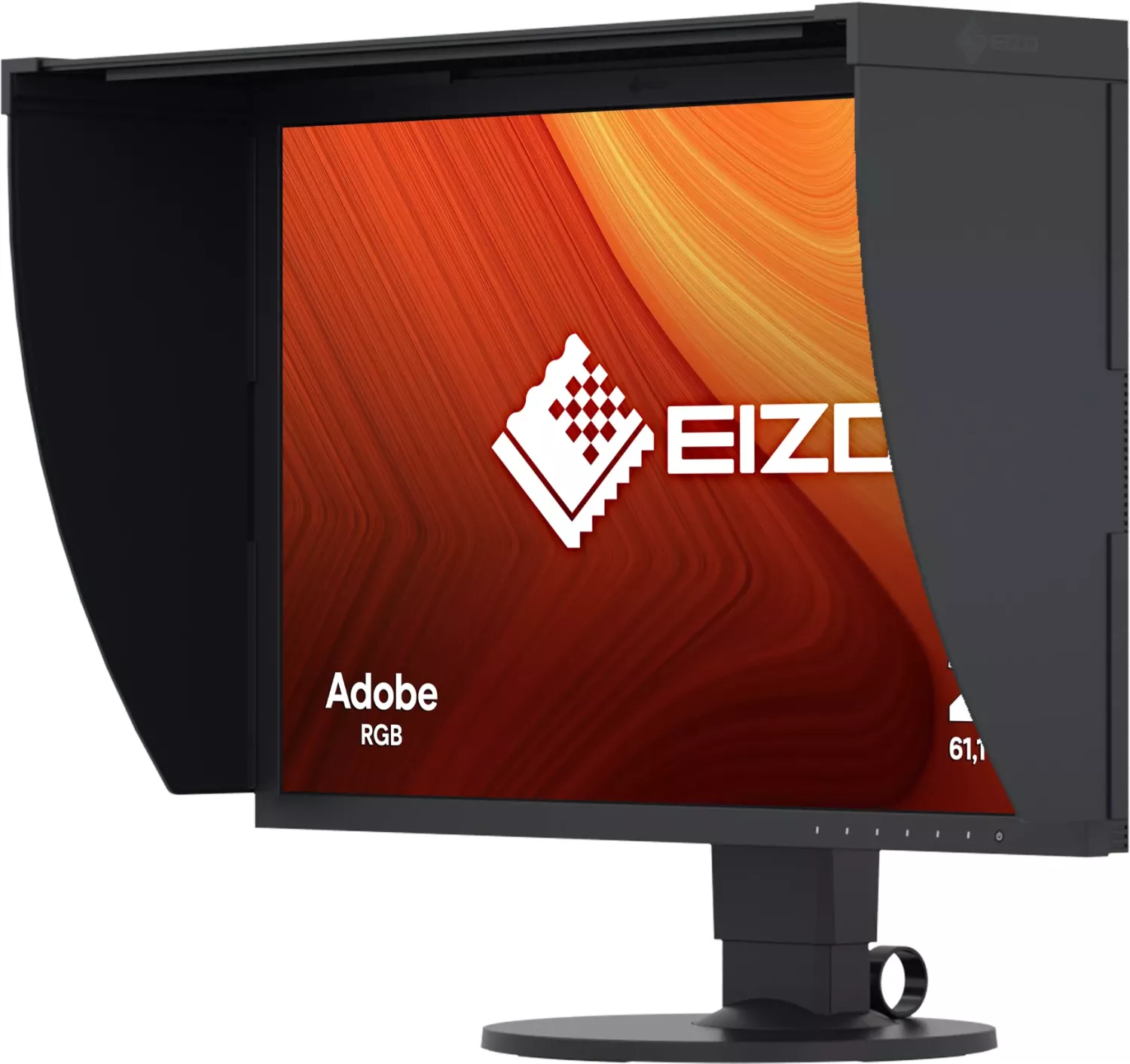
The CG2420 also focuses on practical usability. It includes DVI-D, HDMI, and DisplayPort inputs, plus a USB 3.0 hub for connecting peripherals and charging mobile devices. The stand offers flexible height, tilt, and swivel adjustments, while the included monitor hood helps reduce reflections and unwanted ambient light. These details make a real difference in long editing sessions and in controlled studio environments.
For everyday operation, the monitor provides clear on-screen menus, color mode options such as Adobe RGB and sRGB, and signal settings that help match different devices and sources. It is also built with care in mind: the manual recommends warming up the display before critical work, avoiding pressure on the panel, and using proper cleaning methods to protect the surface and maintain longevity.
Notes
- Best results come after a warm-up period of about 30 minutes.
- The built-in sensor should not be touched or exposed to strong direct light during measurement.
- Use the supplied cables and approved accessories for the most reliable performance.
- Lower brightness settings can help reduce eye strain and extend panel life.
Search for 67,706 Manuals online


Type-in Brand or Model
Simona Caruso
8 months ago
The EIZO CG2420 seems great, but reviews mention slightly darker corners from the DUE and even a few subpixel defects. How uniform is brightness in practice, and what is the best way to handle a pixel/subpixel defect after you buy it?
Manual.ly
8 months ago
In practice, panel uniformity depends on the specific unit. The built-in Digital Uniformity Equalizer (DUE) improves color and luminance uniformity, but it may not make every point of the screen perfectly identical, so slight darkening at edges or corners can still occur. For best results, let the monitor warm up fully, then run the internal calibration and use the intended DUE/uniformity setting. If you notice a pixel or subpixel defect, test on a plain white/gradient background and document the result (photos/video). Contact the seller/retailer as soon as possible within the return period. For warranty handling, the exact coverage for isolated subpixel defects can vary by policy, so support will typically ask for the defect evidence and your purchase details to check eligibility.