
Edimax Office +1 Manual
PDF manual · 22 Pages
English



Quick check
Incorrect answer, please try again.
Chat with your Edimax Office +1 manual using AI
Get instant AI answers from your Edimax Office +1 manual
Ask anything about the Edimax Office +1. Answers come from this manual, with the pages they are based on.
Ask a Question
Do you recommend Office +1?
Yes NoFrequently Asked Questions
Edimax Office +1 extends an existing Office 1-2-3 wireless network. It adds coverage and capacity while receiving configuration details automatically from the network's master access point.
Is this answer helpful?
After the Office +1 is connected to the existing network's PoE switch, configuration synchronization from the master access point usually takes about 10 minutes.
Is this answer helpful?
The system supports up to 16 access points, allowing an office to increase wireless coverage as its layout or number of users grows.
Is this answer helpful?
Before it synchronizes with the master access point, the default username is admin and the default password is 1234. After synchronization, its credentials match those of the master AP.
Is this answer helpful?
A flashing yellow LED indicates an error condition. A solid yellow LED means the access point is starting, while solid blue indicates normal ready operation.
Is this answer helpful?
Press and hold the reset button for at least 10 seconds, then release it. The device restarts with factory defaults. Wait until the LED becomes solid blue before setting it up again.
Is this answer helpful?
Yes. Install master firmware on the selected Office +1, change it from slave mode to master mode, and restore saved system settings. Ensure there is only one master AP on the network.
Is this answer helpful?
Advantages and Disadvantages
Advantages

- Automatic configuration transfer from the master AP simplifies deployment of added access points.
- Supports expansion to up to 16 access points for broader office Wi-Fi coverage.
- PoE support and included mounting accessories allow flexible installation options.
- LED indicators provide quick visibility of power, startup, update, reset, and error states.
- Can be promoted to replace a failed master AP after firmware installation and settings restoration.
Disadvantages

- Initial synchronization can take about 10 minutes before the new AP is fully configured.
- A compatible PoE switch connected to the existing network is needed for the standard expansion setup.
- Only one master AP is permitted, requiring care during replacement and role changes.
- Factory reset erases all current device settings.
- Master replacement depends on obtaining master firmware and previously saved settings.
Product Specification
LAN
2 x 1000Base-T (PoE PD)
Wireless
WLAN 802.11a/b/g/n/ac (Wi-Fi 5), simultaneous
Transfer Rate
400 Mbps (2.4 GHz), 867 Mbps (5 GHz)
Security
64/128-bit WEP, WPA, WPA2
Antennas
Internal
Ports
N/A
Power Consumption
11 W (operating consumption), not specified (max. power supply capacity)
Dimensions
6.93 x 6.93 x 1.26 in
Special Features
MU-MIMO, VLAN, IPv6, VPN passthrough (IPSec/PPTP/L2TP)
Band Capability
Dual-band (simultaneous)
Manufacturer Warranty
Five years
Product Description
Edimax Office +1 Manual: Expand Your Office Wi-Fi
The Edimax Office +1 is an access point designed to extend an existing Edimax Office 1-2-3 wireless network with dependable coverage and straightforward deployment. It is suited to offices that need to add wireless capacity as teams, rooms, or workspaces grow. The Edimax Office +1 Manual highlights an installation approach that lets the unit receive network settings automatically from the current master access point.
Simple Network Expansion
To add an Office +1 access point, connect it to the PoE switch already linked to the Office 1-2-3 network. The master access point transfers its configuration to the new unit automatically, usually within about 10 minutes. This reduces repeated setup work and helps maintain consistent wireless settings across the office.
The platform supports up to 16 access points, making it practical for organizations that want to expand coverage in stages. A cable or DSL modem, router, connected PoE switch, and a computer with a web browser are required for configuration and management.
Hardware and Status Information
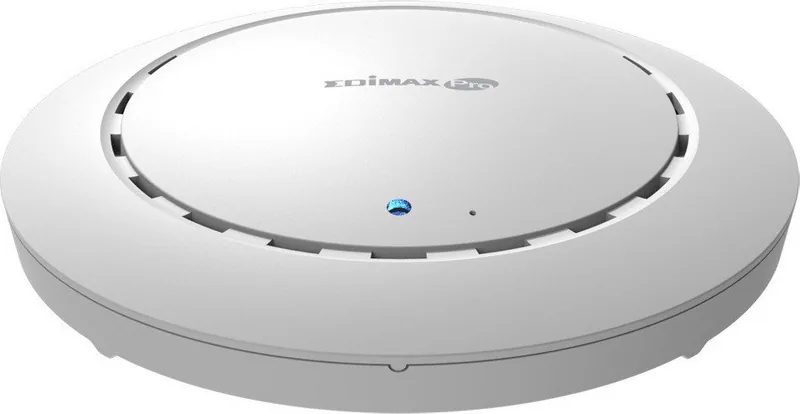
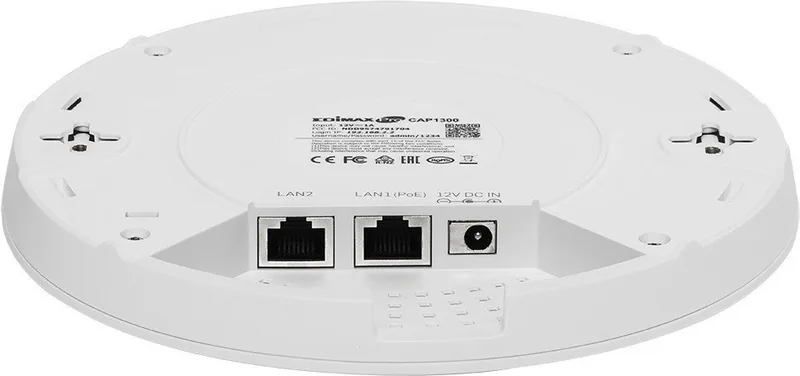
The Office +1 includes a PoE-enabled LAN port, a second LAN port, 12V DC power input, and a reset button. It can be powered through compatible Power over Ethernet infrastructure or with its supplied power adapter. Included mounting hardware, a ceiling bracket, T-rail screws, and a ceiling template support flexible placement.
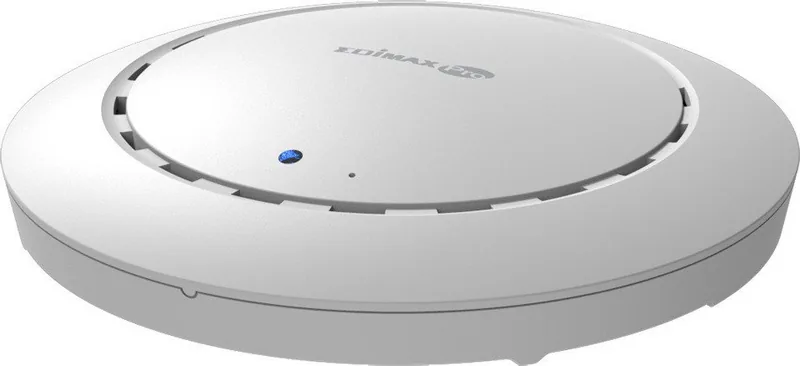
A blue LED indicates normal operation, while slow blue flashing signals a firmware update. Fast blue flashing indicates factory reset activity. Yellow light appears during startup, and flashing yellow identifies an error condition. These visual indicators help administrators check device status quickly.
Master Access Point Replacement
An Office +1 can also replace a failed master access point. The process involves locating the unit with the Edimax Cloud Discovery Tool, installing master firmware, switching from slave mode to master mode, and restoring saved settings. Only one master access point should operate on the network at a time.
Note: Factory resetting the access point removes its current settings. Hold the reset button for at least 10 seconds, then wait for a solid blue LED before beginning setup.
Note: Default credentials are
adminand1234before configuration synchronization. They change to match the master access point after automatic provisioning.
Search for 67,732 Manuals online


Type-in Brand or Model