
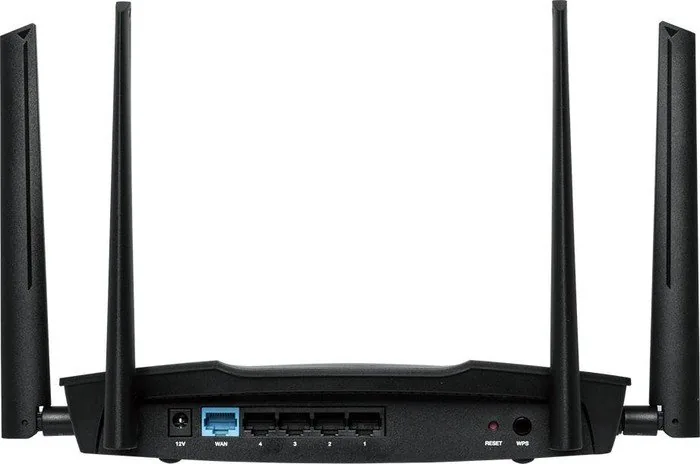
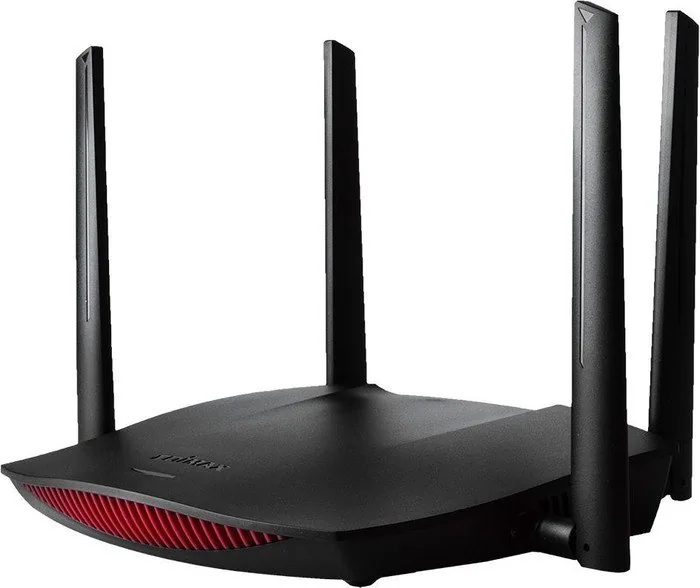
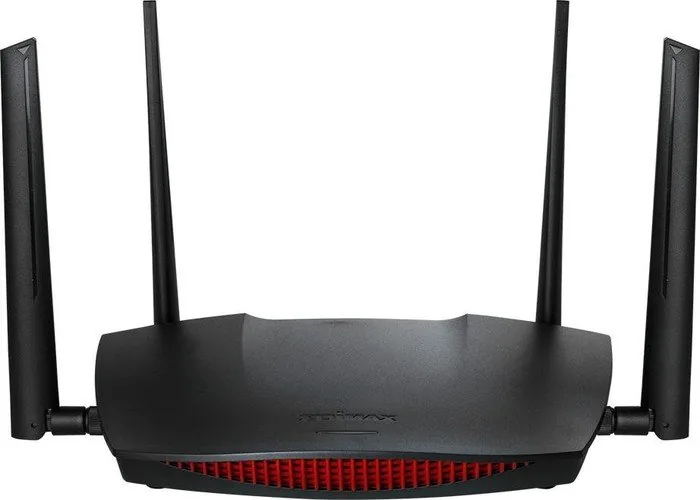
Edimax Gemini RG21S Manual
PDF manual · 17 Pages
English



Quick check
Incorrect answer, please try again.
Chat with your Edimax Gemini RG21S manual using AI
Get instant AI answers from your Edimax Gemini RG21S manual
Ask anything about the Edimax Gemini RG21S. Answers come from this manual, with the pages they are based on.
Ask a Question
Do you recommend Gemini RG21S?
Yes NoFrequently Asked Questions
The RG21S supports Wi-Fi Router Mode and Access Point Mode. Router Mode connects directly to a modem and provides internet access to wireless and wired clients. Access Point Mode connects to an existing router through a LAN port to add Wi-Fi and Ethernet connectivity.
Is this answer helpful?
Power on the unit, connect a computer, phone, or tablet to the default Edimax wireless network, then open a browser. Visit http://edimax.setup if the setup screen does not appear automatically. Select the desired operating mode and follow the on-screen steps.
Is this answer helpful?
Wi-Fi roaming lets compatible mobile devices automatically switch to the strongest available signal as they move between supported Edimax networking products. It is intended to improve coverage across larger spaces when compatible routers, access points, or extenders are used together.
Is this answer helpful?
Place both products within range. Hold the WPS button on the RG21S for three seconds, then hold the WPS button on the extender for three seconds within two minutes. A successful connection is indicated by the extender's green WPS LED staying on for about 30 seconds.
Is this answer helpful?
The default username is admin and the default password is 1234. These credentials are used with the browser-based management interface at http://edimax.setup. Change the default password after setup to help protect access to network settings.
Is this answer helpful?
Check power and Ethernet connections first, and try another Ethernet cable if needed. Confirm that the WAN connection type is correct in Internet and WAN Setup. Test internet access by connecting a computer directly to the modem, then contact the internet provider if the modem connection also fails.
Is this answer helpful?
Hold the WPS/Reset button for more than 10 seconds until the internet LED begins flashing. Wait several minutes for the device to restart. All custom settings are removed, and the router returns to its original default configuration.
Is this answer helpful?
Advantages and Disadvantages
Advantages

- Supports both Router Mode and Access Point Mode for flexible installation.
- Offers 2.4 GHz and 5 GHz Wi-Fi alongside wired Ethernet connections.
- Supports Edimax Wi-Fi roaming with compatible routers, access points, and extenders.
- Browser-based management provides access to wireless, WAN, and VPN settings.
- WPS can simplify the addition of compatible roaming range extenders.
Disadvantages

- Roaming requires additional compatible Edimax networking products.
- The WAN port is not functional when the device operates in Access Point Mode.
- Default management credentials should be changed to reduce security risk.
- Accessing the setup address may require a device configured for dynamic IP addressing.
- Factory reset deletes all customized network and administration settings.
Product Specification
Modem
N/A
WAN
1x 1000Base-T
LAN
4x 1000Base-T
Wireless
WLAN 802.11a/b/g/n/ac (Wi-Fi 5), simultaneous
Data rate
800 Mbps (2.4 GHz), 1733 Mbps (5 GHz)
Security
64/128-bit WEP, WPA, WPA2, WPS
Antennas
4x external (removable)
Ports
N/A
Power consumption
not specified (operating consumption), not specified (max. power supply output)
Dimensions
6.30 x 4.53 x 1.22 in
Features
MU-MIMO, VPN passthrough (PPTP/IPSec), IPv6
Band capability
Dual band (simultaneous)
Product Description
Edimax Gemini RG21S Manual: Flexible Home Wi-Fi Roaming
The Edimax Gemini RG21S is a dual-band home networking device designed to provide Wi-Fi and wired connectivity across a home or small office. This model can operate as a standard Wi-Fi router connected directly to a modem, or as an access point connected to an existing router. Its flexible modes make it useful for users who want to build or extend a dependable local network without replacing every part of their current setup.
A key feature highlighted in the Edimax Gemini RG21S Manual is support for 2.4 GHz and 5 GHz wireless networks. The 2.4 GHz band can be useful for wider coverage and compatibility with many everyday devices, while the 5 GHz band can help serve newer devices in less congested wireless conditions. Wired clients can also connect through the LAN ports, giving desktops, TVs, consoles, and similar equipment a stable Ethernet option.
Easy Setup and Management
Initial setup begins by powering the RG21S and joining its default wireless network, identified as edimax.setup** or edimax.setup5G**. A browser-based setup process is available through http://edimax.setup, allowing users to select Router Mode or Access Point Mode and complete configuration with on-screen guidance. The same local address provides access to ongoing settings, including wireless configuration and VPN server options.
In Router Mode, the WAN port connects to an xDSL modem, while LAN ports support wired network devices. In Access Point Mode, the WAN port is inactive and an existing router connects through a LAN port. This distinction is important when planning cable connections and choosing the best mode for the network.
Roaming Support for Wider Coverage
The RG21S supports Edimax Wi-Fi roaming when paired with compatible Edimax routers, access points, or range extenders. Devices such as phones and tablets can move between supported network points and automatically connect to the strongest available signal. Compatible extenders can be added through WPS by activating WPS on the router or access point and then on the extender within two minutes.
The device also includes a browser-based interface for advanced administration. Default login credentials are admin and 1234, though changing these after setup is recommended for better network security. A VPN server can be configured in Router Mode for remote access, provided that client devices use compatible VPN software such as OpenVPN.
Notes
- The Power LED can indicate internet status and WPS activity.
- Resetting the device requires holding the WPS/Reset button for more than 10 seconds.
- A factory reset removes customized settings, including wireless and login changes.
- If
edimax.setupdoes not open, check that the connected computer uses a dynamic IP address.
Search for 67,732 Manuals online


Type-in Brand or Model