
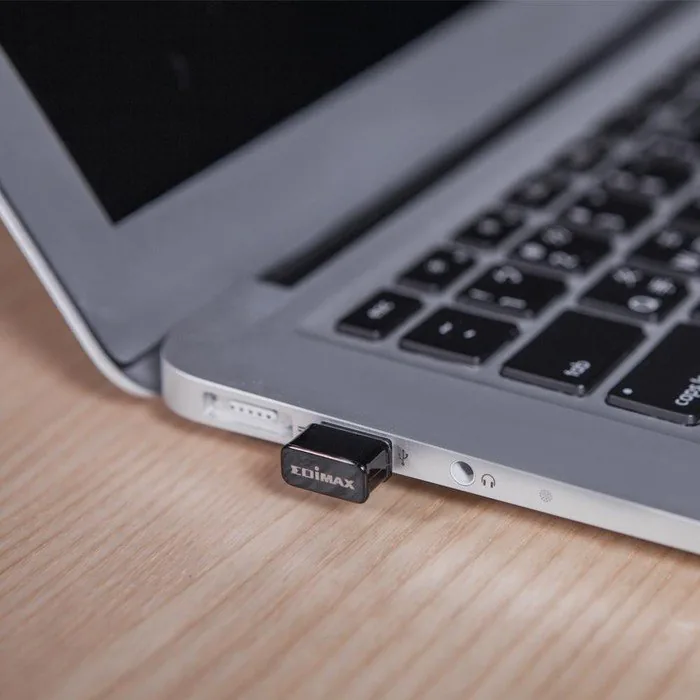
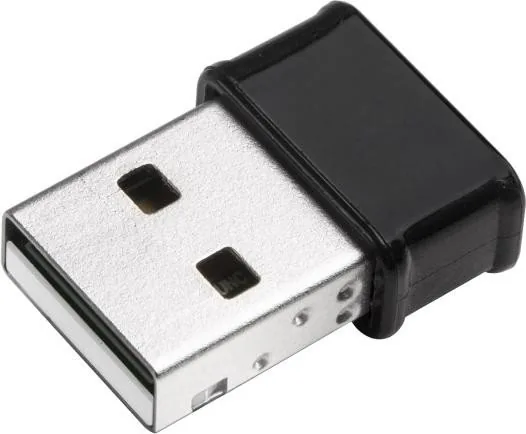
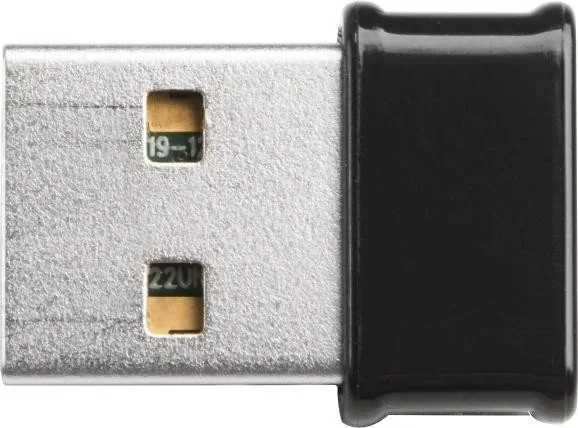
Edimax EW-7822ULC Manual
PDF manual · 28 Pages
English



Quick check
Incorrect answer, please try again.
Chat with your Edimax EW-7822ULC manual using AI
Get instant AI answers from your Edimax EW-7822ULC manual
Ask anything about the Edimax EW-7822ULC. Answers come from this manual, with the pages they are based on.
Ask a Question
Do you recommend EW-7822ULC?
Yes No
BlanditiisOfficiis83
5 months ago
Is this product compatible with Windows 10 for 5GHz connections without manual configuration?
natus58
7 months ago
Why does the device fail to detect 5GHz networks in Auto mode, only showing bn-standard connections on Windows 10?

Manual.ly
7 months ago
Thank you for your feedback. The issue with not detecting 5GHz networks in Auto mode is often related to driver compatibility or router settings. Please ensure your FritzBox 7580 has the 5GHz band enabled and try switching the Wireless Mode manually to 802.11ac or ax instead of Auto. Additionally, update your network adapter drivers on Windows 10. If the problem persists, please contact our support team for further assistance.
LaboreMollitia32
6 months ago
Is this product compatible with 5GHz bands on all modern routers like the FritzBox 7580?
Frequently Asked Questions
This adapter is fully compatible with Windows 7, 8.1, and 10, as well as Mac OS X 10.7 and later versions. Drivers are provided on the included CD or available for download.
Is this answer helpful?
No, the device is designed strictly for indoor use. Using it outdoors may void safety compliance and expose the unit to environmental damage.
Is this answer helpful?
After installing the driver, click the new adapter icon in the Mac menu bar. Select your network from the list, enter the password, and click Join to connect.
Is this answer helpful?
Yes, it is recommended to disable any other existing wireless adapters on your computer to prevent connection conflicts and ensure stable performance.
Is this answer helpful?
The LED light blinks when data is being sent or received. If the light is off, there is no active wireless communication happening at that moment.
Is this answer helpful?
Advantages and Disadvantages
Advantages

- Supports dual-band 2.4GHz and 5GHz frequencies for reduced interference
- Compatible with Windows 7, 8.1, 10, and Mac OS X
- Includes user-friendly installation software and drivers
- Features clear LED status indicators for monitoring activity
Disadvantages

- Requires deactivation of other wireless adapters for best performance
- Intended for indoor use only, limiting outdoor mobility
- Physical size may block adjacent USB ports on some laptops
Product Specification
Type
WLAN Adapter
Form factor
1x USB stick
Connection
1x USB-A 2.0 (plug)
Link
1x WLAN 802.11a/b/g/n/ac (1x 2.4GHz or 1x 5GHz), 1x Signal booster (8dBm), 1x Antenna (integrated, 2x electric)
Transmission
1x 2.4GHz WLAN (300Mb/s, 2x2), 1x 5GHz WLAN (867Mb/s, 2x2)
Power supply
Power supply only via connection
Chipset
Realtek RTL8812BU (WLAN adapter)
Dimensions
0.59x0.28x0.79in (WxDxH)
Weight
0.07oz
Compatibility
universal
Features
MU-MIMO
Manufacturer warranty
two years
USB spelling
Link
Product Description
Enhance Your Connectivity with the Edimax EW-7822ULC
The Edimax EW-7822ULC is a versatile dual-band USB adapter designed to bring high-speed wireless networking to your computer. Whether you are working from home or streaming entertainment, this device ensures a stable connection by supporting both 2.4GHz and 5GHz frequencies. This flexibility allows users to avoid interference on the crowded 2.4GHz band while enjoying faster speeds on the 5GHz band for bandwidth-intensive tasks.
Seamless Installation Across Platforms
Setting up this adapter is straightforward for users of Windows and Mac OS systems. The package includes a quick installation guide on a CD-ROM, which guides you through driver installation steps. For Windows users, the process involves inserting the disc and following the setup wizard to install the necessary drivers. Mac users can simply open the installer package from the included folder and follow the on-screen prompts. Once installed, a system restart may be required to finalize the configuration.
Optimized Performance and Safety
The device features LED indicators that provide visual feedback on network activity. A blinking light signifies data transmission, while an off state indicates no active connection. Safety guidelines recommend using the adapter indoors only and keeping it away from moisture or heat sources. It is crucial to deactivate other existing wireless adapters to prevent conflicts and ensure optimal performance of the EW-7822ULC.
Connecting to Networks
After installation, connecting to a Wi-Fi network is intuitive. Windows users can utilize the built-in network manager to select their SSID and enter the password. Mac users have access to a dedicated utility in the menu bar that simplifies network selection and connection management. The adapter also supports WPS (Wi-Fi Protected Setup), allowing for easy pairing with compatible routers without manual password entry.
Important Notes
- Ensure all other wireless adapters are disabled before use.
- Keep the device away from water and extreme heat.
- Use channels 1-11 for US compliance in the 2.4GHz band.
Search for 67,732 Manuals online


Type-in Brand or Model
EtRerum48
6 months ago
Why does the device fail to detect 5GHz networks in Auto mode, only finding them on bn standard?
Manual.ly
6 months ago
Thank you for your feedback. This issue typically occurs due to compatibility settings between the router and the adapter. Please ensure your FritzBox 7580 is broadcasting on a supported channel and try switching the Wireless Mode from Auto to Manual, selecting 802.11ac or 802.11ax explicitly. If the problem persists, updating the firmware on both the router and the adapter often resolves detection issues.