
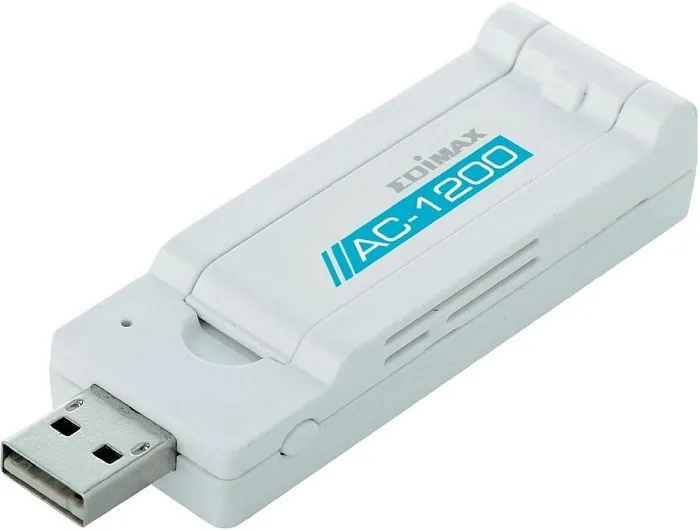
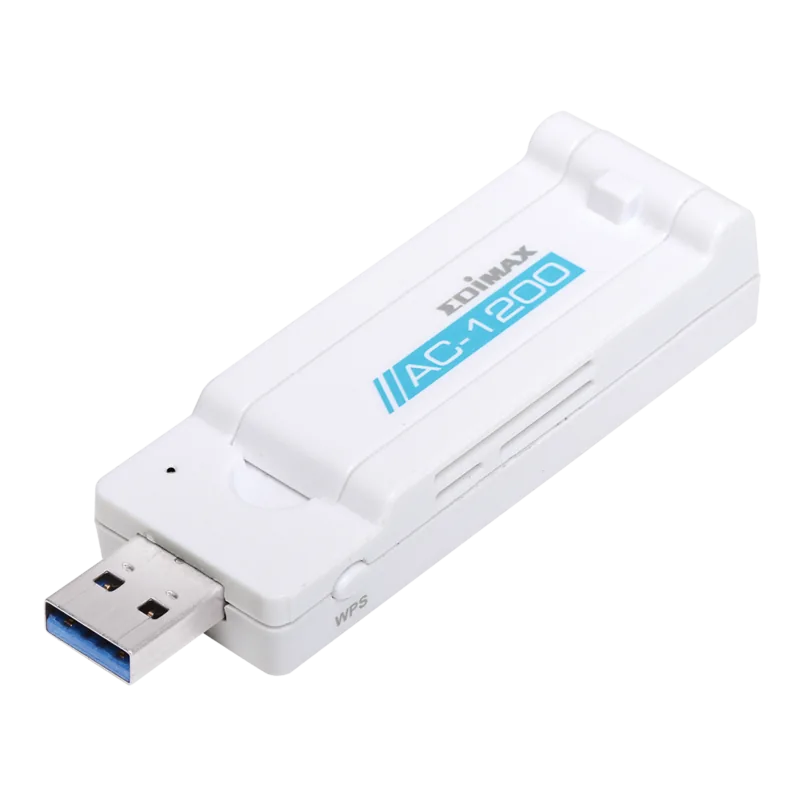
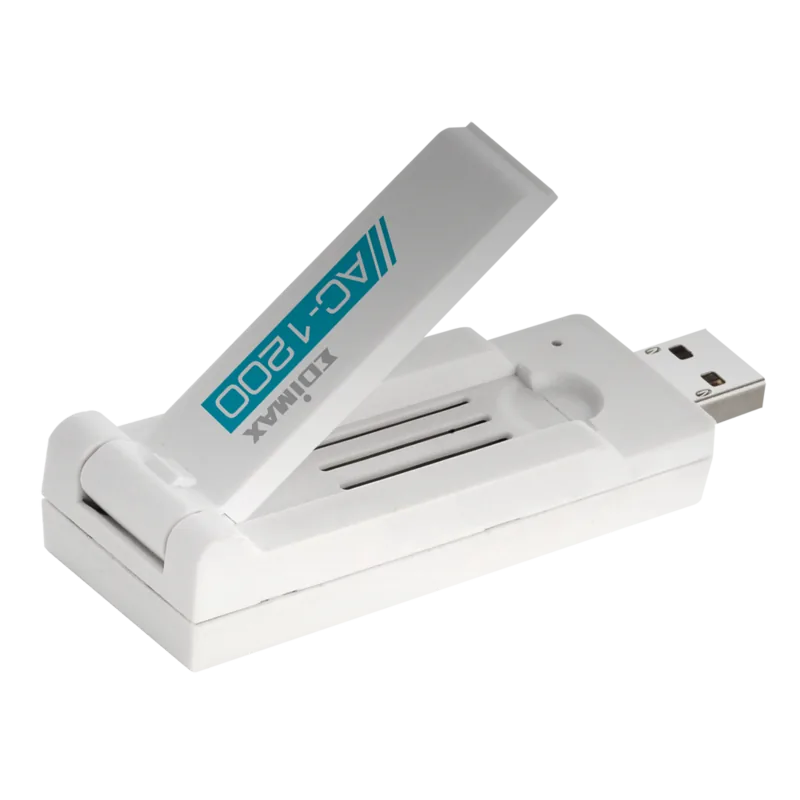
Edimax EW-7822UAC Manual
PDF manual · 16 Pages
English



Quick check
Incorrect answer, please try again.
Chat with your Edimax EW-7822UAC manual using AI
Get instant AI answers from your Edimax EW-7822UAC manual
Ask anything about the Edimax EW-7822UAC. Answers come from this manual, with the pages they are based on.
Ask a Question
Do you recommend EW-7822UAC?
Yes NoFrequently Asked Questions
Yes, the device is compatible with USB 2.0 and 3.0 ports. However, the manual recommends using a USB 3.0 connection to ensure you receive the best possible performance and speed from the hardware adapter.
Is this answer helpful?
Plug the adapter in and cancel the hardware wizard popup. Insert the CD-ROM and run the Autorun.exe file. Click Install Driver when the wizard asks and follow the prompts. Accept User Account Control if prompted and reboot your computer after installation finishes.
Is this answer helpful?
The setup assistant supports Windows XP, Vista, 7, and 8. You can use the device with other systems by connecting via standard Windows network settings, but the installation guide specifically highlights these versions for the driver package.
Is this answer helpful?
Press the WPS button on your router first. Within two minutes, press and hold the WPS button on the USB adapter for five seconds. This activates the setup process on both devices to establish a secure connection without manual password entry.
Is this answer helpful?
It is recommended to deactivate any other existing wireless network adapters before connecting. This ensures the USB adapter functions correctly without interference. Use the network connection settings in Control Panel to disable others temporarily.
Is this answer helpful?
Yes, the equipment complies with FCC regulations. Human proximity to the antenna should not be less than 2.5cm during normal operation to avoid exceeding radio frequency exposure limits for an uncontrolled environment.
Is this answer helpful?
Advantages and Disadvantages
Advantages

- Supports high performance dual-band 2.4GHz and 5GHz connections
- Compatible with USB 3.0 ports for best data transfer rates
- Easy installation wizard for Windows users simplifies setup
- Supports WPS button for password-free network connection
- Compact design fits easily into laptop or desktop setups
Disadvantages

- Requires driver installation and system reboot after setup
- May require disabling other wireless adapters to avoid conflicts
- Manual version is dated from 2013 and might lack latest tips
- Physical antenna must stay 2.5cm away from body for safety
- Only supports up to Windows 8 explicitly in guide
Product Specification
Type
Wi-Fi Adapter
Form Factor
1x USB Stick
Connection
1x USB-A 3.0 (Plug, 5Gb/s)
Connectivity
1x Wi-Fi 802.11a/b/g/n/ac (1x 2.4GHz or 1x 5GHz, WPS Button), 1x Signal Booster (16dBm), 1x Antenna (integrated, 2x electrical)
Transfer
1x 2.4GHz Wi-Fi (300Mb/s, 2x2), 1x 5GHz Wi-Fi (867Mb/s, 2x2)
Power Supply
Power supplied via connection only
Chipset
Realtek RTL8812AU (Wi-Fi Adapter)
Dimensions
1.06 x 0.71 x 3.43 in. (WxHxD)
Weight
0.81 oz
Compatibility
Universal
Manufacturer Warranty
2 Years
USB Designation
Link
Product Description
Upgrading Your Home Network with the Edimax EW-7822UAC
Are you looking for reliable internet connectivity without the hassle of tangled wires or weak signals? The Edimax EW-7822UAC, 2.4GHz/5GHz WLAN, USB-A 3.0 [Plug] is a powerful solution designed for modern computing needs and wireless enthusiasts. This adapter offers seamless dual-band performance ensuring you connect faster on any compatible network setup available today. Whether you stream high-definition video content or play competitive online games, this device delivers stable connections with minimal latency issues. Enjoy better wireless stability with this reliable hardware.
Installation Made Simple for Everyone
Setting up this hardware is straightforward for users of all technical levels. Plug the USB-A 3.0 connector into any free port on your computer immediately. The system might recognize the hardware wizard automatically, but you should cancel the automatic prompt to run the included installation disk instead for the best results. Follow the guided instructions carefully to install the drivers successfully on your specific operating system version. For Windows 7 and 8 users, always accept user account control prompts to complete the configuration process fully. Once installed, a system reboot ensures all changes take effect properly for daily operations.
Dual-Band Capability for Maximum Speed
The Edimax EW-7822UAC supports both 2.4GHz and 5GHz frequency bands simultaneously to suit different network environments. This flexibility allows you to avoid interference from neighbors while maintaining broader compatibility with older devices in your home. Users seeking maximum speed should utilize the 5GHz band where possible for less crowded channels. If your router supports Wi-Fi Protected Setup, you can use the dedicated WPS button on the adapter for quick connections without entering long passwords manually every single time you connect.
Compatibility and Performance Standards
This adapter works with Windows XP through Windows 10 systems according to the manual guidelines provided in the package. Ensure you disable other wireless adapters within your system to prevent conflicts during connection setup processes. The installation process includes a comprehensive guide for driver removal if needed for troubleshooting issues. FCC regulations ensure safe usage regarding radio frequency exposure limits for all users. Keep a distance of at least 2.5cm from your body during operation to comply with safety standards strictly.
In conclusion, this device is an excellent choice for expanding your wireless range significantly. It is compact, easy to use, and fits easily into a busy desktop or laptop environment without clutter. You can enjoy uninterrupted browsing and entertainment experiences throughout your home daily. Remember to check for driver updates on the official website regularly to maintain performance. This product bridges the gap between old hardware and new wireless standards effortlessly for most users. Make sure to read the safety information before starting installation procedures now.
Search for 67,732 Manuals online


Type-in Brand or Model