
Edimax EU-4307 Manual
PDF manual · 12 Pages
English



Quick check
Incorrect answer, please try again.
Chat with your Edimax EU-4307 manual using AI
Get instant AI answers from your Edimax EU-4307 manual
Ask anything about the Edimax EU-4307. Answers come from this manual, with the pages they are based on.
Ask a Question
Do you recommend EU-4307?
Yes NoFrequently Asked Questions
Yes. The guide lists support for Windows 7/8/8.1/10 and macOS versions from 10.6 to 10.13. Windows typically uses a built-in setup wizard, while macOS requires downloading and installing the provided driver package from Edimax.
Is this answer helpful?
Connect the adapter to an available USB-C port, then run the installer. The driver installs automatically. Afterward, open Computer Management and check Device Manager, then Network adapters to confirm the adapter appears as a Realtek 2.5GbE family controller.
Is this answer helpful?
Download the driver package for your macOS version from the Edimax website, then open the RTUNIC*.pkg installer. Continue through the license and language prompts, enter your user/password if required, and restart macOS when prompted. After reboot, confirm the new network interface in System Preferences.
Is this answer helpful?
Yes. The guide instructs you to click Restart to finish the installation. After the system boots, plug in the adapter and verify that the macOS network interface is created and working.
Is this answer helpful?
No. The guide specifies indoor use only. Avoid placing the device near heat or moisture sources such as kitchens or bathrooms, and stop using it immediately if it becomes wet.
Is this answer helpful?
On Windows, look for the adapter entry under Device Manager and Network adapters. On macOS, check the Vendor/Product ID information for the dongle, confirm the driver version with kextstat, and then select the new interface in System Preferences under Network.
Is this answer helpful?
Advantages and Disadvantages
Advantages

- Adds RJ-45 2.5G Ethernet via a USB-C connection, improving wired speeds over 1G networks.
- Windows setup can be automatic using the built-in setup wizard, making installation quick.
- macOS installation is well-guided, with driver download, license steps, and restart instructions.
- Includes practical safety and detection tips, helping reduce setup and reliability issues.
Disadvantages

- Driver installation is required for proper operation, especially on macOS.
- Designed for indoor use only; avoid exposure to heat, humidity, and wet conditions.
- System compatibility depends on supported OS versions and minimum resource requirements listed in the guide.
- Verification steps (Device Manager on Windows, Network settings and driver checks on macOS) may be needed.
Product Specification
Type
LAN Adapter
Design
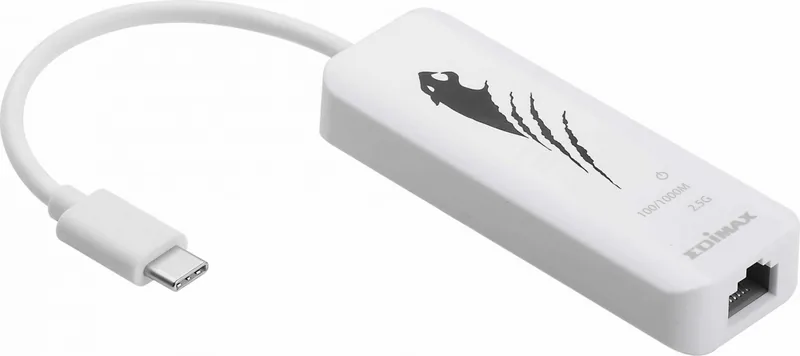
1x external wired (connection cable not detachable)
Interface
1x USB-C 3.0 (connector via cable, 5Gb/s)
Port
1x RJ-45
Transfer rate
1x RJ-45 (100/1000/2.5GBase-T)
Power supply
Power supply only via interface (max. 5V/1A)
Chipset
Realtek RTL8156 (LAN Adapter, RJ-45)
Dimensions
1.22x0.59x3.35 in (WxHxD)
Weight
0.07 lb
Housing color
white
Compatibility
universal
Special features
VLAN, 16KB Jumboframes
USB specification
Link
Product Description
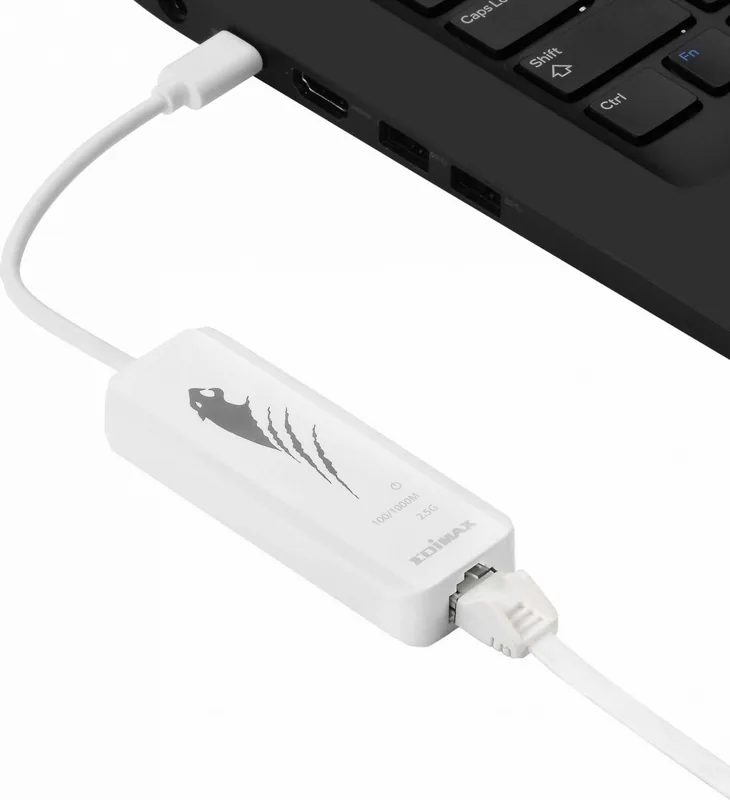
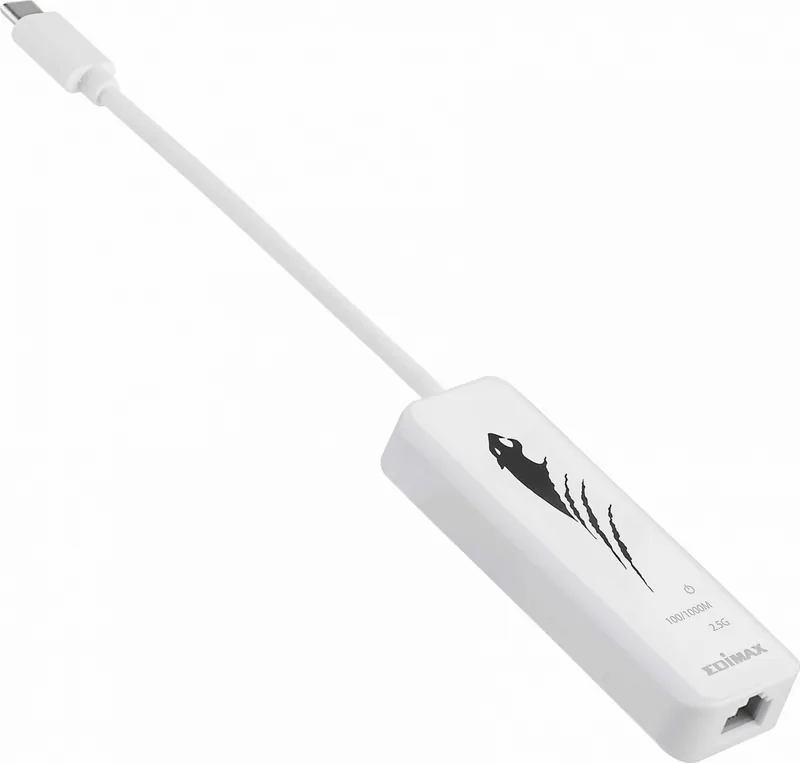
Edimax 2.5G LAN Adapter, RJ-45, USB-C 3.0 Plug
If your laptop or desktop has limited Ethernet options, the Edimax 2.5G LAN Adapter adds a fast wired connection through a USB Type-C port. Designed for dependable home and office networking, this adapter turns a USB-C connection into a 2.5G Gigabit Ethernet link using an RJ-45 port, helping you get smoother streaming, faster downloads, and more stable online gaming compared with standard 1G Ethernet.
Using the Edimax 2.5G LAN Adapter, RJ-45, USB-C 3.0 Plug Manual as a practical guide, setup is straightforward: you connect the adapter to an available USB-C port and let the driver installation handle the rest. For Windows users, the built-in setup wizard installs the driver automatically. After installation, the network adapter (shown in Device Manager under Network adapters) should appear and be ready to use.
Mac users follow a similar workflow, but with a dedicated driver package downloaded from Edimax's support site. The installation process includes accepting the software license, optionally entering a user/password, and then restarting macOS when prompted. Once back online, macOS should detect the adapter properly, and you can confirm the new network interface in System Preferences under Network.
Why this adapter is useful
A USB-to-Ethernet solution is ideal when you want wired performance without relying on docking stations or internal network cards. It is also helpful for improving reliability in environments where Wi-Fi performance varies. The guide specifically notes indoor use only and emphasizes safe handling, including avoiding wet conditions and never forcing the connector into the USB port.
Quick results to expect
- Reliable 2.5G wired networking over RJ-45 from a single USB-C connection
- Easy Windows driver installation with an automatic setup wizard
- Clear macOS driver workflow, including restart and interface verification
- Practical guidance for safe installation and basic compliance expectations
Notes
- Insert the adapter gently, do not use force.
- Keep it away from heat and humidity, and stop using it if it gets wet.
- If you are troubleshooting on macOS, verify the driver version and the detected network interface.
Search for 67,732 Manuals online


Type-in Brand or Model