
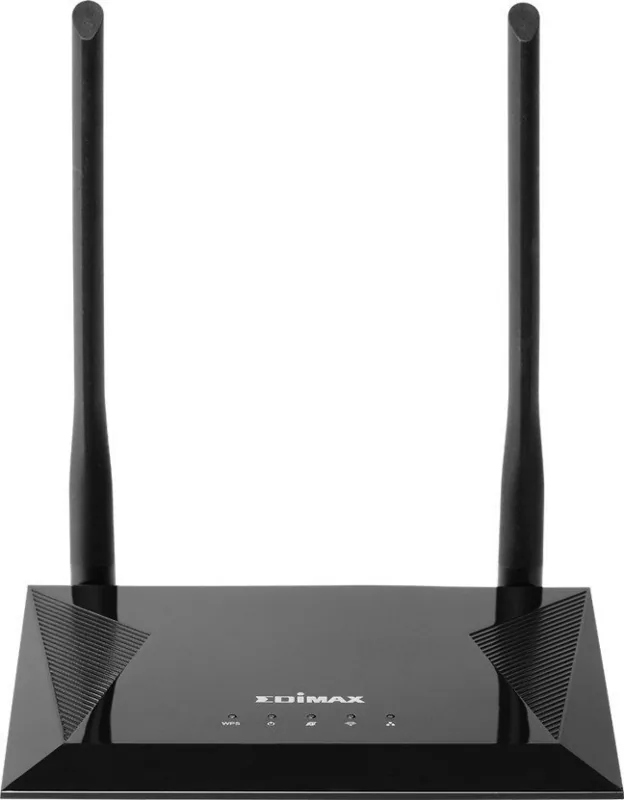
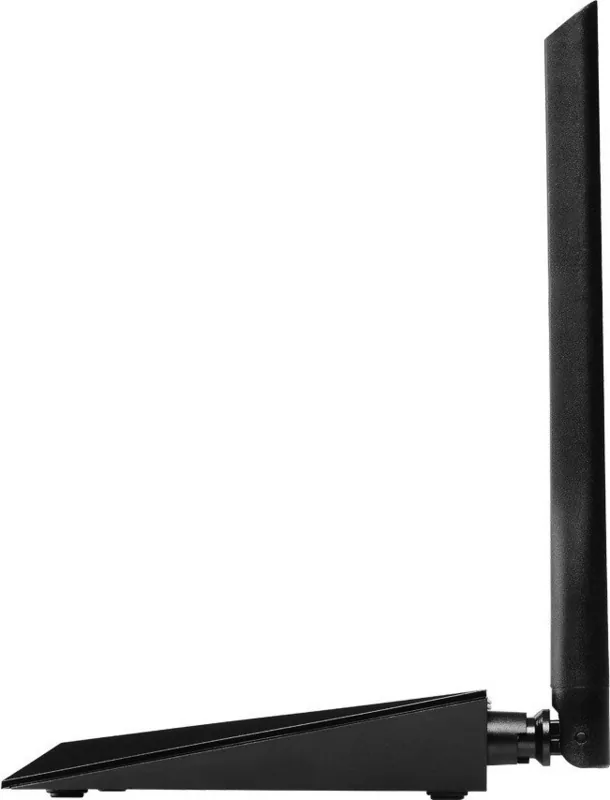
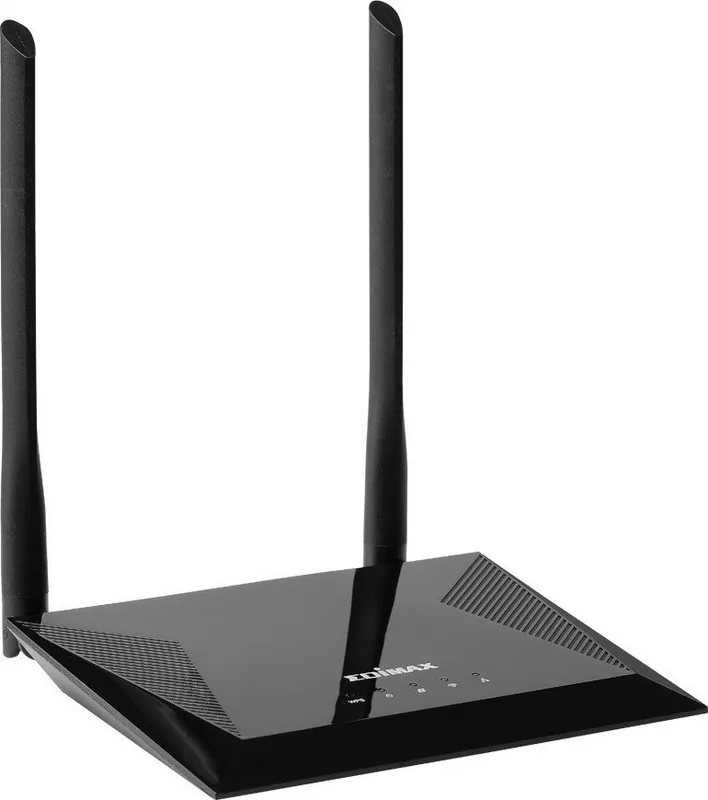
Edimax BR-6428nS V5 Manual
PDF manual · 116 Pages
English



Quick check
Incorrect answer, please try again.
Chat with your Edimax BR-6428nS V5 manual using AI
Get instant AI answers from your Edimax BR-6428nS V5 manual
Ask anything about the Edimax BR-6428nS V5. Answers come from this manual, with the pages they are based on.
Ask a Question
Do you recommend BR-6428nS V5?
Yes NoFrequently Asked Questions
First, power the router and connect your setup device to the Wi-Fi SSID edimax.setup. Then open a browser and go to http://192.168.2.1. If it does not load, connect via Ethernet and check that your computer uses a dynamic IP. Log in, then run the setup wizard.
Is this answer helpful?
It supports Wi-Fi Router mode (connects to a modem), WISP mode (connects wirelessly to a wireless ISP and provides wired/wireless access), Universal Repeater mode (extends an existing Wi-Fi network), and Access Point mode (connects to an existing router via Ethernet to add Wi-Fi).
Is this answer helpful?
If your device supports WPS, press the BR-6428nS V5 WPS button for about 1-3 seconds. The WPS LED flashes for roughly two minutes. Within that window, press the WPS button on your wireless client. The router and client establish a connection; repeat as needed for additional devices.
Is this answer helpful?
The router includes options like WPA2-Personal and mixed WPA/WPA2-Personal, plus a disable option. For additional access control, you can enable Wireless MAC Filtering (allow or block specific clients by MAC address) and configure multiple SSIDs through Multi SSID.
Is this answer helpful?
Press and hold the WPS/Reset button on the back panel for at least 10 seconds until the power LED begins flashing. Release the button, wait for the restart, then log in again for setup. Factory reset deletes prior settings, so be ready to reconfigure internet and Wi-Fi.
Is this answer helpful?
Yes. The router supports URL filtering, where you can create rules that block keywords or URLs for specified IP ranges and schedule times (with a note that 0:0-0:0 represents 24 hours). QoS bandwidth control is also available to prioritize demanding applications like online gaming.
Is this answer helpful?
Remote Web Management can be enabled, with a chosen management port for access from the internet. For security, use a non-standard port (outside common service ranges) and configure carefully. The router also includes WAN Ping control to enable or block ping replies from the internet.
Is this answer helpful?
Advantages and Disadvantages
Advantages

- Multiple operating modes: Wi-Fi router, WISP, universal repeater, and access point.
- Browser-based configuration at http://192.168.2.1 with status, wizard, and advanced menus.
- Wireless security options including WPA2-Personal and mixed WPA/WPA2-Personal.
- Useful controls for everyday networking like URL filtering, Virtual Server, DMZ, DDNS, and QoS.
Disadvantages

- Default credentials (admin / 1234) need to be changed promptly.
- Accessing settings can require correct IP behavior such as dynamic IP configuration.
- 10/100 Mbps Ethernet ports limit maximum wired throughput.
- Factory reset clears all settings and may require full reconfiguration.
Product Specification
Modem
N/A
WAN
1x 100Base-TX
LAN
4x 100Base-TX
Wireless
WLAN 802.11b/g/n (Wi-Fi 4)
Transfer Rate
300Mbps (2.4GHz)
Security
64/128bit WEP, WPA, WPA2, WPS
Antennas
2x external
Power Consumption
not specified (consumption, operation), not specified (max. power adapter output)
Dimensions
5.71x3.46x0.94in
Special Features
VPN passthrough (IPSec/PPTP/L2TP), VLAN
Band Capability
Single Band
Manufacturer's Warranty
two years
Product Description
Edimax BR-6428nS V5: Flexible Wi-Fi for Home Networking
The Edimax BR-6428nS V5 is a 300 Mbps-class wireless router designed to help you create reliable Wi-Fi coverage and share an internet connection across both Ethernet and Wi-Fi devices. It ships with fixed dual 5 dBi antennas, a power adapter, an Ethernet cable, and a quick-start guide. With a simple setup process and a browser-based configuration interface, it is aimed at users who want practical control without complicated networking jargon.
One of the standout strengths is the device's flexible operating modes. You can use it as a standard Wi-Fi router (connect it to a modem via the WAN port), run it in WISP mode to extend a wireless internet connection from an ISP, configure it as a universal repeater to extend an existing Wi-Fi network, or switch it into Access Point mode to add wireless capability to a router-connected Ethernet setup. The setup wizard also helps you reconfigure basic settings when switching modes.
After installation, you manage the BR-6428nS V5 through a web interface at http://192.168.2.1. You will typically log in with the default credentials (admin / 1234) and then adjust network settings, wireless parameters, and security controls. The built-in status pages show system, LAN, wireless, and WAN information, including connected DHCP clients, SSID and channel details, and WAN connection type.
For everyday convenience and security, the router supports WPS for quick pairing (when clients support it) and offers wireless security options such as WPA2-Personal and mixed WPA/WPA2-Personal. You can also add an extra layer of control with Multi SSID, Wireless MAC Filtering (up to 10 MAC entries), and advanced features like URL filtering, port forwarding via Virtual Server, DMZ hosting, and Dynamic DNS for dynamic-IP connections.
Key takeaways (most important results)
- Multiple roles: Router, WISP, Universal Repeater, and Access Point, so you can match the device to your internet setup.
- Central management: A browser interface with status, WAN options, LAN/DHCP settings, and device tools like backup and firmware upgrade.
- Strong day-to-day protection: WPA2, MAC filtering, URL blocking schedules, and configurable firewall options.
- Performance tuning: QoS bandwidth control to prioritize demanding online activities.
Pros and cons
Pros
- Supports Router, WISP, Universal Repeater, and Access Point modes.
- Web-based management with a guided setup wizard.
- WPS pairing and multiple wireless security options.
- Advanced controls like URL filtering, Virtual Server, DMZ, DDNS, and QoS.
Cons
- Default login password is weak if not changed immediately.
- Setup and access rely on proper IP addressing (dynamic IP requirements are mentioned).
- WAN/LAN ports are 10/100 Mbps, not gigabit.
- Factory reset wipes current settings, requiring reconfiguration.
Notes
- Use the WPS/Reset button carefully: holding it for about 10 seconds restores factory defaults.
- For firmware upgrades, avoid disconnecting power; a wired connection is recommended during upgrading.
Search for 67,732 Manuals online


Type-in Brand or Model
maria_k
10 months ago
Does this device only work on 2.4 GHz? Will it still perform well with thick walls in an older building?
Manual.ly
10 months ago
Yes, this model supports 2.4 GHz (802.11 b/g/n) only. In older buildings with thick walls, 2.4 GHz is usually the better choice because it penetrates walls better than 5 GHz, even though the absolute maximum speed can be lower. If your requirements are everyday browsing, streaming, and general home/office use, typical connection speeds should be sufficient. For better performance, place the access point centrally and avoid placing it inside metal cabinets or behind multiple walls. If you need consistently higher throughput for demanding tasks, you would need a device that also supports 5 GHz.