
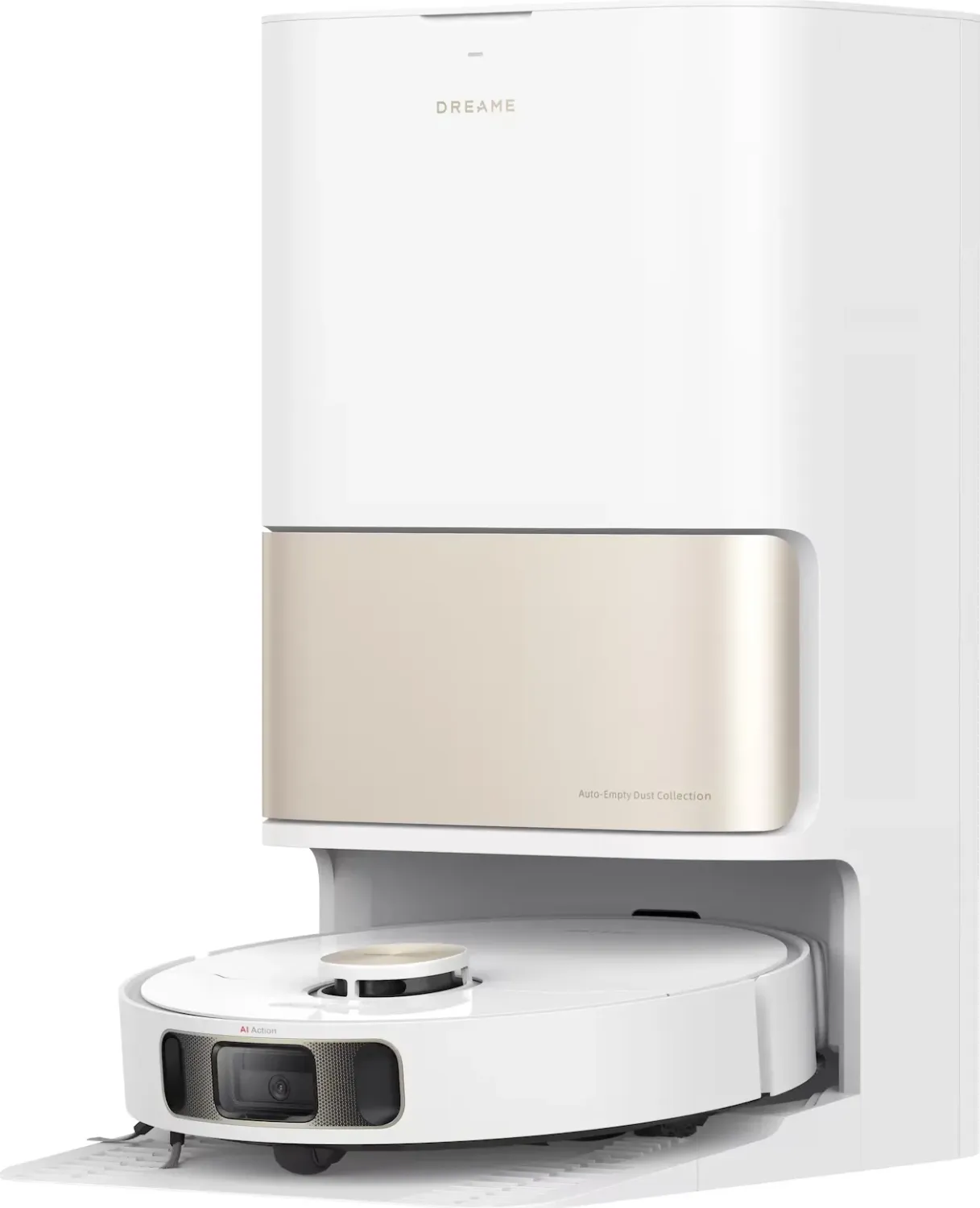
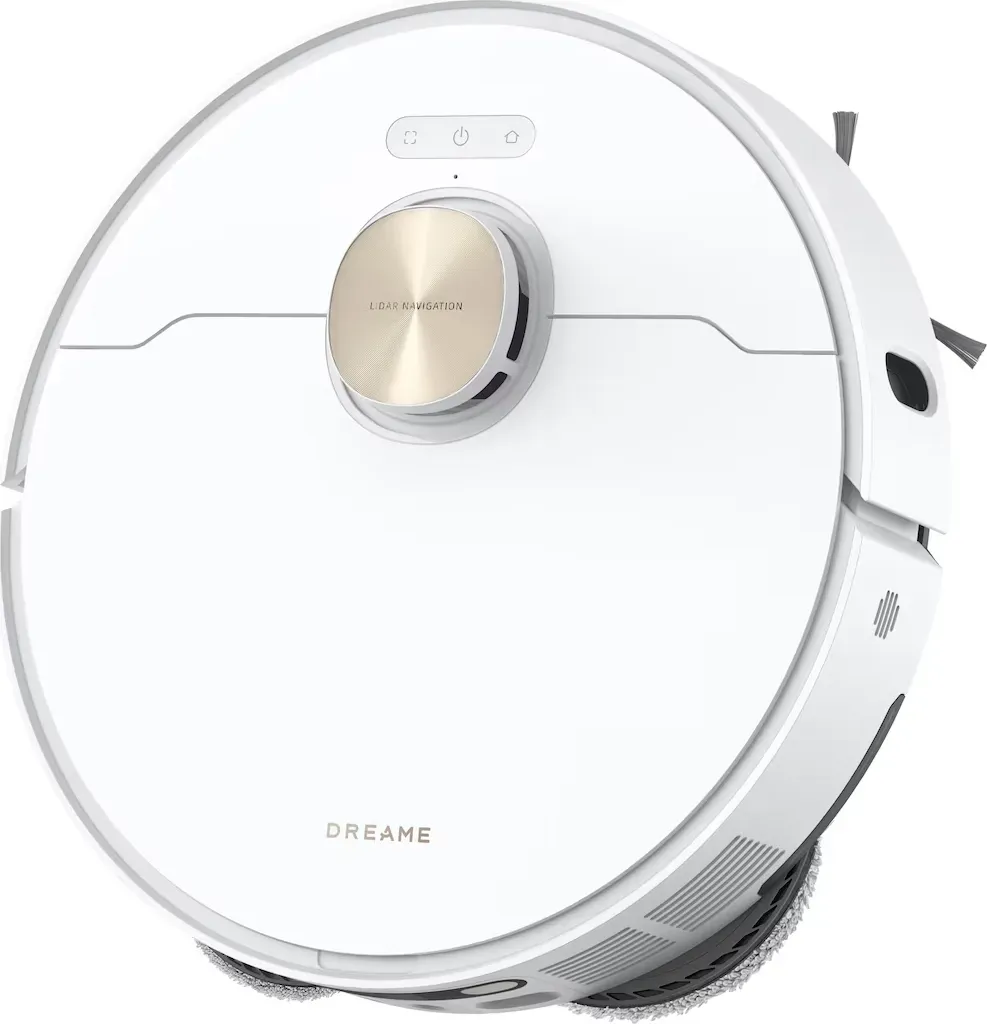
Dreame L10s Pro Ultra Heat Manual
PDF manual · 139 Pages
English



Quick check
Incorrect answer, please try again.
Chat with your Dreame L10s Pro Ultra Heat manual using AI
Get instant AI answers from your Dreame L10s Pro Ultra Heat manual
Ask anything about the Dreame L10s Pro Ultra Heat. Answers come from this manual, with the pages they are based on.
L10s Pro Ultra Heat Maintenance Schedule
Rinse the clean water tank every two weeks to maintain hygiene.
Rinse the washboard and clean the base station bottom using the provided tool.
Wipe the AI visual sensor with a soft dry cloth to ensure obstacle detection.
Discard the full dust bag and install a new one every 6 to 8 weeks.
Replace the mop pads every 1 to 3 months depending on wear.
Replace the main brush every 6 to 12 months depending on usage.
Replace the dust box filter every 3 to 6 months depending on usage.
Empty and rinse the used water tank after every cleaning session to prevent odors.
Wipe all robot sensors, charging contacts, and vents with a soft dry cloth as needed.
Remove debris from the omnidirectional wheel and rinse it under running water if dirty.
If not used for an extended period, recharge the robot at least once every 3 months.
Free maintenance reminders
Timed to your purchase date. Always free, unsubscribe anytime.
Ask a Question
Do you recommend L10s Pro Ultra Heat?
Yes NoFrequently Asked Questions
It combines vacuuming, mopping, auto-emptying, mop washing, and drying in one system. That means less manual work and a more complete floor-cleaning routine than a standard robot vacuum.
Is this answer helpful?
Yes, it is built for mixed home environments. It can vacuum hard floors and navigate carpeted areas, while app settings help manage different cleaning modes for different surfaces.
Is this answer helpful?
The robot can start cleaning from its onboard buttons, but the app unlocks the full experience, including mapping, scheduling, mode changes, and advanced cleaning controls.
Is this answer helpful?
It supports 2.4 GHz Wi-Fi only. If your home network is set to 5 GHz by default, you may need to choose or create a 2.4 GHz connection for setup.
Is this answer helpful?
The station lowers daily effort, but it still needs periodic care. You should empty and clean the used-water tank, check the dust bag, and keep the wash area and contacts clean.
Is this answer helpful?
Yes, it can be a strong choice for pet households because it helps manage hair, dust, and tracked-in dirt. For best results, keep floors clear and maintain the brushes and filter regularly.
Is this answer helpful?
Clear cables, toys, small objects, and fragile items from the floor. Make sure doors are open, the base station has enough space around it, and the cleaning path is safe and open.
Is this answer helpful?
Advantages and Disadvantages
Advantages

- All-in-one cleaning with vacuuming, mopping, auto-emptying, and mop washing in one system.
- Heat-assisted mop care helps improve hygiene and reduce residue after wet cleaning.
- AI-based navigation and obstacle recognition support smarter, more efficient cleaning routes.
- App controls make scheduling, mapping, and mode selection easy to manage.
Disadvantages

- Requires regular maintenance of tanks, brushes, filters, and sensors to stay effective.
- Needs a prepared home environment, with cables and small objects removed before cleaning.
- Works only with 2.4 GHz Wi-Fi, which may limit setup options for some users.
- Base station setup takes space and should be placed carefully for best performance.
Product Specification
Cleaning robot
Battery
1x Battery (5.2Ah, Li-Ion)
Color
white
Capacity
11.83 fl oz Dust, 2.71 fl oz Fresh water
Recommended room size
2206.6 sq ft
Cleaning modes
Vacuuming, Vacuuming & Mopping
Navigation
Obstacle sensor, Drop sensor, Dirt sensor, Wall tracking sensor, Laser sensor, Camera (Room recognition, 3D Vision), Zones, Restricted zones, Obstacle detection, Carpet detection (Mopping pad lift function), Stair detection, Virtual Wall (Software)
Filtration
yes
Display
no
Special features
1x Floor brush (Rubber brush), 1x Side brush, 2x Mopping attachment, programmable cleaning times, Learning function
Smart Home
App control (Dreamehome), Voice assistant (Amazon Alexa)
Operating time
220min
Charging time
3.5h
Charging system
automatic
Dimensions
13.78x3.82in (DxH)
Weight
9.04lb
Scope of delivery
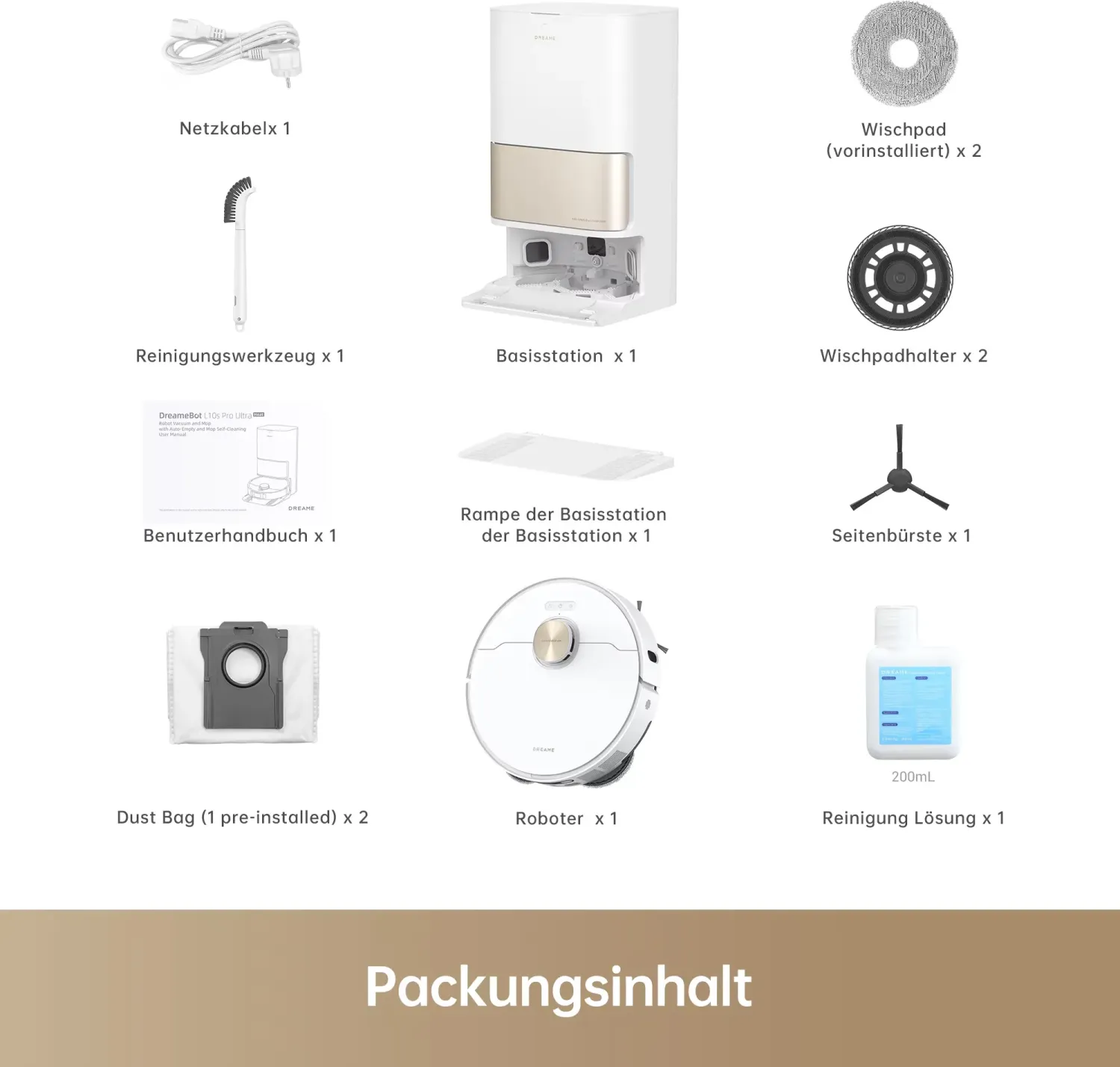
Station, Charging cable, Extension plate, Side brush, 2x Mopping pad holder, 2x Mopping pad, 2x Dust bag, Cleaning brush, Cleaning agent
Station
Station color
white
Station display
no
Station special features
automatic charging function, automatic refilling function, automatic dust emptying, automatic cleaning function (with hot water), automatic drying function (with hot air), wastewater connection optional, fixed water connection optional
Station capacity
3.38 qt (Dust), 4.76 qt (Fresh water), 4.23 qt (Dirty water)
Station dimensions
13.39x23.25x17.98in (WxHxD)
Station weight
20.28lb
Total weight
29.32lb
Product Description
Dreame L10s Pro Ultra Heat: A Smarter Way to Keep Floors Fresh
If you are looking up the Dreame L10s Pro Ultra Heat robot vacuum and mop incl. cleaning station white Manual, you are probably already interested in a floor-care system that goes beyond simple vacuuming. This model is designed as an all-in-one cleaning companion for busy homes, combining strong suction, mopping, and a highly automated station that helps reduce daily maintenance.
What makes it appealing is the way it handles several chores in one cycle. The robot can vacuum dust, crumbs, and everyday debris, then switch into mopping mode for a more thorough finish. Its intelligent navigation helps it build a map of the home, recognize obstacles, and choose an efficient route, which makes cleaning feel less random and more deliberate. For households with mixed flooring, this flexibility is a real advantage.
The included cleaning station is where the experience becomes especially convenient. It can empty the dust box, wash the mop pads, and dry them after use, which means less manual cleanup and fewer interruptions. The heat-assisted washing adds another layer of practicality, especially when you want mop pads to feel cleaner after dealing with sticky messes or frequent spills. The white finish also gives the setup a clean, modern look that blends well with bright interiors.
App control is another strong point. With the Dreamehome app, users can start cleaning, set schedules, adjust modes, and manage features like Do Not Disturb or room-by-room routines. The robot also supports spot cleaning and automatic return-to-base behavior, so it can recharge and resume work when needed. That makes it suitable for larger homes or for people who prefer to let the machine handle the details.
Of course, like any advanced robot cleaner, it works best when the home is prepared properly. Loose cables, small items, and overly wet floors should be cleared away first. Regular care is still important too, especially for the tanks, filters, brushes, and sensors. Used correctly, this system offers a polished balance of automation, convenience, and everyday floor care.
Notes
- Best suited for homes that need both vacuuming and mopping.
- The station reduces hands-on maintenance significantly.
- 2.4 GHz Wi-Fi is required for app setup.
- Routine cleaning of tanks and filters helps maintain performance.
Search for 67,706 Manuals online


Type-in Brand or Model
Lena Schmidt
10 months ago
Is the Dreame navigation reliable on carpets and under furniture (like chairs or stools)? Do I need to adjust settings to prevent it from getting stuck or missing areas?
Manual.ly
10 months ago
Most users report good navigation after setup, but performance depends on your home conditions. During first use, place the robot base up, remove/secure loose cables and small objects, and define no-go zones if needed. Keep the robot on stable mapping (allow a few runs) and update the firmware. In the app, use the carpet settings or obstacle sensitivity, and choose room-specific suction and mopping modes. Also note clearance limits: if chair legs or low furniture are too tight for the robot height, it may not pass underneath. If it repeatedly gets stuck, recheck the map, adjust those zones, and run a targeted re-clean.