
devolo dLAN 1000 mini Manual
PDF manual · 28 Pages
English


Quick check
Incorrect answer, please try again.
Chat with your devolo dLAN 1000 mini manual using AI
Get instant AI answers from your devolo dLAN 1000 mini manual
Ask anything about the devolo dLAN 1000 mini. Answers come from this manual, with the pages they are based on.
Ask a Question
Do you recommend dLAN 1000 mini?
Yes No
Carleton Hammes
8 months ago
How fast is the setup? Do I just plug it in and press a button to get connected?

Manual.ly
8 months ago
Yes. For a quick setup, plug the device into a power outlet, then press the Syncho button. After that, the connection should be established automatically. If it does not connect right away, check that the outlet is working and try pressing the Syncho button again. For the smoothest pairing, ensure your phone or network is ready and follow any on-screen prompts from the app if prompted.
Frequently Asked Questions
It is used to extend internet access over household electrical wiring. One adapter connects to the router, and the second brings a wired network connection to another room.
Is this answer helpful?
Plug one adapter into a wall socket near the router and connect it with Ethernet. Place the second adapter in another room, then pair them using the encryption button or software.
Is this answer helpful?
Yes. The system supports encrypted communication. You can create a protected powerline network with the button on the adapters or manage security through devolo Cockpit.
Is this answer helpful?
Any device with an Ethernet port can usually work with it, including computers, smart TVs, streaming devices, game consoles, and network-enabled media players.
Is this answer helpful?
Yes. The network can be expanded by adding compatible dLAN adapters and pairing them to the existing network using the encryption process or devolo Cockpit.
Is this answer helpful?
Direct wall-socket placement is recommended. Power strips can reduce signal quality, so plugging the adapter straight into the socket usually gives better results.
Is this answer helpful?
devolo Cockpit and the my devolo app help monitor devices, adjust settings, check connection quality, and manage encryption or power-saving options.
Is this answer helpful?
Advantages and Disadvantages
Advantages

- HomePlug AV2 powerline support helps extend internet through household wiring.
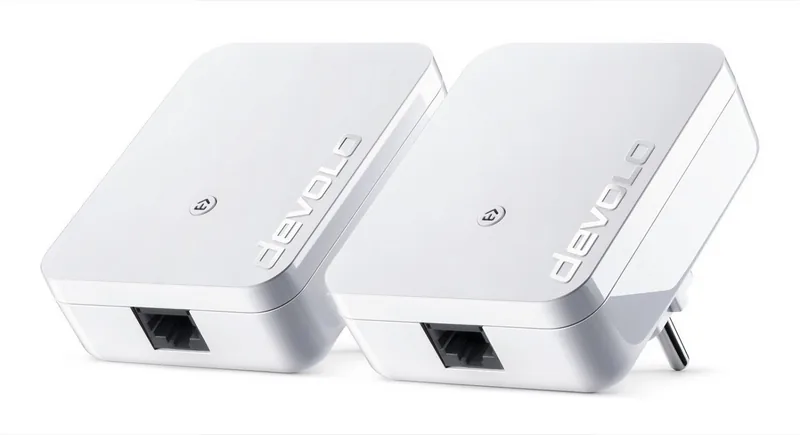
- Two-adapter kit offers a ready-to-use base setup for home networking.
- RJ-45 Ethernet connectivity works well for TVs, PCs, and game consoles.
- Encryption button and software tools help keep the network secure.
Disadvantages

- Performance may drop if adapters are used with power strips or poor sockets.
- Each unit has a single Ethernet port, so expansion needs extra equipment.
- Best results depend on the condition and layout of the electrical wiring.
- It does not provide built-in Wi-Fi, only wired network access through powerline.
Product Specification
Type
Powerline adapter (standalone), Bundle
Form factor
2x Socket adapters
Connectivity
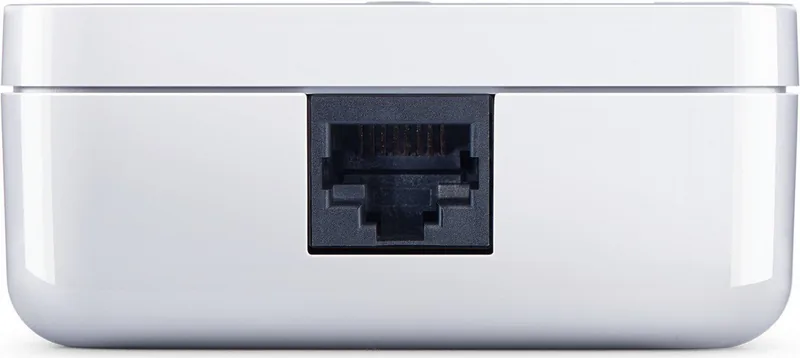
1x RJ-45 (10/100Base-T, 2 devices)
Connection technology
1x HomePlug AV2 (2-68MHz, 2 devices)
Transmission
1x HomePlug AV2 (200/500/600/1000Mb/s, OFDM 4096/1024/256/64 QAM, QPSK, BPSK, 128bit AES, 2 devices)
Dimensions
2.64x3.43x1.14in (WxHxD)
Compatibility
HomePlug AV2
Special features
Bundle (2x Powerline adapters)
Manufacturer's warranty
three years
Product Description
devolo dLAN 1000 mini Starter Kit white: Compact Powerline Networking
The devolo dLAN 1000 mini Starter Kit white, HomePlug AV2, RJ-45, 2-pack Manual describes a small but capable way to bring stable internet access to rooms that are hard to reach with Wi-Fi alone. Instead of running long cables through the house, the adapters use existing electrical wiring to carry network data from one socket to another. That makes them a practical choice for home offices, living rooms, and entertainment setups where a wired connection is preferred.
A simple idea with useful results
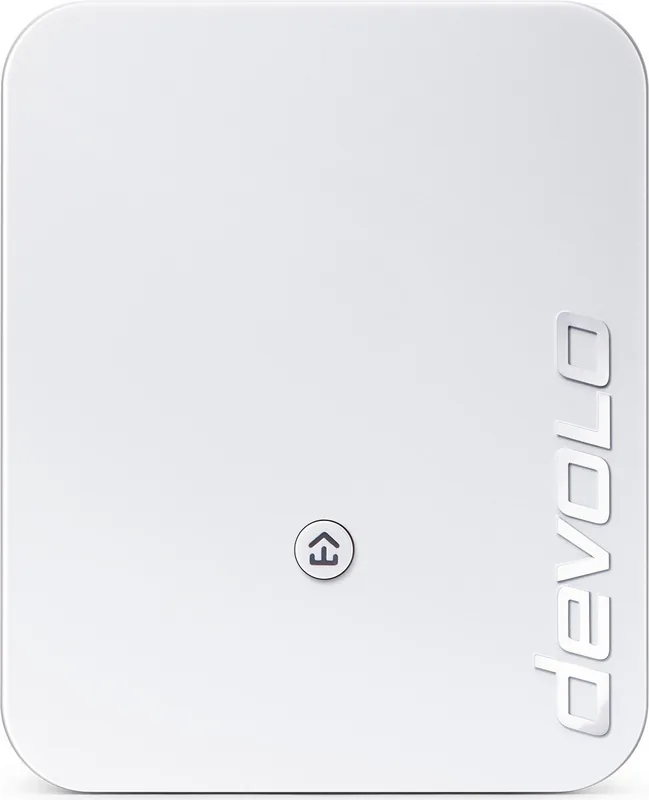
Each adapter is designed to blend into everyday use without adding much clutter. The compact white housing keeps the unit discreet, while the RJ-45 Ethernet port lets you connect devices such as a PC, smart TV, game console, or streaming box. Because the kit includes two adapters, it is ready for a basic setup right away: one unit near the router, the other near the device that needs internet access.
Built for quick setup and secure use
The manual emphasizes straightforward installation. You plug the first adapter into a wall socket and connect it to the router, then place the second adapter in another room and pair them with the encryption button. This button-based setup helps create a secure home network in just a few steps. For users who want more control, devolo Cockpit software and the my devolo app provide status information, device management, and network configuration options.
Performance, indicators, and everyday convenience
HomePlug AV2 technology is the key strength here. It aims to deliver a fast and dependable connection over the power line, reducing the need for additional wiring. The LED status light makes it easy to see whether the link is active, encrypted, or in power-saving mode. The manual also highlights best practices for performance, such as plugging the adapter directly into a wall socket and avoiding power strips when possible.
Final thoughts
This starter kit is best suited to users who want a clean, cable-light way to extend network coverage. It is not a wireless mesh system, but it can be an excellent bridge for rooms where Ethernet stability matters more than Wi-Fi flexibility. For many households, that balance of simplicity, security, and wired performance is exactly what makes it appealing.
Notes
- Best results usually come from direct wall-socket placement.
- Encryption can be set by button or via devolo software.
- The kit is designed for indoor use in dry conditions.
Search for 67,706 Manuals online


Type-in Brand or Model
Paul Smith
7 months ago
How do I set it up? Is it as simple as plugging it in and pressing a button?
Manual.ly
7 months ago
Yes. Plug the device directly into a power outlet. Then press the Sync button. After that, the connection should be established automatically. If you have any trouble linking, try pressing the Sync button again and make sure the device is powered on and within range of your network or hub.