
Corsair HS60 Manual
PDF manual · 28 Pages
English



Quick check
Incorrect answer, please try again.
Chat with your Corsair HS60 manual using AI
Get instant AI answers from your Corsair HS60 manual
Ask anything about the Corsair HS60. Answers come from this manual, with the pages they are based on.
Ask a Question
Do you recommend HS60?
Yes NoFrequently Asked Questions
The HS60 operates in stereo mode via a 3.5mm jack, making it compatible with PCs, Macs, PlayStation 4, Xbox One, Nintendo Switch, and mobile devices. For Xbox One, you may need a separate Microsoft adapter. In 7.1 surround sound mode, it works exclusively on PCs using the included USB adapter.
Is this answer helpful?
Connect the included 7.1 surround sound USB adapter to a high-power USB 2.0 or better port on your computer. Then, install the CORSAIR Utility Engine (CUE) software to activate and configure the virtual 7.1 surround sound feature through the application settings.
Is this answer helpful?
Ensure the unidirectional microphone is pointed directly at your mouth. Bend the flexible boom so it sits near the left corner of your mouth, ideally at a 30-degree angle. Also, verify that the mute button is not engaged and that the mic input volume is adjusted correctly in the CUE software.
Is this answer helpful?
If the equipment causes radio or TV interference, try reorienting the receiving antenna or increasing the distance between the headset and the receiver. Connect the adapter to a different circuit outlet if possible. Ensure you are using a high-power USB port directly on the motherboard to avoid power-related issues.
Is this answer helpful?
Basic stereo functionality works without software. However, to access the full feature set, including custom EQ profiles, microphone gain adjustments, and 7.1 surround sound toggling, you must download and install the CORSAIR Utility Engine (CUE) software from the Corsair support website.
Is this answer helpful?
Advantages and Disadvantages
Advantages

- Multi-platform compatibility supports PC, Mac, PS4, Xbox One, and Nintendo Switch via 3.5mm jack.
- Includes a dedicated USB adapter for virtual 7.1 surround sound on PC for enhanced immersion.
- Plush memory foam ear pads provide superior comfort for extended gaming sessions.
- Detachable unidirectional microphone effectively rejects background noise for clearer voice chat.
- CORSAIR Utility Engine software offers deep customization of EQ and mic settings.
Disadvantages

- Xbox One usage may require an additional Microsoft adapter sold separately.
- The 7.1 USB adapter requires a high-power USB 2.0+ port, which older peripherals might not supply.
- Some advanced features are disabled if the CUE software is not installed on Windows.
- Electrical shock to the USB adapter can temporarily mute the microphone, requiring reconnection.
- Physical volume controls are limited to the left earcup, lacking inline cable control options.
Product Description
Corsair HS60 (Quick Start Guide) - Read, Download & Print Free
Overview of the Gaming Experience
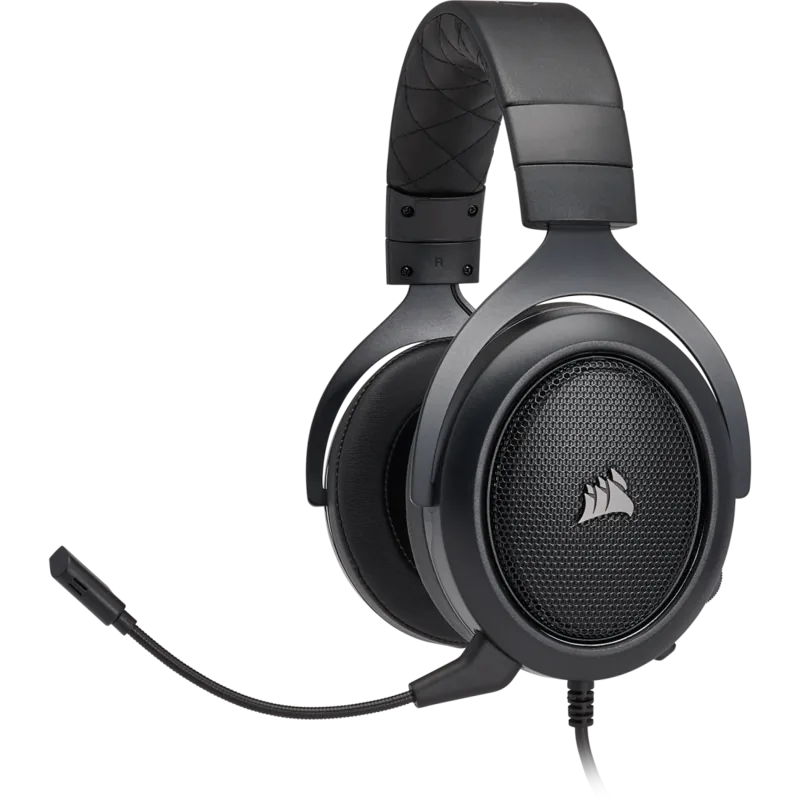
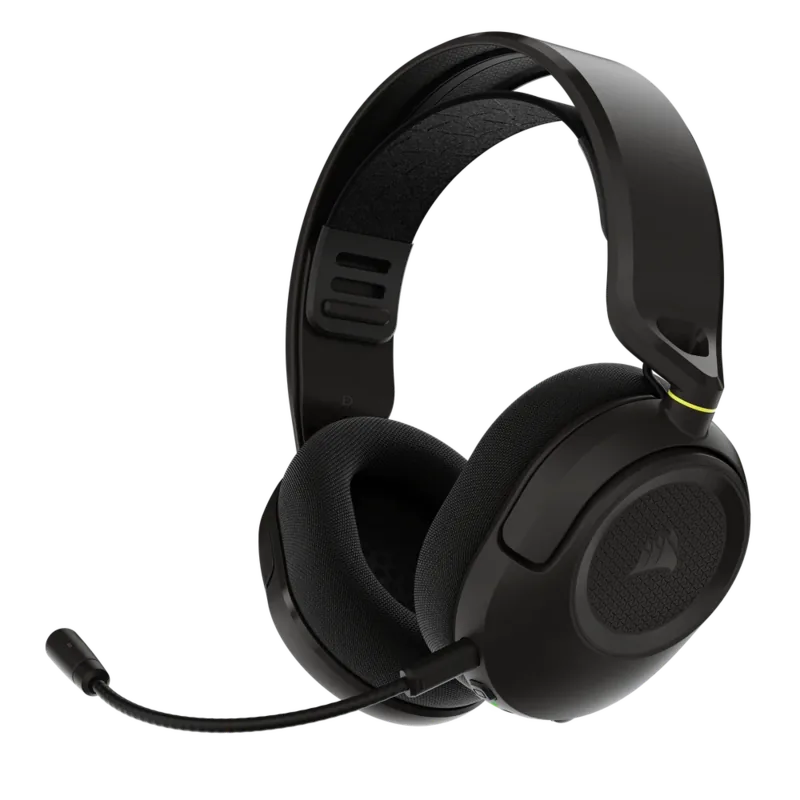
The Corsair HS60 Surround headset is designed to elevate your gaming audio experience with its multi-platform compatibility and immersive sound capabilities. This guide helps you get started quickly, ensuring you understand how to connect the device to various systems including PCs, Macs, PlayStation 4, Xbox One, Nintendo Switch, and mobile devices. The headset features plush memory foam ear pads for long-lasting comfort, allowing you to play for hours without fatigue.
Key Features and Controls
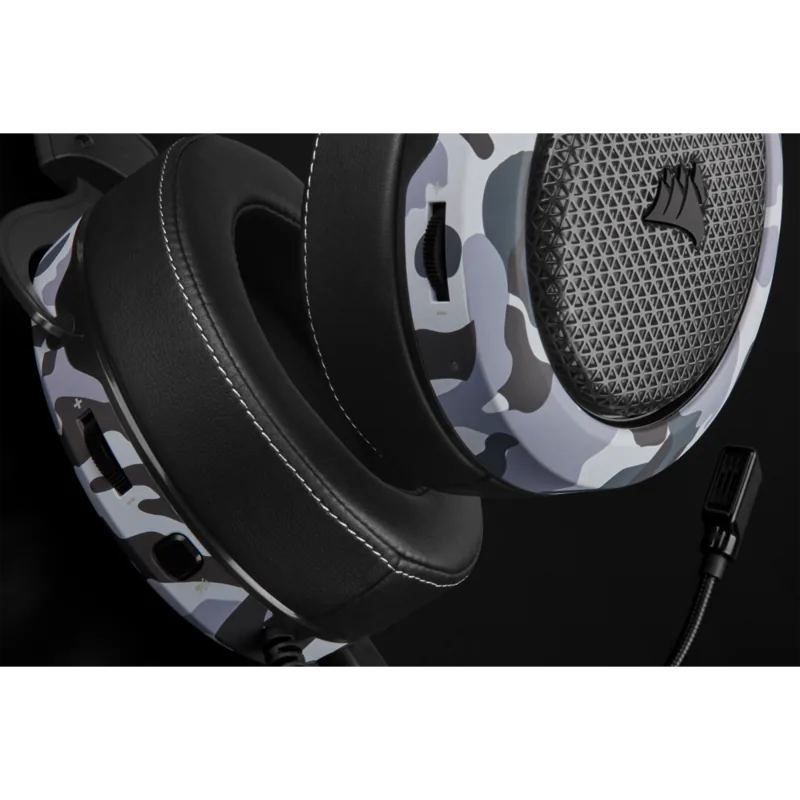
Understanding the physical controls is essential for a smooth setup. The left earcup houses a volume control knob and a mute button for quick adjustments during gameplay. The headband allows for easy size adjustment to fit different users comfortably. A detachable microphone boom provides flexibility, while the included 7.1 surround sound USB adapter enables virtual 7.1 audio on PC platforms. Note that this adapter requires a high-power USB port, so check your hardware specifications if you encounter connectivity issues.
Software Integration
To unlock the full potential of the HS60, download the CORSAIR Utility Engine (CUE) software from the official support website. This tool allows you to customize audio equalizer settings, adjust microphone input volume, and toggle the 7.1 surround sound mode on or off. The software also includes pre-set EQ profiles optimized for popular games and media types, giving you an instant boost in audio quality tailored to your preferences.
Microphone Optimization
The HS60 features a high-performance unidirectional microphone designed to isolate your voice from background noise. For best results, position the flexible mic boom approximately 30 degrees toward the corner of your mouth. You can fine-tune this angle based on whether your voice sounds too loud or too soft. Proper placement ensures clear communication with teammates during intense gaming sessions.
Important Notes
Always start with low volume levels when connecting new audio sources to protect your hearing. If using the USB adapter, ensure it is connected directly to a motherboard USB port rather than a peripheral hub to maintain optimal power delivery.
Search for 67,732 Manuals online


Type-in Brand or Model