
Conceptronic DJEBBEL 7 Manual
PDF manual · 5 Pages
English



Quick check
Incorrect answer, please try again.
Chat with your Conceptronic DJEBBEL 7 manual using AI
Get instant AI answers from your Conceptronic DJEBBEL 7 manual
Ask anything about the Conceptronic DJEBBEL 7. Answers come from this manual, with the pages they are based on.
Ask a Question
Do you recommend DJEBBEL 7?
Yes NoFrequently Asked Questions
No, the DJEBBEL 7 Software is currently only compatible with Windows operating systems. Users on macOS cannot utilize the customization features.
Is this answer helpful?
Simply plug the mouse into any available USB port. The system will automatically recognize the device, allowing you to start using it immediately without additional drivers.
Is this answer helpful?
First, check the USB connection. Try a different port or test the mouse on another computer. If problems persist, restart your computer to reset the system components.
Is this answer helpful?
You can download the DJEBBEL 7 Software directly from the official Conceptronic website at www.conceptronic.net. Ensure you select the correct version for your system.
Is this answer helpful?
Yes, using the DJEBBEL 7 Software, you can customize button assignments, adjust DPI settings, and modify other parameters to suit your specific gaming needs.
Is this answer helpful?
Advantages and Disadvantages
Advantages

- Simple Plug and Play installation for immediate use
- Customizable settings via dedicated DJEBBEL 7 Software
- Ergonomic design suitable for long gaming sessions
- Compatible with standard USB connections
Disadvantages

- Software only works on Windows operating systems
- No wireless connectivity option available
- Limited color options limited to black finish
Product Specification
Suitability
right hand
Keys
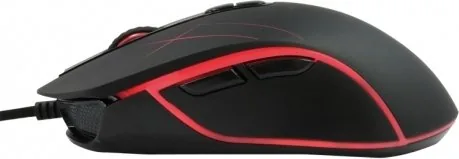
7 (total), 2 (main), 2 (top), 2 (left), 1 (scroll wheel click)
Scroll Wheel
1x 2-way
Scanning
LED-red/IR
Resolution
3200dpi, adjustable
Polling Rate
125Hz (wired USB)
Lighting
4 colors
Connection
wired (6.3ft), USB
Power Supply
USB
Dimensions (WxDxH)
2.56x1.57x5.00in
Approximate Volume
5.25cu in (approximate shape)
Weight
4.94oz
Color
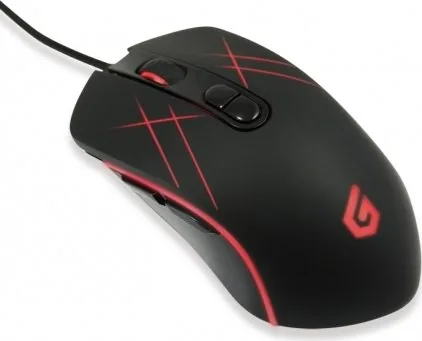
solid, black, logo
Features
thumb rest, fabric cable
Product Description
Elevate Your Gaming Experience with the Conceptronic DJEBBEL 7
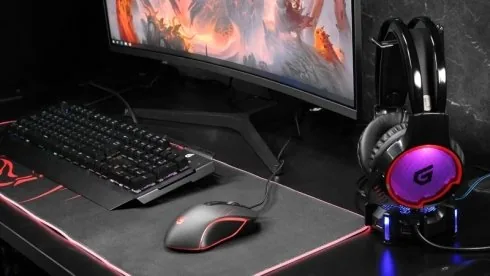
The Conceptronic DJEBBEL 7 Gaming Mouse in sleek black is designed for players who demand precision and reliability. This USB device offers a straightforward Plug and Play installation, allowing you to start gaming immediately without complex setup procedures. The ergonomic design ensures comfort during extended gaming sessions, making it an ideal companion for both casual gamers and competitive enthusiasts.
Customization at Your Fingertips
One of the standout features of the DJEBBEL 7 is its compatibility with the dedicated DJEBBEL 7 Software. Available for download from the official Conceptronic website, this software enables users to fully customize their mouse settings. You can adjust sensitivity, reassign buttons, and configure lighting effects to match your personal play style. Please note that the software is exclusively compatible with Windows operating systems, ensuring a seamless experience for PC gamers.
Troubleshooting Made Simple
While the mouse is built for reliability, occasional connectivity issues may arise. If your gaming mouse does not work as expected, follow these simple steps to resolve common problems. First, check the physical USB connection to ensure it is secure. If the issue persists, try connecting the mouse to a different USB port or test it on another computer to isolate the problem. Finally, restarting your computer can often clear temporary glitches and restore full functionality. These troubleshooting tips help maintain a smooth gaming experience without unnecessary downtime.
Important Notes
- The software requires Windows to function correctly.
- Always use high-quality USB ports for optimal performance.
- Regular updates to the software may enhance mouse capabilities.
Search for 67,706 Manuals online


Type-in Brand or Model