
Conceptronic CHD3DUSB3 Manual
PDF manual · 9 Pages
English



Quick check
Incorrect answer, please try again.
Chat with your Conceptronic CHD3DUSB3 manual using AI
Get instant AI answers from your Conceptronic CHD3DUSB3 manual
Ask anything about the Conceptronic CHD3DUSB3. Answers come from this manual, with the pages they are based on.
Ask a Question
Do you recommend CHD3DUSB3?
Yes NoFrequently Asked Questions
The Conceptronic 3.5" Hard Disk Box accepts standard 3.5-inch SATA hard drives. It is not designed for 2.5" laptop drives without an adapter; ensure you use a compatible 3.5" SATA HDD for proper fit and power requirements.
Is this answer helpful?
Yes. 3.5" hard drives require more power than USB can provide alone, so use the included power adapter. Connecting without the adapter will not power the drive and can cause instability or failure to be recognized.
Is this answer helpful?
No. When connected via USB-A 3.0 to most modern operating systems, the enclosure is recognized as a USB Mass Storage Device and installs automatically. For older OS versions check compatibility, but generally no manual drivers are needed.
Is this answer helpful?
Use your OS’s "Safely Remove Hardware" or "Eject" option in the system tray or file manager. Select the Conceptronic device (often listed as USB Mass Storage Device) and choose Stop/Eject, then wait for confirmation before unplugging power or the USB cable.
Is this answer helpful?
Directly it uses a USB-A 3.0 cable. You can connect to a USB-C port using a compatible USB-A-to-USB-C adapter or cable, but performance depends on the adapter and host port supporting USB 3.0 speeds.
Is this answer helpful?
Yes, the enclosure is suitable for backups and extended storage when paired with a reliable 3.5" HDD. Ensure proper ventilation, stable power, and regular backups; remember mechanical drives are subject to wear and should be monitored for health.
Is this answer helpful?
Advantages and Disadvantages
Advantages

- Fast USB 3.0 transfer speeds compared to USB 2.0, ideal for backups and large files.
- Simple tool-assisted installation: slide in drive, secure with screws, plug power and USB.
- Includes all necessary accessories: USB cable, power adapter, screws, screwdriver and stand.
- Broad OS compatibility with plug-and-play detection; no driver installation required.
- Sturdy black enclosure provides a secure SATA connection for 3.5" drives.
Disadvantages

- Requires external power adapter; not bus-powered, limiting portability.
- USB-A connector instead of newer USB-C may need adapters for modern laptops.
- Basic design lacks advanced features like hardware encryption or RAID.
- Potential for drive heat buildup; requires attention to ventilation.
- Assembly requires small screws and manual tightening, which may be fiddly for some users.
Product Specification
Form factor
3.5"
Internal connector
1x SATA
External connector
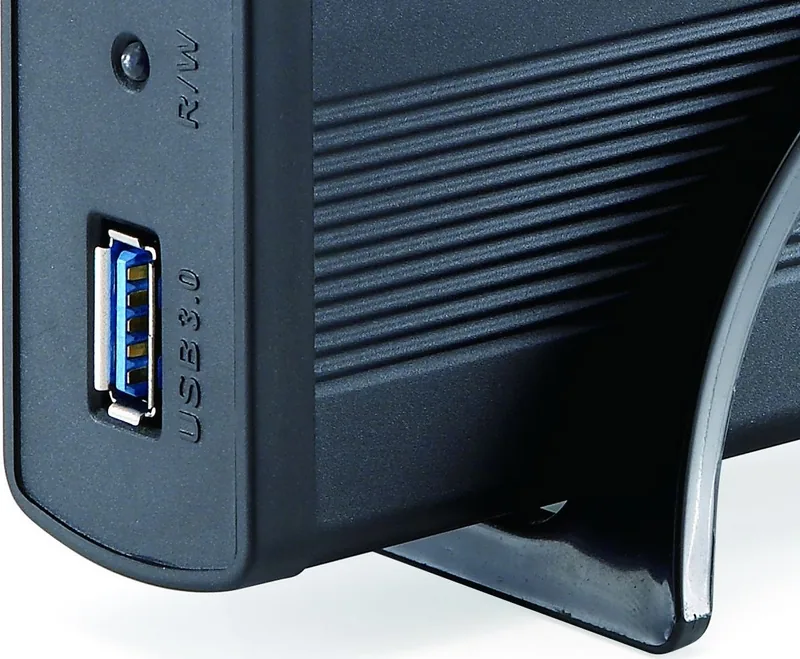
1x USB-A 3.0 (5Gb/s)
RAID level
N/A
Fan
N/A
Dimensions
7.60"x4.43"x1.38"
Weight
0.44 lb
Color
black
Special features
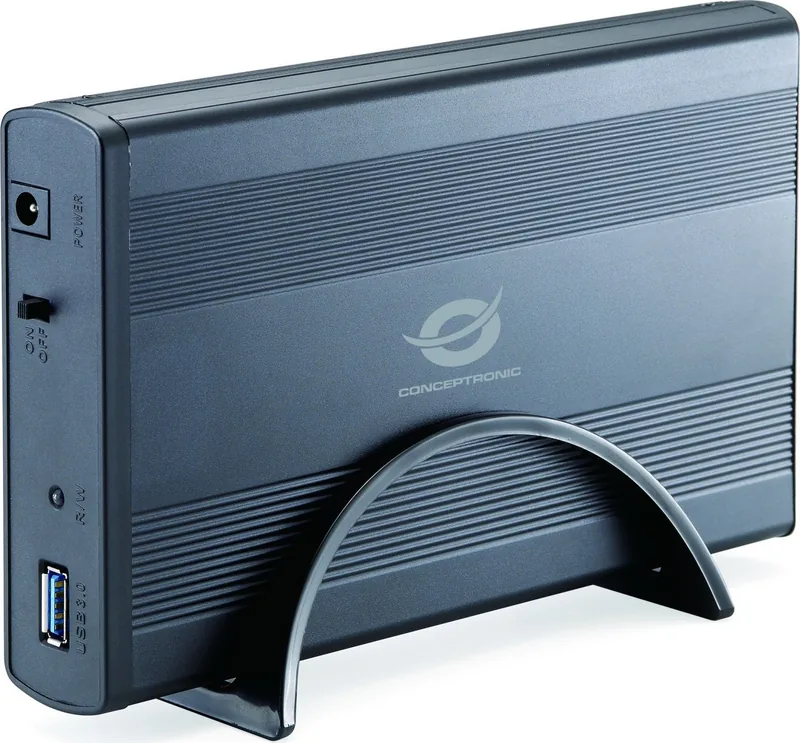
incl. USB cable (USB-A), On/Off switch, aluminum housing
Manufacturer warranty
two years
USB notation
Link
Product Description
Conceptronic 3.5" Hard Disk Box black, USB-A 3.0 Manual
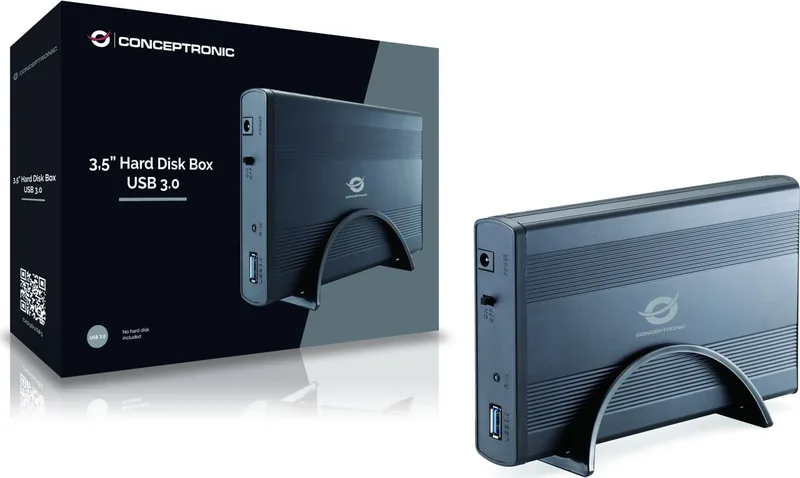
The Conceptronic 3.5" Hard Disk Box (CHD3DUSB3) is a compact external enclosure designed to transform an internal 3.5" SATA drive into a fast, bus-powered external storage solution. Finished in black and paired with a USB-A 3.0 interface, it offers straightforward connectivity, broad OS compatibility and plug-and-play convenience for backups, media libraries and expanded storage needs.
Design and package
The enclosure features a durable black housing with a removable rear panel secured by side screws. The package includes the 3.5" Hard Disk Box, USB 3.0 cable, foot stand, screws and screwdriver, a power adapter and a multi-language quick installation guide. Its simple, no-frills design focuses on function, providing a secure SATA connection inside and an accessible power and USB interface outside.
Installation and use
Installing a drive is simple: remove the screws, slide out the rear panel, connect your SATA hard drive, secure it with the included screws and replace the panel. Connect the supplied power adapter and the USB 3.0 cable to a free USB-A port on your computer, switch the unit ON, and the system will auto-detect the device as a USB mass storage device—no driver installation required.
For safe removal, use the operating system’s "Safely Remove Hardware" or "Eject" function to avoid data loss before disconnecting power or the USB cable. The enclosure’s plug-and-play behavior and standard USB-A 3.0 interface make it compatible with most modern desktops and laptops.
Performance and practical notes
USB 3.0 (USB-A) enables substantially faster transfer speeds than USB 2.0 when paired with a modern host, supporting large-file transfers like media archives or system backups. Because it houses a 3.5" drive, the unit requires external power via the included adapter—this helps ensure stable performance for high-capacity drives. The enclosure is best suited for users who want an inexpensive, reliable way to repurpose internal drives or add external storage without complex setup.
Notes
- Ensure the drive is properly seated on the SATA connector before securing screws.
- Use the included power adapter for 3.5" drives; bus power over USB alone is insufficient.
- Always eject the device from your OS before unplugging to prevent data corruption.
- Keep ventilation unobstructed during heavy use to avoid drive overheating.
Search for 67,706 Manuals online


Type-in Brand or Model