
Club 3D CSV-1564W100 Manual
PDF manual · 1 Pages
English


Quick check
Incorrect answer, please try again.
Chat with your Club 3D CSV-1564W100 manual using AI
Get instant AI answers from your Club 3D CSV-1564W100 manual
Ask anything about the Club 3D CSV-1564W100. Answers come from this manual, with the pages they are based on.
Ask a Question
Do you recommend CSV-1564W100?
Yes NoFrequently Asked Questions
The package includes the CSV-1564W100 docking station, a CAC-1903 power adapter, a 0.27 m black USB-C host cable, a 1 m red USB-C charging cable, and quick installation guidance.
Is this answer helpful?
Yes. The dock is designed for dynamic charging of a compatible host system. Connect the supplied red USB-C cable between the power adapter and the red-marked USB-C port on the dock, then connect the adapter to a wall outlet.
Is this answer helpful?
Yes. The host system must support DisplayPort Alternate Mode through its USB-C port to use display output through the docking station.
Is this answer helpful?
Connect the black USB-C host cable to the laptop, attach displays and other peripherals, connect the red cable between the power adapter and dock, then plug the power adapter into a wall outlet. The blue light should indicate power.
Is this answer helpful?
Updated drivers can improve compatibility with connected displays, USB accessories, networking equipment, and other dock functions. Updating the host system before installation is recommended.
Is this answer helpful?
The blue indicator light shows that the docking station is switched on and receiving power. Check this light after connecting the power adapter to confirm that the dock is ready.
Is this answer helpful?
Advantages and Disadvantages
Advantages

- Combines display, USB, Ethernet, audio, and charging connections in one desktop docking solution.
- Dynamic PD charging can power a compatible host laptop without its separate charger.
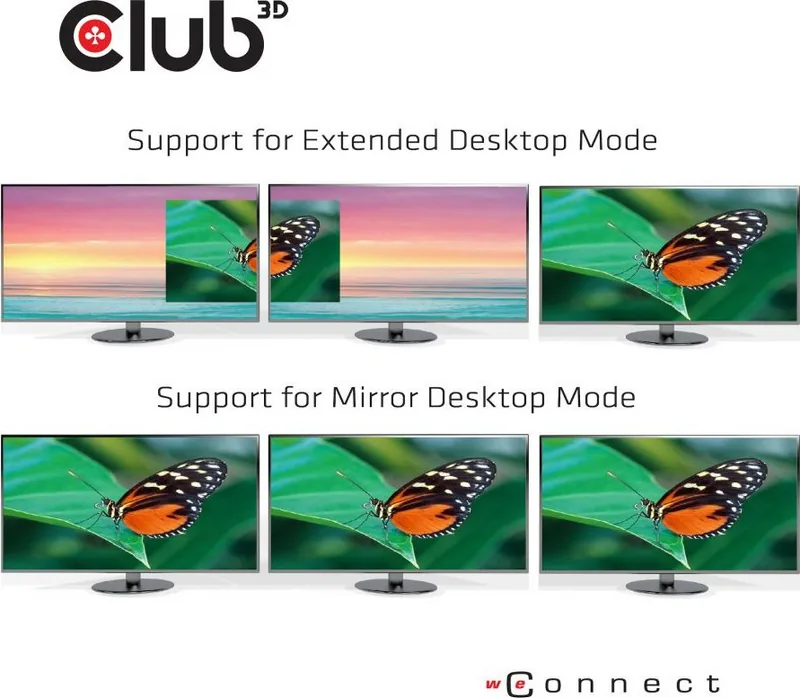
- Designed for triple-display workspaces, helping users organize multitasking setups.
- Includes a power adapter, host USB-C cable, red charging cable, and quick installation guidance.
Disadvantages

- The host system must support DisplayPort Alternate Mode over USB-C for display output.
- Current host drivers are recommended, which may require updates before setup.
- Correct cable placement matters because the red USB-C cable is dedicated to the power connection.
- Compatibility and charging performance depend on the connected laptop and its USB-C capabilities.
Product Specification
Type
LAN adapter, USB hub, card reader, video adapter
Form factor
1x external wired
Connection
1x USB-C 3.0 (port, 5 Gb/s, USB-C with DisplayPort 1.2, USB PD 3.0), 1x USB-C 3.0 (plug via cable, 5 Gb/s, 10.63 in cable length)
Ports
1x RJ-45, 1x USB-C 3.0 (port), 3x USB-A 3.0 (port), 2x USB-A 2.0 (port), 1x microSD, 1x SD card, 1x DisplayPort (port), 1x HDMI (port), 1x VGA (port), 1x audio jack (port, 0.14 in)
Data transfer
1x RJ-45 (10/100/1000Base-T), 1x USB-C 3.0 (port, 5 Gb/s), 3x USB-A 3.0 (port, 5 Gb/s), 2x USB-A 2.0 (port, 480 Mb/s), 1x microSD (microSD), 1x SD card (SD card), 1x DisplayPort (port, max. 3840x2160@30Hz), 1x HDMI (port, max. 3840x2160@30Hz), 1x VGA (port), 1x audio jack (port, 0.14 in)
Power supply
Power not supplied via connection, power input (1x USB-C port USB PD 3.0, max. 20V/5A/100W, passthrough 20V/5A/100W), external power adapter required and included (111W, 1x USB-C port USB PD max. 87W, 4x USB-A ports USB-A total: max. 24W)
Dimensions
13.78x0.79x2.95 in (WxHxD)
Weight
0.59 lb
Housing color
black
Compatibility
universal
Special features
security lock (Kensington Security Slot)
USB notation
Left
Product Description
Club 3D Triple Display Dynamic PD Charging Dock 100W, USB-C 3.0 Socket - Read, Download & Print Free
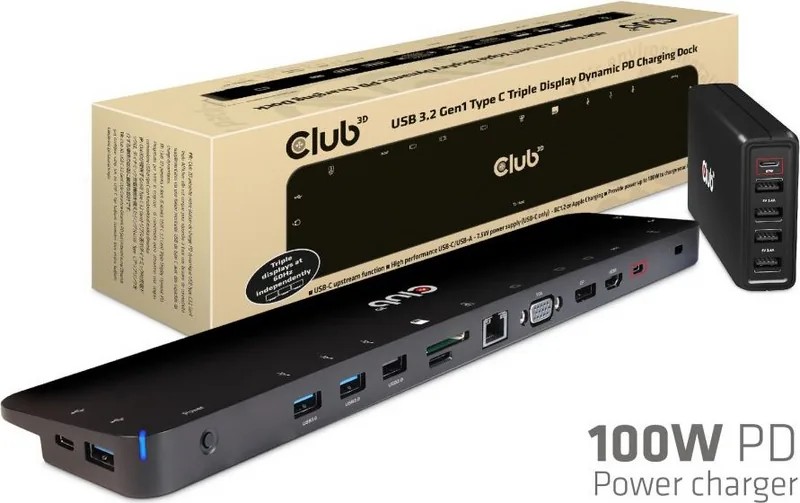
The Club 3D Triple Display Dynamic PD Charging Dock 100W, USB-C 3.0 Socket is designed to turn a compatible USB-C notebook into a more organized desktop workstation. It combines display connectivity, peripheral access, network support, audio connections, and dynamic charging through one central dock. Instead of repeatedly connecting separate accessories to a laptop, users can create a practical setup with a single host connection.
A streamlined workstation connection
The dock uses a USB-C connection to link with the host system. For video output, the host computer must support DisplayPort Alternate Mode through USB-C. This requirement is important because it enables the dock to send display signals to connected monitors. With support for a triple-display-oriented workspace, the dock is suited to office users, remote workers, multitaskers, and anyone who benefits from viewing several applications at once.
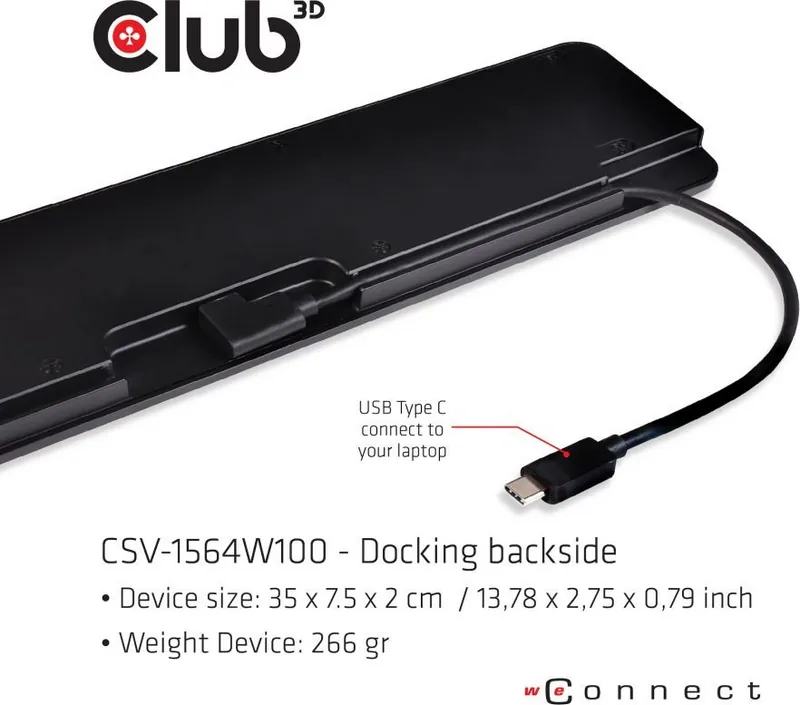
The included angled black USB-C host cable helps keep the connection neat at the side of the dock. Once displays and accessories are connected, the dock provides a central point for expanding a laptop setup. USB devices, Ethernet equipment, and sound products can be attached before the system is powered on.
Dynamic charging with a dedicated power connection
A key benefit of this docking station is its dynamic charging design. The included power adapter connects to the dock using the supplied red USB-C charging cable, which plugs into the red-marked USB-C power port. After the adapter is connected to a wall outlet, the dock can supply power to the host system, reducing the need to connect the notebook's own charger separately.
A blue indicator light confirms that the docking station is switched on. This simple visual signal helps users verify that the dock has received power before beginning work. The 100W designation makes this model a strong choice for compatible USB-C laptops that need dependable desk-based charging alongside expanded connectivity.
Setup considerations
For the smoothest experience, the host system should have current driver updates installed. Users should also follow the recommended connection order: attach the host cable, connect displays and peripherals, connect the red charging cable to the power adapter and dock, then power the adapter from a wall outlet. This approach supports a clean startup process for the entire workspace.
Notes
- Confirm that the notebook supports USB-C DisplayPort Alternate Mode before use.
- Check all package contents and inspect them for damage before installation.
- Keep the host system updated to help maintain display and accessory compatibility.
- Use the supplied red USB-C cable specifically for the dock's power connection.
Search for 67,706 Manuals online


Type-in Brand or Model