Manual.ly Logo

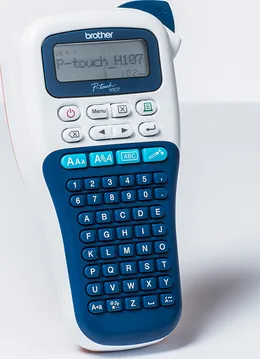
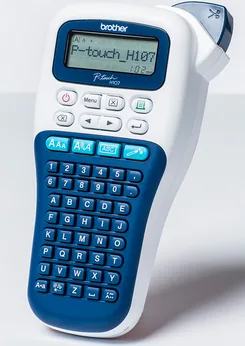
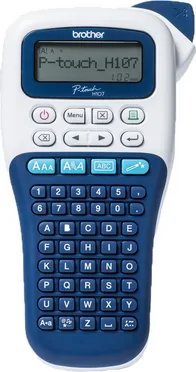
Brother P-touch PT-H107B Manual

4.8 · 4 Ratings

PDF manual · 2 Pages

English

M: QW-35-FL
page

/ 2

Loading...
362cc86175ce1cb095d4499ebf3c5ebb1f14 page 1
Follow these guidelines to avoid the risk of fire, burns, injury,
electric shocks, rupture, overheating, abnormal odours or
smoke.
• Do not touch the P-touch during a lightning storm.
• Do not use the P-touch in places of high humidity (such as bathrooms).
• Do not allow the P-touch batteries to get wet, for example, by handling them with
wet hands or spilling beverages onto them.
• Since loss of eyesight may result when leaked fluid from batteries gets into your
eyes, immediately rinse your eyes with a large amount of clean water, and then
seek medical attention.
• Do not disassemble or modify the P-touch batteries.
• Do not allow a metal object to contact both the plus and minus ends of a battery.
• Do not use sharp objects, such as tweezers or a metallic pen, to change the
batteries.
• Do not throw the batteries into fire or expose to heat.
• Remove batteries immediately and stop using the P-touch if you notice abnormal
odour, heat, discolouration, deformation or anything unusual while using or storing
it.
• Do not use a damaged or leaking battery as the fluid may get on your hands.
• Do not use a deformed or leaking battery or one with a damaged label. There is a
possibility of generating heat.
Follow these guidelines to avoid personal injury, liquid
leakage, burns or heat.
• When the P-touch is not being used, store it out of the reach of children. In addition,
do not allow children to put P-touch parts or labels in their mouths. If any object has
been swallowed, seek medical attention.
• Do not touch metal parts near the print head immediately after printing.
• Do not touch the cutter blade.
• If leaked fluid from batteries gets onto your skin or clothes, immediately rinse them
with clean water.
• Remove the batteries if you do not intend to use the P-touch.
• Do not use a battery other than that specified. Do not use combinations of old and
new batteries or combinations of different types, different charging levels, different
manufacturers or different models. Do not insert a battery with its plus and minus
ends reversed.
• Do not drop or hit the P-touch.
• Do not press on the LCD display.
• Do not put your finger inside the P-touch when you close the cassette cover.
• Before using Ni-MH rechargeable batteries, carefully read the instructions for the
batteries and battery charger, and be sure to use them correctly.
• When using Ni-MH rechargeable batteries, charge the batteries with a specialized
battery charger before using the batteries.
• Depending on the location, material, and environmental conditions, the label may
unpeel or become irremovable, the colour of the label may change or be
transferred to other objects. Before applying the label, check the environmental
conditions and the material.
• Do not use the P-touch in any way or for any purpose not described in this guide.
Doing so may result in accidents or damage to the P-touch.
• Use only Brother TZe tapes with the P-touch. Do not use tapes that do not have
the mark.
• Only use a soft, dry cloth to clean the P-touch; never use alcohol or other organic
solvents.
• Use a soft wipe to clean the print head; never touch the print head directly.
• Do not put any foreign objects into any part of the P-touch.
• Do not place the P-touch, batteries in direct sunlight or rain, near heaters or other
appliances, or in any location exposed to extremely high or low temperatures (e.g.
on the dashboard or in the back of your car). Avoid high humidity or dusty
locations.
• Do not apply excessive pressure to the cutter lever.
• Do not try to print if the cassette is empty; it will damage the print head.
• Do not pull the tape while printing or feeding; it will damage the tape and P-touch.
• Any data stored in memory will be lost due to failure or repair of the P-touch, or if
the battery expires.
• The P-touch is not equipped with a charging feature for rechargeable batteries.
• The length of the printed label may differ from the displayed label length.
• A protective clear plastic sticker is placed over the display during manufacturing
and shipping. This sticker should be removed prior to use.
• When power is disconnected for more than three minutes, all text, format settings
and any text files stored in the memory will be cleared.
Safety Precautions
Indicates a potentially hazardous
situation which, if not avoided,
could result in death or serious
injuries.
WARNING
Indicates a potentially hazardous
situation which, if not avoided,
may result in minor or moderate
injuries.
General Precautions
CAUTION
Power Supply and Tape Cassette
Open the cassette cover by pressing the
above indicated area at the top end of the
P-touch.
If a tape cassette is already installed, remove it by
pulling it straight up. Also, if batteries are already
installed, remove them.
• Make sure that the power is turned off when
replacing batteries or tape cassettes.
Insert six new AAA alkaline batteries
(LR03) or fully charged Ni-MH batteries
(HR03), making sure that their poles
point in the correct directions.
Users of alkaline batteries:
Always replace all six batteries at the
same time with brand new ones.
Users of Ni-MH batteries:
Always replace all six batteries at the
same time with fully charged ones.
NOTE
Visit us at http://support.brother.com/ for the latest
information about the recommended batteries.
Insert a tape cassette, making sure that
it snaps into place.
• Make sure that the end of the tape feeds under
the tape guides.
• Use only Brother TZe tapes with P-touch.
Securely close the cassette cover, making
sure that it snaps into place.
1
Tape cutter
lever
Cassette
cover
2
Print head
3
Toothed
wheel
Cutter’s
edge
End of tape
Tape
exit slot
Tape guide
4
NOTE
• The LCD shows one row of 12 characters; however, the text that
you enter can be up to 80 characters in length.
• While selecting the settings, press the Space key to go back to
the default item.
LCD Display & Keyboard
18
19
5
6
7
20
9
1
2
3
4
21
22
12
11
10
14 23
13
24
25
16
17
15
8
1. Size
2. Cursor
3. Caps
4. Underline/Frame
5. Width
6. Style
7. Label Length
If a specific label length has been
selected, also appears.
8. Guidance (left, right)
9. Power key
10. Cursor key : Right
11. Cursor key : Left
12. Backspace key
13. Size key
14. Style key
15. Character keys
16. Caps key
17. Symbol key
18. Menu key
19. Clear key
20. Print key
21. Enter key
22. Auto Designs function key
23. Frame key
24. Accent key
25. Space key
• The print preview is a generated image of the label, and may
differ from the actual label when printed.
• Label length shown on LCD may slightly differ from the actual
label length when printed.
1 Start your P-touch.
Supply power by using six AAA batteries, and then press .
2 Set the language.
3 Set the unit of measurement.
The default setting is [mm].
NOTE
• The P-touch automatically turns off if no keys are pressed within
five minutes.
• To cancel any operation, press .
Initial Settings
/ [Language] /
[English/Español/Français/Hrvatski/Italiano/Magyar/
Nederlands/Norsk/Polski/Português/Portug. (BR)/
Română/Slovenski/Slovenský/Suomi/Svenska/Türkçe/
Čeština/Dansk/Deutsch] .
/ [Unit]
/ [inch/mm] .
Troubleshooting
Error message What to do when...
Message Cause/Remedy
Low Battery!
The batteries are weak.
If using AAA alkaline batteries: Replace them with new
ones.
If using Ni-MH batteries: Charge them fully.
Battery Dead
The installed batteries have expired.
Invalid!
An invalid number was entered as the label length.
(This is not displayed in Auto Designs).
No Text!
• You tried to print a text file when there is no data
stored in the memory.
• is pressed when no text is entered.
• You tried to select Text Preview or Cable Label when
no text is entered.
• was pressed when no text was entered while
using the DECO MODE or Auto Designs.
Line Limit!
• You tried to enter a 3rd line by pressing .
• You tried to print or preview two lines of text while
3.5mm or 6 mm tape is installed. Install tape of a
larger size.
No Cassette!
You tried to print a label when there is no cassette
installed.
Cutter Error
The tape cutter lever was used during the printing
process.
Text Full!
The maximum number of characters (80 characters for
regular text, 50 characters for Auto Designs and DECO
MODE) have already been entered.
Text Limit!
With the DECO MODE function:
Since the number of entered characters exceeds the
label length, reduce the text.
All other functions:
Since the number of entered characters exceeds the
label length, reduce the text or select [Auto] as the label
length.
No Frame OK?
Printing on 3.5mm tape with invalid Frame setting ON.
(Select to print with no Frame, to
cancel).
OK to Feed?
Feeding tape after printing when [Chain Print] is
selected. Refer to “Setting Margin”.
Insert 12mm
Only 12mm tapes are available for use with DECO
MODE function.
Wrong Tape!
Use a tape cassette with the mark.
Message Cause/Remedy
Problem Solution
The display stays blank
after you have turned on
the P-touch.
• Check that the batteries are correctly
inserted.
• If the batteries are weak, replace them.
When the label is printed
out, the margin(space) is
too large on both sides of
the text.
• See “Setting Margin” in this users guide
and select [Half] or [Narrow] to have
smaller margins for your label.
The P-touch does not
print, or the printed
characters are not formed
properly.
• Check that the tape cassette has been
inserted correctly.
• If the tape cassette is empty, replace it.
• Check the cassette cover is properly
closed.
The setting has cleared
on its own.
• If the batteries are weak, replace them.
• When power is disconnected for more
than three minutes, all text & formats in
the display will be lost. Language and Unit
settings will also be cleared.
A blank horizontal line
appears through the
printed label.
• There may be some dust on the print
head. Remove the tape cassette and use
a dry cotton swab to gently wipe the print
head with an up-and-down motion.
• The print head can be cleaned more
easily if the optional print head cleaning
cassette (TZe-CL3) is used.
The P-touch has “locked
up” (i.e., nothing happens
when a key is pressed,
even though the P-touch
is on).
• Refer to “Resetting the P-touch”.
The power turns off when
you try to print.
• The batteries may be weak. Replace
them.
• Check that the batteries are correctly
inserted.
• If the batteries are weak, replace them.
The tape does not feed
properly or the tape gets
stuck inside the P-touch.
• Check that the end of the tape feeds
under the tape guides.
• The cutter lever is used while printing. Do
not touch the cutter lever during printing.
All text and format settings
need to be cleared to
create a new label.
• Press and select [Text&Format].
The LCD is set to an
incorrect language.
• Refer to “Initial Settings”.
Problem Solution
With your P-touch H107/H108, you can create labels for multiple
applications. Select from the many frames, character sizes and
styles to design beautiful custom labels. In addition, the variety of
tape cassette available allows you to print labels with different widths
and exciting colours.
Read this manual carefully before you begin and keep the manual in
a handy place for future reference.
Ver. 02
English
User’s Guide
*
1
Visit us at http://support.brother.com/ for the latest information
about the recommended batteries.
Specifications
Dimensions:
(W x D x H)
Approx. 110(W) × 208(D) × 59(H)mm
Weight: Approx. 390 g
(without batteries and tape cassette)
Power supply: Six AAA alkaline batteries (LR03)
Six AAA Ni-MH batteries (HR03)*
1
Tape cassette: Brother TZe tape (width)
3.5mm, 6mm, 9mm, 12mm

Chat with your Brother P-touch PT-H107B manual using AI

Get instant AI answers from your Brother P-touch PT-H107B manual

Ask anything about the Brother P-touch PT-H107B. Answers come from this manual, with the pages they are based on.

P-touch PT-H107B Maintenance Schedule

As needed
Clean the print head if a blank line appears

Remove tape cassette and gently wipe print head with dry cotton swab or use optional cleaning cassette TZe-CL3.

As needed
Replace cutter unit when blade becomes blunt

If tape cannot be cut cleanly after repetitive use, turn around cutter board or replace with new TC-4 unit.

M: qwen/qwen3.8-flash

Ask a Question

0/1000

Do you recommend P-touch PT-H107B?

Yes No
0
User Pic

Jan Schmidt

5 months ago

Does this device work with batteries or does it need a power adapter? One review mentioned AA batteries.

0
User Pic

Manual.ly

5 months ago

This printer requires six AA batteries to function. Please note that the batteries are not included in the box. You will need to purchase them separately. Standard rechargeable or alkaline batteries work well for regular labeling tasks.

M: QW-35-FL
M: QW-35-FL

Frequently Asked Questions

A

The printer operates using six AAA alkaline batteries (LR03) or six AAA Ni-MH rechargeable batteries (HR03). All batteries must be replaced simultaneously, and users should ensure correct polarity.

Is this answer helpful?

A

Only Brother TZe tapes are recommended. Supported widths include 3.5mm, 6mm, 9mm, and 12mm. Other brands may cause jams or print quality issues.

Is this answer helpful?

A

Use a soft dry cloth or a cotton swab to gently wipe the print head. Do not use organic solvents. For deep cleaning, an optional cleaning cassette can be used.

Is this answer helpful?

A

This message indicates the batteries are weak. Replace alkaline batteries with new ones or fully charge Ni-MH batteries to resolve the issue.

Is this answer helpful?

A

Yes, you can save up to nine label files in memory. These can be recalled and edited later. However, memory is cleared after three minutes of power loss.

Is this answer helpful?

A

Turn off the P-touch, hold down specific keys while turning it back on, then release them. This initializes settings but clears all stored files.

Is this answer helpful?

A

Store the device out of reach of children. Prevent them from swallowing small parts or putting labels in their mouths to avoid injury.

Is this answer helpful?

M: QW-35-FL

Advantages and Disadvantages

Advantages

  • Compact portable design suitable for home or office organization
  • Supports multiple tape widths from 3.5mm to 12mm
  • Long battery life using six AAA batteries
  • Easy to use with clear LCD display and buttons
  • Built-in templates for creative label designs
VS

Disadvantages

  • Memory settings clear if disconnected for over three minutes
  • Cannot charge rechargeable batteries directly
  • No built-in display screen beyond the small LCD
  • Cutter blade requires manual replacement when dull
  • Limited characters on very small tape widths like 3.5mm
M: QW-35-FL

Product Specification

Type

Handheld, Thermal Transfer

Print Resolution

180 dpi

Ribbon Width

0.14 in, 0.24 in, 0.35 in, 0.47 in

Print Lines

2

Print Length

1.18-11.81 in

Print Height

0.35 in

Print Speed

0.79 in/s

Font Sizes

3

Fonts

4

Font Styles

9

Template Memory

9

Print Functions

Multi-print (1-9), Vertical Print

Display

monochrome, 1-line

Keyboard

ABC

Power Supply

Battery (6x AAA)

Dimensions

4.33x8.19x2.32 in

Weight

0.86 lbs

Consumables

TZe

Features

Manual Cutter

Warranty

3 Years

Note

PTH110ZG1 = DE Model, PTH110ZG2 = AT Model

M: QW-35-FL

Product Description

Discover the Brother P-touch PT-H107B Label Maker

Organizing your life requires efficient tools. Users often consult the Brother P-touch PT-H107B Manual for optimal operation of this versatile device. It ensures users understand how to operate the hardware safely. This compact label maker is perfect for home and office organization. It creates professional labels for cables, storage bins, and files. The manual emphasizes safety to prevent injury from batteries or the cutter blade. Following instructions is vital for longevity.

Battery and Power Configuration

Powering the unit requires six AAA batteries. Users may install alkaline or Ni-MH rechargeable types. It is crucial to replace all six batteries at the same time. Mixing old and new batteries causes immediate performance issues. Never disassemble the batteries or insert them reversed. The device will turn off automatically if no keys are pressed for five minutes. Power loss for three minutes clears all memory settings. Always remove batteries if not used for a long duration. The system does not charge batteries internally.

Tape Width and Cassette Types

Compatible cassettes include Brother TZe tapes. Several widths are supported including 3.5mm, 6mm, 9mm, and 12mm. Only use tapes marked with the official logo. Do not use other brands as they may jam. The tape exit slot feeds the material to the print head. You can chain print multiple labels easily without reloading. Remember to cut the tape along the printed dots. The cutter lever is located on the upper right corner. Replace the cutter blade when it becomes dull.

Features and Customization

The LCD display shows 12 characters but accepts longer input. You can change character sizes, styles, and add frames. Auto designs offer random styles for creative labeling. Storing up to nine labels helps recall designs later. The machine supports accented characters for international use. Saving files allows editing for future projects. Clearing data is possible if settings need resetting. Preview functionality shows text before printing. Cable label functions create wrapped text for wires.

Safety and Maintenance Protocols

Maintain the device by cleaning the print head gently. Use a soft dry cloth for the exterior only. Never use solvents or touch internal parts directly. Avoid high humidity or dust locations. Keep away from heat sources. If fluids leak from batteries, rinse skin immediately. Store the unit out of reach of children. Do not put parts in mouths. Follow all warning signs in the manual strictly. Do not print without a cassette installed.

Troubleshooting and Problem Solving

Error messages guide you to solutions quickly. Low battery indicates weak power needs replacement. Invalid messages mean bad numbers were entered. No Text shows empty memory during print commands. Blank displays often mean weak batteries or insertion issues. Tape jams require checking guides carefully. Resetting clears internal memory for fresh starts. Consulting the guide helps resolve locked up states quickly. Cleaning the head removes dust preventing clear prints.

M: QW-35-FL

© Copyright 2026 Manual.ly
