
Bresser REX Manual
PDF manual · 44 Pages
English



Quick check
Incorrect answer, please try again.
Chat with your Bresser REX manual using AI
Get instant AI answers from your Bresser REX manual
Ask anything about the Bresser REX. Answers come from this manual, with the pages they are based on.
Ask a Question
Do you recommend REX?
Yes No
Julia Meier
8 months ago
Is this printer recommended for beginners, and have others faced issues with WiFi setup?

Manual.ly
8 months ago
Yes, most users find the setup very easy and it takes about 20 minutes. Instructions are provided in German and the software is functional. Regarding WiFi, experiences vary. While some users report a problem-free connection, others note connectivity problems. If problems occur, check router placement and update the firmware. The build volume is small, which is known before purchasing but suitable for learning.
Frequently Asked Questions
Heat extruder to 240C, remove filament guide, check tip. If persist, use cleaning tool. Replace nozzle if necessary. Ensure alignment. Follow manual steps for safe nozzle removal and reinstallation.
Is this answer helpful?
Printer supports PLA and ABS. Other brands may clog extruder. Quality may suffer. Bresser warranty does not cover issues from non-Bresser filament. Use recommended materials for best results and warranty protection.
Is this answer helpful?
Use Tools menu to select Network then Wifi or Ethernet. Enter password. For cloud, connect to internet and set up account on cloud platform with registration code found on the screen.
Is this answer helpful?
Input formats include 3mf, stl, obj, fpp, bmp, png, jpg, jpeg. Output formats are gx and g files generated by FlashPrint software for printing on the device.
Is this answer helpful?
No. The printer does not turn off automatically after a print job finishes. The user must manually switch it off using the power switch on the side.
Is this answer helpful?
Remove the build plate. Bend it slightly to detach model. Use a scraper for small models. Allow machine to cool first to avoid burns. Wait for full cool down.
Is this answer helpful?
This often means sensor failure or bad nozzle installation. Check nozzle installation carefully. Replace nozzle if installed incorrectly to fix the reading and ensure accurate operation.
Is this answer helpful?
Advantages and Disadvantages
Advantages

- Integrated Wi-Fi and Ethernet connectivity allow for seamless file transfer and remote monitoring.
- 2.8-inch color IPS touchscreen provides an intuitive user interface for managing print jobs.
- Built-in camera supports cloud monitoring for tracking prints from remote locations.
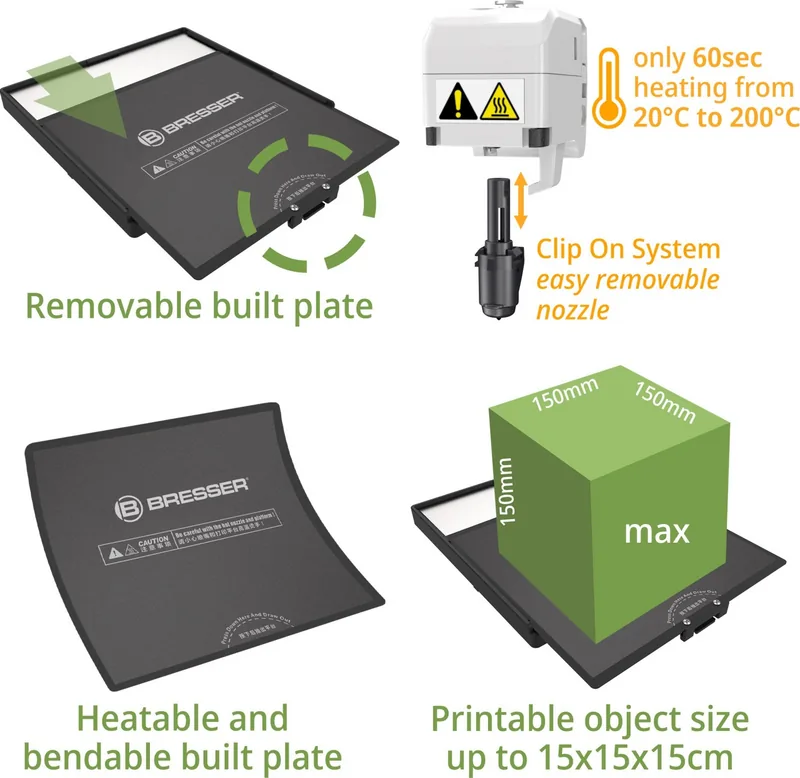
- Compact footprint with 150x150x150 mm build volume suitable for small to medium projects.
- Comprehensive support channels including email and free hotline service available for assistance.
Disadvantages

- Users must manually calibrate the nozzle distance to the build plate for every print session.
- Non-Bresser filaments are discouraged as they are not covered under warranty if issues arise.
- ABS material releases toxic gases and requires well-ventilated environments to ensure safety.
- No automatic bed leveling feature is described, requiring manual intervention and skill.
- Camera and USB storage cannot be used simultaneously due to shared interface limitations.
Product Specification
Process
FDM/FFF Fused Deposition
Arrangement
1x movable print head (left/right, up/down), 1x movable build plate (forward/back)
Construction
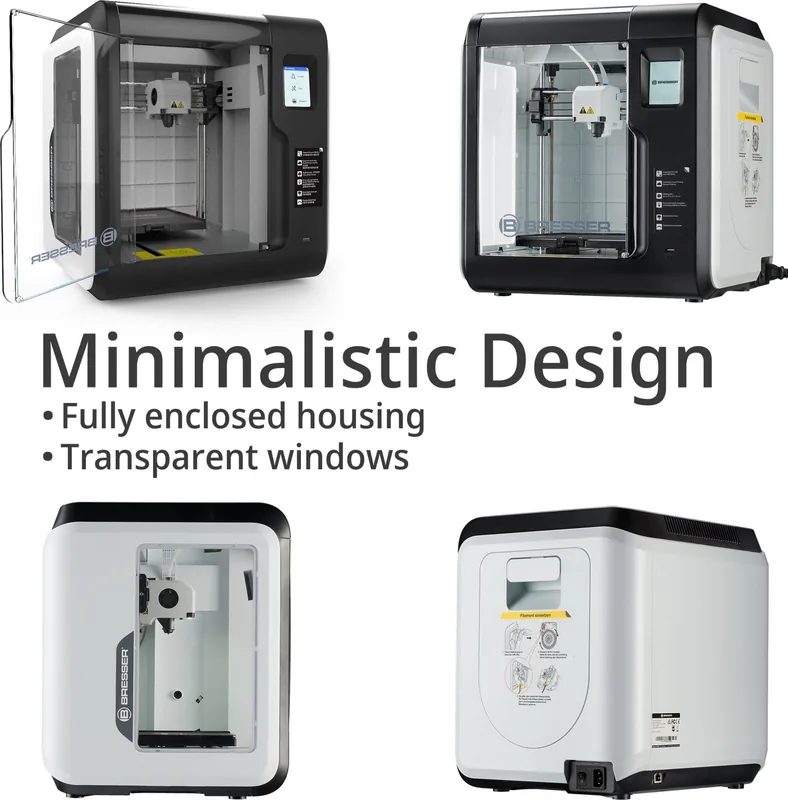
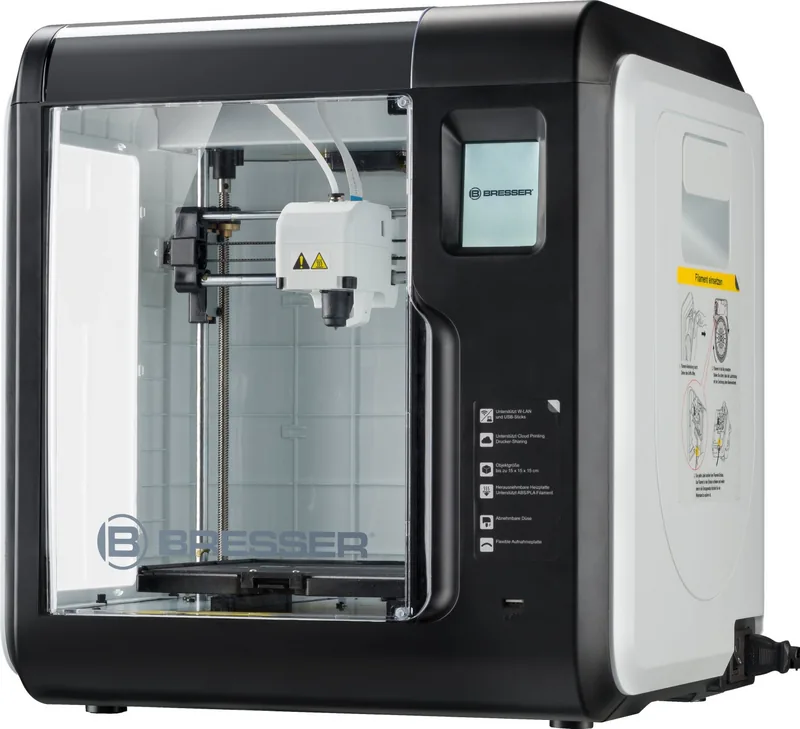
Fully assembled, enclosed print chamber (with viewing window lid, with viewing window front, with viewing window left, front door), device control, integrated filament holder
Recommended Materials
1.75mm filament, open system (2.09 inch spool inner diameter, 7.09 inch spool outer diameter), ABS, ASA, PETG/PET, PLA
Build Volume
5.91x5.91x5.91 inches (WxHxD)
Extrusion System
1x print head (1x print nozzle with mono-feed, 0.4mm, brass, interchangeable, 122-464°F), 1x Bowden extruder
Layer Height
0.002-0.016 inches
Accuracy X
11 µm
Accuracy Y
11 µm
Accuracy Z
2.5 µm
Print Speed
0.39-3.94 in/s
Build Plate
Square, heated (32-212°F), removable, flexible, supported bed leveling
Connectivity
USB-A 2.0, Wi-Fi, 1x RJ-45 (10/100Base-T)
Camera
web interface
Scanner
N/A
Other Features
N/A
Screen
2.5 inch diagonal, color, touchscreen, IPS
Control
Touchscreen, 8GB integrated storage, optional via computer, optional via cloud
Noise Level
42 dB(A)
Power Supply
100-250V, 150W
Operating Environment
59-86°F
Dimensions
15.75x15.94x14.96 inches (WxHxD)
Weight
19.84 lbs (empty)
Color
black/white (housing), black (build plate)
Scope of Delivery
1x printer, 2x 0.66 lbs PLA filament (black, white), tool set, cleaning set, 1x replacement hotend
Special Features
Filament sensor, print chamber lighting, print chamber ventilation (with HEPA filter)
Manufacturer Warranty
five years
Product Description
Discovering the World of 3D Printing with Bresser
The Bresser REX WLAN 3D Printer stands out as a robust machine for both beginners and skilled users in the hobbyist market. It utilizes Fused Filament Fabrication technology to bring digital designs into physical reality efficiently. The build volume allows for substantial projects without taking up too much desk space in home offices. Its wireless connectivity options make it versatile for modern workflows and educational settings. Users can connect via Wi-Fi or Ethernet to network printers easily without physical USB dependencies. This feature reduces cable clutter significantly in busy workshop environments or classrooms.
Safety First During Operation
Operating any 3D printer requires strict attention to safety protocols and environmental awareness. The nozzle becomes extremely hot during print sessions, posing a significant burn risk to users. It is vital to keep the machine away from flammable materials and liquid spills at all times. Personal safety gear includes avoiding loose clothing near moving axes and gears. The printer design includes protective shrouds to minimize these risks during operation. Always ensure the power supply matches the electrical grid specifications provided by the manufacturer. Proper ventilation is necessary, especially when printing materials like ABS which release fumes into the air.
Features and Functionality
Control is managed through a responsive 2.8-inch IPS touchscreen for intuitive navigation. The menu system guides users through filament loading and bed leveling processes step by step. Supported file formats include standard ST. STL and OBJ types imported via USB or cloud services like PolarCloud. The integrated camera feature allows for remote monitoring via compatible cloud platforms online. Users can check print progress from anywhere with an internet connection available. This remote capability adds significant convenience for long print jobs that run overnight. Software integration is seamless with FlashPrint for slicing models before printing begins.
Importance of the Bresser REX WLAN 3D Printer Manual
Referencing the Bresser REX WLAN 3D Printer Manual enhances the user experience immensely for new owners. It provides detailed steps for troubleshooting common errors like temperature sensor failures or clogged nozzles. Instructions help properly calibrate the extruder distance for perfect first layers consistently. Maintenance schedules are outlined to keep the machine running smoothly for years of service. Cleaning the nozzle and lubricating guide rods are covered in depth for longevity. Ignoring these steps can lead to print failures or mechanical damage over time.
Final Thoughts
This printer combines advanced networking with user-friendly operation for diverse applications. It is an excellent choice for those seeking reliable 3D printing solutions for prototyping art. Regular maintenance and proper setup will guarantee high-quality output consistently every time. Always read the guidelines before attempting complex modifications or repairs to the device. It weighs nine kilograms and supports 150-watt power inputs globally.
Search for 67,706 Manuals online


Type-in Brand or Model
Lukas Schmidt
6 months ago
Is the Wi-Fi connection stable for firmware updates? I am worried about setup issues.
Manual.ly
6 months ago
Connectivity depends on your network environment. Some users report success while others face difficulties. We recommend using a 2.4GHz Wi-Fi band with a strong signal. If updates fail, try a USB connection to flash the firmware manually. Please contact support if you experience persistent errors.