
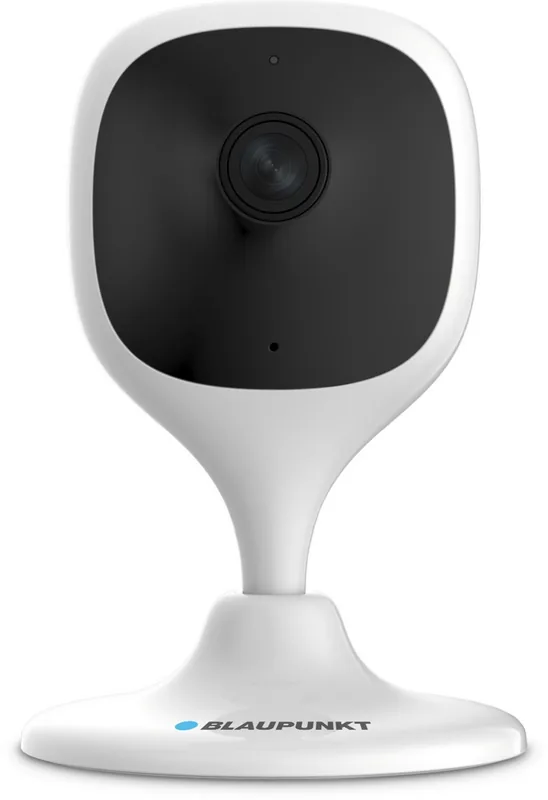
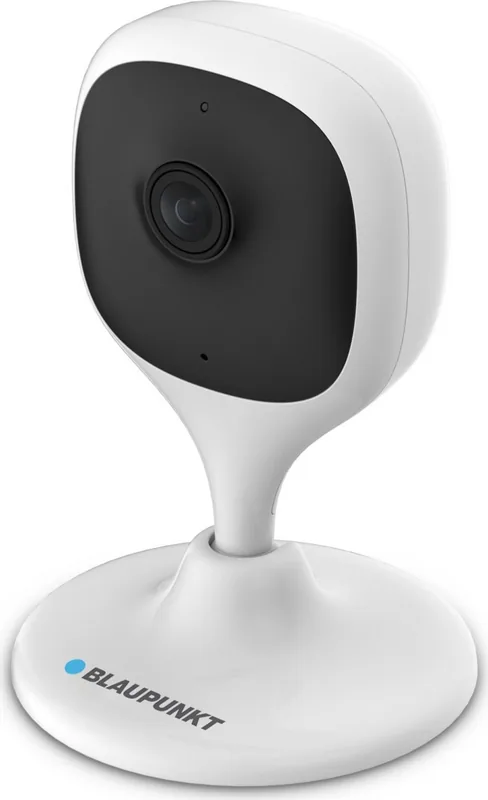
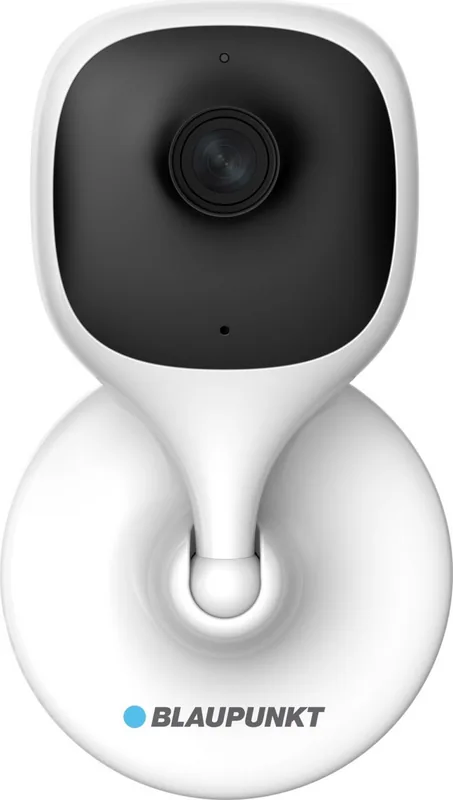
Blaupunkt VIO-HS20 Manual
PDF manual · 35 Pages
English



Quick check
Incorrect answer, please try again.
Chat with your Blaupunkt VIO-HS20 manual using AI
Get instant AI answers from your Blaupunkt VIO-HS20 manual
Ask anything about the Blaupunkt VIO-HS20. Answers come from this manual, with the pages they are based on.
Ask a Question
Do you recommend VIO-HS20?
Yes NoFrequently Asked Questions
Open the Cam4Home Plus app, create an account, and log in. Tap the plus icon to add a device, then scan the QR code on the camera or enter the serial number manually. Follow the on-screen prompts to connect the camera to your 2.4 GHz Wi-Fi network and set a secure password.
Is this answer helpful?
Yes, once the camera is connected to the internet and registered in the app, you can view the live stream from anywhere using the Cam4Home Plus app on your smartphone. Ensure your internet connection is stable for the best video quality.
Is this answer helpful?
For security reasons, passwords cannot be recovered. If you forget your password, you must delete the device from your account, perform a factory reset on the camera, and then re-register it with a new password.
Is this answer helpful?
Yes, the Blaupunkt VIO-HS20 features IR LED night vision. You can configure this setting to work automatically in low-light conditions or disable it manually in the device settings menu under IR LED Setting.
Is this answer helpful?
Go to the Device Details page in the app, select Device Share, and enter the email address of the Cam4Home Plus account you wish to share with. The shared user will have access to live views, notifications, and video history but cannot change device settings.
Is this answer helpful?
Yes, a one-month free trial is available for cloud storage. You can activate this during the initial camera registration process or later via the My Cloud section in the app by tapping Free Trial and then Activate.
Is this answer helpful?
Advantages and Disadvantages
Advantages

- Supports both Wi-Fi and Ethernet connections for flexible installation
- Advanced motion detection with customizable zones and sensitivity levels
- Offers optional cloud storage with 3, 7, or 30-day retention plans
- Includes two-way audio and remote siren activation features
- Provides a dedicated camera shielding mode for enhanced privacy
Disadvantages

- Cloud storage plans require manual renewal and do not auto-renew
- Initial setup strictly requires a 2.4 GHz Wi-Fi network connection
- Password recovery is impossible without performing a full factory reset
- Some advanced features like PTZ control are limited to specific models only
- Local storage capacity depends on the size of the inserted micro-SD card
Product Specification
Image Sensor
1/3" CMOS
Resolution
2304x1296 pixels (20fps), 1920x1080 pixels (30fps)
Lens
2.3mm (F2.3)
Viewing Angle
115 degrees (horizontal), 62 degrees (vertical), 137 degrees (diagonal)
Pan
N/A
Tilt
N/A
Zoom Function
16x digital
Compression/Codecs
H.264
Connections
1x USB 2.0 Micro-B (480Mb/s)
Wireless
Wi-Fi 4 (WLAN 802.11b/g/n)
Data Storage
1x microSD slot (max. 64GB)
Speaker
integrated
Lighting
IR lighting (32.8 ft)
Protection Class
N/A
System Control & Operation
Mobile App
System Compatibility
ONVIF
Zones & Analysis Functions
Motion Detection
Note
Only usable with Hub. This camera requires the eufy HomeBase Hub
Product Description
Blaupunkt VIO-HS20 WLAN Surveillance Camera: A Comprehensive Guide
The Blaupunkt VIO-HS20 WLAN Surveillance Camera represents a significant step forward in home security, offering users robust monitoring capabilities through the intuitive Cam4Home Plus application. This device is designed for seamless integration into modern smart homes, allowing homeowners to keep a vigilant eye on their property from anywhere in the world. The camera supports both Wi-Fi and wired Ethernet connections, providing flexibility in installation while ensuring a stable video feed.
Setting up the Blaupunkt VIO-HS20 is straightforward. Users begin by creating an account within the app, selecting their region, and verifying their identity via email. Once logged in, registering the camera involves scanning a QR code or entering the serial number. The app guides users through connecting the device to their local network, with specific instructions to use a 2.4 GHz frequency for optimal performance during setup. Security is paramount; the system enforces strong password requirements, mandating at least eight characters with a mix of letters, numbers, and symbols.
Once installed, the camera dashboard offers a live view interface where users can toggle between single and multi-screen modes. Features include two-way audio communication, instant recording to local storage, and remote siren activation if supported. The camera also boasts advanced motion detection settings, allowing users to customize sensitivity levels and define specific detection zones to minimize false alarms triggered by shadows or pets. For privacy, a dedicated camera shielding feature allows the lens to be concealed entirely when needed.
Storage options are versatile, supporting both micro-SD cards for local recording and optional cloud storage plans. Cloud subscriptions offer event-based recording retention for three, seven, or thirty days, protected by high-level encryption. Users can manage these plans directly through the app, transferring active subscriptions between devices as needed. Regular firmware updates ensure the device remains secure against emerging cyber threats, with automatic notifications guiding users to install the latest patches.
Important Notes
- Ensure your smartphone is connected to a 2.4 GHz Wi-Fi network during initial setup.
- The camera requires a strong internet connection for smooth remote streaming.
- Cloud storage plans do not renew automatically and must be manually purchased.
- Passwords cannot be recovered if forgotten; a factory reset will be necessary.
Search for 67,706 Manuals online


Type-in Brand or Model