
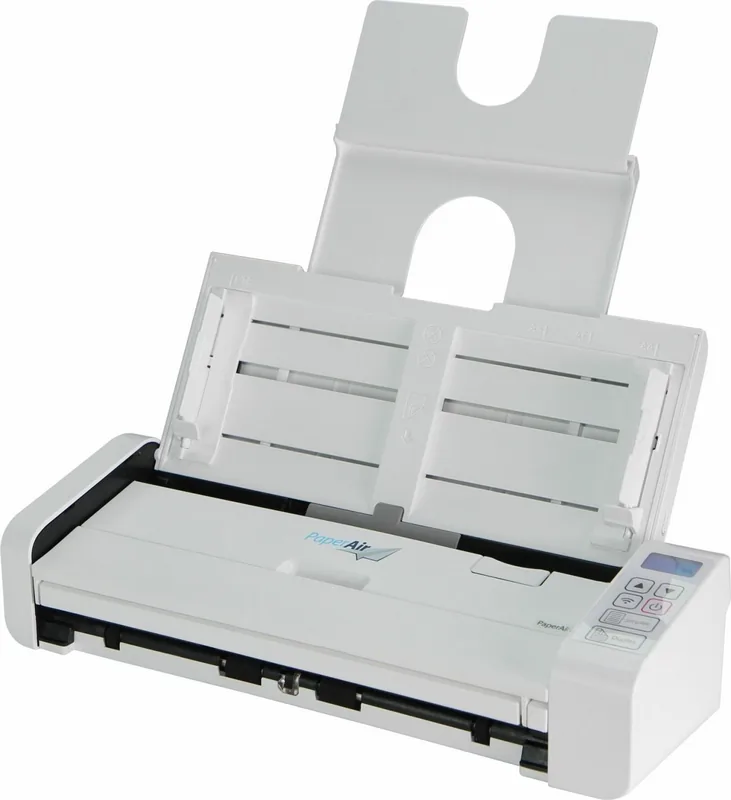
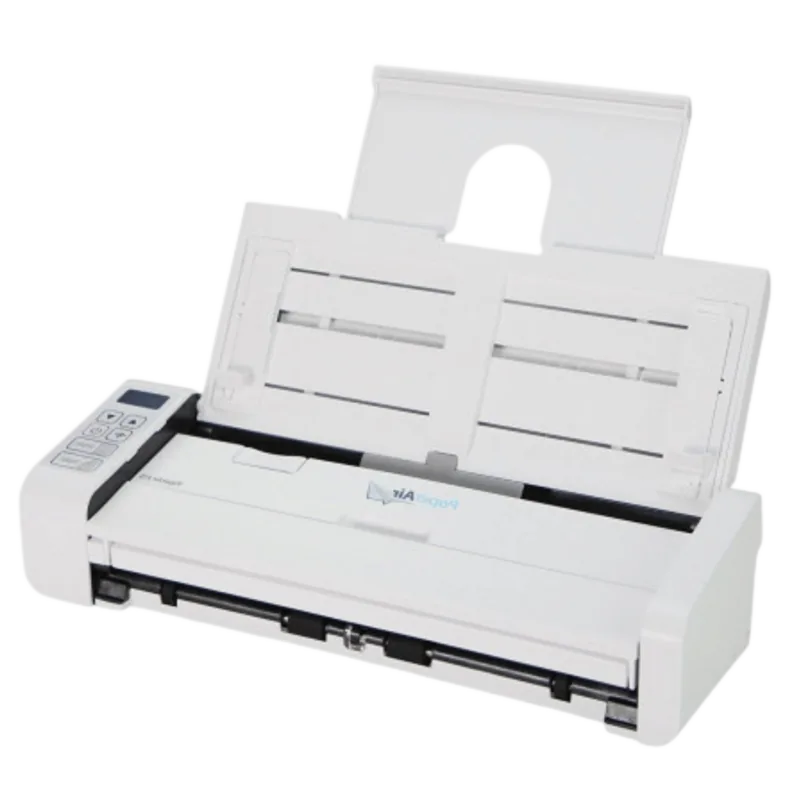
Avision PaperAir 215 Manual
PDF manual · 103 Pages
English



Quick check
Incorrect answer, please try again.
Chat with your Avision PaperAir 215 manual using AI
Get instant AI answers from your Avision PaperAir 215 manual
Ask anything about the Avision PaperAir 215. Answers come from this manual, with the pages they are based on.
PaperAir 215 Maintenance Schedule
Replace the separation pad when total scanned documents reach 30,000 pages to prevent paper jams.
Replace the feed rollers when total scanned documents reach 100,000 pages to ensure proper paper feeding.
Wipe the separation pad, rollers, and glass with the provided cleaning cloth; use isopropyl alcohol for better results.
Ask a Question
Do you recommend PaperAir 215?
Yes NoFrequently Asked Questions
Yes, the Avision PaperAir 215 features built-in Wi-Fi connectivity. You can use the mobile app on your smartphone or tablet to scan documents directly over the network without needing any USB cables connected to the scanner unit.
Is this answer helpful?
The automatic document feeder is designed to hold up to twenty standard sheets at one time. This allows for efficient batch processing of paperwork without needing to manually reload the input tray for every single item.
Is this answer helpful?
Yes, the bundled software allows for direct scanning into Microsoft Word, Excel, and PowerPoint formats. The optical character recognition engine recognizes text and stores it as editable content automatically after the capture process.
Is this answer helpful?
The scanner supports up to six hundred dots per inch optical resolution. This high detail setting ensures clear reproduction of small text or complex images, though system resources may be taxed at the highest quality levels.
Is this answer helpful?
Open the feeder cover and gently wipe the glass, separation pads, and rollers with a lint-free cloth. Adding a small amount of isopropyl alcohol can help remove stubborn debris effectively without damaging the components inside the scanner unit.
Is this answer helpful?
Yes, Avision has determined this product meets the ENERGY STAR guidelines for energy efficiency. This ensures reduced power consumption during idle periods and helps lower the environmental impact of your office equipment usage over time.
Is this answer helpful?
The device supports Windows ten, Windows eight, Windows seven, Windows Vista, and Windows XP service pack three. Ensure you install the driver software from the provided setup media to access all scanning features and management tools.
Is this answer helpful?
Advantages and Disadvantages
Advantages

- Compact and lightweight design allows for easy portability with laptops for office environments.
- Twenty-sheet automatic document feeder handles batch scanning efficiently without manual reloading.
- Built-in Wi-Fi module enables wireless scanning from mobile devices without physical cables.
- Advanced text recognition creates searchable PDF content quickly for data retrieval tasks.
- Dedicated Direct Scan buttons simplify repetitive workflows for specific destinations like email.
Disadvantages

- Auto crop and deskew functions are disabled when scanning at high sixty hundred dpi resolution limits.
- Specific paper weight limits apply to the feeder to prevent mechanical jams or errors during process.
- Full software features require a USB connection to the main computer system for configuration.
- Specific AC adapter must be used to avoid warranty void due to electrical safety standards.
- Network configuration for cloud storage can be complex requiring specific user permissions.
Product Specification
Type
mobile document scanner (CIS)
Resolution
600x600 dpi
Speed
20/20 pages/min (B/W/Color)
Paper/Film Format
A4
Media Input
20 Sheet ADF, Single sheet
Memory
64MB (RAM)
Connections
1x USB 3.0
Wireless
N/A
Power Consumption
24W (typical), 2.5W (standby), 0.3W (sleep)
Dimensions
11.77x2.91x4.09 in
Weight
3.09 lbs
Features
LED Illumination
Product Description
Experience Seamless Workflow with the Avision PaperAir 215
Managing physical paperwork in a modern office requires tools that are both efficient and portable. The Avision PaperAir 215 scanner stands out as a compact solution designed for professionals on the go. Its lightweight design allows users to easily transport it alongside a laptop, ensuring tasks can be completed anywhere without sacrificing performance. This device transforms static sheets into digital assets ready for immediate organization without bulky equipment.
One of the standout capabilities of this equipment is the twenty-sheet automatic feeder. This feature significantly boosts productivity by handling batch scanning without constant intervention. Users can simply place a stack of items and initiate the process using the front panel controls. Furthermore, connectivity options include Wi-Fi integration, enabling wireless scanning from tablets or smartphones through the dedicated mobile application. This flexibility removes the need for physical cables, streamlining the workflow in dynamic workspaces where mobility is key for daily operations.
Searchability is a crucial aspect of modern data management. By utilizing advanced text recognition technology, the accompanying software converts scanned images into searchable PDFs. This means text content becomes actionable data instantly within a local database. The included software suite also supports direct conversion to Microsoft Office formats like Word or Excel, facilitating easy editing after capture. Comprehensive management tools help organize records by tag or date, ensuring quick retrieval during audits or research projects. An LCD display on the unit provides real-time status updates during operation for better tracking.
The Direct Scan Mode simplifies complex tasks with dedicated buttons for common destinations. Users can assign custom profiles to send scans directly to email services or cloud storage folders with a single press. This streamlines repetitive workflows by removing the need to open software applications manually for every single task. Configuring these profiles in PaperAir Manager allows teams to standardize output formats across different departments.
Installation is straightforward with intuitive software wizards guiding the setup process. System requirements remain minimal, supporting various Windows operating systems with standard USB interfaces. Safety standards including ENERGY STAR and FCC compliance ensure reliable operation in residential and commercial settings. Built-in security features protect data before transmission over networks. For specific configuration details and troubleshooting steps, refer to the official Avision PaperAir 215 Manual for in-depth guidance on network settings and maintenance protocols.
Maintenance involves regular cleaning of glass and feed rollers to prevent streaks or jams. Replacing wear components like separation pads ensures longevity over hundreds of thousands of passes. Users should adhere to sheet weight specifications to avoid mechanical issues. Following these basic protocols keeps the device functioning optimally for years. Proper power adapter usage prevents electrical damage during long term storage conditions.
Important Notes
- Ensure the AC adapter provided is used to maintain warranty validity for the unit.
- Keep distance from radio interference sources during wireless operation to ensure stability.
- Backup settings profiles regularly for quick recovery on new systems or after resets.
- Use only approved cables to prevent electrical faults during connection phases.
Search for 67,706 Manuals online


Type-in Brand or Model