
Avision AV332 Manual
PDF manual · 131 Pages
English



Quick check
Incorrect answer, please try again.
Chat with your Avision AV332 manual using AI
Get instant AI answers from your Avision AV332 manual
Ask anything about the Avision AV332. Answers come from this manual, with the pages they are based on.
AV332 Maintenance Schedule
Wipe feeding and friction rollers with a cloth soaked in isopropyl alcohol (95%) if contaminated with ink, toner, or dust to ensure smooth paper feeding.
Open front cover and wipe glass and white area with a cloth dampened with isopropyl alcohol to remove dust or dirt.
Replace the friction roller after scanning approximately 100,000 pages if document feeding problems occur. Reset roller count after replacement.
Replace the main ADF roller after scanning approximately 200,000 pages if document feeding problems occur. Perform via authorized service center.
Ask a Question
Do you recommend AV332?
Yes NoFrequently Asked Questions
The supplied information lists Microsoft Windows 7, Windows 8, and Windows 10 in 32-bit and 64-bit versions. A USB 2.0 port is required, and the stated minimum system guidance includes an Intel Core 2 Duo processor or higher and 2 GB RAM for 32-bit systems or 4 GB for 64-bit systems.
Is this answer helpful?
The scanner driver package includes TWAIN, ISIS, and WIA support. TWAIN and WIA can be used through compatible image applications, while ISIS is intended for ISIS-compatible software. The Avision Capture Tool can also be used to verify installation and perform basic scanning.
Is this answer helpful?
The feeder is intended for material from 74 x 52 mm up to 216 x 356 mm. It supports paper weights from 50 to 413 g/m2, cards up to 1.25 mm thick, and ISO7810 ID-1 plastic cards. Material should be flat, dry, and free of staples, clips, sticky notes, tears, and folds.
Is this answer helpful?
Users can choose color, grayscale, or black-and-white output and adjust brightness, contrast, threshold, and resolution. Available resolution settings range from 75 to 600 dpi. The software also provides compression, color adjustment, background processing, despeckling, rotation, and cropping tools.
Is this answer helpful?
Multi-feed detection identifies overlapping sheets entering the feeder. When configured to stop after a multi-feed, the scanner pauses and alerts the user. This can reduce missed information caused by two sheets passing through together, especially in larger or mixed batches.
Is this answer helpful?
Disconnect power before cleaning. Use a cotton swab lightly moistened with 95 percent isopropyl alcohol to clean feeder rollers, the separation pad, the glass, and the white reference area. Do not use water or mild detergent inside the unit, and do not spray glass cleaner directly onto the glass.
Is this answer helpful?
Advantages and Disadvantages
Advantages

- Supports TWAIN, ISIS, and WIA drivers for broad compatibility with Windows scanning applications.
- Handles media from small cards to legal-size sheets, including cards up to 1.25 mm thick.
- Offers image tools such as auto crop, deskew, color dropout, background removal, and blank-page detection.
- Button Manager V2 enables one-touch scanning to configured software destinations.
- Multi-feed, barcode, and patch-code detection support organized batch workflows.
Disadvantages

- Windows support in the supplied guidance is limited to Windows 7, Windows 8, and Windows 10.
- Reliable results require regular cleaning of the feeder rollers, pad, and scanning glass.
- Some advanced functions vary by scanner configuration and may not be available on every model.
- High-resolution color capture increases scan time, memory use, and output size.
- Mixed media batches require careful preparation to reduce skew and feeding problems.
Product Specification
Type
Document scanner (CIS)
Resolution
600 x 600 dpi
Speed
40/32 ppm (B&W/color)
Paper/film format
A4
Paper/film feed
50-sheet DADF, duplex unit
Memory
128 MB (RAM)
Ports
1 x USB 2.0
Software
OCR software
Weight
5.29 lb
Features
LED illumination
Manufacturer warranty
2 years
Product Description
Avision AV332 - Read, Download & Print Free
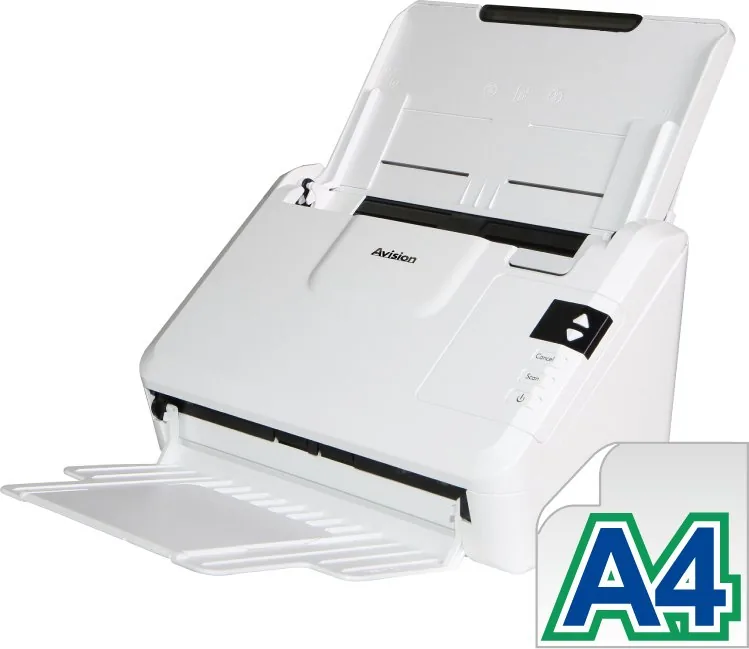
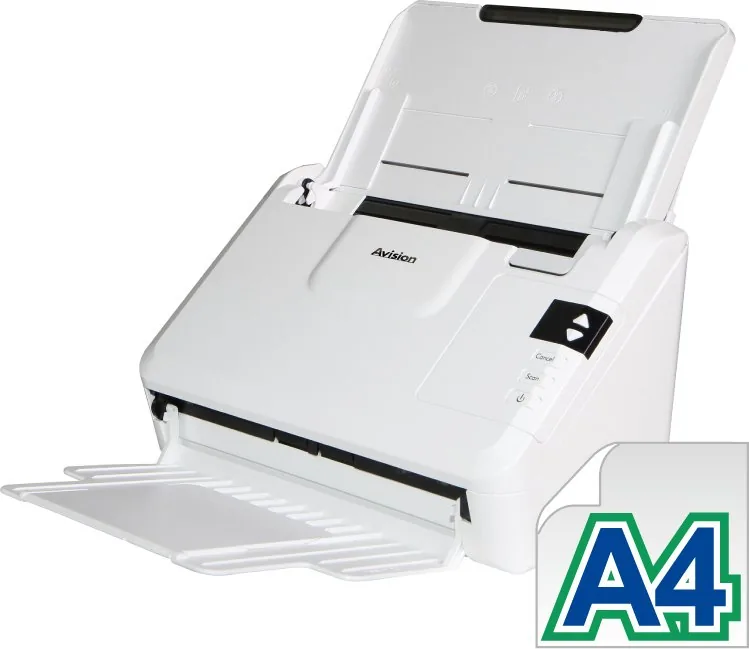
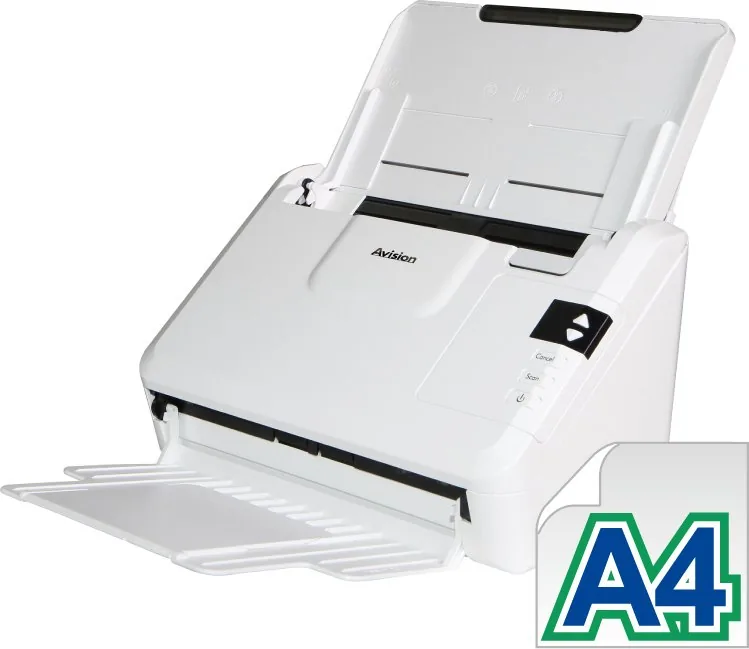
The Avision AV332 is a compact sheet-fed scanner designed for everyday capture tasks at home, in small offices, and in busy administrative environments. Built around an automatic document feeder, it helps users turn paper-based information into clear digital images with a straightforward workflow. The keyword Avision AV332 - Read, Download & Print Free highlights the practical appeal of finding guides, software resources, and setup information for this versatile scanner.
Designed for efficient daily scanning
The AV332 supports a wide range of media sizes, from small cards to legal-size sheets, with support for thicker cards up to 1.25 mm. Adjustable paper guides and expandable input and output trays help keep material aligned during operation. For mixed batches, the setup guidance recommends arranging larger sheets before smaller ones and heavier stock before lighter stock, helping reduce skew and feeding issues.
A simple front control panel includes power, scan, and cancel controls, along with an LCD display and up/down selection buttons. This makes it easier to choose configured scan destinations without repeatedly navigating through computer menus. With Button Manager V2, users can connect scanner buttons to preferred applications and workflows.
Flexible software and image controls
The included driver environment supports TWAIN, ISIS, and WIA interfaces for compatibility with many Windows-based scanning applications. AVScan X and Avision Capture Tool offer accessible ways to capture, review, organize, and save images. Supported Windows systems include Windows 7, Windows 8, and Windows 10, with USB 2.0 connectivity for a direct computer connection.
Image controls are extensive. Users can select color, grayscale, or black-and-white output; adjust brightness, contrast, threshold, and resolution; and choose settings from 75 to 600 dpi. Additional tools include automatic cropping, deskewing, color dropout, background processing, blank-page removal, hole-punch removal, despeckling, rotation, and image splitting. These options can help create cleaner results for archiving, sharing, or optical character recognition workflows.
Useful features for organized capture
The scanner also offers barcode and patch-code detection options for structured batch handling. Multi-feed detection can help identify overlapping sheets, while scan profiles let users save commonly used settings. JPEG and G4 compression choices provide a balance between image quality and storage efficiency.
Note: For reliable feeding, fan and align sheets before loading them, remove staples and sticky notes, and keep the rollers and glass clean. Use only the supplied power adapter and recommended replacement consumables.
The Avision AV332 is a practical choice for users who value flexible scan settings, button-driven convenience, and maintenance guidance that supports consistent everyday performance.
Search for 67,706 Manuals online


Type-in Brand or Model