
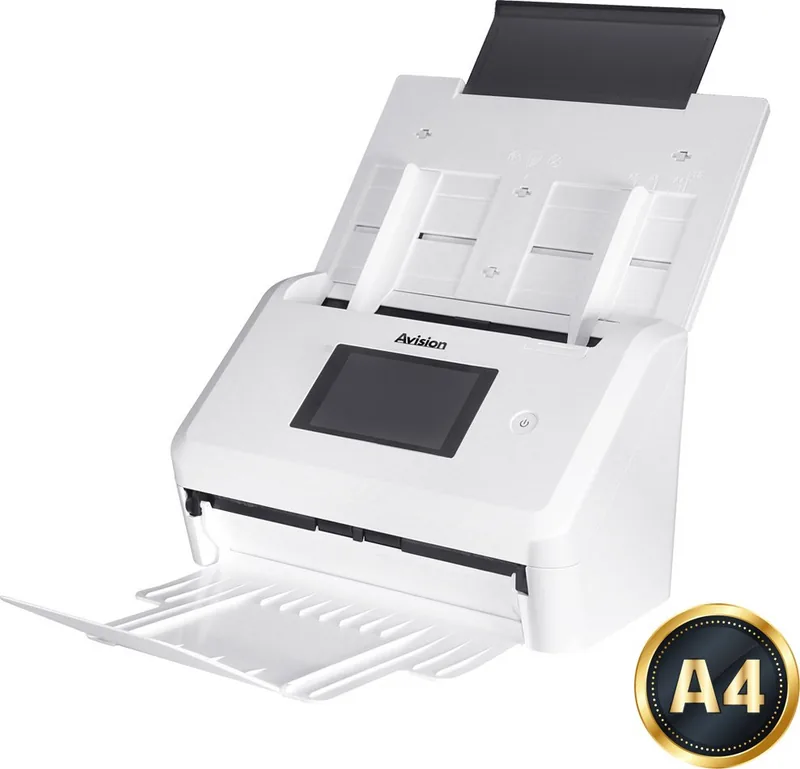
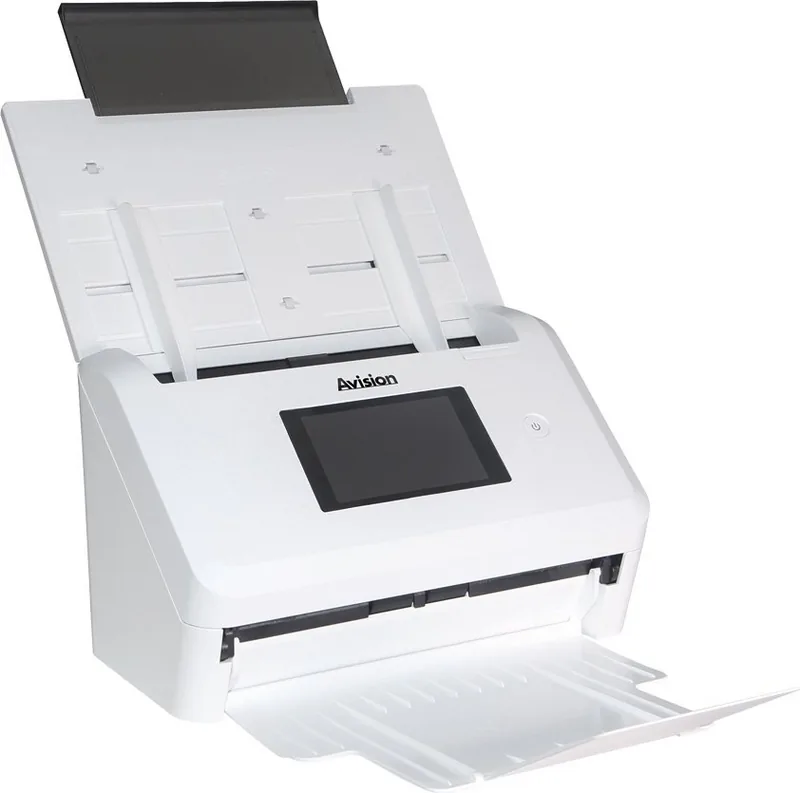
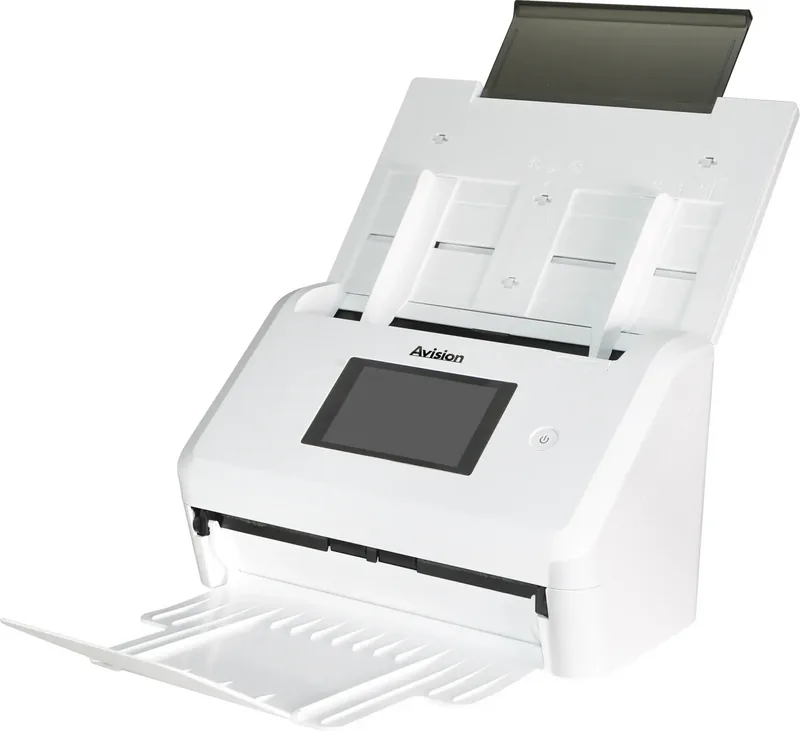
Avision AN335WL Manual
PDF manual · 187 Pages
English



Quick check
Incorrect answer, please try again.
Chat with your Avision AN335WL manual using AI
Get instant AI answers from your Avision AN335WL manual
Ask anything about the Avision AN335WL. Answers come from this manual, with the pages they are based on.
AN335WL Maintenance Schedule
Wipe feed rollers and glass with a cloth dampened with 95% isopropyl alcohol. Clean after first 4,000-5,000 scans, then weekly.
Wipe the monitor with a damp cloth followed by a dry cloth. Do not use liquid, household, or neutral cleaners.
If multi-feed detection fails, wipe dust from ultrasonic sensors using a cotton swab dampened with 95% isopropyl alcohol.
After scanning approx. 100,000 pages, replace the ADF pickup roller if document feeding issues occur. Reset the roller counter afterwards.
Ask a Question
Do you recommend AN335WL?
Yes NoFrequently Asked Questions
Yes, the Scancast function allows scanning a document and broadcasting the image to multiple targets like email addresses, cloud servers, or network folders in a single workflow for enhanced efficiency.
Is this answer helpful?
Absolutely, you can connect a USB flash drive to the device port and save scanned images directly onto the memory stick for immediate access without using a computer connection during the process.
Is this answer helpful?
You need to configure SMTP server settings using the web interface or touchscreen, ensuring the server IP and port are correct for sending files via email protocol securely.
Is this answer helpful?
Yes, it features automatic two-sided scanning to save paper and time by capturing both sides of a document in one pass through the automatic document feeder.
Is this answer helpful?
The system supports various formats including JPEG, PDF, TIFF, and PNG, allowing users to choose the best option based on their archiving or viewing requirements.
Is this answer helpful?
Yes, mobile apps enable wireless scanning from tablets and smartphones provided the device is connected to the same Wi-Fi network or Access Point mode is enabled.
Is this answer helpful?
Regular maintenance is recommended to prevent paper jams, specifically cleaning rollers when they show visible wear or when multi-feed detection issues frequently appear during operation.
Is this answer helpful?
Advantages and Disadvantages
Advantages

- Duplex scanning capability allows efficient two-sided document processing without manual flipping.
- Multiple cloud integration supports direct uploads to Google Drive and OneDrive servers.
- Network connectivity enables easy scanning to email, FTP, and SMB shared folders remotely.
- Touchscreen interface offers intuitive control over resolution and file format settings.
- LDAP authentication supports secure integration with corporate Active Directory environments.
Disadvantages

- Initial network configuration requires specific IP address and server details from administrators.
- Wireless scanning availability depends on specific model variants and regional settings.
- Default security settings may need adjustment for modern encrypted email protocols.
- Power supply unit is proprietary and must be used to prevent voiding the warranty.
- Firmware updates must be performed manually via USB drive on the device interface.
Product Specification
Type
Document Scanner (CIS)
Resolution
600x600 dpi
Speed
40/40 ppm (B/W/Color)
Paper/Film Format
A4
Paper/Film Input
50 Sheets DADF, Duplex Unit
Memory
2GB (RAM)
Connections
1x USB 3.0, 1x Gb LAN
Wireless
Wi-Fi 4 (Wireless 802.11b/g/n)
Display
Color, 4.3", Touchscreen
Software
OCR Software
Power Consumption
21W (typical), 10W (standby), 2.4W (sleep)
Dimensions
26.57" x 12.44" x 10.00"
Weight
6.83 lbs
Features
LED Lighting, Double Sheet Detection (Ultrasonic Sensor)
Manufacturer Warranty
2 Years
Product Description
Discover the Avision AN335WL Network Scanner Solution
Are you looking for a robust scanning solution? The Avision AN335WL delivers exceptional performance for modern office environments. This device transforms paper documents into digital assets seamlessly. Whether you need to email files or upload to cloud storage, this scanner handles it with ease. It supports Windows systems and integrates with standard TWAIN compatible software applications. Users appreciate the reliability it brings to daily tasks.
Seamless Network Integration
Connectivity is key for distributed teams. The Avision AN335WL connects via Ethernet or USB port. Users can scan directly to email addresses using SMTP servers. FTP and SMB protocols allow saving to network folders securely. Cloud integration supports Google Drive, SharePoint, and OneDrive effectively. This flexibility reduces steps in your workflow significantly. You can save scans locally or send them instantly to recipients. Users can consult the Avision AN335WL Manual for detailed configuration. Network parameters like IP addresses are easily configured through the web interface.
Speed and Efficiency
Duplex scanning is standard for speed. Scan both sides of a page automatically without flipping. The Automatic Document Feeder handles various paper sizes efficiently. Settings adjust for color, greyscale, or black and white outputs. Resolution options range from 150 to 600 dpi for precision. Higher settings ensure clarity for OCR processes and archiving. You can customize output formats like PDF or JPEG files. Batch scanning saves time on large document projects significantly. Pre-scan previews help identify errors before finalizing.
Security and Management
Security measures protect sensitive company data. LDAP authentication integrates seamlessly with Active Directory systems. User accounts can be limited by specific function permissions. Network security protocols like SSL ensure safe transmission. You can set scan goals with custom shortcuts for automation. This streamlines repetitive tasks for staff members daily. Reset functions allow administrators to restore defaults quickly if needed. Safety warnings prevent electrical hazards during setup procedures.
User Friendly Interface
Touchscreen controls simplify daily operation effectively. Language options include English, Spanish, and Chinese for global use. The LCD display shows status and progress clearly. Power saving modes reduce energy consumption during idle times automatically. Cleaning and maintenance are straightforward following safety guidelines provided. Always use the provided power supply to prevent hardware damage risks. This scanner is reliable for daily high volume tasks in professional settings. Wi-Fi connectivity options offer wireless scanning capabilities too. Mobile apps allow remote initiation from tablets or smartphones easily.
Search for 67,706 Manuals online


Type-in Brand or Model