
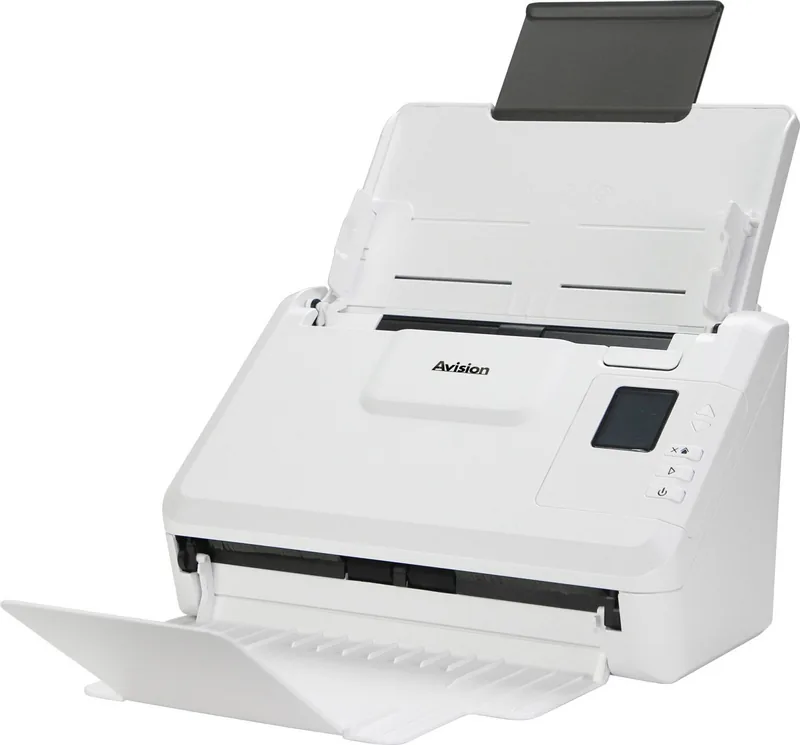
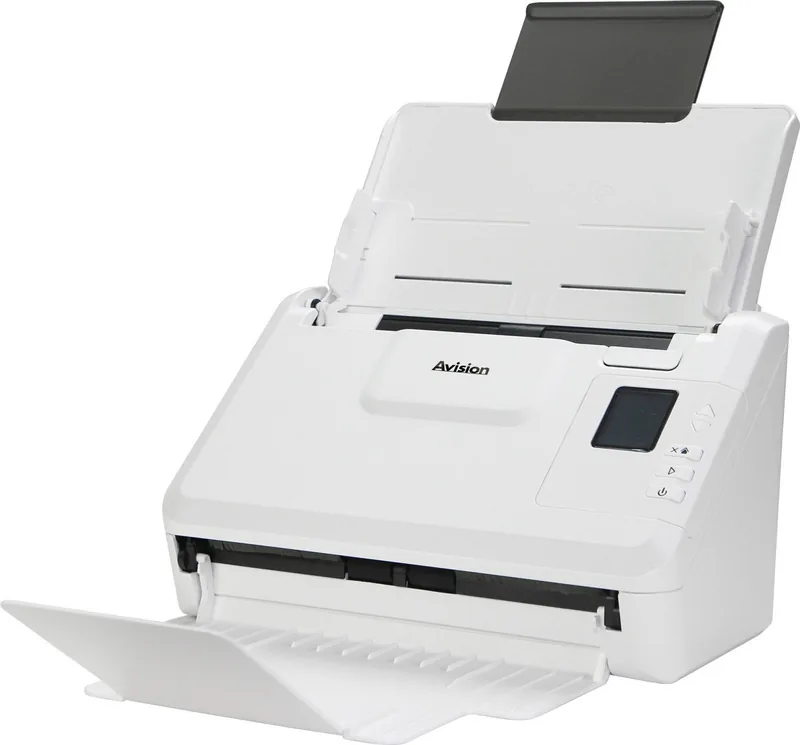
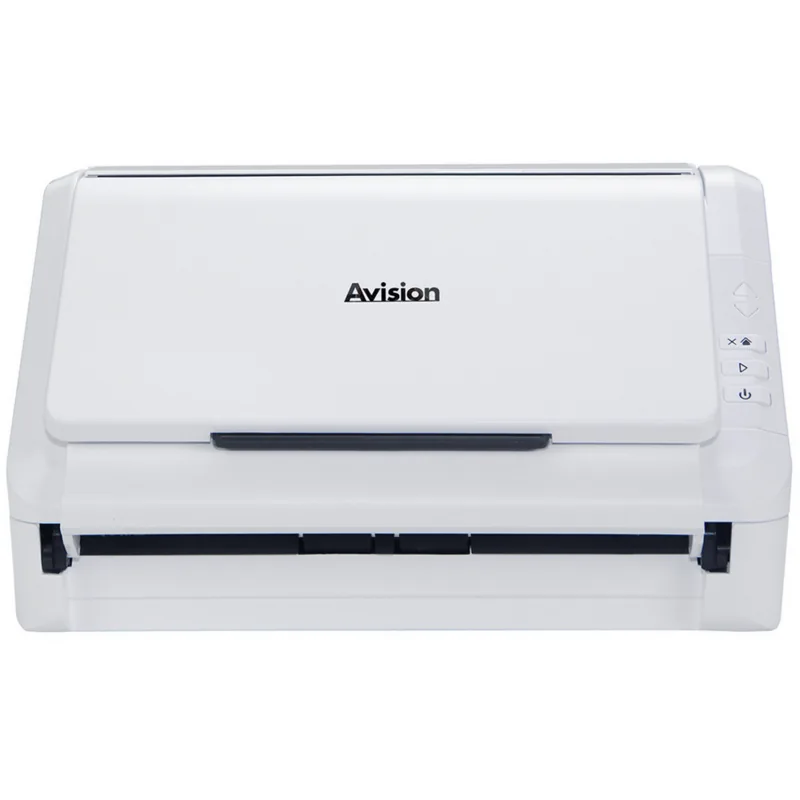
Avision AD340GN Manual
PDF manual · 176 Pages
English



Quick check
Incorrect answer, please try again.
Chat with your Avision AD340GN manual using AI
Get instant AI answers from your Avision AD340GN manual
Ask anything about the Avision AD340GN. Answers come from this manual, with the pages they are based on.
AD340GN Maintenance Schedule
Use a cotton swab with 95% isopropyl alcohol to wipe the rollers and separation pad. Clean when ink residue or paper dust causes feeding issues.
Wipe the friction roller surface gently with a cloth dampened with 95% isopropyl alcohol. Avoid scratching the surface or getting excess alcohol on the foam core.
If vertical stripes appear in scans, clean the glass and white area with a cotton swab and 95% isopropyl alcohol. Do not spray cleaner directly on the glass.
If the scanner fails to detect multiple feeds, clean the ultrasonic sensor surfaces with a cotton swab and 95% isopropyl alcohol to remove dust.
Replace the ADF friction roller after scanning approximately 100,000 pages if document feeding problems occur due to wear.
Ask a Question
Do you recommend AD340GN?
Yes NoFrequently Asked Questions
Connect an Ethernet cable to the LAN port on the rear. Ensure the Virtual Scanner Link software is installed to search for the device on your local network.
Is this answer helpful?
The unit works with Microsoft Windows 7, 8, and 10 in both 32-bit and 64-bit versions for stable driver communication.
Is this answer helpful?
Yes. Insert a flash drive into the rear USB port and select Scan to USB from the control screen interface.
Is this answer helpful?
Clean rollers periodically when ink, toner, or dust affects feeding. Use isopropyl alcohol on a clean cloth for maintenance.
Is this answer helpful?
Use only the included AC adapter. Do not use other cords as they may cause electrical shock or fire hazards.
Is this answer helpful?
Yes. Install the app on iOS or Android and connect via Wi-Fi Direct or Client mode access points.
Is this answer helpful?
Advantages and Disadvantages
Advantages

- Automatic sheet feeder reduces manual labor significantly for bulk tasks
- Supports multiple interfaces including USB and network connectivity
- Duplex scanning captures both sides of items in one pass
- Dedicated software helps manage settings and automated workflows
- Energy saving modes reduce consumption during idle periods
Disadvantages

- Requires specific power adapter to prevent component damage
- Rollers may wear out necessitating service center replacement
- Cannot use USB and LAN modes simultaneously on connections
- Sensitivity to dust or toner particles affects feeding reliability
- Maximum length limits apply to certain scanning configurations
Product Specification
Type
Document scanner (CIS)
Resolution
600x600 dpi
Speed
40/40 ppm (BW/Color)
Paper/Film Format
A4
Paper/Film Feeder
50 pages DADF, Duplex Unit
Memory
512MB (RAM)
Connections
1x USB 3.0, 1x Gb LAN
Display
monochrome
Software
OCR Software
Power Consumption
17W (typical), 6W (standby), 1.9W (sleep)
Dimensions
11.10x6.50x5.98 inches
Weight
5.51 lbs
Features
LED Lighting, Double-sheet detection (Ultrasonic sensor)
Product Description
Unlocking Productivity with the Avision AD340GN
Managing bulk tasks efficiently is crucial for workflows. The Avision AD340GN stands out as a robust solution for those needing high-volume capture without sacrificing quality or speed. This device empowers users to digitize large quantities of material seamlessly. By integrating advanced features, it simplifies the journey from physical media to digital formats. Understanding the capabilities outlined in the Avision AD340GN Manual ensures maximum utilization of the hardware potential.
The machine utilizes an automatic sheet feeder to handle stacks of items continuously. This feature significantly reduces manual effort compared to traditional single-sheet methods. Users can adjust guides to accommodate various widths, minimizing alignment issues. The unit connects via USB or network interfaces, offering flexibility in different office environments. Wireless options allow scanning directly to mobile devices through dedicated applications. Such connectivity enhances remote work capabilities significantly. The feeder handles standard sizes from compact notes to expansive legal sheets easily.
Image quality remains a top priority during the configuration process. Options include black and white, grayscale, and color modes. High-resolution settings ensure clarity for text and graphics alike. Compression tools help manage storage space after capturing. Software suites accompany the hardware, allowing batch processing and electronic transfer. The Button Manager application simplifies one-touch operations by storing frequent settings. Users can save work directly to a USB drive for portability.
Maintenance is straightforward with regular cleaning protocols. The rollers require periodic attention to avoid blockages and ensure smooth feeding. Using the correct power adapter is vital for safety and performance. Overheating or incorrect electrical connections can damage internal components. Adhering to setup guidelines prevents interference with other electronic equipment in the vicinity. Energy-saving modes activate after periods of inactivity to reduce consumption. Disposal of waste equipment ensures ecological responsibility.
System requirements specify modern software platforms for best compatibility. Windows 7, 8, and 10 are supported for stable operation. Drivers facilitate communication between the computer and the scanner interface. Duplex scanning allows capturing both sides of an item in one pass. This efficiency doubles throughput while reducing manual handling time. Warranty information covers standard defects but does not cover misuse or damage. Contact dealers for support questions regarding performance issues.
Ultimately, this equipment serves as a reliable partner for archival and records entry. Whether for small business or library projects, capacity matters. The interface design prioritizes user feedback through a clear LCD screen. Status indicators keep operators informed of connection states and error messages. Investing time in learning the system yields faster results over time. This guide provides comprehensive instructions for unpacking, installing, and operating the device effectively. With proper care, longevity extends beyond initial expectations.
Search for 67,706 Manuals online


Type-in Brand or Model