
Avision AD250F Manual
PDF manual · 138 Pages
English



Quick check
Incorrect answer, please try again.
Chat with your Avision AD250F manual using AI
Get instant AI answers from your Avision AD250F manual
Ask anything about the Avision AD250F. Answers come from this manual, with the pages they are based on.
AD250F Maintenance Schedule
Dampen a cotton swab with 95% isopropyl alcohol. Open the ADF and document cover, then wipe the flatbed and ADF glass with side-to-side motions.
Dampen a clean cloth with 95% isopropyl alcohol. Press the ADF release button, open the front flap, and wipe and rotate the roller until dust is removed.
Open the front ADF cover carefully. Dampen a lint-free cloth or cotton swab with 95% isopropyl alcohol and wipe the glass and white area from side to side.
Ask a Question
Do you recommend AD250F?
Yes NoFrequently Asked Questions
The Avision AD250F can scan documents up to 216 x 356 mm or 8.5 x 14 inches. This accommodates standard letter legal and A4 sizes perfectly for office use.
Is this answer helpful?
Wipe the flatbed glass with a soft lint free cloth and isopropyl alcohol. Clean ADF rollers by pressing the release button and wiping them gently to remove dust and toner.
Is this answer helpful?
The scanner supports TWAIN, ISIS, and WIA drivers. This ensures compatibility with a wide range of image editing applications and operating systems like Windows XP through 10.
Is this answer helpful?
Press the ADF release button on the right, gently open the front door, and carefully pull out the jammed paper. Close the door once the paper is removed.
Is this answer helpful?
Yes, models with duplex capability allow scanning both sides. Use the scanner properties dialog box to select front and rear image settings for automatic double sided output.
Is this answer helpful?
The auto document feeder holds up to 100 pages of standard 75 g/m2 paper. This allows large batch scanning without frequent interruptions.
Is this answer helpful?
Yes, it supports long pages up to 118 inches. Select Long Page in the software settings and secure the extension for proper paper feeding.
Is this answer helpful?
Advantages and Disadvantages
Advantages

- High speed scanning with 600 dpi optical resolution ensures crisp document archiving for all business needs.
- Supports both ADF and flatbed scanning for flexible document handling of various page counts and sizes.
- Compatible drivers TWAIN ISIS and WIA allow integration with most standard image editing and management software applications.
Disadvantages

- Transport lock mechanism must be unlocked before use or the scanner will make noise and refuse to scan.
- Cleaning rollers requires alcohol and access to internal ADF components which may be difficult for some users.
- Power supply must use the specific adapter provided to avoid voiding warranties or causing electrical shocks.
Product Specification
Type
Document Scanner (CCD)
Resolution
600x600 dpi
Speed
80/80 ppm (BW/Color)
Paper/Film Format
A4
Paper/Film Feeder
100 Page DADF, Duplex Unit
Memory
256MB (RAM)
Connections
1x USB 2.0
Wireless
N/A
Display
Monochrome
Software
OCR Software
Power Consumption
43W (typical), 13W (standby), 1.7W (sleep)
Dimensions
12.72x12.99x31.85 in
Weight
20.06 lbs
Features
LED Lighting
Product Description
Welcome to the Avision AD250F Document Scanner
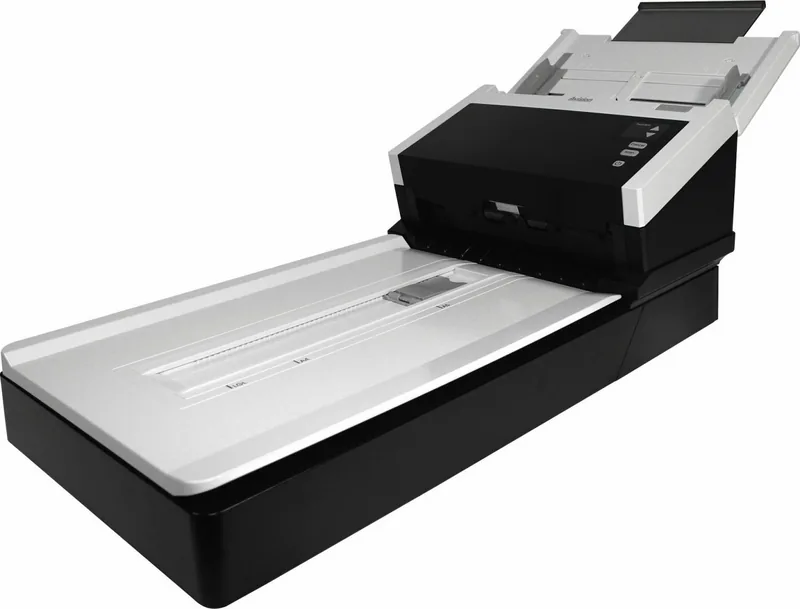
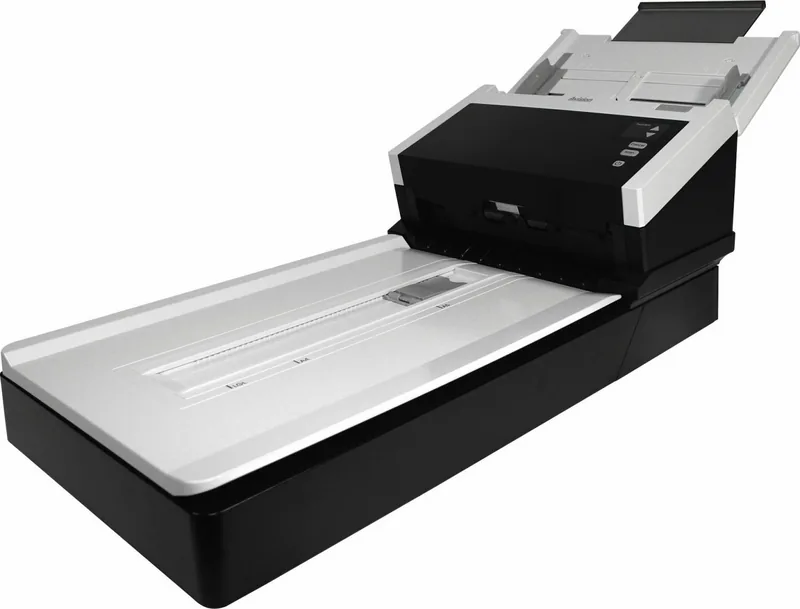
The Avision AD250F stands as a robust high speed document image scanner engineered for professional office environments and high volume processing needs. Whether you need to process multi page documents quickly from the auto document feeder or scan single irregular pages carefully from the flatbed platen, this device handles both tasks with exceptional precision and speed. This overview draws significantly from the Avision AD250F Manual to guide you through its diverse capabilities and technical specifications.
Performance and Optical Specifications
Equipped with a high optical resolution of 600 dpi, the scanner ensures crisp imaging for all your important digital archiving and storage needs. It operates via a reliable Hi-speed USB 2.0 interface, ensuring fast data transfer to your connected computer system. The system requires minimal computing resources, supporting operating systems ranging from Windows XP Service Pack 3 through Windows 10 with both 32 or 64 bit architecture options available. Memory requirements are modest, ranging from 2 GB for 32 bit systems to 4 GB for 64 bit setups. The auto document feeder can hold up to 100 pages of standard 75 g/m2 paper, streamlining large batch scanning tasks significantly without constant reloading interruptions.
Advanced Software and Connectivity
Drivers include full TWAIN, ISIS, and WIA standards, allowing broad compatibility with a vast array of image editing, document management, and accounting software applications. The included Avision Capture Tool helps verify installation correctness and test scanning functions immediately after setup. Users can customize scans extensively using the Scanner Properties dialog box featuring tabs for Image settings, Paper preferences, and Compression options. This allows fine tuning of brightness levels, contrast ratios, resolution values, and color dropout for advanced OCR applications. Additional features like color matching, shadow removal, and despeckling ensure high quality output even from difficult originals.
Physical Design and Maintenance
Regular maintenance ensures optimal longevity and performance over time. The system advises cleaning the flatbed glass and ADF rollers using high percentage isopropyl alcohol to remove dust, toner particles, and paper fibers effectively. Safety warnings emphasize using only the included AC power adapter to prevent electrical shock or fire hazards effectively. Placement must be on stable surfaces to prevent tipping accidents. The device complies with FCC Part 15 class A limits and European Union directives for energy efficiency and safety standards.
Installation and Safety Guide
Installation involves unlocking the scan unit transport lock before operation to prevent damage. Users should place the device near an electrical outlet for easy unplugging. The device must be kept out of direct sunlight and humid environments. If jams occur, users should open the front door and carefully pull paper out. For cleaning, access the ADF release button. This comprehensive Avision AD250F Manual provides step by step instructions for unpacking, driver installation, and daily operation. It is a robust solution for offices requiring high volume scanning with detailed image control and reliable hardware performance.
Search for 67,706 Manuals online


Type-in Brand or Model