
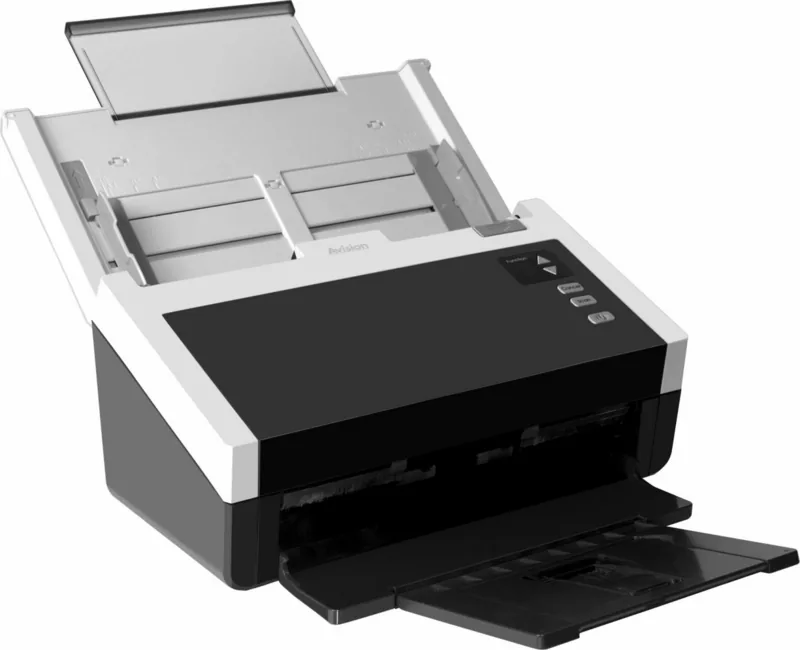
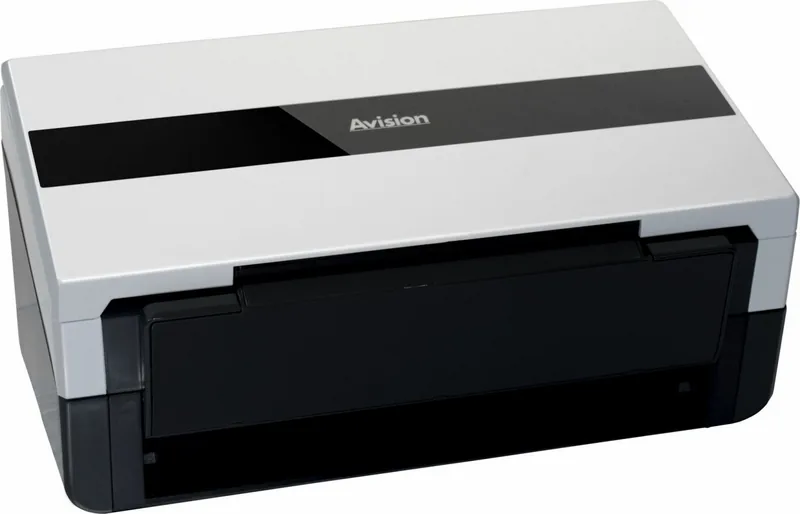
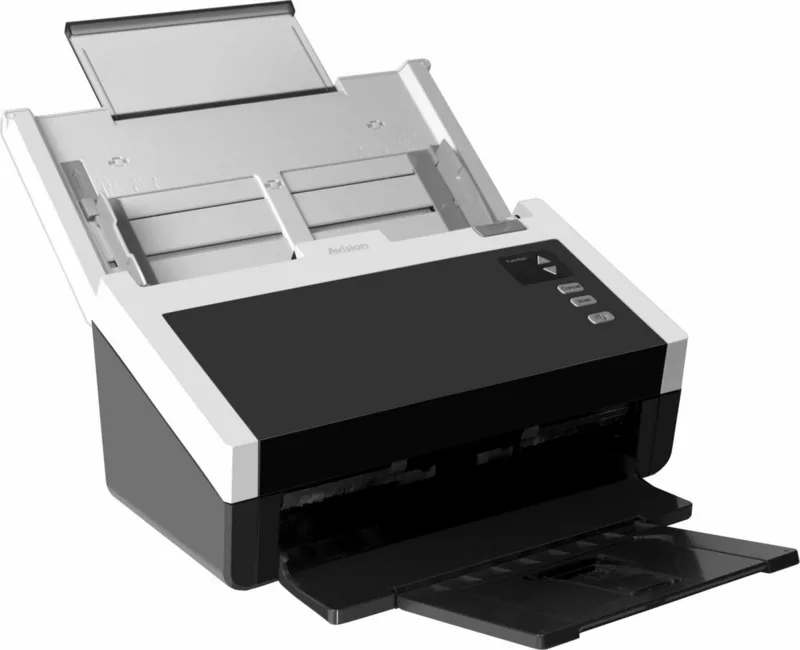
Avision AD250 Manual
PDF manual · 132 Pages
English



Quick check
Incorrect answer, please try again.
Chat with your Avision AD250 manual using AI
Get instant AI answers from your Avision AD250 manual
Ask anything about the Avision AD250. Answers come from this manual, with the pages they are based on.
AD250 Maintenance Schedule
Soak a clean cloth in 95% isopropyl alcohol and wipe the friction and feed rollers to remove ink, toner, or paper dust.
Moisten a lint-free cloth with 95% isopropyl alcohol and wipe the glass and white area from side to side.
Ask a Question
Do you recommend AD250?
Yes NoFrequently Asked Questions
It supports documents from 50 x 50 mm to 216 x 356 mm, paper from 27 to 413 g/m2, cards up to 1.25 mm thick, and ISO7810 ID-1 plastic cards. Pages should be in good condition and free of staples, clips, wet ink, and sticky notes.
Is this answer helpful?
The listed system requirements support Microsoft Windows 7, Windows 8, and Windows 10 in 32-bit and 64-bit versions. The computer should have an Intel Core 2 Duo or higher processor, at least 2 GB RAM for 32-bit systems or 4 GB for 64-bit systems, and a USB port.
Is this answer helpful?
Yes. Install the scanner driver first, then connect the scanner to the computer by USB. The supplied driver package includes TWAIN, ISIS, and WIA interfaces for use with compatible scanning software.
Is this answer helpful?
Fan the pages before loading them, align their edges, adjust the paper guides so they lightly touch the stack, and arrange mixed batches from large to small. For pages of equal size but different weights, place heavier pages before lighter ones.
Is this answer helpful?
Yes. The available controls include color dropout, background processing, hole-punch removal, despeckling, line removal, threshold adjustment, and automatic orientation. These options can help remove form colors, marks, background noise, and other elements that may reduce OCR clarity.
Is this answer helpful?
Clean the ADF rollers and scanning glass regularly with a clean lint-free cloth lightly moistened with 95% isopropyl alcohol. Replace the reverse roller after about 100,000 pages and the ADF roller after about 200,000 pages, or sooner if feeding problems occur.
Is this answer helpful?
Advantages and Disadvantages
Advantages

- Supports varied media, including small paper, Legal-size pages, thick cards, and ISO7810 ID-1 plastic cards.
- TWAIN, ISIS, and WIA driver support offers broad compatibility with Windows scanning applications.
- Image tools include auto crop, deskew, color dropout, background removal, OCR-focused cleanup, and barcode detection.
- One-touch scanning with Button Manager V2 and saved profiles can simplify repeated workflows.
- Multi-feed detection and adjustable paper handling help improve reliability with mixed document batches.
Disadvantages

- Windows support listed in the source is limited to Windows 7, Windows 8, and Windows 10.
- High-resolution color scanning creates larger files and may take longer to complete.
- Some advanced functions, such as carrier-sheet support or certain detection options, vary by scanner configuration.
- Rollers require periodic cleaning and replacement after substantial use to maintain feed performance.
Product Specification
Type
Document scanner (CCD)
Resolution
600 x 600 dpi
Speed
80/80 ppm (B&W/color)
Paper/film format
A4
Paper/film feed
100-sheet DADF, duplex unit
Connections
1 x USB 3.0
Software
OCR software
Power consumption
43 W (typical), 13 W (standby), 1.7 W (sleep)
Dimensions
12.44 x 7.52 x 6.61 in
Weight
10.14 lb
Special features
LED lighting
Product Description
Avision AD250 Manual: A Practical Guide to Fast, Flexible Scanning
The Avision AD250 is a compact sheet-fed scanner designed for busy offices, home workspaces, and teams that need a dependable way to capture paper records, receipts, cards, and mixed document stacks. This Avision AD250 Manual overview highlights the scanner's practical controls, adaptable paper handling, and software features that help turn everyday scanning into a more organized workflow.
Designed for Everyday Paper Handling
The automatic document feeder supports a broad range of media, from small 50 x 50 mm slips to Legal-size pages up to 216 x 356 mm. It also handles paper weights from 27 to 413 g/m2, cards up to 1.25 mm thick, and ISO7810 ID-1 plastic cards. Adjustable paper guides, an extendable input tray, an output tray, and a paper stopper help keep pages aligned during scanning.
For thin paper, the output arrangement can be adjusted to a flatter position to reduce curling and stacking issues. When scanning mixed batches, arranging pages from larger to smaller and heavier to lighter helps maintain reliable feeding. The Avision AD250 also includes multi-feed detection options to help identify overlapping pages before an important scan batch is compromised.
Flexible Software and Image Controls
The Avision AD250 Manual describes support for TWAIN, ISIS, and WIA drivers, allowing the scanner to work with many compatible Windows applications. Avision Capture Tool can be used to confirm installation, test scans, select output formats, and review results. Button Manager V2 adds one-touch workflows from the scanner control panel, making it easier to send scans to configured destinations.
Image settings provide substantial control over output. Users can choose color, grayscale, or black-and-white modes; adjust brightness, contrast, threshold, and resolution; and select resolutions from 75 to 600 dpi. Automatic color detection can separate color pages from monochrome pages in mixed batches, while auto crop and deskew features help produce cleaner, more consistent images.
Useful Enhancements for Organized Results
Advanced options include color dropout for removing red, green, blue, or custom colors, which can improve OCR readability on forms. Background processing, hole-punch removal, despeckling, line removal, blank-page removal, barcode recognition, and patch-code detection offer tools for refining images and separating larger batches. Saved scan profiles make repeat jobs faster by preserving frequently used settings.
Notes
- Install the scanner driver before connecting the USB cable to the computer.
- The scanner supports Windows 7, Windows 8, and Windows 10 in 32-bit or 64-bit environments.
- Use the supplied power adapter and cables for safe, reliable operation.
- Regular cleaning of the ADF rollers and glass helps prevent feeding errors and preserves image quality.
Search for 67,706 Manuals online


Type-in Brand or Model