
Avision AD240 Manual
PDF manual · 133 Pages
English



Quick check
Incorrect answer, please try again.
Chat with your Avision AD240 manual using AI
Get instant AI answers from your Avision AD240 manual
Ask anything about the Avision AD240. Answers come from this manual, with the pages they are based on.
AD240 Maintenance Schedule
Replace the reverse roller after approximately 100,000 pages scanned through the ADF to prevent document-feeding problems.
Replace the ADF roller after approximately 200,000 pages scanned through the ADF to prevent document-feeding problems.
Ask a Question
Do you recommend AD240?
Yes NoVideo Manual
How to scan multiple page in avision scanner
Frequently Asked Questions
Connect the USB cable after installing the driver software from the provided media. Ensure the system recognizes the new hardware before starting scans.
Is this answer helpful?
The device supports documents up to 216 by 356 mm for the feeder. This covers standard letter and legal sizes comfortably.
Is this answer helpful?
The FL-1313B model supports duplex scanning automatically. The FB1406B requires flipping manually.
Is this answer helpful?
Use a cloth dampened with isopropyl alcohol to wipe the rubber rollers gently. Do this when scanning performance declines.
Is this answer helpful?
It works with Windows XP through Windows 10 versions and bit depths. Mac support may require additional driver configuration.
Is this answer helpful?
Yes, color drop out and binarization settings enhance text recognition software accuracy for better results.
Is this answer helpful?
Open the ADF cover and gently pull the paper out. Close the cover and restart the scan process to resume workflow.
Is this answer helpful?
Advantages and Disadvantages
Advantages

- High resolution up to 600 dpi for crisp text and images.
- Automatic Document Feeder handles up to 100 sheets for batch processing.
- Supports multiple interface drivers like TWAIN, WIA, and ISIS for broad compatibility.
- Advanced color drop out improves readability of scanned documents.
- Multi-feed detection prevents paper jams and ensures single page scanning.
Disadvantages

- USB 2.0 interface may result in slower transfer speeds compared to modern standards.
- ADF rollers require regular cleaning to maintain optimal feeding performance.
- Paper jam issues can occur if documents are wrinkled or clipped improperly.
- Limited color profile management compared to high-end commercial scanners.
- Noise levels may be audible during high-speed scanning sessions.
Product Specification
Type
Document Scanner (CCD)
Resolution
600 x 600 dpi
Speed
40/40 ppm (B&W/Color)
Paper/Film Format
A4
Paper/Film Input
80-sheet DADF, Duplex Unit
Memory
128MB (RAM)
Ports
1x USB 2.0
Wireless
N/A
Software
OCR Software
Power Consumption
24W (typical), 7.5W (standby), 2.5W (sleep)
Dimensions
12.44 x 6.61 x 7.52 in
Weight
9.26 lbs
Features
LED Lighting
Product Description
Unlocking Document Efficiency with the Avision AD240
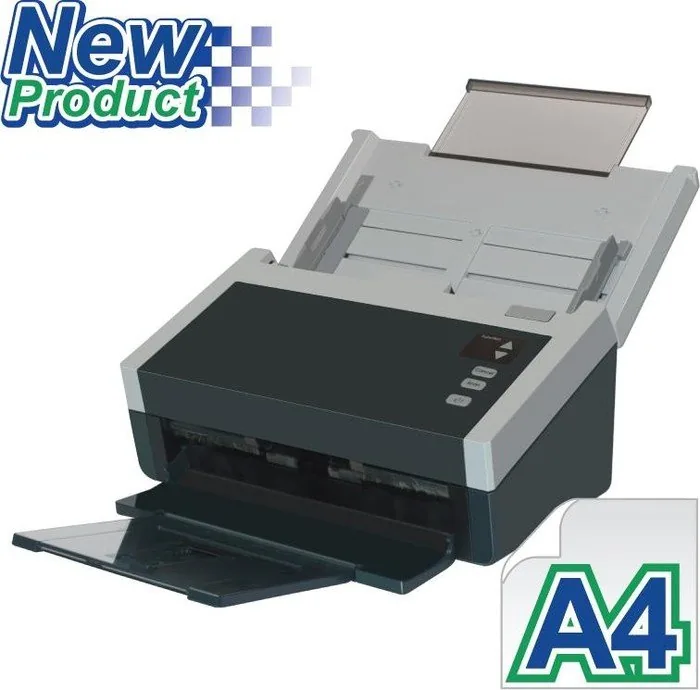
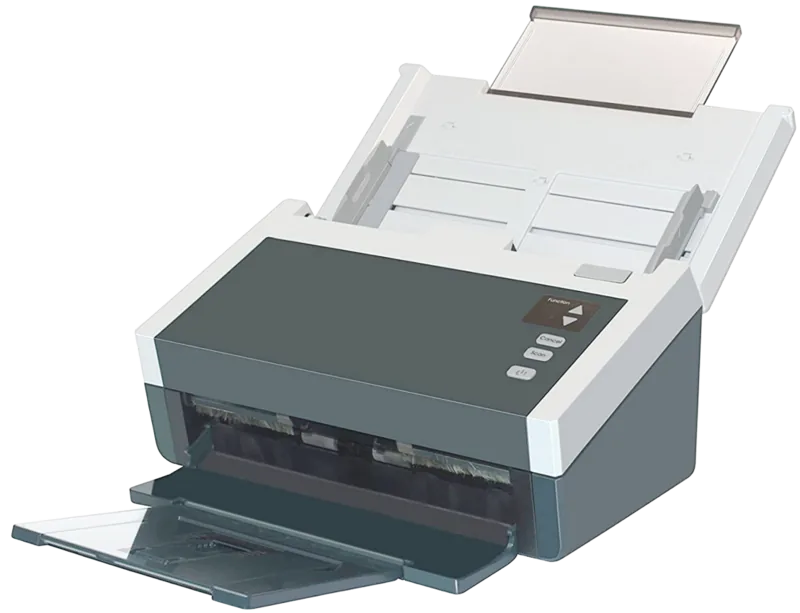
Managing a high volume of documents requires reliable hardware that keeps pace with daily workflows. The Avision AD240 stands out as a robust solution designed for both home offices and professional settings. Whether processing invoices, legal contracts, or archival photos, this scanner delivers consistent performance. Users often reference the Avision AD240 Manual to understand the full potential of its advanced features, ensuring optimal configuration for their specific needs. It is critical for users to familiarize themselves with the interface to maximize the utility of the machine for their specific tasks.
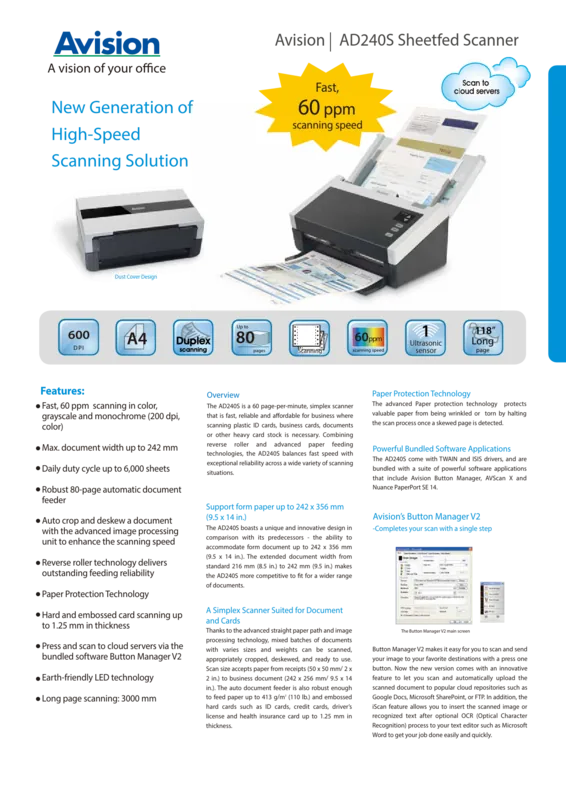
The hardware specification supports high-resolution scanning up to 600 dpi, which is essential for clear reproduction of text and fine details. The Automatic Document Feeder holds up to one hundred sheets, significantly reducing the need for manual handling. This feature streamlines batch processing, allowing uninterrupted scanning sessions. The dual sided scanning capability on the duplex model ensures that every page is captured efficiently without flipping documents repeatedly. This saves time and reduces wear on materials during transfer.
Software integration is seamless with multiple drivers including TWAIN, WIA, and ISIS. This flexibility allows compatibility with various image editing and management programs. Button Manager V2 adds another layer of convenience by assigning specific tasks to physical buttons on the device. Users can map scans directly to email clients or folders, reducing the time spent on data organization. Color Drop Out technology helps enhance text clarity by removing background colors, making OCR processing more accurate.
Maintenance features are intuitive and built for longevity. The unit includes sensors to prevent paper jams and alerts users when maintenance is required. Cleaning the rollers periodically ensures smooth operation over the lifespan of the product. The device connects via USB 2.0 and works across a wide range of Windows operating systems. Power saving modes help reduce energy consumption when the equipment is idle.
For smaller or fragile items, the scanner supports scanning cards and documents using a carrier sheet. This prevents damage to unique items that might get stuck in standard feeds. The ability to adjust paper guides ensures alignment for various sizes from business cards to large ledgers. Users can customize settings like contrast, brightness, and binarization directly from the control panel software. This control over image quality ensures that digital copies meet professional standards. Overfeed detection helps prevent multiple sheets from entering at once. The system also allows for specific paper weights, accommodating heavy cardstock.
Search for 67,706 Manuals online


Type-in Brand or Model