
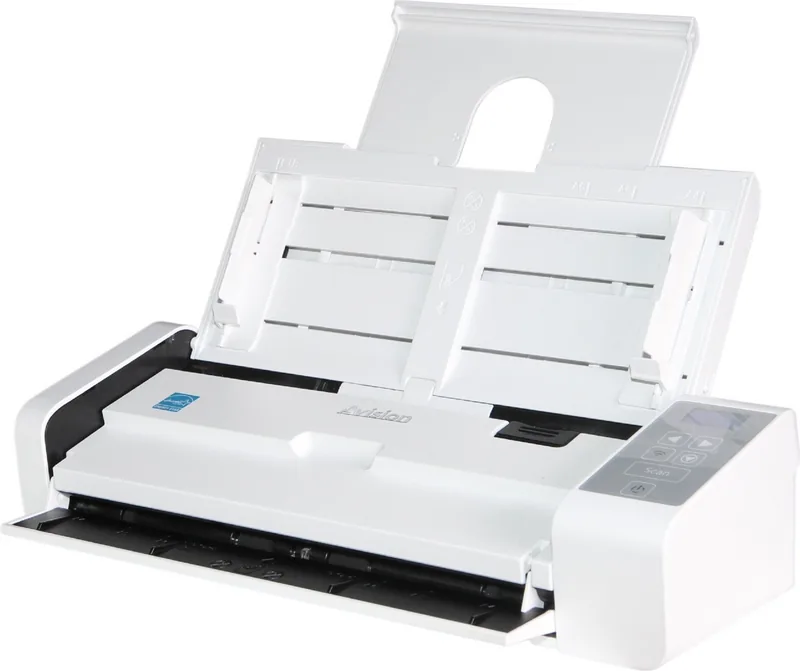
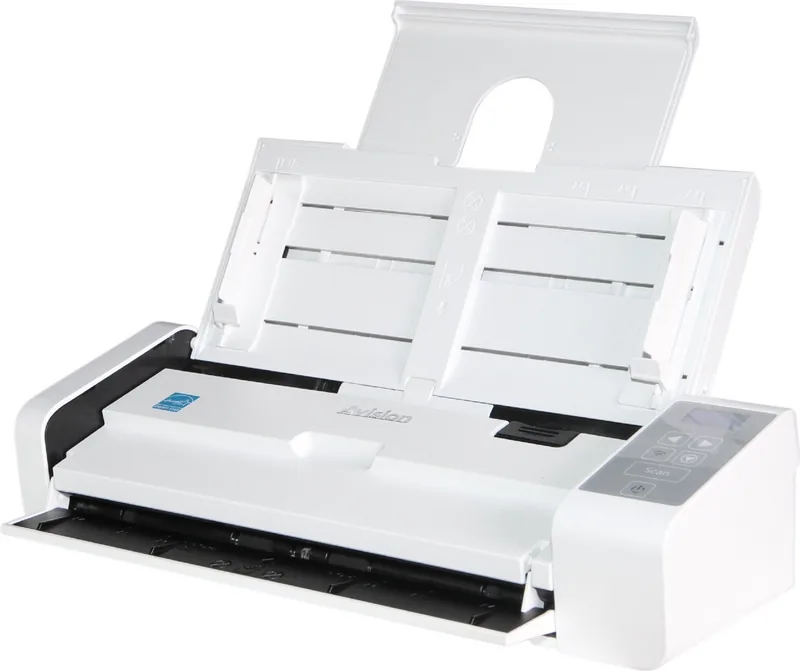
Avision AD225WN Manual
PDF manual · 179 Pages
English



Quick check
Incorrect answer, please try again.
Chat with your Avision AD225WN manual using AI
Get instant AI answers from your Avision AD225WN manual
Ask anything about the Avision AD225WN. Answers come from this manual, with the pages they are based on.
AD225WN Maintenance Schedule
Wipe the separation pad, rollers, and glass with a cleaning cloth. Use isopropyl alcohol (95%) for more efficient roller cleaning.
Consumables must be replaced regularly. The replacement cycle depends on paper type and usage frequency.
Ask a Question
Do you recommend AD225WN?
Yes No
Jim Graham
4 months ago
The default scan quality seems very poor. How do I change the settings to save PDFs directly to my hard drive instead of JPG files?
Charlie Cox
6 months ago
How do I set up the network connection and why does it take so long to scan pages?

Manual.ly
6 months ago
To enable both Wi-Fi and LAN, press the Wi-Fi button for 2 seconds. If you experience slow transfer times or connection issues, try switching your router channel to 10 or using WPS. Note that the device may enter sleep mode frequently, requiring reactivation of the network connection before scanning can resume.

Amanda Stewart
6 months ago
Why is the default scan quality so low and how do I change the save location?
Frequently Asked Questions
You can connect the device using a USB cable or via a network connection. For USB, simply plug the cable into the scanner and your computer after installing drivers. For network setups, use an Ethernet cable or configure Wi-Fi settings through the control panel.
Is this answer helpful?
The Avision AD225WN supports a wide range of formats including JPEG, TIFF, PDF, BMP, and PNG. You can choose your preferred format within the scanning software settings before initiating a scan job.
Is this answer helpful?
Yes, the device features duplex scanning capabilities. When set up correctly, it scans both sides of a page in a single pass, significantly speeding up the digitization of books and multi-page contracts.
Is this answer helpful?
Absolutely. The scanner comes with drivers specifically optimized for macOS systems. You can install the necessary software from the included CD or download the latest version from the official website to ensure full compatibility.
Is this answer helpful?
It is recommended to clean the glass surface regularly, ideally once a month or whenever you notice streaks on scanned images. Use a soft, lint-free cloth slightly dampened with water or a mild glass cleaner.
Is this answer helpful?
Yes, the Avision AD225WN typically comes with a standard manufacturer warranty covering defects in materials and workmanship. Please refer to the included documentation for specific terms and duration details.
Is this answer helpful?
Yes, the flatbed scanner allows you to place photos directly on the glass. This method is ideal for fragile items, old photographs, or objects that cannot be fed through the automatic document feeder.
Is this answer helpful?
Advantages and Disadvantages
Advantages

- High-speed automatic document feeding capability
- Supports multiple connectivity options including Wi-Fi and Ethernet
- Intuitive user interface with clear status indicators
- Advanced image processing for superior scan quality
- Energy-efficient design reduces power consumption
Disadvantages

- Requires specific driver installation for full functionality
- Limited support for very thick cardstock beyond standard limits
- No built-in battery for portable wireless scanning
- Initial setup may take time for network configuration
- Software customization requires learning curve for advanced features
Product Specification
Type
Document Scanner (CIS)
Resolution
600x600 dpi
Speed
25/25 spm (B/C)
Paper/Film Format
A4
Paper/Film Feed
25-sheet DADF, Duplex Unit
Memory
64MB (RAM)
Connectivity
1x USB 3.0, 1x LAN
Wireless
Wi-Fi 4 (WLAN 802.11b/g/n)
Display
Monochrome
Software
OCR Software (PaperPort)
Dimensions
11.77x2.91x4.09 in
Features
LED Lighting, Double-Sheet Detection (Ultrasonic Sensor)
Manufacturer Warranty
1 Year
Product Description
Avision AD225WN: Your Ultimate Reading, Downloading, and Printing Companion
The Avision AD225WN stands as a premier solution for modern document management needs. Designed with efficiency in mind, this device transforms how users interact with physical papers by seamlessly converting them into digital formats ready for immediate use. Whether you are managing a busy office or handling personal archives, the Avision AD225WN offers a robust platform that simplifies complex tasks.
At its core, this scanner is built to handle high volumes of documents with precision. The advanced automatic document feeder ensures that pages move smoothly without jamming, allowing you to process stacks of paperwork quickly. Users can easily read content on the integrated display, download files directly to their preferred storage locations, and print hard copies instantly. This triad of functions makes it an indispensable tool for productivity.
The interface is intuitive, guiding users through setup and operation with minimal friction. From connecting via USB or Wi-Fi to configuring scan settings, every step is designed for clarity. The device supports various file types, ensuring compatibility with different software applications. Its ability to adjust resolution and color depth means you get exactly the quality you need, whether for legal documents or vibrant photographs.
Security and reliability are paramount. The unit includes features that prevent unauthorized access and ensure data integrity during transfer. Energy-saving modes help reduce power consumption when the device is idle, aligning with eco-friendly practices. The compact design fits neatly on any desk, saving valuable workspace while delivering powerful performance.
With the Avision AD225WN, you gain more than just a scanner; you acquire a versatile partner for all your documentation challenges. It empowers you to streamline workflows, reduce paper clutter, and maintain organized records effortlessly.
Important Notes
- Always use the provided power adapter to avoid damage.
- Keep the scanner away from direct sunlight and moisture.
- Ensure proper ventilation around the device during operation.
Search for 67,706 Manuals online


Type-in Brand or Model
Clarissa Reinger
4 months ago
Why is my scanner constantly disconnecting from the network and requiring reinstallation after going to sleep?
Manual.ly
4 months ago
This device enters a deep sleep mode that resets its network connection. To maintain stability, we recommend disabling automatic sleep in the settings or keeping the device powered on continuously. Additionally, ensure your router is set to channel 10 if you are using WPS, as this model has specific frequency requirements for reliable connectivity.