Manual.ly Logo

Aukey PC-W1 Manual

3.6 · 8 Ratings

PDF manual · 1 Pages

English

M: gpt-5.6-terra
page

/ 1

Loading...
fb451a344d3d0f5a521ca71a35f583996871 page 1
Contents
English
Italiano
Deutsch
Français
Español
01 ~ 05
21 ~ 25
06 ~ 10
11 ~ 15
16 ~ 20
User Manual
1080p Webcam
- 01 - - 02 - - 03 -
- 04 - - 05 -
Thank you for purchasing the AUKEY PC-W1 1080p Webcam. Please read this user manual carefully and keep it for
future reference. If you need any assistance, please contact our support team with your product model number
and Amazon order number.
Package Contents
1080p Webcam
User Manual
Warranty Card
Product Diagram
Lens
Specifications
Model
Sensor
Recording Resolutions
Video Format
Effective Pixels
Focus Distance
Angle of View
Minimum Illumination
Microphone
Input
System Requirements
Material
Operating Temperature
USB Cable Length
Dimensions
Weight
PC-W1
1/2.7” CMOS image sensor
1080p (30fps), 720p (30fps), 480p (30fps), 240p (30fps)
MJPEG
2.0 megapixels
0.5 – 3m (fixed focus)
≥75°
≤5 lux
Built-in microphone
DC 5V
Windows XP / Mac OS 10.7 / Android 4.0 or above
ABS, PC
-10°C – 50°C / 14°F – 122°F
170mm / 6.69”
106 x 50 x 35mm / 4.17” x 1.97” x 1.38”
80g / 2.82oz
Getting Started
Positioning the Webcam
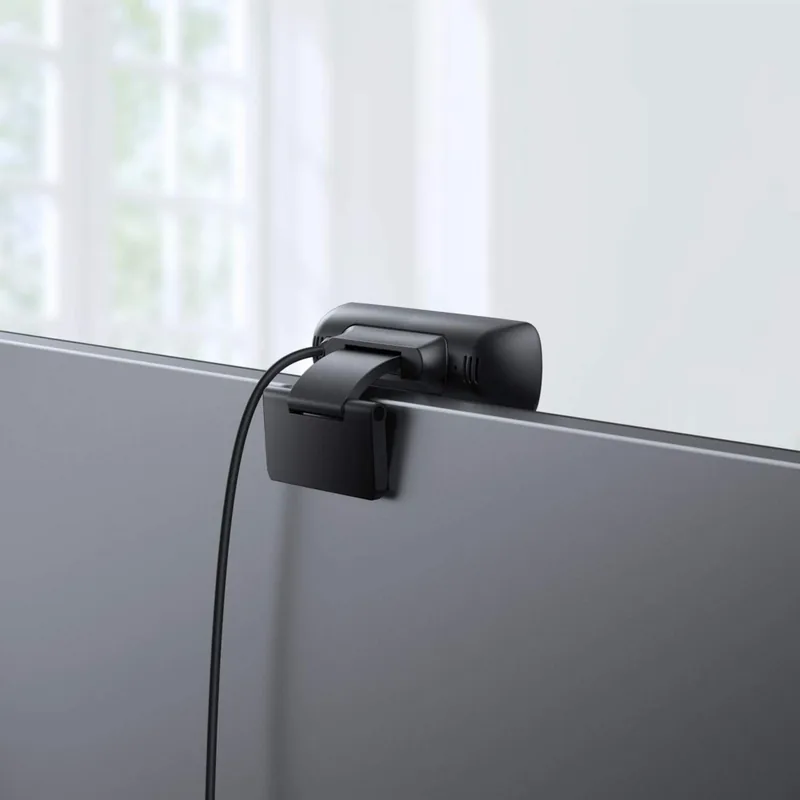
On a flat-screen computer monitor or laptop screen: Rest the rubber-padded bottom of the webcam on the top
edge of the screen. The rubber pad of the clip/stand should be touching the back of the screen. The camera can
be tilted up or down (ensure that both rubber pads are still in contact for a secure fit).
USB Connection Cable
Foldable Clip/Stand
LED Status Indicator
Microphone
On a desk or other flat surface: The plain plastic side of the attached clip/stand should be on the surface
(below the camera). Angle the two clip/stand hinges for the most stable position, with the webcam tilted up or
down for the best view.
Connect the webcam USB cable to your computer USB port (the camera will then appear in the ‘Devices and
Printers’ section of the ‘Control Panel’). The LED status indicator will light up red
Open the video chat or recording software you want to use and begin a video call or video recording. While the
camera is active, the LED status indicator will be purple
Adjust the clip/stand or pivot the camera to fine-tune the angle and view
1.
2.
3.
Ensure camera and mount are firmly fixed in place or stable before use to avoid falls
Keep away from liquids, extreme heat, and strong magnetic fields
Avoid touching the lens surface. It may be cleaned with a cotton swab or lens-cleaning cloth. If any dirt is difficult
to remove, a non-abrasive glasses lens cleaner may be used. Don’t use corrosive solutions
●
●
●
Connecting the Webcam
Product Care & Use
Warranty & Customer Support
For questions, support, or warranty claims, contact us at the address below that corresponds with your region. Please
include your Amazon order number and product model number.
Amazon US orders: [email protected]
Amazon EU orders: [email protected]
Amazon CA orders: [email protected]
Amazon JP orders: [email protected]
*Please note, AUKEY can only provide after sales service for products purchased directly from AUKEY. If you have purchased from a
different seller, please contact them directly for service or warranty issues.
AUKEY International Ltd.
www.aukey.com | [email protected]
No.102, Building P09, Electronics Trade Center
Huanan City, Pinghu Town, Longgang District
Shenzhen, Guangdong, 518111, CN
Made in China
Model: PC-W1
- 06 - - 07 - - 08 -
- 09 - - 10 -
Vielen Dank, dass Sie sich für die Webcam PC-W1 mit 1080p von AUKEY entschieden haben. Bitte lesen Sie sich diese
Bedienungsanleitung aufmerksam durch und bewahren Sie sie gut auf. Sollten Sie darüber hinaus Fragen oder
Probleme haben, hilft Ihnen unser freundlicher Kundenservice gerne weiter. Halten Sie dann bitte die Produktmod-
ellnummer und Ihre Amazon-Bestellnummer bereit.
Lieferumfang
Webcam 1080p
Bedienungsanleitung
Garantiekarte
Produktbild
Objektiv
Technische Daten
Modell
Sensor
Aufnahmeauflösungen
Videoformat
Effektive Pixel
Scharfstellentfernung
Bildwinkel
Minimale Beleuchtung
Mikrofon
Eingang
Systemanforderungen
Material
Betriebstemperatur
USB-Kabellänge
Abmessungen
Gewicht
PC-W1
1/2,7"-CMOS-Bildsensor
1080p (30 BpS), 720p (30 BpS), 480p (30 BpS), 240p (30 BpS)
MJPEG
2,0 Megapixel
0,5 – 3 m (Fixfokus)
≥75°
≤ 5 Lux
Eingebautes mikrofon
5 V (Gleichstrom)
Windows XP/Mac OS 10.7/Android 4.0 oder höher
ABS, PC
-10 °C – 50 °C
170 mm
106 x 50 x 35 mm
80 g
Erste Schritte
Positionierung der Webcam
Auf einem Flachbildschirm oder Laptop-Bildschirm: Positionieren Sie die gummibeschichtete Unterseite der
Webcam auf dem Bildschirmrand. Das Gummielement des Clips/Ständers sollte die Rückseite des Bildschirms
berühren. Die Kamera kann nach oben oder unten geneigt werden (beachten Sie, dass bei beiden
Gummielementen für einen sicheren Halt stets ein Kontakt besteht).
USB-Verbindungskabel
Ein-/ausklappbarer Clip/
Ständer
LED-Statusanzeige
Mikrofon
Auf einem Schreibtisch oder einer ebenen Oberfläche: Die Kunststoffseite des befestigten Clips/Ständers sollte
Kontakt zur Oberfläche (unter der Kamera) haben. Richten Sie die beiden Clip-/Ständerscharniere nach Belieben
aus, wobei Sie die Webcam für den optimalen Blickwinkel nach oben oder unten neigen.
Verbinden Sie das USB-Kabel der Webcam mit einem USB-Anschluss an Ihrem Computer (die Kamera erscheint
dann unter „Geräte und Drucker“ in der „Systemsteuerung“). Die LED-Statusanzeige leuchtet rot auf.
Öffnen Sie einen Videochat oder Ihre bevorzugte Aufnahmesoftware, um einen Videoanruf durchzuführen oder
ein Video aufzunehmen. Während die Kamera aktiv ist, leuchtet die LED-Statusanzeige violett.
Richten Sie den Clip/Ständer bezüglich Neigung und Drehung so aus, dass der Bildausschnitt wie gewünscht ist.
1.
2.
3.
Stellen Sie sicher, dass Kamera und Halterung vor der Verwendung sicher befestigt sind und somit nicht
herunterfallen können.
Von Flüssigkeiten, extremer Hitze und starken Magnetfeldern fernhalten.
Oberfläche des Objektivs nicht berühren. Nur mit einem Baumwolltuch oder einem Objektivreinigungstuch
reinigen. Bei starken Verschmutzungen kann ein nichtscheuernder Reiniger für Glasobjektive verwendet werden.
Keine korrosiven Lösungen verwenden.
●
●
●
Verbindung der Webcam
Produktpflege & Verwendung
Garantie & Kundenservice
Bei Fragen, Problemen oder Garantieansprüchen kontaktieren Sie uns bitte unter der jeweiligen Adresse, die Ihrer
Region entspricht. Bitte geben Sie Ihre Amazon-Bestellnummer und die Produktmodellnummer an.
Bestellungen über Amazon USA: [email protected]
Bestellungen über Amazon Europa: [email protected]
Bestellungen über Amazon Kanada: [email protected]
Bestellungen über Amazon Japan: [email protected]
*Wichtiger Hinweis: AUKEY bietet nur für die Produkte einen Kundenservice an, die direkt bei AUKEY erworben wurden. Sollten Sie Ihr
Produkt bei einem anderen Händler gekauft haben, kontaktieren Sie bitte dessen Kundendienst bezüglich Fragen oder
Garantieansprüchen.
- 11 - - 12 - - 13 -
- 14 - - 15 -
Merci d’avoir acheté la webcam AUKEY PC-W1 1080p. Veuillez lire attentivement ce manuel d'utilisation et le
conserver pour toute référence ultérieure. Si vous avez besoin d’aide, n’hésitez pas à contacter notre équipe
d’assistance en indiquant votre numéro de modèle de produit et votre numéro de commande Amazon.
Contenu du colis
Webcam 1080p
Manuel utilisateur
Carte de garantie
Détail du produit
Caméra
Caractéristiques
Modèle
Capteur
Résolution d’enregistrement
Format vidéo
Résolution
Distance de mise au point
Angle de vue
Illumination minimale
Microphone
Allimentation
Configuration requise
Matériel
Température de fonctionnement
Longueur du cable USB
Dimensions
Poids
PC-W1
Capteur d'image CMOS 1/2.7"
1080p (30fps), 720p (30fps), 480p (30fps), 240p (30fps)
MJPEG
2.0 megapixels
0.5 – 3m (focus fixe)
≥75°
≤5 lux
Microphone intégré
DC 5V
Windows XP / Mac OS 10.7 / Android 4.0 ou mieux
ABS, PC
-10°C – 50°C / 14°F – 122°F
170mm / 6.69”
106 x 50 x 35mm / 4.17” x 1.97” x 1.38”
80g / 2.82oz
Bien commencer
Bien positionner la webcam
Sur un moniteur de type écran plat d'ordinateur ou un écran d'ordinateur portable : posez la partie inférieure en
caoutchouc de la webcam sur le bord supérieur de l'écran. Le patin en caoutchouc du support doit toucher le dos
de l'écran. La caméra peut être inclinée vers le haut ou vers le bas (assurez-vous que les deux coussinets en
caoutchouc sont toujours en contact pour un ajustement sûr).
Câble de connexion USB
Support pliable
Voyant d'état LED
Microphone
Sur un bureau ou une autre surface plate : Le côté en plastique lisse du support attaché doit être sur la surface
(sous la caméra). Inclinez les deux charnières du support pour obtenir la position la plus stable, avec la
webcam inclinée vers le haut ou le bas pour une vue optimale.
Connectez le câble USB de la webcam au port USB de votre ordinateur (la caméra apparaît alors dans la
section "Périphériques et imprimantes" du "Panneau de configuration"). Le voyant d'état s'allume en rouge
Ouvrez le logiciel de discussion via vidéo ou d'enregistrement que vous souhaitez utiliser et commencez un appel
vidéo ou un enregistrement vidéo. Lorsque la caméra est active, le voyant d'état est violet.
Ajustez le support ou faites pivoter la caméra pour affiner l’angle et la vue
1.
2.
3.
Assurez-vous que la caméra et le support sont fermement fixés en place ou stables avant utilisation pour éviter
les chutes.
Tenir à l'écart des liquides, de la chaleur extrême et des champs magnétiques puissants
Évitez de toucher la surface de la lentille. Il peut être nettoyé avec un coton-tige ou un chiffon microfibre. Si la
saleté est difficile à éliminer, un nettoyant pour lunettes non abrasif peut être utilisé. Ne pas utiliser de solutions
corrosives.
●
●
●
Connecter la webcam
Entretien et utilisation du produit
Garantie et support client
Pour toutes questions, une demande d’assistance ou des demandes sous la garantie, contactez-nous à l'adresse
ci-dessous qui correspond à votre région. Veuillez inclure votre numéro de commande Amazon et le numéro de
modèle du produit.
Commandes Amazon US : [email protected]
Commandes Amazon EU : [email protected]
Commandes Amazon CA : [email protected]
Commandes Amazon JP : [email protected]
* Veuillez noter qu'AUKEY ne peut fournir un service après-vente que pour les produits achetés directement auprès d’AUKEY. Si vous
avez acheté auprès d'un autre vendeur, contactez-le directement pour des problèmes de service ou de garantie.
- 16 - - 17 - - 18 -
- 19 - - 20 -
Gracias por adquirir la webcam de 1080p AUKEY PC-W1. Por favor, lea con atención este manual de instrucciones
y guárdelo para posibles consultas en el futuro. Si necesita ayuda, póngase en contacto con nuestro equipo de
asistencia e indique el número de modelo de su producto y el número de pedido de Amazon.
Contenido
Webcam de 1080p
Manual de instrucciones
Garantía
Diagrama del producto
Objetivo
Especificaciones
Modelo
Sensor
Resoluciones de grabación
Formato de vídeo
Píxeles efectivos
Distancia de enfoque
Ángulo de visión
Iluminación mínima
Micrófono
Entrada
Requisitos del sistema
Materiales
Temperatura de funcionamiento
Longitud del cable USB
Dimensiones
Peso
PC-W1
Sensor de imagen CMOS de 1/2,7 pulgadas
1080p (30 fps), 720p (30 fps), 480p (30 fps), 240p (30 fps)
MJPEG
2,0 megapíxeles
0,5-3 m (enfoque fijo)
≥75°
≤5 lx
Micrófono integrado
DC 5 V
Windows XP / Mac OS 10.7 / Android 4.0 o posteriores
Plástico ABS, policarbonato
-10 °C - 50 °C
170 mm
106 x 50 x 35 mm
80 g
Inicio rápido
Cómo colocar la webcam
En una pantalla plana de ordenador o portátil: Apoye la parte inferior acolchada de la webcam en el borde
superior de la pantalla. La almohadilla de goma de la pinza o del soporte debe tocar la parte posterior de la
pantalla. Puede inclinar la cámara hacia arriba o hacia abajo (asegúrese de que ambas almohadillas de goma
permanezcan en contacto para garantizar un ajuste seguro).
Cable de conexión USB
Pinza/soporte plegable
Indicador de estado LED
Micrófono
En un escritorio u otra superficie plana: El lado plano de plástico de la pinza o el soporte debe permanecer en la
superficie (bajo la cámara). Gire las bisagras de la pinza o del soporte para lograr la posición más estable posible,
con la webcam inclinada hacia arriba o hacia abajo para tener la mejor visualización.
Conecte el cable USB de la cámara al puerto USB de su ordenador (en ese momento, la cámara aparecerá en
la sección «Dispositivos e impresoras» del Panel de control). El indicador de estado LED mostrará una luz roja
Abra el programa de videoconferencias o de grabación que desee y empiece una videollamada o una
grabación de vídeo. Mientras la cámara permanezca activa, el indicador de estado LED estará violeta
Ajuste la pinza o el soporte o gire la cámara para modificar el ángulo y la visualización
1.
2.
3.
Asegúrese de que la cámara y su soporte se fijan con firmeza y estabilidad en su lugar para evitar caídas
Mantenga la cámara alejada de los líquidos, del calor extremo y de campos magnéticos potentes
Evite tocar la superficie del objetivo. Puede limpiarse con algodón o con una toallita de limpieza de lentes. Si
resulta difícil eliminar algún tipo de suciedad, puede utilizar un limpiador de lentes de gafas no abrasivo. No
utilice soluciones corrosivas
●
●
●
Cómo conectar la webcam
Utilización y cuidados del producto
Garantía y asistencia al cliente
Para cualquier pregunta, asistencia o reclamación de garantía, póngase en contacto con nosotros en la dirección
indicada a continuación para su zona geográfica. Por favor, indique su número de pedido de Amazon y el número
de modelo del producto.
Pedidos de Amazon en EE. UU.: [email protected]
Pedidos de Amazon en la UE: [email protected]
Pedidos de Amazon en Canadá: [email protected]
Pedidos de Amazon en Japón: [email protected]
*AUKEY solo puede ofrecer servicio posventa para productos adquiridos directamente a AUKEY. Si ha adquirido su producto a otro
vendedor, póngase en contacto con él directamente para cualquier tema relacionado con el servicio o la garantía.
- 21 - - 22 - - 23 -
- 24 - - 25 -
Grazie per aver acquistato la webcam AUKEY PC-W1 da 1080p. Leggere con attenzione il presente manuale d’uso
e conservarlo in caso di necessità futura. Se si necessita di assistenza, si prega di contattare il nostro servizio clienti
comunicando il numero di modello del prodotto e il numero di ordine Amazon.
La confezione include
Webcam da 1080p
Manuale d’uso
Garanzia
Schema del prodotto
Obiettivo
Specifiche
Modello
Sensore
Risoluzioni di registrazione
Formato video
Pixel effettivi
Distanza di messa a fuoco
Angolo di visione
Illuminazione minima
Microfono
Ingresso
Requisiti di sistema
Materiale
Temperatura di funzionamento
Lunghezza del cavo USB
Dimensioni
Peso
PC-W1
Sensore di immagine CMOS 1/2.7"
1080p (30fps), 720p (30fps), 480p (30fps), 240p (30fps)
MJPEG
2.0 megapixel
0,5 – 3m (messa a fuoco fissa)
≥75°
≤5 lux
Microfono incorporato
DC 5V
Windows XP / Mac OS 10.7 / Android 4.0 o versioni successive
ABS, PC
-10°C – 50°C
170mm
106 x 50 x 35mm
80g
Per iniziare
Posizionare la webcam
Sullo schermo piatto di un computer o su un portatile: appoggiare la parte inferiore rivestita in gomma della
webcam sul bordo dello schermo. La gomma del supporto/clip dovrebbe toccare la parete posteriore dello
schermo. La videocamera può essere inclinata verso l’alto o verso il basso (per una maggior sicurezza assicurarsi
che entrambe le parti in gomma siano a contatto).
Cavo di connessione USB
Clip/Supporto pieghevole
Indicatore di stato a LED
Microfono
Su una scrivania o su un’altra superficie piatta: la parte liscia in plastica del supporto/clip dovrebbe aderire
completamente alla superficie (sotto la videocamera). Regolare l’angolazione del supporto/clip fino a trovare la
posizione più stabile e la visuale migliore con la videocamera inclinata verso l’alto o il basso.
Collegare il cavo USB della webcam all’ingresso USB del proprio computer (a quel punto la videocamera
apparirà nella sezione “Dispositivi e stampanti” nel “Pannello di controllo”). L’indicatore di stato a LED si
illuminerà di rosso
Aprire la chat video o il software di registrazione che si vuole utilizzare e iniziare una videochiamata o una
registrazione video. Mentre la videocamera è attiva, l’indicatore di stato a LED diventerà di colore viola
Regolare il supporto/clip o ruotare la videocamera per migliorare l’angolazione e la visione della fotocamera
1.
2.
3.
Assicurarsi che la videocamera sia stabile nella sua posizione prima di utilizzarla
Tenere lontano da liquidi, fonti di calore e forti campi magnetici
Evitare di toccare la superficie dell’obiettivo. Questa può essere pulita utilizzando un cotton fioc o un panno
adatto alla pulizia delle lenti. In caso di difficoltà si può utilizzare un detergente non abrasivo per la pulizia delle
lenti degli occhiali. Non utilizzare soluzioni corrosive.
●
●
●
Collegare la webcam
Uso e manutenzione del prodotto
Garanzia e supporto clienti
Per domande, supporto o reclami riguardo la garanzia, contattarci all’indirizzo fornito di seguito corrispondente alla
propria regione. Includere sempre l’ordine Amazon e il modello del prodotto.
Ordini Amazon USA: [email protected]
Ordini Amazon UE: [email protected]
Ordini Amazon CA: [email protected]
Ordini Amazon JP: [email protected]
* Attenzione: AUKEY può assicurare un servizio post-vendita solo per prodotti acquistati direttamente da AUKEY. Se l’acquisto è stato
effettuato da un venditore diverso, si prega di contattare quest’ultimo per problemi relativi al servizio o alla garanzia.

Chat with your Aukey PC-W1 manual using AI

Get instant AI answers from your Aukey PC-W1 manual

Ask anything about the Aukey PC-W1. Answers come from this manual, with the pages they are based on.

Ask a Question

0/1000

Do you recommend PC-W1?

Yes No
0
User Pic

Lena Kruger

5 months ago

Does this webcam work with Microsoft Teams, and how can I fix it if Teams does not detect the camera?

0
User Pic

Manual.ly

5 months ago

The webcam should work as a standard USB video device, but compatibility can depend on your computer, operating system, permissions, and driver settings. If Teams does not detect it, check that the camera is selected under Teams Settings > Devices, allow camera access in your system privacy settings, close other apps using the camera, and reconnect it to another USB port. Updating Teams and your operating system may also help. If it still does not work, test the camera in another application to determine whether the issue is specific to Teams.

M: gpt-5.6-terra
M: gpt-5.6-terra

Frequently Asked Questions

A

The Aukey PC-W1 records video at 1080p, 720p, 480p, and 240p, all at up to 30 frames per second. Its primary Full HD 1080p setting is well suited to video calls, virtual meetings, online learning, and basic recordings.

Is this answer helpful?

A

Yes. The webcam includes a built-in microphone for convenient voice capture during calls and recordings. It is useful for simple desktop communication without requiring a separate external microphone.

Is this answer helpful?

A

Rest the rubber-padded bottom on the top edge of a monitor or laptop screen, with the rear rubber pad touching the back of the display. Tilt the camera as needed while keeping both pads in contact for a stable fit.

Is this answer helpful?

A

Yes. Place the plain plastic side of the foldable clip or stand on a stable, flat surface beneath the camera. Adjust the hinges and camera tilt until the viewing angle is secure and suitable for your setup.

Is this answer helpful?

A

The LED lights red when the webcam is connected through USB. It changes to purple while the camera is active in video chat or recording software.

Is this answer helpful?

A

The webcam supports systems running Windows XP or later, Mac OS 10.7 or later, and Android 4.0 or later. Connect it using the integrated USB cable and select it in your preferred compatible camera application.

Is this answer helpful?

M: gpt-5.6-terra

Advantages and Disadvantages

Advantages

  • Full HD 1080p video at 30 fps supports clear video calls and recordings.
  • Built-in microphone provides convenient audio for everyday communication.
  • Foldable rubber-padded clip works on monitors, laptops, and flat desk surfaces.
  • Supports Windows, Mac OS, and Android devices with a simple USB connection.
  • LED indicator shows connected status in red and active camera status in purple.
VS

Disadvantages

  • Fixed focus is optimized for subjects between 0.5 and 3 meters away.
  • The 170 mm attached USB cable may limit placement flexibility.
  • The 75 degree field of view may be narrow for larger groups or wide rooms.
  • Low-light capability is specified at 5 lux, so brighter lighting is preferable.
  • MJPEG output may not suit every advanced recording workflow.
M: gpt-5.6-terra

Product Specification

Type

Webcam

Image sensor

1x 1/2.7" CMOS 2.0 MP

Resolution

1920 x 1080 pixels (30 fps)

Viewing angle

75 degrees

Compression/Codecs

MJPEG

Wireless

N/A

Focusing

Fixed focus

Camera cover

N/A

Microphone

Integrated

Speaker

N/A

Lighting

N/A

Cable length

5.58 ft

Power supply

Via USB

Mount

Mounting clip

Dimensions

4.17 x 1.97 x 1.38 in

Weight

2.82 oz

M: gpt-5.6-terra

Product Description

Aukey PC-W1 1080p Webcam - Read, Download & Print Free

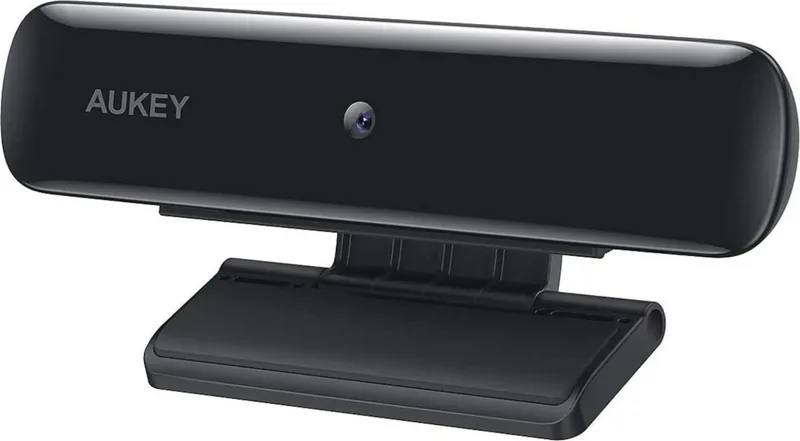
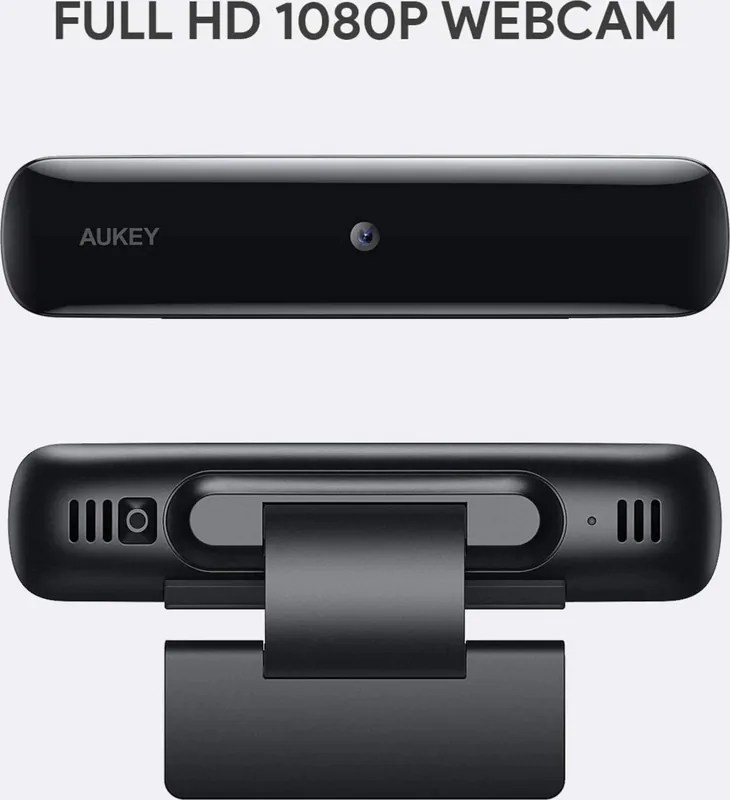
The Aukey PC-W1 1080p Webcam is a compact USB camera designed for clear everyday video calls, online meetings, remote classes, and simple recording. With Full HD 1080p video at 30 frames per second, it delivers a detailed picture that helps conversations look more natural and professional. Its 2.0-megapixel CMOS sensor also supports 720p, 480p, and 240p recording options for software or connections that require lower resolutions.

Simple Setup for Work and Home

The webcam connects through its attached USB cable, making setup quick on compatible computers and devices. Plug it into an available USB port, open a preferred video chat or recording app, and adjust the camera for the desired framing. A red LED indicates that the webcam is connected, while a purple LED shows when the camera is active.

The Aukey PC-W1 includes a foldable clip and stand with rubber padding. It can rest securely on the top edge of a flat monitor or laptop display, or it can be positioned on a desk or another stable flat surface. The adjustable mount and tilting camera body make it easier to set a practical angle for meetings, streaming, or personal calls.

Clear Framing and Built-In Audio

A fixed-focus range of 0.5 to 3 meters is suited to typical desk setups, keeping the speaker in view without complicated adjustments. The webcam offers an angle of view of at least 75 degrees, providing enough space for a single user and a comfortable amount of background. A built-in microphone supports convenient voice capture, reducing the need for extra equipment during casual calls.

The lightweight 80 g design measures 106 x 50 x 35 mm, so it can fit neatly into a home office setup or travel bag. It supports Windows XP or later, Mac OS 10.7 or later, and Android 4.0 or later. The camera uses MJPEG video output and operates in temperatures from -10 C to 50 C.

A Practical Everyday Webcam

For users seeking a straightforward camera for online communication, the PC-W1 balances Full HD video, integrated audio, flexible positioning, and USB convenience. Keep the lens clean with a soft lens cloth, ensure the mount is stable before use, and keep the webcam away from liquids, extreme heat, and strong magnetic fields.

Note: The fixed-focus lens performs best when the subject is positioned within its 0.5 to 3 meter focus range. For the most secure monitor placement, keep both rubber pads in contact with the screen.

M: gpt-5.6-terra

© Copyright 2026 Manual.ly