ATEN and the ATEN logo are trademarks of ATEN International Co., Ltd. All rights reserved. All
other trademarks are the property of their respective owners.
Part No. PAPE-1223-G90G Printing Date: 11/2016
2/4-Port 4K DisplayPort Splitter
Quick Start Guide
VS192 / VS194
VS192 / VS194 2/4-Port 4K DisplayPort Splitter
www.aten.com
Séparateur DisplayPort 4K 2/4 ports VS192/VS194
www.aten.com
2/4-Port-4K-DisplayPort-Splitter VS192/VS194
www.aten.com
Divisor DisplayPort 4K de 2/4 puertos VS192/VS194
www.aten.com
Splitter DisplayPort 4K 2/4 porte VS192/VS194
www.aten.com
Support and Documentation Notice
All information, documentation, fi rmware,
software utilities, and specifi cations
contained in this package are subject to
change without prior notifi cation by
the manufacturer.
To reduce the environmental impact of our
products, ATEN documentation and software
can be found online at
http://www.aten.com/download/
Technical Support
www.aten.com/support
이 기기는 업무용(A급) 전자파적합기기로서 판매자 또는 사용
자는 이 점을 주의하시기 바라며, 가정외의 지역에서 사용하
는 것을 목적으로 합니다.
EMC Information
FEDERAL COMMUNICATIONS COMMISSION INTERFERENCE STATEMENT:
This equipment has been tested and found to comply with the limits for
a Class B digital service, pursuant to Part 15 of the FCC rules. These limits
are designed to provide reasonable protection against harmful interference
in a residential installation. Any changes or modifi cations made to this
equipment may void the user s authority to operate this equipment. This
equipment generates, uses, and can radiate radio frequency energy. If not
installed and used in accordance with the instructions, may cause harmful
interference to radio communications. However, there is no guarantee that
interference will not occur in a particular installation. If this equipment does
cause harmful interference to radio or television reception, which can be
determined by turning the equipment off and on, the user is encouraged to
try to correct the interference by one or more of the following measures:
- Reorient or relocate the receiving antenna;
- Increase the separation between the equipment and receiver;
- Connect the equipment into an outlet on a circuit different from
that to which the receiver is connected;
- Consult the dealer/an experienced radio/television technician for help.
FCC Caution: Any changes or modifi cations not expressly approved by the
party responsible for compliance could void the user's authority to operate
this equipment.
This device complies with Part 15 of the FCC Rules. Operation is subject
to the following two conditions:(1) this device mat not cause harmful
interference, and(2) this device must accept any interference received,
including interference that may cause undesired operation.
Scan for
more information
ATEN VanCryst
™
1
2
3
1
2
3
1
2
1
2
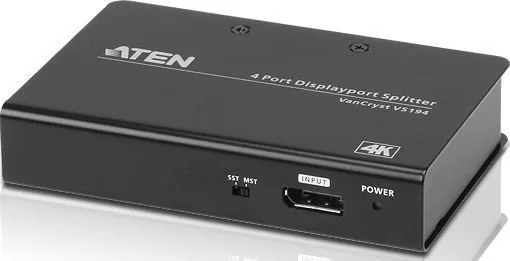
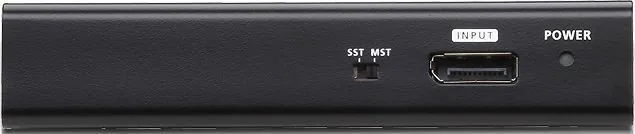
VS192 Front View
VS194 Front View
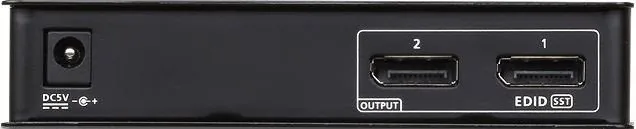
VS192 Rear View
VS194 Rear View
3
1
4
2
VS194 (Front)
VS194 (Rear)
A
Présentation du matériel
Vue de devant
1
Commutateur SST/MST
2
Entrée DisplayPort
3
LED d'alimentation
Vue de derrière
1
Fiche d'alimentation
2
Sorties DisplayPort
B
Installation du matériel
1
Utilisez un câble DisplayPort pour raccorder votre ordinateur ou
périphérique source DisplayPort au port d’entrée DisplayPort du
VS192/VS194.
2
Utilisez jusqu’à quatre câbles DisplayPort pour raccorder jusqu’à
quatre périphériques d’affi chage DisplayPort aux ports de sortie du
VS192/VS194.
3
Branchez l’adaptateur secteur fourni dans l’emballage sur une
source de courant secteur; puis branchez le câble d’alimentation
de l’adaptateur sur la prise d'alimentation du VS192/VS194.
4
Sélectionnez pour utiliser le mode MST/SST.
Confi guration système requise
Il est fortement recommandé d'utiliser un périphérique source
avec une carte graphique compatible DIsplayPort 1.2. Il est rétro-
compatible avec la plupart des équipements DisplayPort 1.1a en
utilisant les pilotes graphiques actuels, mais vous pouvez être limité à
l’affi chage du mode SST uniquement.
Les résolutions vidéo maximales prises en charge et le nombre
de moniteurs dépendent de votre carte graphique. Consultez les
caractéristiques de votre carte graphique pour déterminer ses
capacités.
Fonctionnement
Le commutateur SST/MST est situé à l’avant du VS192/VS194 et
permet la capacité de commuter entre les modes SST et MST.
Mode MST
Lorsque le VS192/VS194 est commuté en mode MST, cela permet à la
source d’entrée d’étendre une source vidéo à travers 2/4 écrans avec
une résolution maximum de 4K. Les périphériques de sortie doivent
être compatibles DisplayPort.
Lors de l’utilisation de ce mode, la source d’entrée d’origine est
étendue à travers 2/4 périphériques de sortie.
Remarque :
En mode MST, le VS192/VS194 contourne l’EDID de tous les
moniteurs connectés.
Mode SST
Lorsque le VS192/VS194 est commuté en mode SST, cela permet à la
source d’entrée de dupliquer une source vidéo unique vers 2/4 écrans
avec une résolution maximum de 4K sur chaque moniteur.
En mode SST, chaque périphérique d’affi chage affi che le même
contenu provenant du périphérique source en entrée.
Remarque :
En mode SST, le VS192/VS194 détecte la résolution du moniteur
connecté au port 1 de l’installation. Si vous voulez modifi er la
résolution, réglez simplement les paramètres à partir du menu de
confi guration du périphérique source DisplayPort.
* EDID est réglé sur le port 1, assurez-vous que le moniteur est
connecté pour visualiser le contenu affi ché.
A
Hardwareübersicht
Ansicht von vorne
1
SST/MST-Schalter
2
DisplayPort-Eingang
3
Betrieb-LED
Ansicht von hinten
1
Netzanschluss
2
DisplayPort-Ausgänge
B
Hardwareinstallation
1
Verbinden Sie Ihren Computer oder Ihr DisplayPort-Eingangsgerät
über ein DisplayPort-Kabel mit dem DisplayPort-Eingang des
VS192/VS194.
2
Verbinden Sie über bis zu vier DisplayPort-Kabel bis zu vier
DisplayPort-Anzeigegeräte mit den Ausgängen des VS192/VS194.
3
Schließen Sie das mitgelieferte Netzteil an eine Steckdose an.
Verbinden Sie das Netzteilkabel mit dem Netzanschluss des VS192/
VS194.
4
Wählen Sie zwischen MST- und SST-Modus.
Systemanforderungen
Es wird dringend empfohlen, ein Eingangsgerät mit einer DisplayPort-
1.2-kompatiblen Grafi kkarte zu verwenden. Das Gerät ist mit den
meisten DisplayPort-1.1a-Geräten mit aktuellen Grafi ktreibern
kompatibel; allerdings ist in diesen Fällen die Anzeige möglicherweise
auf den SST-Modus beschränkt.
Maximal unterstützte Videoaufl ösungen sowie maximale Anzahl
Monitore hängen von Ihrer Grafi kkarte ab. Prüfen Sie dazu die
technischen Daten Ihrer Grafi kkarte.
Bedienung
Über den SST/MST-Schalter an der Vorderseite des VS192/VS194
können Sie zwischen SST- und MST-Modus umschalten.
MST-Modus
Wenn der VS192/VS194 auf den MST-Modus eingestellt ist, kann
die Eingangsquelle eine Videoquelle über 2/4 Displays mit einer
maximalen Aufl ösung von 4K erweitern. Die Ausgangsgeräte müssen
DisplayPort-kompatibel sein.
In diesem Modus wird die ursprüngliche Eingangsquelle über 2/4
Ausgangsgeräten erweitert.
Hinweis:
Im MST-Modus umgeht der VS192/VS194 die EDID aller verbundenen
Monitore.
SST-Modus
Wenn der VS192/VS194 auf den SST-Modus eingestellt ist, kann
die Eingangsquelle eine einzige Videoquelle mit einer maximalen
Aufl ösung von 4K je Monitor an 2/4 Displays duplizieren.
Im SST-Modus zeigt jedes Display den gleichen vom Eingangsgerät
bereitgestellten Inhalt.
Hinweis:
Im SST-Modus erkennt der VS192/VS194 die Aufl ösung des an Port 1
der Installation angeschlossenen Monitors. Sie können die Aufl ösung
ändern, indem Sie die Einstellungen über das Konfi gurationsmenü des
DisplayPort-Eingangsgerätes anpassen.
* EDID ist auf Port 1 eingestellt; vergewissern Sie sich zur Anzeige des
Inhaltes, dass ein Monitor angeschlossen ist.
A
Presentación del hardware
Vista frontal
1
Conmutador SST/MST
2
Entrada DisplayPort
3
LED de alimentación
Vista posterior
1
Conector de alimentación
2
Salidas DisplayPort
B
Instalación del hardware
1
Utilice un cable DisplayPort para conectar su PC o dispositivo
fuente DisplayPort al puerto de entrada DisplayPort del VS192/
VS194.
2
Utilice hasta 4 cables DisplayPort para conectar hasta 4 dispositivos
DisplayPort a los puertos de salida del VS192/VS194.
3
Conecte el adaptador de alimentación que viene con el paquete a
una fuente de alimentación de CA, enchufe el cable del adaptador
de alimentación en el conector de alimentación del VS192/VS194.
4
Seleccione para usar el modo MST/SST.
Requisitos de sistema
Se recomienda utilizar un dispositivo fuente con una tarjeta gráfi ca
compatible con DisplayPort 1.2. Es compatible con la mayoría de
las versiones anteriores de los equipos con DisplayPort 1.1a que
funcionan con los controladores gráfi cos actuales, pero puede estar
limitado a mostrar sólo en modo SST.
Las máximas resoluciones de vídeo compatibles y el número
de monitores dependerán de su tarjeta gráfi ca. Compruebe las
especifi caciones de su tarjeta gráfi ca para determinar sus capacidades.
Funcionamiento
El conmutador SST/MST se encuentra en la parte frontal del VS192/
VS194, permitiendo la posibilidad de cambiar entre el modo SST o
MST.
Modo MST
Cuando el VS192/VS194 está conmutado al modo MST, permite a
la fuente de entrada extender una fuente de vídeo a través de 2/4
pantallas con una resolución máxima de 4K. Los dispositivos de salida
tienen que ser compatibles con DisplayPort.
Durante este modo, la fuente de entrada original se expandirá a
través de 2/4 de los dispositivos de salida.
Nota:
En el modo MST, el VS192/VS194 omitirá todos los EDID de los
monitores conectados.
Modo SST
Cuando el VS192/VS194 está conmutado al modo SST, permite a la
fuente de entrada duplicar una fuente de vídeo única a 2/4 pantallas
con una resolución máxima de 4K.
En el modo SST, cada dispositivo de visualización mostrará el mismo
contenido proporcionado por el dispositivo fuente de entrada.
Nota:
En el modo SST, el VS192/VS194 detectará la resolución del monitor
conectado al puerto 1 de la instalación. Si desea cambiar la
resolución, simplemente ajuste los valores del menú de confi guración
del dispositivo fuente DisplayPort.
* El EDID está confi gurado en el puerto 1, asegúrese de que un
monitor está conectado para ver el contenido visualizado.
A
Descrizione hardware
Vista anteriore
1
Interruttore SST/MST
2
Input DisplayPort
3
LED alimentazione
Vista posteriore
1
Connettore d'alimentazione
2
Output DisplayPort
B
Installazione dell'hardware
1
Utilizzare un cavo DisplayPort per collegare il computer o l’origine
video DisplayPort alla porta input DisplayPort di VS192/VS194.
2
Utilizzare fi no a quattro cavi DisplayPort per collegare fi no a quattro
dispositivi di visualizzazione DisplayPort alle porte output di VS192/
VS194.
3
Collegare l’adattatore di corrente fornito in dotazione ad una
presa di corrente AC; quindi collegare il cavo di alimentazione
dell'adattatore al connettore di alimentazione di VS192/VS194.
4
Selezionare per utilizzare la modalità MST/SST.
Requisiti del sistema
Si raccomanda vivamente di utilizzare un dispositivo di origine dotato
di scheda video compatibile DisplayPort 1.2. È compatibile con la
maggior parte di dispositivi che eseguono driver grafi ci DisplayPort
1.1a, tuttavia si potrebbe essere limitati alla sola visualizzazione in
modalità SST.
Le risoluzioni video massime supportate ed il numero di monitor
dipenderà dalla scheda video. Controllare le specifi che della scheda
video per determinare le sue capacità.
Funzionamento
L'interruttore SST/MST si trova sulla parte anteriore di VS192/VS194
ed abilita la capacità di passare tra la modalità MST e SST.
Modalità MST
Quando VS192/VS194 è impostato sulla modalità MST, l’origine
di input può estendere una origine video su 2/4 schermi con una
risoluzione massima di 4K. I dispositivi di output devono essere
compatibili DisplayPort.
In questa modalità, l’origine di input originale sarà estesa su 2/4
dispositivi di output.
Nota:
In modalità MST, VS192/VS194 bypasserà tutti gli EDID dei monitor
collegati.
Modalità SST
Quando VS192/VS194 è impostato sulla modalità SST, l’origine di
input può duplicare una singola origine video su 2/4 schermi con una
risoluzione massima di 4K su ciascun monitor.
In modalità SST ciascun display visualizzerà lo stesso contenuto fornito
dal dispositivo di origine di input.
Nota:
In modalità SST, VS192/VS194 rileverà la risoluzione del monitor
collegato alla porta 1 dell'impianto. Se si vuole modifi care la
risoluzione, basta regolare le impostazioni dal menu di confi gurazione
del dispositivo di origine DisplayPort.
* L’EDID è impostato sulla porta 1, assicurarsi che un monitor è
collegato per visualizzare il contenuto visualizzato.
A
Hardware Review
/2
%
Quick check
I'm not a robot
Incorrect answer, please try again.
Chat with your ATEN VS192 manual using AI
Get instant AI answers from your ATEN VS192 manual
Ask anything about the ATEN VS192. Answers come from this manual, with the pages they are based on.
Ask a Question
0/1000
Do you recommend VS192?
YesNo
Frequently Asked
Questions
A
It takes one DisplayPort input and sends it to two displays, either as a duplicated image in SST mode or as an extended desktop in MST mode, depending on the source device and setup.
Is this answer helpful?
A
Yes, the unit supports true 4K output. Actual resolution and monitor count still depend on the graphics card and the capabilities of the connected source device.
Is this answer helpful?
A
SST duplicates the same content on both screens. MST extends one desktop across multiple displays, creating a wider workspace when the source hardware supports it.
Is this answer helpful?
A
A DisplayPort 1.2-compatible graphics card is strongly recommended. Some DisplayPort 1.1a systems may work, but they can be limited to SST mode and reduced functionality.
Is this answer helpful?
A
It uses the included external power adapter. After connecting the displays and source device, plug in the adapter and then select the desired display mode.
Is this answer helpful?
A
In SST mode, the splitter uses the monitor on port 1 to detect resolution. Keeping a display there helps the system apply the correct output settings.
SST and MST switching adds flexibility for mirrored or extended-display workflows.
Simple hardware layout makes installation fast and easy to understand.
Works well for presentations, monitoring stations, and professional desktop setups.
VS
Disadvantages
Full MST support depends on the source device and graphics card capabilities.
Older DisplayPort 1.1a systems may be limited to SST mode only.
Resolution handling can depend on the monitor connected to port 1 in SST mode.
Requires external power, so it is not a fully bus-powered accessory.
M: OA-GPT-54-NAN
Product
Specification
Video Inputs
1x DisplayPort 1.2a In
Video Outputs
2x DisplayPort 1.2a Out
Resolutions up to
4096x2160@60Hz
Power Consumption
1.2W typical
Dimensions
4.92x0.98x3.15in (WxHxD)
Weight
0.66 lb
M: OA-GPT-54-NAN
Product
Description
ATEN VS192 2-Port True 4K DisplayPort Splitter: A Practical Choice for Clean Multi-Display Setups
The ATEN VS192 2-Port True 4K DisplayPort Splitter is built for users who want a simple way to send one DisplayPort source to multiple screens without sacrificing image quality. Whether you’re preparing a presentation, building a compact command station, or setting up a mirrored display for training and retail, this splitter keeps the workflow straightforward while supporting sharp 4K output.
What makes this model especially useful is its front-panel SST/MST switch. In SST mode, the same video signal is duplicated across connected displays, making it ideal for presentations, demos, and content monitoring. In MST mode, the splitter can extend the image across displays for a wider desktop experience, provided the source device and graphics card support the feature. That flexibility gives the VS192 a place in both office and professional AV environments.
The design is intentionally minimal: one DisplayPort input, two outputs, a power jack, and a clear power LED. Setup is equally direct. Connect the source device, attach the monitors, plug in the power adapter, and choose the display mode that fits your use case. The manual-style guidance emphasizes using a DisplayPort 1.2-compatible graphics card for the best results, while noting that some DisplayPort 1.1a systems may work with limitations.
Another important detail is EDID behavior. In SST mode, the splitter reads the monitor on port 1 to determine resolution, so keeping a display connected there is essential. In MST mode, the unit bypasses connected monitors’ EDID, which helps streamline extended-display setups but also means the source device’s capabilities matter more than the displays alone.
For users who value reliability and predictable performance, the VS192 offers a balanced mix of convenience and control. It is not trying to be flashy; instead, it focuses on doing one job well—delivering true 4K DisplayPort splitting with mode selection that adapts to different display needs.
Notes
Best suited for duplication or extension of a single DisplayPort source.
Display performance depends heavily on the graphics card and source device.
Keep a monitor on port 1 if you want easy resolution detection in SST mode.
A DisplayPort 1.2 source is strongly recommended for best compatibility.