ATEN and the ATEN logo are trademarks of ATEN International Co., Ltd. All rights reserved. All
other trademarks are the property of their respective owners.
This product is RoHS compliant.
Part No. PAPE-1223-H60G Printing Date: 03/2017
2-Port USB DisplayPort Cable KVM Switch
Quick Start Guide
CS22DP
Package Contents
1 CS22DP 2-Port USB DisplayPort Cable KVM Switch
1 User Instructions
2
1
3
2
or
2
1
5
6
7
3
4
8
A
Resumen de hardware
1
Puerto de alimentación micro USB
2
LEDs de puerto
3
Puertos de consola
4
Cables KVM
5
Selector de puerto remoto
6
Conectores de teclado y ratón USB
7
Conectores DisplayPort
8
Conectores de audio
B
Instalación del hardware
Para confi gurar el CS22DP, realice lo siguiente:
1
Conecte el ratón USB, el teclado USB, monitor, micrófono y altavoces en sus
correspondientes puertos del CS22DP.
Nota: Los puertos USB pueden ser utilizados para compartir periféricos
USB. Para hacerlo, conecte los periféricos y el teclado o ratón en un
concentrador USB, y a continuación, conecte el concentrador en el
puerto de teclado o ratón.
2
Conecte las clavijas DisplayPort, USB y audio de los cables KVM conectados
en sus respectivos puertos en los equipos que está instalando.
3
(Opcional) Si la fuente de alimentación a los periféricos USB conectados no
es sufi ciente, conecte un cable USB en el conector de alimentación Micro
USB para obtener energía desde otra fuente de alimentación USB (p.ej. un
PC, concentrador USB, adaptador de alimentación USB de 5V CC).
Nota: No se incluye un cable USB a Micro USB en este paquete. Contacte
con su distribuidor ATEN para información sobre el producto.
Funcionamiento
Utilice el pulsador de Selector de Puerto Remoto para cambiar entre los dos
equipos.
A
Обзор аппаратного обеспечения
1
Разъем электропитания Micro USB
2
Индикаторы портов
3
Порты консоли
4
Кабели KVM
5
Селектор удаленных портов
6
USB разъемы для клавиатуры и мыши
7
Разъемы DisplayPort
8
Аудио разъемы
B
Установка аппаратного обеспечения
Для установки CS22DP выполните следующие действия.
1
Подключите USB мышь, USB клавиатуру, монитор, микрофон и
наушники к соответствующим разъемам на CS22DP.
Примечание. USB разъемы можно использовать для подключения
периферийных общих устройств USB. Для этого
подключите периферийные устройства и клавиатуру
или мышь к USB концентратору, а затем подключите
концентратор к разъему для клавиатуры или мыши.
2
Подключите разъемы DisplayPort, USB и Аудио прикрепленных
KVM кабелей к соответствующим портам на устанавливаемых
компьютерах.
3
(Дополнительно) Если на подключенные периферийные USB
устройства подается недостаточное питание, подключите USB
кабель к разъему питания Micro USB для подачи питания от другого
источника USB (т.е. ПК, USB концентратора, блока питания USB 5 В
постоянного тока).
Примечание. Кабель USB - Micro USB не входит в комплект поставки
данного устройства. Для получения сведений об
изделии обращайтесь к торговому представителю ATEN.
Работа
Для переключения между двумя компьютерами используется нажимная
кнопка "Селектор удаленных портов".
A
Descrizione hardware
1
Porta di alimentazione micro USB
2
LED porta
3
Porte console
4
Cavi KVM
5
Selettore porta remota
6
Connettori per tastiera e mouse USB
7
Connettori DisplayPort
8
Connettori audio
B
Installazione dell'hardware
Per impostare CS22DP, agire come segue:
1
Collegare il mouse USB, la tastiera USB, il monitor, il microfono e gli
altoparlanti nelle rispettive porte di CS22DP.
Nota: Le porte USB possono essere utilizzate per la condivisione delle
periferiche USB. A tal fi ne, collegare le periferiche e la tastiera o
il mouse in un hub USB, quindi collegare l'hub nella porta della
tastiera o del mouse.
2
Collegare i connettori DisplayPort, USB e audio dei cavi KVM collegati alle
rispettive porte dei computer che si stanno installando.
3
(Opzionale) Se l'alimentazione delle perfi cheti USB collegate non è
suffi ciente, collegare un cavo USB nel jack di alimentazione micro USB per
ottenere alimentazione da un altra fonte di alimentazione USB (ovvero PC,
hub USB, adattatore di alimentazione USB 5 V CC).
Nota: IL cavo USB-micro USB non è incluso nella confezione. Contattare il
rivenditore ATEN per informazioni sul prodotto.
Funzionamento
Utilizzare il pulsante Selettore porta remota per commutare tra i due computer.
A
Présentation du matériel
1
Port d’alimentation micro USB
2
LED de port
3
Ports console
4
Câbles KVM
5
Sélecteur de port distant
6
Connecteurs USB clavier et souris
7
Connecteurs DisplayPort
8
Connecteurs audio
B
Installation du matériel
Pour confi gurer le CS22DP, procédez comme suit :
1
Branchez la souris USB, le clavier USB, le moniteur, le microphone et les
haut-parleurs sur les ports respectifs du CS22DP.
Remarque : Les ports USB peuvent être utilisés pour le partage de
périphériques USB. Pour ce faire, branchez les périphériques et
le clavier ou la souris sur le concentrateur USB, puis branchez le
concentrateur sur le port clavier ou souris.
2
Branchez les connecteurs DisplayPort, USB et audio des câbles du KVM reliés
sur leurs ports respectifs sur les ordinateurs que vous installez.
3
(Facultatif) Si l’alimentation vers les périphériques USB reliés n’est pas
suffi sante, branchez un câble USB sur le port d’alimentation Micro USB pour
obtenir l’alimentation d'une autre source d’alimentation USB (c’est-à-dire le
PC, le concentrateur USB, l’adaptateur secteur USB 5V).
Remarque : Aucun câble USB vers Micro USB n’est inclus dans cet emballage.
Contactez votre revendeur ATEN pour des informations sur le
produit.
Fonctionnement
Utilisez le bouton poussoir de sélection de port distant pour basculer entre les
deux ordinateurs.
A
Hardwareübersicht
1
Micro-USB-Stromanschluss
2
Anschluss-LEDs
3
Konsolenports
4
KVM-Kabel
5
Remote-Port-Wähler
6
Anschlüsse für USB-Tastatur und -Maus
7
DisplayPort-Anschlüsse
8
Audioanschlüsse
B
Hardwareinstallation
Gehen Sie zur Einrichtung des CS22DP wie folgt vor:
1
Schließen Sie USB-Maus, USB-Tastatur, Monitor, Mikrofon und Lautsprecher
an ihre entsprechenden Anschlüsse am CS22DP an.
Hinweis: Die USB-Anschlüsse können zur Freigabe von USB-Peripherie
genutzt werden. Schließen Sie dazu Peripherie und Tastatur oder
Maus an einen USB-Hub an. Verbinden Sie dann den Hub mit
einem Tastatur- oder Mausanschluss.
2
Verbinden Sie die DisplayPort-, USB- und Audioanschlüsse der angeschlossenen
KVM-Kabel mit ihren entsprechenden Anschlüssen den den Computern, die
Sie installieren.
3
(Optional) Falls die Stromversorgung der angeschlossenen USB-Peripherie nicht
ausreicht, schließen Sie zur Versorgung über eine weitere USB-Stromquelle
(z. B. PC, USB-Hub, 5-V-Gleichspannung-USB-Netzteil) ein USB-Kabel an den
Micro-USB-Stromanschluss an.
Hinweis: Ein USB-zu-Micro-USB-Kabel sind im Lieferumfang enthalten.
Wenden Sie sich für Produktinformationen an Ihren ATEN-Händler.
Bedienung
Wechseln Sie mit der Remote-Port-Wähler-Drucktaste zwischen zwei Computern.
Support and Documentation Notice
All information, documentation, fi rmware, software utilities, and
specifi cations contained in this package are subject to change without
prior notifi cation bythe manufacturer.
To reduce the environmental impact of our products, ATEN
documentation and software can be found online at
http://www.aten.com/download/
Technical Support
www.aten.com/support
이 기기는 업무용(A급) 전자파적합기기로서 판매자 또는 사용자는 이 점을 주의하시기 바라며,
가정외의 지역에서 사용하는 것을 목적으로 합니다.
EMC Information
FEDERAL COMMUNICATIONS COMMISSION INTERFERENCE
STATEMENT:
This equipment has been tested and found to comply with the
limits for a Class A digital device, pursuant to Part 15 of the
FCC Rules. These limits are designed to provide reasonable
protection against harmful interference when the equipment
is operated in a commercial environment. This equipment
generates, uses, and can radiate radio frequency energy and,
if not installed and used in accordance with the instruction manual, may cause harmful interference
to radio communications. Operation of this equipment in a residential area is likely to cause harmful
interference in which case the user will be required to correct the interference at his own expense.
FCC Caution: Any changes or modifi cations not expressly approved by the party responsible for
compliance could void the user's authority to operate this equipment.
Warning: Operation of this equipment in a residential environment could cause radio interference.
Warning: This equipment is compliant with Class A of CISPR 32. In a residential environment this
equipment may cause radio interference.
Suggestion: Shielded twisted pair (STP) cables must be used with the unit to ensure compliance with
FCC & CE standards.
This device complies with Part 15 of the FCC Rules. Operation is subject to the following two
conditions:(1) this device mat not cause harmful interference, and(2) this device must accept any
interference received, including interference that may cause undesired operation.
Scan for
more information
/2
%
Quick check
I'm not a robot
Incorrect answer, please try again.
Chat with your ATEN CS22DP manual using AI
Get instant AI answers from your ATEN CS22DP manual
Ask anything about the ATEN CS22DP. Answers come from this manual, with the pages they are based on.
Ask a Question
0/1000
Do you recommend CS22DP?
YesNo
0
Katelynn Funk
10 months ago
Does this KVM let me clearly tell which PC is active when it is switched off, and is there an option for a slider instead of the toggle button?
0
Manual.ly
10 months ago
It supports switching in daily use with essentially no noticeable delay. The hardware uses a toggle-style button for selecting PC1 or PC2. There is no slider-style switch on this model. For a clear confirmation of the active PC, you can check the monitor's input/source display (OSD) or the connected PC's active signal on the screen. If you specifically want a slider and a stronger physical active indicator, tell us your exact monitor and interface setup and we can suggest compatible alternatives.
M: OA-GPT-5-NAN
M: OA-GPT-5-NAN
Frequently Asked
Questions
A
It is a 2-port KVM switch that lets you control two computers with one keyboard, mouse, monitor, and audio setup. It is useful for shared desks, small offices, and dual-PC workflows.
Is this answer helpful?
A
You use the Remote Port Selector pushbutton. Pressing it changes control from one connected computer to the other quickly and directly.
Is this answer helpful?
A
Yes. Its USB ports can be used with a USB hub to share additional peripherals. This is helpful if you want to use more than just the main keyboard and mouse.
Is this answer helpful?
A
Not always, but it can. If connected USB peripherals do not receive enough power, you can connect a Micro USB power source from a PC, USB hub, or 5V USB adapter.
Is this answer helpful?
A
No, it is not included. If you need external power for USB peripherals, you may need to provide your own compatible cable.
Is this answer helpful?
A
It is mainly intended for commercial environments. It can work in other settings, but the product information warns that residential use may lead to radio interference.
Is this answer helpful?
M: OA-GPT-54-NAN
Advantagesand
Disadvantages
Advantages
Controls two computers with one set of keyboard, mouse, DisplayPort monitor, and audio devices.
Remote port selector enables quick switching without software or menu navigation.
Micro USB power option helps when connected USB peripherals need more power.
USB hub support expands peripheral sharing beyond the main input devices.
VS
Disadvantages
Limited to only two connected computers.
USB-to-Micro-USB power cable is not included in the package.
Class A device may cause interference in residential environments.
May require extra power for some USB peripherals to work reliably.
M: OA-GPT-54-NAN
Product
Specification
Type
Cable Switch
Ports
2
Monitor
DisplayPort
Keyboard/Mouse
USB
Audio
2x Jack
LAN
N/A
Resolution
4096x2160@30Hz
M: OA-GPT-54-NAN
Product
Description
ATEN CS22DP Manual: A Compact Way to Share Two DisplayPort Systems
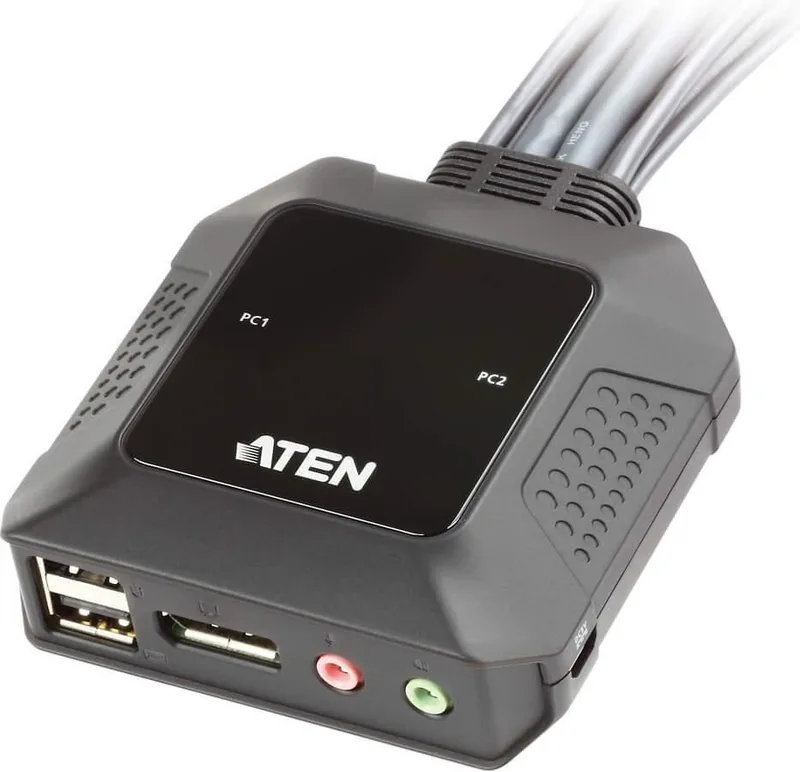
The ATEN CS22DP is a compact 2-port USB DisplayPort cable KVM switch designed for users who want to control two computers from one shared desk setup. With a single keyboard, mouse, monitor, microphone, and speaker set, it makes switching between systems fast and practical. For people managing a work PC and a personal machine, or two stations in a small office, it offers a simple way to reduce clutter and keep the workspace efficient.
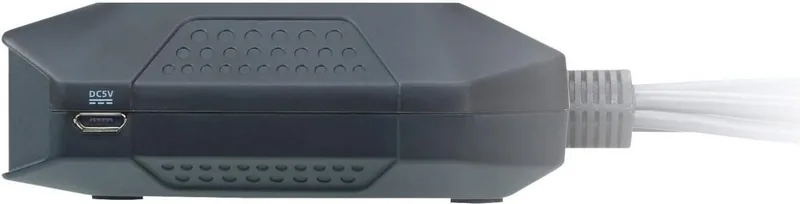
The ATEN CS22DP Manual highlights a straightforward hardware layout that keeps setup stress low. The unit includes dedicated console ports, DisplayPort connectors, USB keyboard and mouse ports, audio connections, port LEDs, and a micro USB power jack. Each part has a clear role, so the switch feels purposeful rather than complicated. The port LEDs are especially helpful because they show which computer is active without any guesswork.
One of the most useful aspects of the CS22DP is its flexibility with peripherals. The USB ports can support peripheral sharing through a USB hub, allowing extra devices to be used across both computers. If connected USB devices need more power, the micro USB power input can draw support from a PC, hub, or 5V USB adapter. That makes the device more adaptable in real-world setups where power demands can vary.
Audio support adds another layer of convenience. By connecting microphones and speakers directly, users can keep communication and multimedia tasks in the same workflow as keyboard and mouse control. This is helpful for conferencing, content review, or any setup where sound matters as much as visual output.
Why it stands out
The CS22DP is built for direct switching, not software complexity. A remote port selector button lets you move between the two connected computers instantly, which is ideal when speed and reliability matter. The design also keeps the desk tidy by combining switching and cable management into one compact unit.
Notes
A USB-to-Micro-USB cable is not included.
The device is RoHS compliant.
It is intended for commercial environments, so residential use may require extra attention to interference conditions.
Shielded twisted pair cables are recommended for compliance-focused installations.




Katelynn Funk
10 months ago
Does this KVM let me clearly tell which PC is active when it is switched off, and is there an option for a slider instead of the toggle button?
Manual.ly
10 months ago
It supports switching in daily use with essentially no noticeable delay. The hardware uses a toggle-style button for selecting PC1 or PC2. There is no slider-style switch on this model. For a clear confirmation of the active PC, you can check the monitor's input/source display (OSD) or the connected PC's active signal on the screen. If you specifically want a slider and a stronger physical active indicator, tell us your exact monitor and interface setup and we can suggest compatible alternatives.