
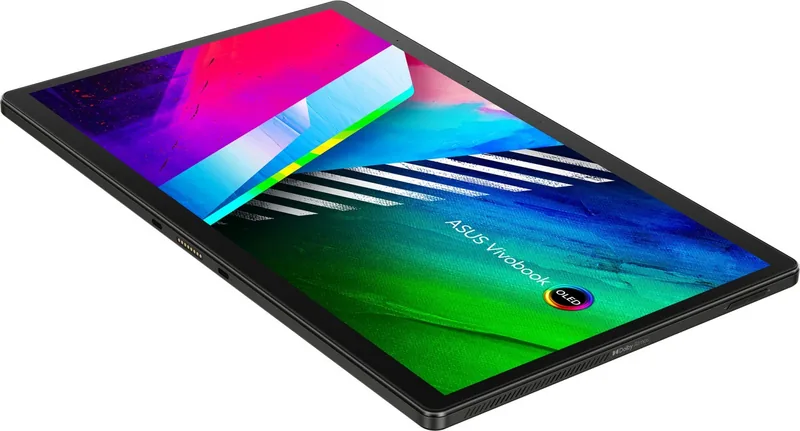

ASUS VivoBook 13 Slate OLED T3300 Manual
PDF manual · 104 Pages
English


Quick check
Incorrect answer, please try again.
Chat with your ASUS VivoBook 13 Slate OLED T3300 manual using AI
Get instant AI answers from your ASUS VivoBook 13 Slate OLED T3300 manual
Ask anything about the ASUS VivoBook 13 Slate OLED T3300. Answers come from this manual, with the pages they are based on.
VivoBook 13 Slate OLED T3300 Maintenance Schedule
If constantly using the power adapter, discharge the battery at least once every two weeks to a 50% level to extend battery life.
If not using the device for a long time, charge the battery to 50%, turn off the device, and disconnect the power adapter. Recharge to 50% every three months.
Free maintenance reminders
Timed to your purchase date. Always free, unsubscribe anytime.
Ask a Question
Do you recommend VivoBook 13 Slate OLED T3300?
Yes NoFrequently Asked Questions
Connect the AC adapter to the USB-C port. Ensure the outlet provides proper voltage. Do not leave it connected indefinitely to preserve battery health. Use the MyASUS software to limit charging to specific percentages for longevity.
Is this answer helpful?
Yes, you can use the device while charging. However, avoid soft surfaces that block vents to prevent heat buildup. Monitor temperature to ensure components remain safe during operation.
Is this answer helpful?
Use a soft dry cloth like microfiber. Do not use harsh chemicals or direct sprays. Ensure no liquid enters the ports or keyboard area. Gently wipe the screen in a circular motion.
Is this answer helpful?
POST checks hardware components every time the system starts. It ensures the motherboard, memory, and essential parts function correctly. If errors occur, it alerts the user to potential hardware failure needing repair.
Is this answer helpful?
Use Windows system recovery options via the start menu. You can keep personal files or remove everything for a clean state. Ensure you have backups before proceeding to prevent data loss during the reset process.
Is this answer helpful?
Some models feature a fingerprint sensor for secure login. Check your specific hardware configuration. If available, you can register your finger in Windows Hello for quick access.
Is this answer helpful?
Take it to an electronic waste recycling center. Do not throw it in regular trash. Follow local regulations for hazardous materials. The manual suggests checking official support websites for disposal guidelines.
Is this answer helpful?
Advantages and Disadvantages
Advantages

- Touchscreen display enables intuitive navigation and gesture controls
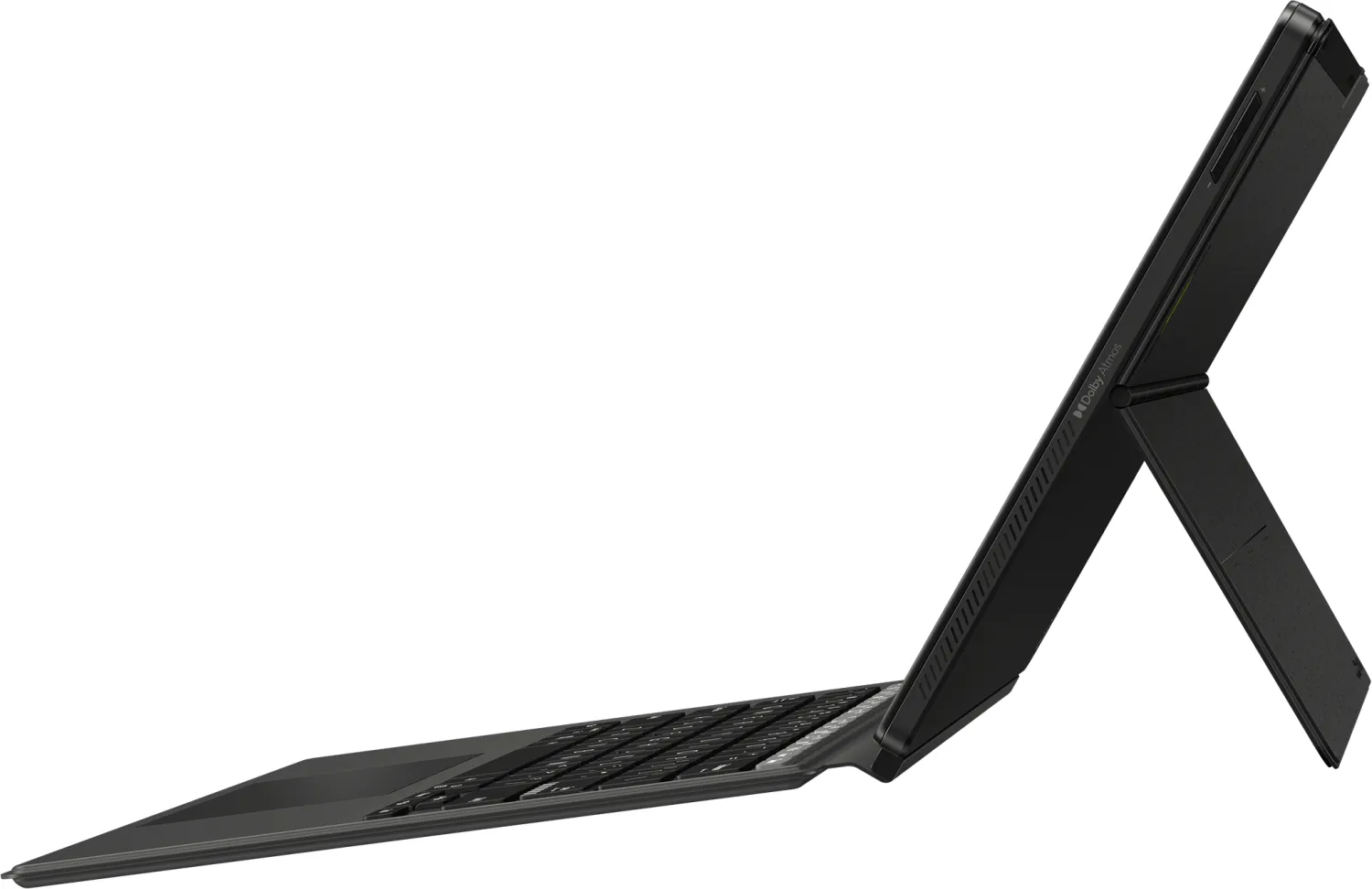
- Detachable keyboard provides versatile tablet and laptop modes
- USB-C ports support both data transfer and power delivery
- MyASUS software offers extensive system management and optimization
- OLED screen delivers vibrant colors and deep contrast
Disadvantages

- Device can become hot during battery charging sessions
- Lithium-ion battery requires careful disposal handling
- Specific voltage requirements for AC adapter charging
- Advanced BIOS settings could destabilize system if misconfigured
- Screen sensitivity may require regular calibration adjustments
Product Specification
Processor
Intel Pentium Silver N6000, 4C/4T, 1.10-3.30 GHz, 4MB+2MB Cache, 4.8W SDP, Codename "Jasper Lake" (Tremont, Intel 10nm+ + Intel 14nm)
Graphics
Intel UHD Graphics (iGPU), 32EU/256SP, 0.35-0.85 GHz, Architecture "Gen 11" (Jasper Lake GT1)
Display
13.3", 1920x1080, 166 PPI, Multi-Touch, Digitizer, OLED, 550 cd/m2 (HDR), 100% DCI-P3, VESA DisplayHDR True Black 500, Dolby Vision, Factory Calibrated
SIM
N/A
Cellular
N/A
Networking
N/A
Card Reader
microSD
Webcam
5 Megapixel (front), 13 Megapixel (rear)
Battery
Li-Polymer, 50Wh, 3 Cells, 9.5h Battery Life
Dimensions
12.20 x 7.48 x 0.31 in
Color
Black
Warranty
2 Years
Note
Different country versions may apply.
Product Description
Unlocking the Full Potential of Your New Device
The ASUS VivoBook 13 Slate OLED T3300 Manual provides critical information for owners of this versatile laptop. This unique product combines the thin form factor of a tablet with the functionality of a full PC. You should review safety guidelines before operating the unit. The device operates best within specific temperature ranges. Avoid placing it on surfaces that block vents. Heat buildup during charging is common. Keep air circulation open to prevent overheating risks.
The display offers excellent resolution for media consumption. OLED technology ensures deep blacks and vibrant colors. MyASUS software allows customization of visual settings. You can switch to Eye Care modes to reduce strain. Blue light filters protect your vision during extended use. Touchscreen gestures enable intuitive navigation without accessories. Pinching and swiping control windows effectively. The Start Menu organizes installed programs logically. Widgets provide quick access to daily information. Windows apps integrate seamlessly into the environment.
Hardware features include a detachable keyboard for tablet mode. A docking port secures the keyboard to the screen. USB-C ports support high-speed data transfers and charging. A MicroSD slot adds storage flexibility. Built-in microphones enhance audio calls with noise suppression. Speakers deliver clear sound for multimedia playback. Bluetooth and Wi-Fi enable wireless connectivity options. Airplane mode turns off radios for flight safety.
Battery management is crucial for longevity. Do not leave the device connected forever. Battery charging settings limit stress on cells. Avoid high temperatures which degrade lithium-ion batteries. Never puncture or incinerate the power source. Disposal requires following environmental laws. Recycling centers accept electronic waste responsibly. The Power-On Self-Test ensures system stability at boot. BIOS settings allow hardware configuration for advanced users. System recovery tools restore defaults if needed.
Security measures include optional fingerprint sensors. Windows Hello integration simplifies logins. Antivirus software keeps malware at bay. Regular updates patch security vulnerabilities. Data backups prevent loss during resets. Troubleshooting FAQs address common software issues. Support websites offer drivers and firmware updates. Compliance with FCC and RoHS standards ensures safety. Green design principles guide manufacturing.
This laptop suits professionals and students well. It manages documents and media tasks efficiently. The portability makes it ideal for remote work. Battery life supports a full day of usage. Cleaning requires a soft dry cloth. Do not use harsh chemicals on surfaces. Ensure all external ports are dust-free. If the screen freezes, restart the system. Hold the power button for ten seconds if needed. The ASUS VivoBook 13 Slate OLED T3300 Manual ensures you get the best experience. Use it to maximize performance and safety. Enjoy the flexibility and power it offers daily.
Search for 67,706 Manuals online


Type-in Brand or Model