
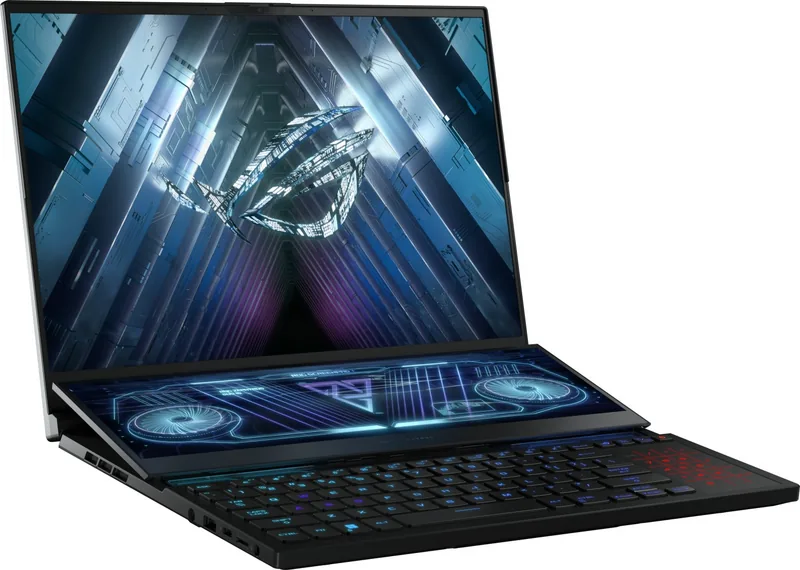
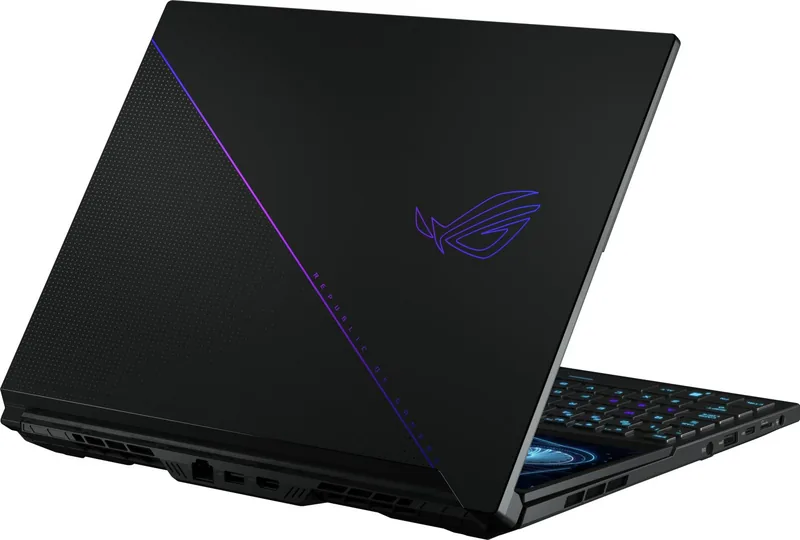

ASUS ROG Zephyrus Duo 16 GX650R (2022) Manual
PDF manual · 114 Pages
English


Quick check
Incorrect answer, please try again.
Chat with your ASUS ROG Zephyrus Duo 16 GX650R (2022) manual using AI
Get instant AI answers from your ASUS ROG Zephyrus Duo 16 GX650R (2022) manual
Ask anything about the ASUS ROG Zephyrus Duo 16 GX650R (2022). Answers come from this manual, with the pages they are based on.
ROG Zephyrus Duo 16 GX650R (2022) Maintenance Schedule
If constantly using AC power, discharge battery power to 50% at least once every two weeks to extend battery life.
If the device is unused for a long period, charge the battery to 50% every three months to prevent over-discharging and damage.
Free maintenance reminders
Timed to your purchase date. Always free, unsubscribe anytime.
Ask a Question
Do you recommend ROG Zephyrus Duo 16 GX650R (2022)?
Yes NoFrequently Asked Questions
The ScreenPad Plus is enabled by default. You can configure its functions using the Armoury Crate software or Windows settings to assign specific apps or windows to the secondary display.
Is this answer helpful?
Ensure that air vents are not blocked by papers or clothing. Do not place the device on soft surfaces like beds. Open the display panel to at least 60 degrees for better heat dissipation and consider using a cooling pad.
Is this answer helpful?
Yes, press the NumLock key or toggle the setting in the driver to switch the touchpad into NumberPad mode for numeric input without needing a separate numpad.
Is this answer helpful?
Enable the auto-hide taskbar feature, reduce brightness levels, and activate the animated screensaver. Also, use Dark Mode and Eyecare settings available in the ROG Armoury Crate application.
Is this answer helpful?
Contact your local ASUS service center immediately. Using an incorrect adapter can damage the device. Only use the bundled power adapter rated for 20V/5A or higher as specified for your model.
Is this answer helpful?
Press and hold the power button for at least ten seconds until the device shuts down. If issues persist, use the recovery options in Windows Settings under System > Recovery after backing up your data.
Is this answer helpful?
Advantages and Disadvantages
Advantages

- Dual-screen setup with ScreenPad Plus enhances multitasking and workflow efficiency
- High-performance hardware ideal for gaming, streaming, and creative workloads
- OLED display options offer vibrant colors and deep blacks with eye-care certifications
- Comprehensive connectivity including USB-C with DisplayPort and HDMI
- Smart battery management features in MyASUS extend battery lifespan
Disadvantages

- Complex dual-screen design may require a learning curve for new users
- Device can become warm to hot during intensive tasks requiring careful placement
- Non-removable battery limits user upgrades but reduces physical bulk
- Higher price point compared to standard single-screen gaming laptops
- Requires specific power adapter ratings to avoid damage on certain ports
Product Specification
Type
Notebook
HDD
N/A
Flash
N/A
Ports
1x USB-C 3.1 with DisplayPort 1.4a (10Gb/s, power delivery, PD), 1x USB-C 3.1 with DisplayPort 1.4a (10Gb/s), 2x USB-A 3.1 (10Gb/s), 1x HDMI 2.1, 1x 3.5mm jack, 1x RJ-45 2.5Gb LAN, 1x microSD, 1x DC-In hollow socket (power supply, 6mm)
Wireless
Wi-Fi 6E (WLAN 802.11a/b/g/n/ac/ax, 2x2), Bluetooth 5.2
Authentication
IR camera, TPM 2.0
Camera
0.9 Megapixel
Optical Drive
N/A
Battery
built-in, Li-Ion, 4 cells, 90Wh
Power Supply
1x Hollow plug (280W/20V/14A, 6mm), optional 1x USB-C power plug (100W/20V/5A)
Dimensions
14.0x10.5x0.8in (WxDxH)
Color
black
Warranty
two years (send-in)
USB Spelling
Link
Product Description
ASUS ROG Zephyrus Duo 16 GX650R (2022) - Read, Download & Print Free
The ASUS ROG Zephyrus Duo 16 GX650R stands as a pinnacle of mobile gaming innovation, redefining what a high-performance laptop can achieve. This machine is not just a computer; it is a complete workstation designed for gamers who demand the best and creators who need extra screen real estate without carrying multiple monitors. The defining feature of this device is its dual-screen architecture. While the main 16-inch display offers stunning visuals, the unique ScreenPad Plus secondary display sits above the keyboard, providing an intuitive way to manage tools, view game stats, or multitask seamlessly.
Equipped with powerful hardware, the GX650R delivers exceptional performance for demanding tasks. Whether you are rendering complex 3D models, streaming high-fidelity games, or editing 4K video, this notebook handles it all with ease. The system features advanced cooling solutions to maintain optimal temperatures during intense sessions, ensuring that performance never throttles. Users can customize their experience through the Armoury Crate software, which allows for precise control over fan speeds, lighting effects, and power modes.
Connectivity is robust, offering a wide array of ports including USB-C with DisplayPort support, HDMI for external displays, and ample USB-A options. The keyboard itself is a joy to use, featuring responsive keys and a dedicated NumberPad function that toggles on the touchpad for quick numeric entry. Battery management is also a priority, with smart charging features in MyASUS that help extend battery health by limiting charge cycles when plugged in constantly. For those who value eye comfort, the OLED display options include TÜV Rheinland certifications for low blue light and flicker-free technology, reducing strain during long hours of use.
Setting up the device is straightforward, guiding users through Windows configuration with clear on-screen instructions. From adjusting the dark mode to optimizing the OLED panel settings, the manual provides detailed steps to get the most out of your new machine. Safety precautions are emphasized throughout, advising on proper ventilation and battery care to prevent overheating or damage. This comprehensive guide ensures that every user, from novices to experts, can maximize the potential of their ASUS ROG Zephyrus Duo 16.
Important Notes
- Always ensure air vents are unblocked to prevent overheating.
- Use only the provided power adapter for safe charging.
- Regularly update drivers via MyASUS for optimal performance.
- Avoid exposing the device to extreme temperatures or moisture.
Search for 67,706 Manuals online


Type-in Brand or Model