
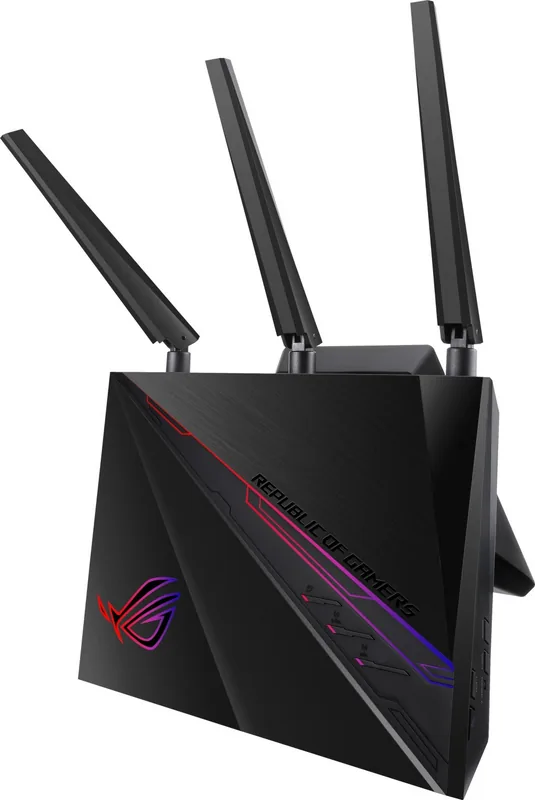
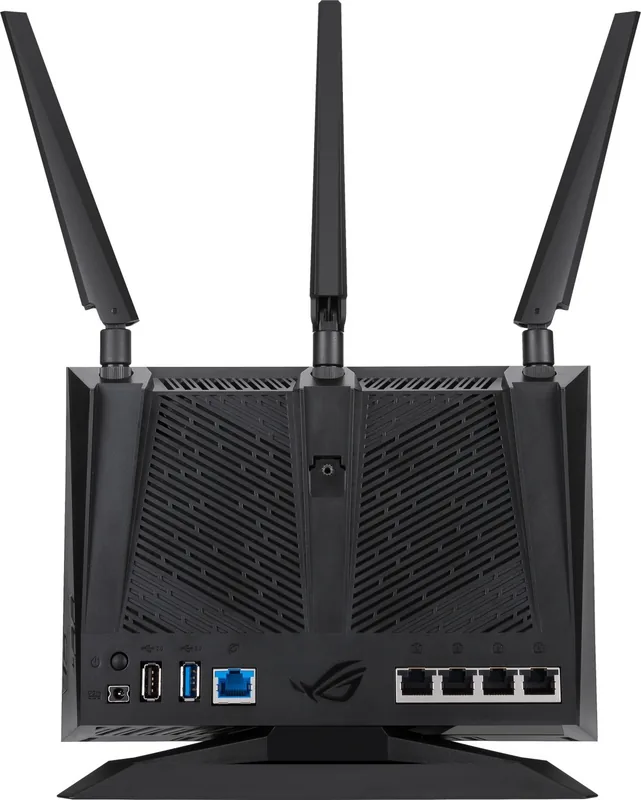
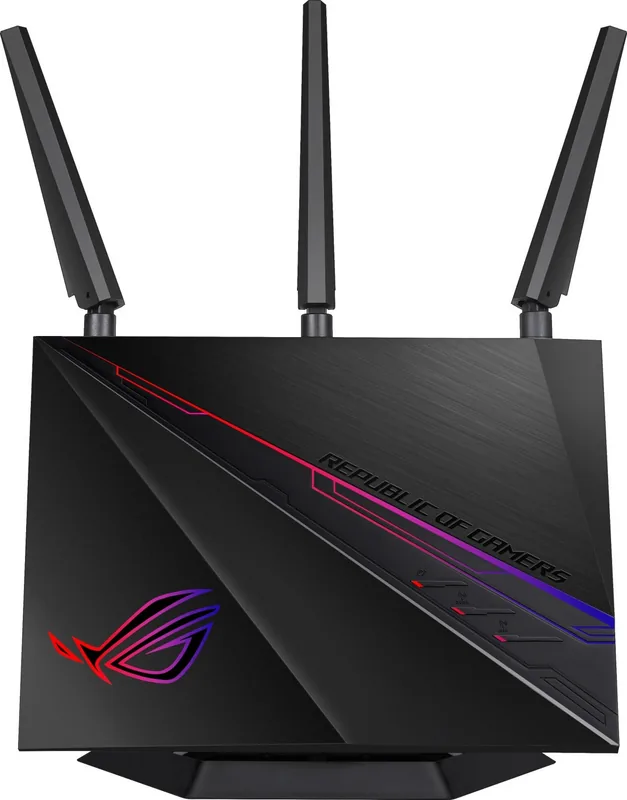
ASUS ROG Rapture GT-AC2900 Manual
PDF manual · 140 Pages
English


Quick check
Incorrect answer, please try again.
Chat with your ASUS ROG Rapture GT-AC2900 manual using AI
Get instant AI answers from your ASUS ROG Rapture GT-AC2900 manual
Ask anything about the ASUS ROG Rapture GT-AC2900. Answers come from this manual, with the pages they are based on.
Ask a Question
Do you recommend ROG Rapture GT-AC2900?
Yes NoFrequently Asked Questions
Power on the router and connect your modem to the WAN using the included network cable. Check the modem LEDs to confirm an active link. Then open your browser; the web GUI should launch automatically. If not, visit http://router.asus.com, set a router password, and follow the on-screen steps.
Is this answer helpful?
If the router configuration page does not launch by itself, manually enter http://router.asus.com in your browser. This is the recommended fallback in the setup instructions, and it helps you proceed with password setup and wireless configuration.
Is this answer helpful?
The GT-AC2900 supports both 2.4 GHz and 5 GHz Wi-Fi. During setup, connect to the default SSID shown on the router label, then switch to unique SSIDs and set passwords for better security.
Is this answer helpful?
Place the router in a centralized area for maximum coverage. Keep it away from metal obstructions and direct sunlight. Also avoid placing it near devices that can cause interference, since those can contribute to signal loss or unstable performance.
Is this answer helpful?
Yes. If your internet connection uses DSL, the setup requires your ISP-provided username and password to configure the router properly. Keep these details available before starting configuration.
Is this answer helpful?
Set a router password to prevent unauthorized access. For Wi-Fi security, change the default SSID to a unique SSID and assign strong passwords for both the 2.4 GHz and 5 GHz networks. Writing down your final settings can also help with later changes.
Is this answer helpful?
Advantages and Disadvantages
Advantages

- Dual-band Wi-Fi setup supports separate 2.4 GHz and 5 GHz networks for flexible performance.
- Clear on-device controls and LEDs (WAN, Wi-Fi, power, resets) help confirm connectivity quickly.
- Web GUI configuration is streamlined and can be accessed via http://router.asus.com when needed.
- Includes USB 2.0 and USB 3.0 ports for network expansion and sharing options.
- Security guidance is practical: set a router password and use a unique SSID.
Disadvantages

- Best wireless results depend on placement, including staying away from metal obstructions and direct sunlight.
- For DSL internet, you need ISP credentials (username and password) to properly configure the router.
- Configuration may not auto-launch in all browsers, requiring manual access to http://router.asus.com.
- You are instructed to use only the included adapter, which limits third-party power options.
- Interference avoidance is emphasized, which may require moving the router away from certain electronics.
Product Specification
Modem
N/A
WAN
1x 1000Base-T
LAN
4x 1000Base-T
Wireless
WLAN 802.11a/b/g/n/ac/h (Wi-Fi 5), simultaneous
Transfer rate
750Mbps (2.4GHz), 2167Mbps (5GHz)
Security
64/128bit WEP, WPA, WPA2, WPS
Antennas
3x external
Ports
1x USB-A 3.0, 1x USB-A 2.0
Power consumption
not specified (consumption, operation), not specified (max. power supply capacity)
Dimensions
8.70x6.65x4.37in
Special features
IPv6, TPC/DFS, MU-MIMO, LACP, Mesh (shared band), VPN passthrough (PPTP/L2TP/IPSec), supports mobile modems (3G/4G), WLAN on/off switch, Lighting on/off switch
Band capability
Dual Band (simultaneous), Mesh (shared band)
Manufacturer's warranty
two years
Product Description
ASUS ROG Rapture GT-AC2900: Dual-Band Gaming Router Built for Fast, Reliable Setup (ASUS ROG Rapture GT-AC2900 Manual)
If you want a router that feels ready for gaming right out of the box, the ASUS ROG Rapture GT-AC2900 is a strong choice. Designed as a dual-band router for balancing everyday speed with high-performance wireless, it targets smoother connections for streaming, competitive play, and busy home networks.
What stands out immediately is the attention to practical usability. The hardware layout includes key controls such as Wi-Fi on/off, WPS, a reset button, and status LEDs that help you confirm link activity at a glance. On the ROG side, the ROG Boost key signals a gamer-focused approach, while the router also provides USB 2.0 and USB 3.0 ports for expanding what you can connect and share on your network.
Getting online is straightforward whether you prefer a wired or wireless start. You can connect the modem to the WAN port using the included network cable, then power on both devices and check modem LEDs to confirm the connection is active. For configuration, the web GUI is designed to launch automatically in your browser; if it does not, you can enter http://router.asus.com to proceed. A quick password setup is also emphasized to reduce the risk of unauthorized access.
For Wi-Fi, the router supports separate 2.4 GHz and 5 GHz networks. During setup, you will connect to the default SSID shown on the router label, then it is recommended to switch to a unique SSID and set a password for better security. Keeping track of your final router name, passwords, and both SSIDs makes later troubleshooting much easier.
Key results
- Dual-band Wi-Fi setup for both 2.4 GHz and 5 GHz networks with clear SSID and password guidance.
- Easy configuration via web GUI, including a fallback to http://router.asus.com when auto-launch fails.
- Built-in management controls such as Wi-Fi on/off, WPS, and status LEDs for faster troubleshooting.
- Practical expansion options with USB 2.0 and USB 3.0 ports.
- Strong reliability habits: firmware updates, careful placement away from interference sources.
Notes for best performance
Place the router centrally and keep it away from metal obstructions and direct sunlight. For fewer wireless issues, avoid interference from nearby devices that can disrupt 2.4 GHz signals, and keep the firmware updated to the latest ASUS version. Also, use only the included power adapter to avoid damage.
Search for 67,732 Manuals online


Type-in Brand or Model
Leonie Hartmann
10 months ago
Is the router's gaming feature actually useful, and will the Wi-Fi range and speed be as good as advertised?
Manual.ly
10 months ago
The gaming features are mainly meant to improve responsiveness (for example via prioritization/QoS and reduced latency options). Effects can vary by your internet line, device, and distance, so there is no universal guarantee you will notice a major difference. For Wi-Fi performance, many users report stronger 2.4 GHz coverage and more reliable reach compared to older routers, especially when used as the main device with a proper wired WAN connection. If you want maximum throughput, connect the router to a fast modem/bridge setup and use Ethernet where possible. Also, adjust channel and security settings for your environment.