
ASUS PCE-AC88 Manual
PDF manual · 12 Pages
English


Quick check
Incorrect answer, please try again.
Chat with your ASUS PCE-AC88 manual using AI
Get instant AI answers from your ASUS PCE-AC88 manual
Ask anything about the ASUS PCE-AC88. Answers come from this manual, with the pages they are based on.
Ask a Question
Do you recommend PCE-AC88?
Yes NoFrequently Asked Questions
It is a PCIe wireless adapter that adds Wi-Fi capability to a desktop PC. The card supports dual-band wireless connections, making it useful for users who want a cable-free network setup on a compatible system.
Is this answer helpful?
Yes. The product is designed for dual-band operation, so it can connect on both 2.4GHz and 5GHz networks. This helps users choose between range-focused and speed-focused wireless connections.
Is this answer helpful?
The setup is fairly direct. You shut down the PC, insert the card into a PCI-E slot, install the driver, and connect the antenna base. The included instructions are written to keep the process simple.
Is this answer helpful?
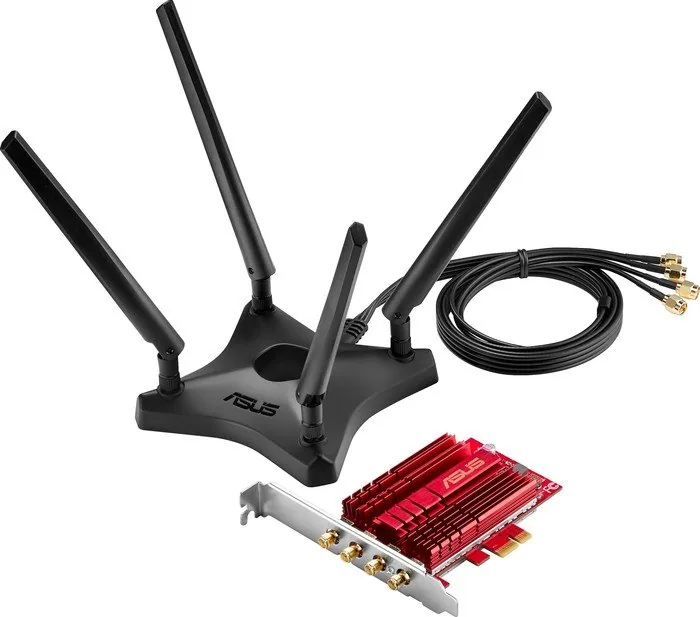
The antenna base helps position the antennas for better reception. Since Wi-Fi performance can change depending on placement, adjusting the magnetic base can improve signal quality and stability.
Is this answer helpful?
No. You can use the support CD if available, but the driver can also be downloaded from ASUS. That gives users a backup option if the disc is missing or the system has no optical drive.
Is this answer helpful?
It is a good choice for desktop users who want stronger wireless flexibility, especially if they are upgrading an older PC or building a system that needs reliable Wi-Fi without relying on a USB adapter.
Is this answer helpful?
Advantages and Disadvantages
Advantages

- Dual-band 2.4GHz/5GHz support offers flexible Wi-Fi connectivity for desktops.
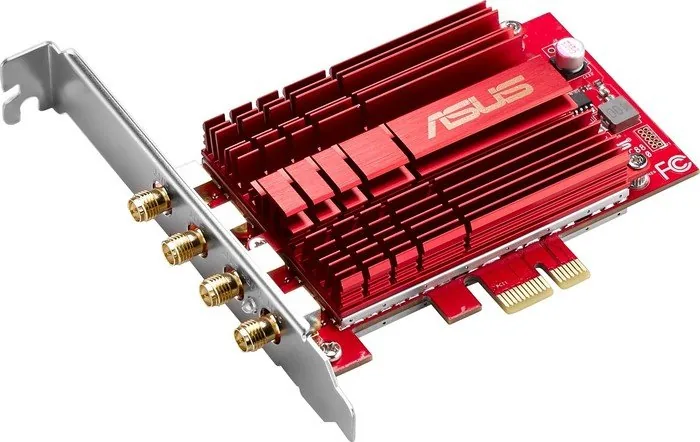
- PCIe x1 design makes it easy to add wireless capability without changing the whole PC.
- Magnetic antenna base helps improve signal placement and reception.
- Simple setup steps make installation manageable for many users.
Disadvantages

- Requires opening the computer case, which may not suit casual users.
- Performance depends heavily on antenna position and router distance.
- Driver installation is required before full Wi-Fi use.
- Uses a wired PCIe slot, so it is only suitable for desktop systems.
Product Specification
Type
WLAN adapter
Form factor
1x PCIe card
Interface
1x PCIe 1.0 x1
Connectivity
1x WLAN 802.11a/b/g/n/ac (1x 2.4GHz or 1x 5GHz, incl. 802.11h), 1x transmitter (4x RP-SMA antenna connector, 24dBm), 4x antenna (RP-SMA, individually adjustable, 39.37in connection cable, with magnetic antenna holder, bidirectional)
Transmission
1x 2.4GHz WLAN (1Gb/s, 4x4), 1x 5GHz WLAN (2.17Gb/s, 4x4)
Power supply
Power supply only via interface
Dimensions
4.07x0.83x2.71in (WxHxD)
Weight
0.28lb
Compatibility
universal
Features
TPC/DFS
Manufacturer warranty
three years
Product Description
ASUS PCE-AC88: A Practical Dual-Band Wi‑Fi Upgrade for Desktop PCs
If your desktop still depends on an Ethernet cable, the ASUS PCE-AC88 is the kind of upgrade that can make everyday networking feel much more flexible. This PCIe x1 wireless adapter is built to add 2.4GHz/5GHz Wi‑Fi support to a compatible computer, giving older systems a simple path into modern wireless connectivity. It is especially appealing for users who want strong desktop Wi‑Fi without replacing the whole machine.
The PCE-AC88 is designed around a straightforward installation process. You power down the PC, fit the card into the PCI-E slot, and then install the driver from the support CD or by downloading it from ASUS. Once the software is in place, the computer gains wireless capability and can join a home or office network like any other Wi‑Fi device. The quick-start style instructions make the process feel approachable, even for first-time builders.
One of the most useful details in the ASUS PCE-AC88, 2.4GHz/5GHz Wi-Fi, PCIe x1 Manual is the emphasis on antenna placement. The card uses a separate antenna base that must be connected correctly for best results. That magnetic base is more than a convenience feature: it helps users position the antennas where signal reception is strongest, which can make a noticeable difference in real-world performance. For a desktop tucked under a desk or placed in a corner, that extra flexibility is valuable.
This adapter is a good fit for users who want reliable connectivity for browsing, streaming, gaming, or remote work. Dual-band support helps balance compatibility and speed, while the PCIe x1 format keeps the hardware footprint compact. The guide also includes broad regional compliance and support information, showing that the product is meant for international use and backed by ASUS service resources.
In blog terms, the PCE-AC88 stands out as a practical, no-nonsense networking upgrade: install the card, load the driver, attach the antennas, and fine-tune placement for better signal. It is not about flashy extras; it is about giving a desktop a clean wireless boost with a familiar ASUS approach to setup and support.
Notes
- Place the antenna base away from obstructions for a stronger signal.
- Download the latest driver if the support CD is unavailable.
- Confirm your PCI-E slot and system compatibility before installation.
Search for 67,706 Manuals online


Type-in Brand or Model
Katrin Moeller
8 months ago
Is the ASUS PCE-AC88 stable on Windows 10/11, and does it include software to manage WiFi channels? I worry about driver problems or frequent disconnects.
Manual.ly
8 months ago
Most users report stable performance with low disconnect frequency. For best results, install the latest ASUS driver for the PCE-AC88 (from the ASUS product page) rather than relying only on the included CD. The card does not typically provide its own utility for manually switching WiFi channels; channel selection is usually managed via your router/access point settings, and the adapter connects automatically to the best available 5 GHz option. If you do see dropouts, first verify driver version, then improve antenna placement (use the included antenna stand/cable if needed), and confirm your router configuration (channel, bandwidth, and WPA settings).