
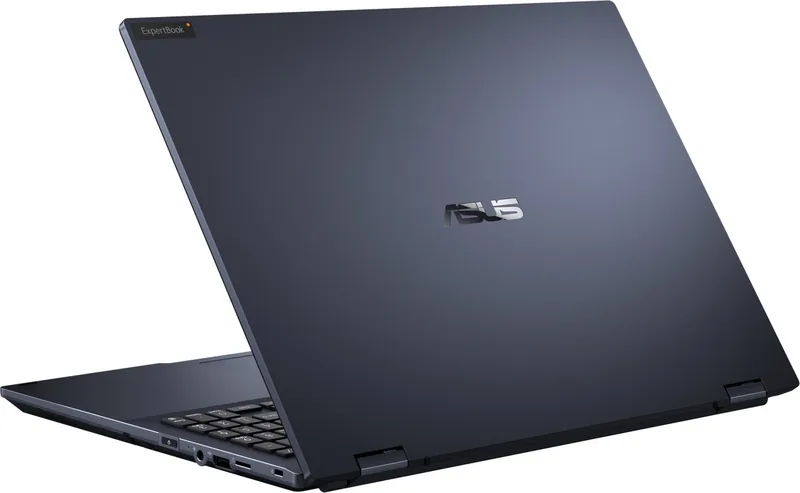
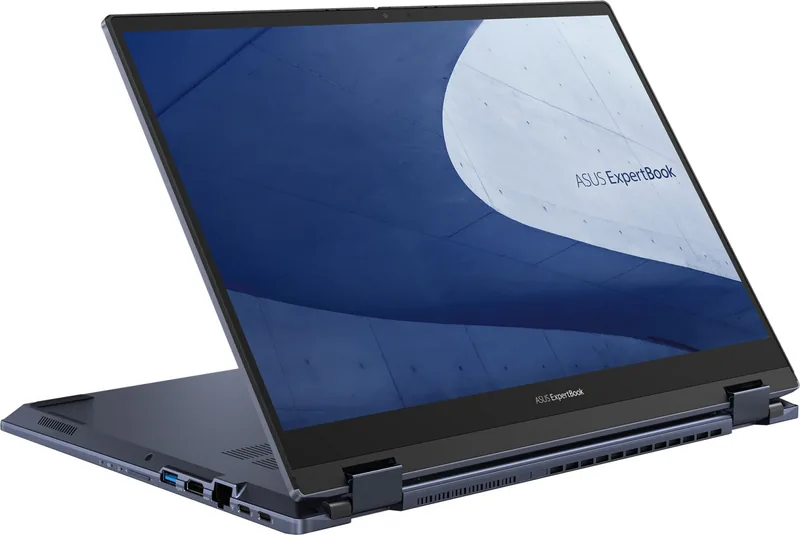
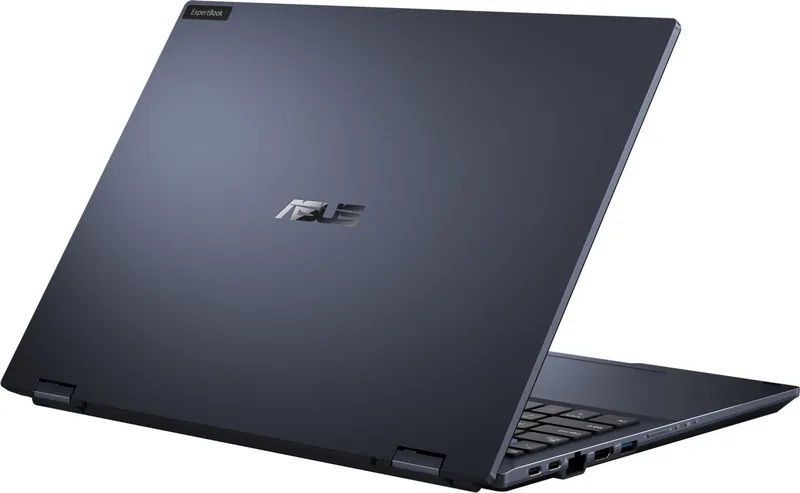
ASUS ExpertBook B5 Flip OLED B5602F Manual
PDF manual · 102 Pages
English


Quick check
Incorrect answer, please try again.
Chat with your ASUS ExpertBook B5 Flip OLED B5602F manual using AI
Get instant AI answers from your ASUS ExpertBook B5 Flip OLED B5602F manual
Ask anything about the ASUS ExpertBook B5 Flip OLED B5602F. Answers come from this manual, with the pages they are based on.
ExpertBook B5 Flip OLED B5602F Maintenance Schedule
When continuously using the AC adapter, discharge the battery to 50% at least once every two weeks to extend battery life.
If the device is unused for a long time, charge the battery to 50%, shut down, and unplug it. Recharge it to 50% every three months.
Free maintenance reminders
Timed to your purchase date. Always free, unsubscribe anytime.
Ask a Question
Do you recommend ExpertBook B5 Flip OLED B5602F?
Yes NoFrequently Asked Questions
Connect the adapter to the Thunderbolt 4 port on the left side and plug the other end into a wall outlet. Ensure you use the original power adapter for optimal performance.
Is this answer helpful?
Yes, the 360-degree hinge allows the screen to rotate fully. You can switch between laptop, tent, stand, and tablet modes based on your task or preference.
Is this answer helpful?
Use the Recovery option in Windows Settings. Select Update and Security, then Recovery, and choose to restore the system to its original state after backing up your data.
Is this answer helpful?
No, the battery is built-in. If you need to replace it, you must contact a qualified technician or authorized service center for assistance.
Is this answer helpful?
The system may reduce charging capacity or turn off to protect the battery. Avoid placing the device on soft surfaces that block airflow from the vents.
Is this answer helpful?
Click the network icon in the taskbar. Ensure Airplane mode is off, select your network from the list, and enter the password if required.
Is this answer helpful?
POST stands for Power-On Self-Test. It runs diagnostic tests automatically when you turn on the computer to check hardware functionality before loading the operating system.
Is this answer helpful?
Advantages and Disadvantages
Advantages

- 360-degree hinge allows multiple usage modes for versatility.
- OLED display provides vivid colors and accurate visuals.
- Thunderbolt 4 port supports fast data transfer and charging.
- Fingerprint sensor enables secure Windows Hello authentication.
- MyASUS software offers battery health charging and display tuning.
Disadvantages

- Fixed battery cannot be removed by user without technician.
- Device can become very hot during operation or charging.
- Some advanced features like ASUS Pen depend on specific models.
- OLED screen risk of burn-in if static images are shown for long periods.
- Manual includes strict safety warnings regarding heat and placement.
Product Specification
Type
Laptop, Convertible
CPU
Intel Core i7-1260P, 4P+8E / 16 Threads, 2.10-4.70GHz, 18MB+9MB Cache, 28-64W TDP (PBP/MTP), Codename "Alder Lake-P" (Golden Cove + Gracemont, Intel 7)
RAM
16GB DDR5 (8GB soldered, 1x 8GB SO-DIMM Module, 1 Slot, max. 40GB)
HDD
N/A
Flash
N/A
Operating System
Windows 11 Pro
Ports
1x USB-A 3.1 (10Gb/s, BC), 1x USB-A 2.0 (480Mb/s), 2x Thunderbolt 4 (40Gb/s, Power Delivery, PD), 1x HDMI 2.0b, 1x 3.5mm Jack, 1x RJ-45 1Gb LAN, 1x microSD
Wireless
Wi-Fi 6E (WLAN 802.11a/b/g/n/ac/ax, 2x2), Bluetooth 5.1
Authentication
Fingerprint-Reader (Power Button), TPM 2.0, IR Camera
Optical Drive
N/A
Battery
Integrated, Li-Polymer, 4 Cells, 84Wh
Power Adapter
1x USB-C Power Adapter (90W / 20V / 4.5A)
Features
MIL-STD-810H
Dimensions
14.10 x 10.28 x 0.78 inches (WxDxH)
Color
black, Manufacturer Designation: Star Black
SSD/HDD Slots
2x M.2 PCIe 4.0 x4 (2280)
USB Naming
Link
Product Description
Discover the Versatility of the ASUS ExpertBook B5 Flip OLED
The ASUS ExpertBook B5 Flip OLED B5602F Manual guides you through the capabilities of this powerful convertible laptop designed for professionals who demand performance and mobility. This device features a stunning OLED display that brings vibrant colors to life, ensuring accurate visuals for creative tasks. The 360-degree hinge allows you to switch seamlessly between laptop, tent, stand, and tablet modes, adapting to your specific workflow needs in any environment. Security is a central theme of this machine, with a built-in fingerprint sensor for fast and secure access via Windows Hello facial recognition.
Hardware Excellence and Connectivity
Portability meets connectivity with Thunderbolt 4 support located on the left side. You can charge your device, transfer data at incredibly high speeds, and connect to multiple external monitors with a single versatile cable. The inclusion of a USB 3.2 Gen2 port with charging capability ensures your accessories stay powered up without needing a separate source. Audio quality is significantly enhanced by integrated array microphones with AI noise cancellation, making your voice crystal clear during important video conferences or online meetings. The optional ASUS Pen, available on specific models, offers exceptional precision for detailed note-taking and creative digital drawing tasks.
Software Customization and Maintenance
The MyASUS application simplifies complex system management tasks. You can adjust specific settings like Battery Health Charging to maximize capacity and extend battery life over time. Alternatively, you can use Splendid technology to calibrate your OLED screen for accuracy, choosing between Normal, Vivid, or Eye Care modes based on your preference. The guide details how to configure Windows for optimal performance, including setting dark mode options for eye comfort during late-night work sessions or when reducing blue light exposure.
Safety and Troubleshooting
Proper maintenance is crucial for longevity and safe operation. The guide advises against placing the device on soft surfaces like beds, as vents may block airflow causing overheating or injury. It strongly recommends using original power adapters and avoiding extreme temperatures to protect the lithium-ion battery from damage. Routine software updates via Windows keep drivers secure and prevent potential errors. If issues arise, the troubleshooting section helps resolve common hardware or software glitches without needing immediate professional service visits. This documentation ensures you get the maximum efficiency out of your investment while maintaining safety standards for both user and equipment.
Conclusion
The ASUS ExpertBook B5 Flip OLED B5602F Manual is essential for understanding every function from start to finish. From the keyboard layout nuances to the complex touchpad gestures, knowing the setup allows for efficient usage across different modes. Whether you are charging the device or adjusting brightness, following these instructions protects your hardware and ensures consistent performance for years to come. Proper disposal instructions are also included to protect the environment.
Search for 67,706 Manuals online


Type-in Brand or Model