

ASRock Side Panel Kit Manual
PDF manual · 2 Pages
English



Quick check
Incorrect answer, please try again.
Chat with your ASRock Side Panel Kit manual using AI
Get instant AI answers from your ASRock Side Panel Kit manual
Ask anything about the ASRock Side Panel Kit. Answers come from this manual, with the pages they are based on.
Ask a Question
Do you recommend Side Panel Kit?
Yes NoFrequently Asked Questions
The primary function is to mount a 13.3-inch eDP display inside your PC case, allowing for a secondary screen to monitor system status or play media while using the main monitor.
Is this answer helpful?
Yes, your motherboard must have an eDP connector. You also need a PC case with a transparent tempered glass side panel that has enough space to mount the screen.
Is this answer helpful?
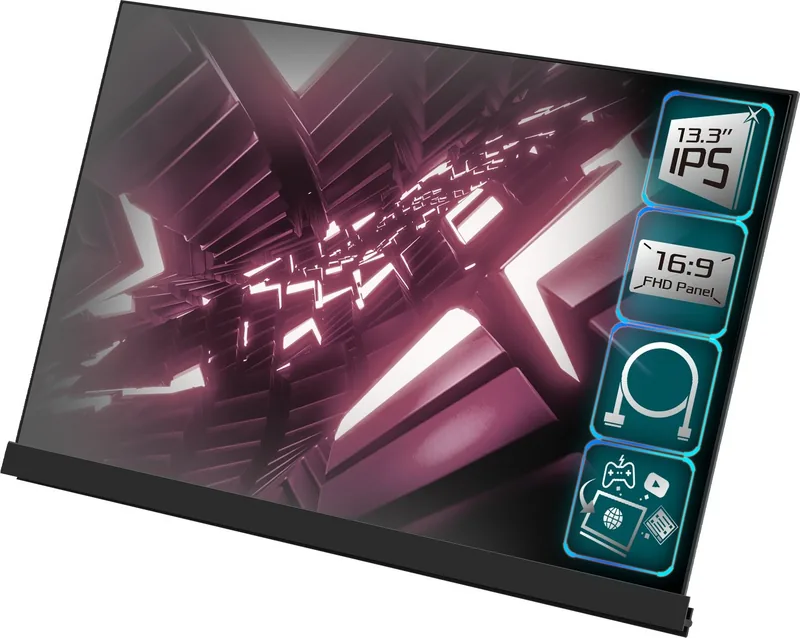
The panel is a 13.3-inch IPS display with a 16:9 aspect ratio, Full HD resolution of 1920 by 1080 pixels, 300 cd/m2 brightness, and a 60 Hz refresh rate.
Is this answer helpful?
Yes, the kit supports both orientations. You can use the included brackets and rubber strips for either setup. For vertical display, rotate the panel 90 degrees during installation.
Is this answer helpful?
You must set the Primary Graphics Adapter to Onboard in the BIOS under Chipset Configuration to ensure the internal display works correctly after installation.
Is this answer helpful?
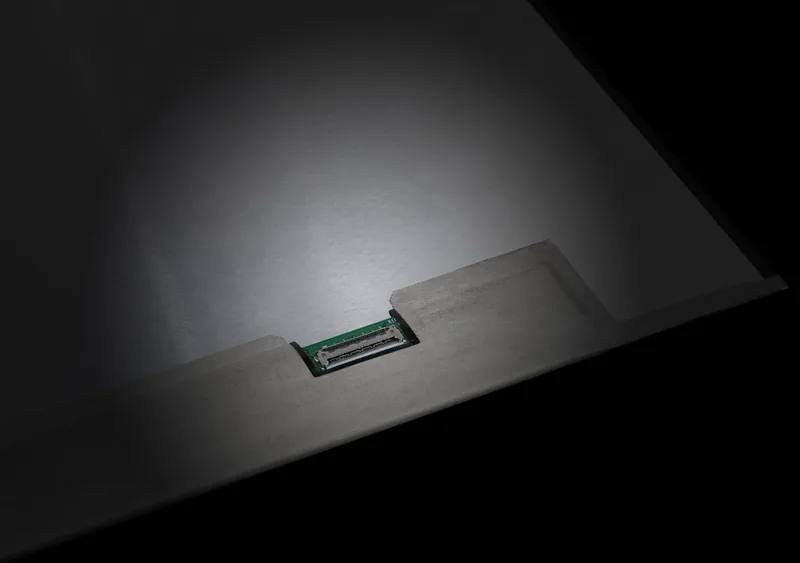
Connect the eDP cable end to the panel connector using the flip-lock mechanism, then connect the other end to the 40-pin eDP connector on the motherboard before installation.
Is this answer helpful?
Advantages and Disadvantages
Advantages

- Integrates a secondary monitor inside the PC case for a cleaner desk setup
- IPS panel technology ensures wide viewing angles and high color accuracy
- Supports both horizontal and vertical display configurations easily
- Reduces power consumption compared to standard external monitor setups
- Comes with brackets and rubber strips for secure and stable mounting
Disadvantages

- Requires specific motherboard compatibility with eDP connectors
- Needs transparent tempered glass side panel for visibility
- BIOS settings adjustment is required for the display to function properly
- Installation requires careful handling to avoid damaging the eDP panel
- May affect side panel transparency and display quality slightly
Product Specification
Function
Side Panel
Screen Size
13.3 inches
Resolution
1920x1080 (FHD), 16:9, 166 ppi
Panel
IPS
Backlight
LED
Brightness
300 cd/m2 (typical)
Contrast
800:1 (static)
Refresh Rate
60Hz (1920x1080)
Ports
1x eDP
Form
Flat
Viewing Angle
178 deg/178 deg
Coating
Non-glare (matte)
Color Depth
8bit (16.7 million colors)
FRC
Unknown
Ergonomics
With stand, height-adjustable N/A, Pivot N/A, Swivel N/A, Tilt N/A
VESA
N/A
Power Consumption
0W (standby)
Features
Slim Bezel
Screen-to-Body Ratio
91.42% (calculated)
Dimensions
11.82x6.99x0.09 inches (WxHxT) without stand
Color
Black (Display bezel) / Black (bottom bezel)
USB Port Location
Left
Product Description
ASRock Side Panel Kit 13.3 Overview and Guide
The ASRock Side Panel Kit 13.3 Manual provides essential instructions for integrating a secondary monitor directly into your computer chassis. This innovative accessory allows enthusiasts to transform standard PC cases into functional workstations. By utilizing a transparent tempered glass side panel, users can mount a 13.3-inch eDP panel securely within the enclosure. It turns a standard box into a dual-screen environment effortlessly. Many users appreciate the clean aesthetic compared to external monitors cluttering their desk space.
Installation Essentials for Success
Before beginning, ensure your motherboard supports the specific eDP interface required by the display. Always check the manufacturer website for compatible models. The kit includes mounting brackets and retaining rubber strips necessary for both vertical and horizontal display orientations. During setup, clean the glass panel with a microfiber cloth to remove dust. Peel the adhesive liners carefully without touching the sticky surfaces to maintain bond strength. Position the brackets to allow sufficient free space above for the screen placement.
Technical Specifications Breakdown
This IPS panel features a standard 16:9 aspect ratio with Full HD resolution performance. It delivers 1920 by 1080 pixels across the total viewing area effectively. The anti-glare surface improves visibility in bright room environments significantly. LED backlighting ensures consistent brightness at 300 cd/m2 throughout usage. The pixel pitch measures 0.153mm for sharp text clarity. Refresh rates max out at 60 Hz while displaying 16.7 million colors accurately. Dimensions are compact at 300.3 by 177.6 by 2.3mm including brackets.
Usage Scenarios and Performance
This sub screen facilitates real-time PC status monitoring easily. Gamers can watch videos or stream content while playing games on the main screen. The system reduces power consumption compared to traditional monitor setups. Remember to set Primary Graphics Adapter to Onboard in the BIOS settings. This ensures the display functions correctly after installation without issues. Use cable clips to manage the eDP cable routing for a clean interior look.
Important Maintenance and Final Steps
Do not forget to preserve the black strip for bracket removal later if needed. The rubber strips frame the panel to prevent sliding during operation. Rotating the panel 90 degrees helps during vertical installation procedures. Always handle the screen gently to avoid physical damage or dead pixels. Verify all connections before closing the motherboard into the case fully. Proper setup provides a seamless secondary screen experience for daily use. Consult specific website updates for more current details regularly. This kit serves as a versatile tool for tech enthusiasts building custom rigs. Enjoy your new internal display for productivity tasks or entertainment needs.
Search for 67,706 Manuals online


Type-in Brand or Model
Alex Weber
7 months ago
Is this display compatible with ASRock Z790 motherboards for system monitoring features?
Manual.ly
7 months ago
Yes, this display is fully compatible with ASRock Z790 motherboards. Users have reported excellent performance for system monitoring tasks. It supports HDR and offers a crisp, clear image quality. To ensure optimal functionality, please keep your graphics card drivers updated. If you encounter any connectivity issues, checking BIOS settings for DisplayPort configuration is often helpful.