

ASRock G10 Manual
PDF manual · 60 Pages
English



Quick check
Incorrect answer, please try again.
Chat with your ASRock G10 manual using AI
Get instant AI answers from your ASRock G10 manual
Ask anything about the ASRock G10. Answers come from this manual, with the pages they are based on.
Ask a Question
Do you recommend G10?
Yes NoFrequently Asked Questions
The default login URL is http://192.168.1.1 or ASRock.router. The default username and password are both "admin". You are required to change the login password during the Setup Wizard for security.
Is this answer helpful?
From the dashboard or Advanced > Gaming Boost, toggle Gaming Boost on. Use Speed Test to detect uplink/downlink speeds or manually enter your ISP bandwidth values, then assign device priority to allocate bandwidth for gaming and streaming.
Is this answer helpful?
Plug the USB storage device or printer into a USB 3.0 port. In the dashboard open USB info to view device name, total/free space, and enable USB Storage Server or Printer Server under Advanced > USB Application. Configure accounts and map network drives on clients as needed.
Is this answer helpful?
Check the WAN IP on the router status; if it shows 0.0.0.0, the router hasn’t obtained an IP from your ISP. Restart modem and router, confirm ISP credentials (PPPoE, etc.), and if required clone your PC’s MAC address or contact your ISP for support.
Is this answer helpful?
Use Advanced > Administration > Restore/Save in the web UI and press Restore, or press and hold the Reset button on the router’s rear for more than 10 seconds. Defaults: IP 192.168.1.1, username admin, password admin.
Is this answer helpful?
Place the router centrally and elevated, keep it away from large metal/glass surfaces and insulated walls, and minimize walls/ceilings between the router and client devices. Ensure it's near AC power and wired connections if needed.
Is this answer helpful?
Go to Advanced > Administration > Firmware Upgrade and use Check & Update or manual update by selecting the firmware file. Do not power off or interrupt the router during the process; the router will restart automatically when complete.
Is this answer helpful?
Advantages and Disadvantages
Advantages

- High combined throughput (up to 2.53 Gbps) across 2.4GHz and 5GHz for gaming and streaming.
- Gaming Boost and dynamic QoS prioritize game traffic to reduce lag and stabilize gameplay.
- Dual USB 3.0 ports enable network storage, media server, and printer sharing.
- Comprehensive feature set including MU-MIMO, beamforming, guest networks, parental controls, and WPS.
- Mobile ASRock Router app for remote management, IR learning, and easy router registration.
Disadvantages

- Manual-heavy configuration options may overwhelm casual users despite the Setup Wizard.
- WPS and some features may not be supported by all client devices, causing compatibility issues.
- Exposed DMZ or improper port forwarding can increase network security risks if misconfigured.
- Firmware updates require caution—interrupting upgrades can corrupt the router firmware.
- IR control and H2R HDMI features may not be included on every model variant.
Product Specification
Modem
N/A
WAN
1 x 1000Base-T
LAN
4 x 1000Base-T
Wireless
WLAN 802.11a/b/g/n/ac/h (Wi-Fi 5), simultaneous
Transmission rate
800 Mbps (2.4 GHz), 1,733 Mbps (5 GHz)
Security
64/128 bit WEP, WPA, WPA2, WPS
Antennas
8 x internal
Ports
2 x USB 3.0
Power consumption
no data, no data (max. power supply output)
Special features
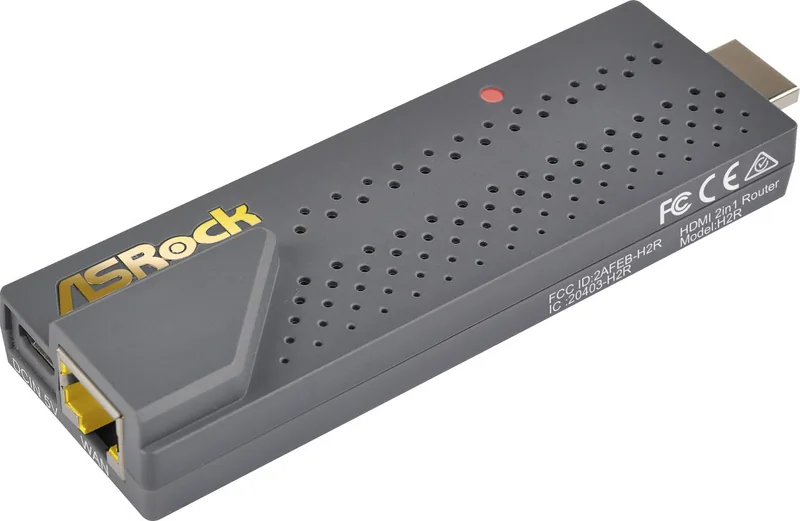
MU-MIMO, IPv6, VPN passthrough (IPSec/PPTP), incl. USB-Dongle ASRock H2R
Band capability
Dual Band (simultaneous)
Product Description
ASRock Gaming Router G10 incl. USB dongle Manual
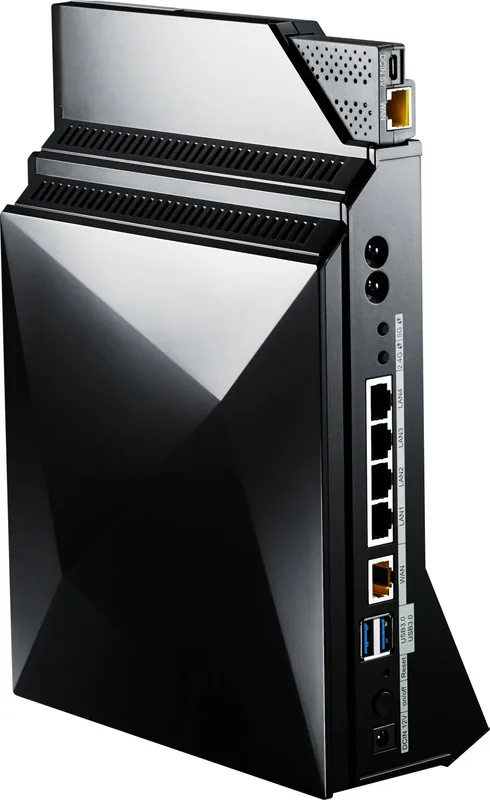
The ASRock Gaming Router G10 (AC2600) is a performance-focused home networking solution designed for gamers and heavy multimedia users. With combined wireless speeds up to 2.53 Gbps across 2.4 GHz and 5 GHz bands, multiple internal high-performance antennas, and built-in features like Gaming Boost and dynamic QoS, the G10 aims to prioritize gaming traffic and deliver stable, low-latency connections. Included accessories commonly list an HDMI 2-in-1 H2R module, power adapter, RJ45 Ethernet cable, micro USB cable, HDMI cable, and a quick installation guide. A USB dongle is included for expanded connectivity and USB-based services such as network storage and printer sharing.
Key features and setup
The router provides dual-band simultaneous Wi-Fi (802.11ac/n/g/b/a), MU-MIMO support, beamforming, and adjustable TX power. Hardware includes a gigabit WAN port, four gigabit LAN ports, dual USB 3.0 ports for storage/printer server functions, and an infrared transmitter for IR control. The dashboard and web-based Setup Wizard simplify initial configuration—changing the admin password is mandatory during setup. Firmware upgrades, factory restore, and export/import of configuration are supported.
Advanced settings cover wireless tuning (channels, bandwidth, SSID, security), guest networks, WPS, LAN/DHCP configuration, port forwarding/triggering, DMZ, DDNS, firewall controls, parental controls, and scheduling. Gaming Boost detects and prioritizes game-related traffic and allows manual bandwidth entry or speed tests to fine-tune priority allocation.
Management and app
ASRock’s Router app complements the web UI enabling remote management, router registration, IR learning (turn a smartphone into a remote), and access to USB storage. The app supports adding multiple routers, signing in with an account, and managing router settings from mobile devices.
Practical notes
Positioning guidance stresses placing the router centrally and elevated, away from large metal or glass surfaces, and within reach of power and wired devices. The manual emphasizes following FCC/IC radiation exposure guidelines, keeping a 20 cm minimum distance for compliance, and using the recommended power adapter specifications.
Notes
- Change default SSID and strong passwords during setup.
- Use wired connections for firmware upgrades and speed tests for best accuracy.
- Self-healing and scheduled reboots are available to maintain stability.
Search for 67,706 Manuals online


Type-in Brand or Model
in46
9 months ago
Does the ASRock G10 offer reliable 5 GHz Wi-Fi for rooms farther away, or is it basically only for the same area?
Manual.ly
9 months ago
Reviewers report that 5 GHz performance is fast, but range can be limited to a few meters. In practice, the next room may have weak coverage. For best results, place the router centrally (elevated, fewer walls between devices). If you need coverage across multiple rooms, use the 2.4 GHz band, which is typically much better at penetrating walls. For latency-sensitive gaming, also consider wired Ethernet or prioritize traffic using the router's QoS/Gaming Boost settings. If you want to stream on the go, the included H2R HDMI stick can help in travel setups where Wi-Fi coverage is limited.