
AOC U32U1 Manual
PDF manual · 32 Pages
English



Quick check
Incorrect answer, please try again.
Chat with your AOC U32U1 manual using AI
Get instant AI answers from your AOC U32U1 manual
Ask anything about the AOC U32U1. Answers come from this manual, with the pages they are based on.
Ask a Question
Do you recommend U32U1?
Yes NoFrequently Asked Questions
Yes. The monitor is compatible with HDR 600 format input signals. HDR can activate automatically when the connected player and content are compatible, and you can also select OFF when you do not want automatic activation.
Is this answer helpful?
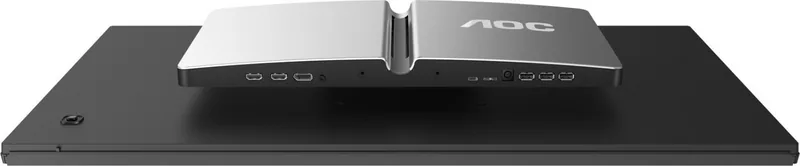
You can connect via HDMI-1/HDMI-2, DisplayPort, and USB-C. The monitor also includes USB upstream and downstream ports (with downstream fast charging capability) plus an audio out connection.
Is this answer helpful?
Not necessarily. The guide notes that not all signal cables (DP, HDMI, USB) are provided for all countries and regions, so you may need to confirm what comes with your local package through your dealer or AOC office.
Is this answer helpful?
For optimal viewing, adjust the monitor angle to your preference. The guide lists an angle range of -5 degrees to 20 degrees. Hold the stand when adjusting and avoid touching the LCD screen to prevent damage.
Is this answer helpful?
Yes. AOC i-Menu (Screen+) lets you adjust monitor display settings using on-screen menus. It is designed to simplify control via a desktop interface, and the monitor also supports turning Screen+ on through i-Menu.
Is this answer helpful?
Clear Vision converts low-resolution or blurry images into clearer, more vivid visuals. With no OSD open, press the Left button to activate Clear Vision, then choose weak, medium, strong, or off. A demo mode can be toggled by holding the Left button for about 5 seconds.
Is this answer helpful?
Check power connections and ensure the correct input cable is firmly connected. If you see 'Input Not Supported,' adjust your PC to a supported resolution and refresh rate. Reboot the computer to verify the login screen, and confirm that the AOC monitor drivers are installed.
Is this answer helpful?
Advantages and Disadvantages
Advantages

- 31.5-inch 4K resolution (3840x2160) for crisp detail on work and media.
- HDR 600 format compatibility with auto HDR activation when supported.
- Flexible inputs: HDMI, DisplayPort, and USB-C, plus USB upstream/downstream connectivity.
- Image and color tools: Clear Vision, DCR, overdrive, Low Blue Mode, and multiple scene presets.
- Comfort and productivity features: Break Reminder and i-Menu (Screen+) screen splitting.
Disadvantages

- Some picture or color adjustments may be disabled when HDR mode is not set to the active state.
- HDR on DisplayPort may require selecting the correct DP capability level (DP 1.2/1.4).
- USB-C PD users should watch rear-cover temperature during use.
- USB bandwidth can affect maximum resolution behavior depending on USB version.
- Maximum comfort depends on proper ventilation space and correct mounting setup.
Product Specification
Function
Monitor (stationary)
Diagonal
31.5" (31.50in)
Resolution
3840x2160 (4K UHD), 16:9, 140ppi
Panel
IPS
Backlight
LED, Blue light filter, flicker-free
Brightness
600cd/m^2 (typical)
Contrast
1.30:1 (static), 50,000,000:1 (dynamic)
HDR
VESA DisplayHDR 600
Response time
5ms (GtG)
Refresh rate
60Hz (3840x2160)
Signal frequency
30-160kHz (H) / 23-60Hz (V)
Connections
1x HDMI 2.0, 1x HDMI 1.4, 1x DisplayPort 1.2, 1x USB-C 3.0 with DisplayPort 1.2 (Upstream, 5Gb/s, PD 65W), 3x USB-A 3.0 (Downstream, 5Gb/s), 1x 3.5mm jack (Line-Out), 1x 3.5mm jack (Line-In), 1x DC-In barrel jack (power connection)
Shape
straight (flat)
Viewing angle
178 deg / 178 deg
Coating
non-glare (matte)
Color depth
10bit (1.07 billion colors)
FRC
unknown
sRGB
135%
Adobe RGB
111%
Speakers
Speakers (2x 2W)
Operation
Joystick
Ergonomics
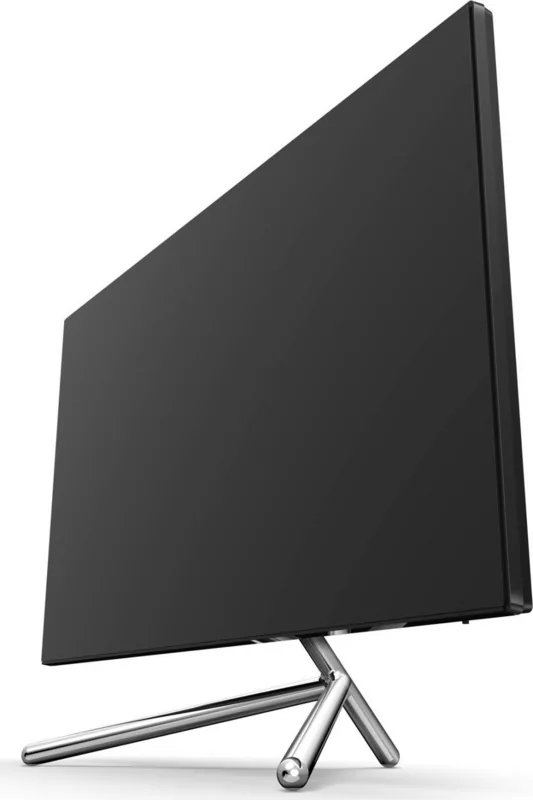
with stand, height adjustable (4.72in), Pivot (+90 deg), swivel (+/-40 deg), tilt (+19 deg / -4 deg)
VESA
100x100 (occupied)
Power consumption
60W (typical), 0.5W (Standby)
Energy efficiency SDR (A to G)
55kWh/1000h (G)
Energy efficiency HDR (A to G)
80kWh/1000h (G)
Special features
Slim Bezel
Screen-to-Body-Ratio
92.02% (calculated)
Dimensions
28.27x16.30x10.91in (WxHxD) with stand compressed, 28.27x16.30x2.95in (WxHxD) without stand
Color
black (display frame) / black (lower bezel) / silver (stand) / black, silver (rear)
Power supply
external
Warranty
three years
USB notation
Link
Product Description
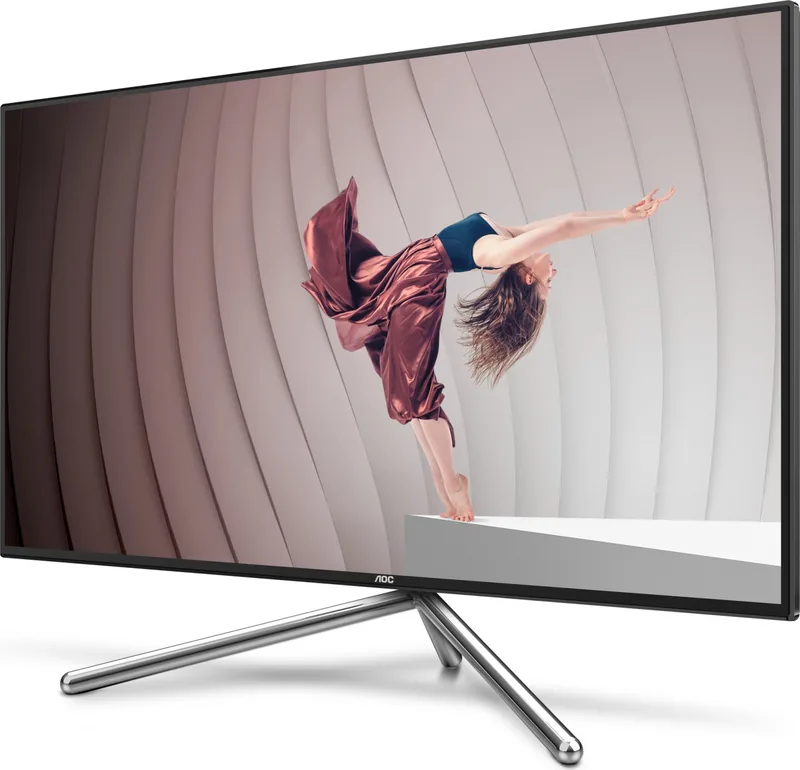
AOC U32U1, 31.5-inch - 4K clarity with HDR-ready control
Big-screen performance for work and play
The AOC U32U1 is a 31.5-inch LCD monitor built for everyday productivity and immersive viewing. With a 3840x2160 (4K) panel, it delivers sharp detail for spreadsheets, design work, and video content. The ultra-wide desktop feel is especially useful when you split your workspace and keep references, tools, and documents open at the same time.
HDR compatibility and flexible picture tuning
The U32U1 supports HDR 600 format input compatibility, with automatic HDR activation when the connected player and content are compatible. When you want manual control, HDR can be turned off. For image refinement, the monitor includes modes such as Text, Internet, Movie, Game, Sports, and Reading, plus features like DCR (dynamic contrast), adjustable overdrive, and Clear Vision to improve low-resolution clarity.
Color and comfort tools help you dial in a look that matches your room and your eyes. Low Blue Mode is available, and a detailed color setup lets you choose warm, cool, or sRGB-like behavior, as well as adjust RGB and saturation. For long sessions, the Break Reminder encourages healthier viewing habits.
Connectivity built for modern setups
AOC designed the U32U1 around a multi-device workflow. You get HDMI, DisplayPort, and USB-C, along with USB upstream and downstream ports (including fast charging support). USB-C PD users should be mindful of rear-cover temperature during use. The monitor also supports Plug and Play with DDC/CI communication for smoother integration with compatible systems.
Easy control without breaking your workflow
The on-screen display (OSD) is navigated through hardware hotkeys, and the monitor can also be adjusted via AOC i-Menu (Screen+), which brings screen-splitting control through a desktop utility. You can lock the OSD to prevent accidental changes and use hotkeys for quick adjustments like volume and source selection.
Notes
- Leave proper ventilation space around the monitor during wall or stand installation.
- For best results, set the display resolution to 3840x2160 when available.
- If a signal is unsupported, confirm the selected input and supported resolution/refresh rate.
Key results (Pros)
- 31.5-inch 4K (3840x2160) improves text sharpness and fine-detail visibility across work and media.
- HDR 600 format compatibility with automatic activation when the source and content support it.
- Multi-input flexibility: HDMI, DP, and USB-C, plus USB hub for a cleaner desk setup.
- Built-in tuning: Clear Vision, DCR, overdrive, Low Blue Mode, and multiple scene presets.
- Productivity support: i-Menu (Screen+) for screen splitting and faster window access.
Key results (Watch-outs)
- Certain HDR settings and adjustments can become unavailable depending on the HDR mode selection.
- HDR through DisplayPort depends on DP capability level support (DP 1.2/1.4).
- USB-C PD rear cover temperature may get warm; avoid touching the cover while in use.
- USB bandwidth affects maximum resolution: USB 2.0 supports 3840x2160@60Hz; USB 3.0 can be limited to 3840x2160@30Hz in this guide.
- For best stability, avoid power-strip overloading and use the appropriate grounded outlet.
Search for 67,706 Manuals online


Type-in Brand or Model